

Microsoft Graph Explorer is a browser-based REST API client for Office 365. By using Graph explorer, we can access all applications/services in Microsoft Cloud by sending the Microsoft Graph API request.
Microsoft Graph API is a single endpoint with single authentication to access all Microsoft cloud services like Office 365 (OneDrive, SharePoint, etc..), Windows and Enterprise + Mobility.
Here, we are going to see on how to create a list in SharePoint Online using Microsoft Graph Explorer.
Authenticate and Permission Setup
- Navigate to Graph Explorer https://developer.microsoft.com/en-us/graph/graph-explorer
- Authenticate with Office 365 account by using Sign in with Microsoft button
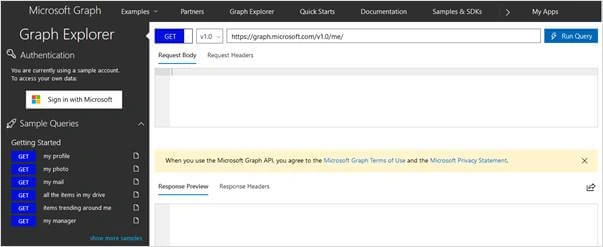
Note: Graph Explorer also works with sample data, if you are not authenticated. To access the actual information, you have to sign in to the Office 365.
- After Authentication, the Sign in with Microsoft button is replaced by account information.

- The user should need permission to create a list. So, we have to ensure that Manage All Permission is selected in Graph Explorer permissions.
- To ensure the permission, click modify permissions Then select Site.Manage.All checkbox and click on Modify Permissions button.
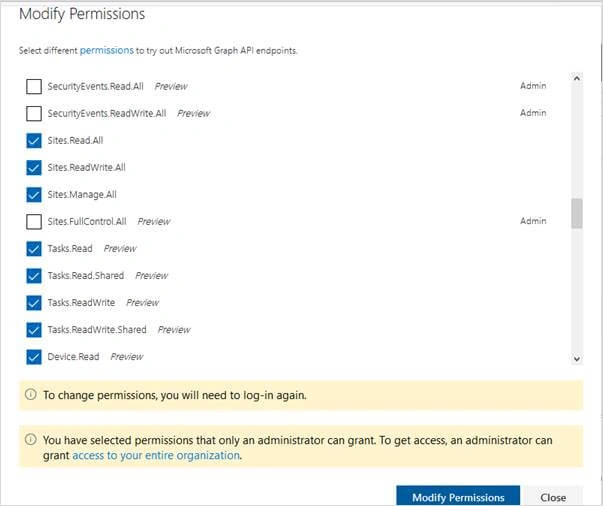
- This will automatically logout and login to the Microsoft Graph Explorer. Before auto signing in, the application asks us to accept the permission scope.
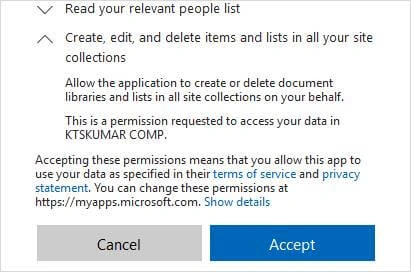
- Click Accept button to accept the application to manage the lists in SharePoint Site Collections.
Graph Explorer
Now, we are ready for creating List.
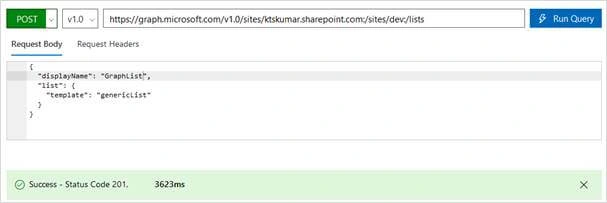
- Select the Post method from the method drop-down.
- Enter the below Graph endpoint, https://graph.microsoft.com/v1.0/sites/ktskumar.sharepoint.com:/sites/dev:/lists
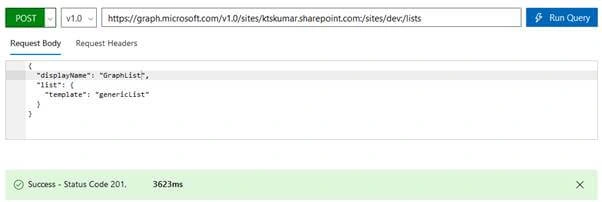
- Enter the Request body in the below format
- {
- "displayName": "GraphList",
- "list": {
- "template": "genericList"
- }
- 6.
- }
- displayName – Title for the list
- list: variable for declaring list settings
- template: child variable under list, refers to the list template type
- Ensure the Request header as below,
- Key - Content-Type
- Value - application/json
- Then, click on Run Query button to send the request to create a new list called “GraphList” under https://ktskumar.sharepoint.com/site/dev
Output
After sending the request, our request will create a new list under the provided SharePoint site. Response Preview control shows the output in JSON format as provided below.
- {
- "@odata.context": "https://graph.microsoft.com/v1.0/$metadata#Collection(microsoft.graph.list)/$entity",
- "@odata.etag": "\"f5fe8ccd-df1f-4aec-80d8-b375f650af9e,8\"",
- "createdDateTime": "2018-06-26T11:06:39Z",
- "description": "",
- "eTag": "\"f5fe8ccd-df1f-4aec-80d8-b375f650af9e,8\"",
- "id": "f5fe8ccd-df1f-4aec-80d8-b375f650af9e",
- "lastModifiedDateTime": "2018-06-26T11:06:39Z",
- "name": "GraphList",
- "webUrl": "https://ktskumar.sharepoint.com/sites/dev/Lists/GraphList",
- "displayName": "GraphList",
- "createdBy": {
- "user": {
- "email": "[email protected]",
- "id": "4dccf644-24fd-4500-bb7f-311a4216bb73",
- "displayName": "Shantha Kumar"
- }
- },
- "parentReference": {},
- "list": {
- "contentTypesEnabled": false,
- "hidden": false,
- "template": "genericList"
- 24.
- }
- 25.
- }
Dhanesh KumarPosted May 12, 2021, 5:34 AM
First of all, thank you for sharing good knowledge to use. I'm struggling a little bit with the creation of the "Note, Location" column type. can you give some suggestions, I'm trying on webpart. Thanks!!
Viknaraj ManogararajahPosted Jul 14, 2018, 10:46 PM
Nice Article, Thank you for sharing.........
Hadshana KamalanathanPosted Jul 14, 2018, 7:04 PM
Thanks for sharing
Ravishankar NPosted Jul 12, 2018, 8:32 PM
Nice article. Thanks for Sharing