

Introduction
When a SharePoint site is created in the M365 cloud, by default, it has the following default groups which are associated.
- Owners
- Members
- Visitors
On top of this, if you want to create a custom SharePoint group using Power Automate, you can achieve it using the steps mentioned in this document.
I came across a scenario for a particular group where a site is created. They might want to have a specific SharePoint security group to be created as well, with ‘Contribute’ permissions assigned to this group. Let's see this in action.
For this article, I will create a custom SharePoint security group called “QAVinay Project Team Members”.
Prerequisites
- You should have an E3 subscription minimum.
- The account running the flow should have Site Collection admin rights to the SPO site where the custom security group needs to be created.
Steps to create SharePoint Security Group
Step 1. Go to the Power Automate maker portal: https://make.powerautomate.com
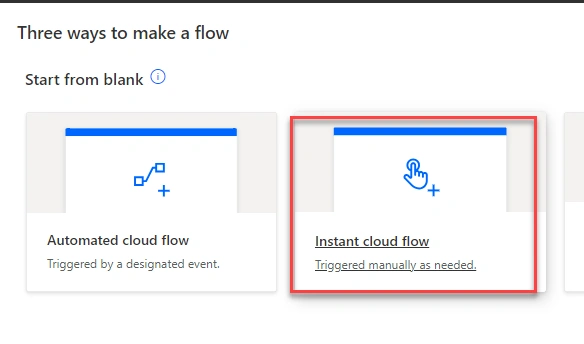
Step 2. Create an Instant cloud flow.
Step 3. Add a compose action and mention the site URL here. Here I am mentioned my QAVinay site URL.

Step 4. Add another compose action and mention the name of the SharePoint Security Group that needs to be created.

Step 5. Add the ‘Send http request to SharePoint’ action and configure it accordingly, as shown in the below screen capture.
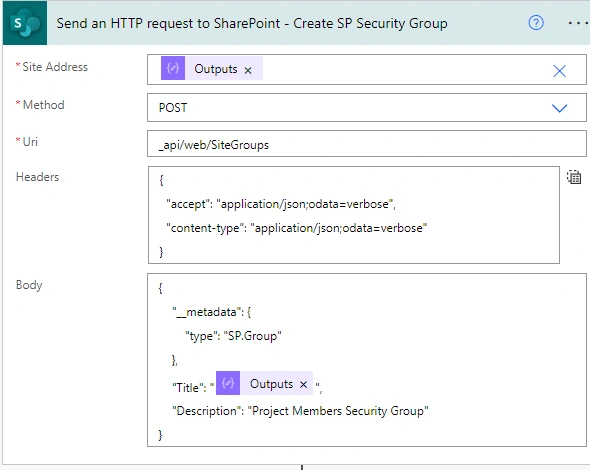
- Site Address: ‘Outputs’ from the ‘Compose-SiteUrl’ action
- Method: POST
- Uri: _api/web/SiteGroups
- Headers
{
  "Headers": {
    "accept": "application/json;odata=verbose",
    "content-type": "application/json;odata=verbose"
  },
  "Body": {
    "__metadata": {
      "type": "SP.Group"
    },
    "Title": "@{outputs('Compose-SPGroup')}",
    "Description": "Project Members Security Group"
  }
}
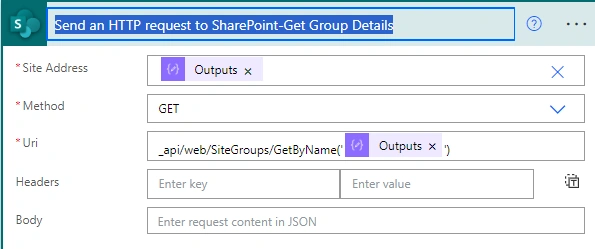
Step 6. Get the Group ID after the site gets created. This is required to assign permissions to the newly created SharePoint security group. This is another ‘Send http request to SharePoint’ action and configuration, as mentioned in the screen capture.



Join the conversation! Your thoughts help the community grow.