

In this article, we are going to learn about SQL Server Database Project (Template) available in Visual Studio. I will cover the following points:
- Introduction of SQL Server Database Project.
- Create New SQL Server Database Project.
- Import database schema from an existing database, a .sql script file or a Data-tier application (.bacpac) the Project.
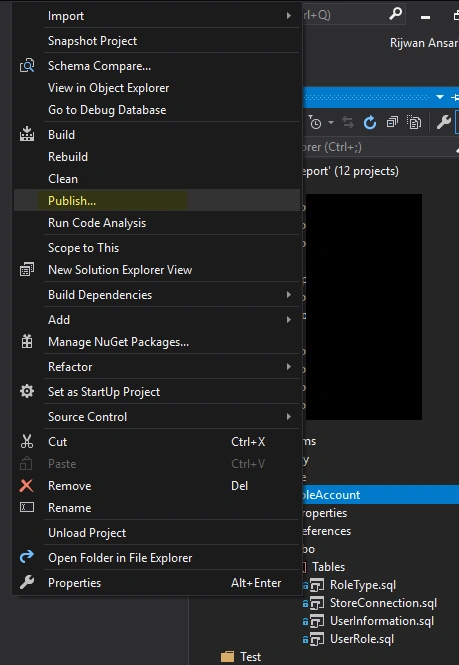
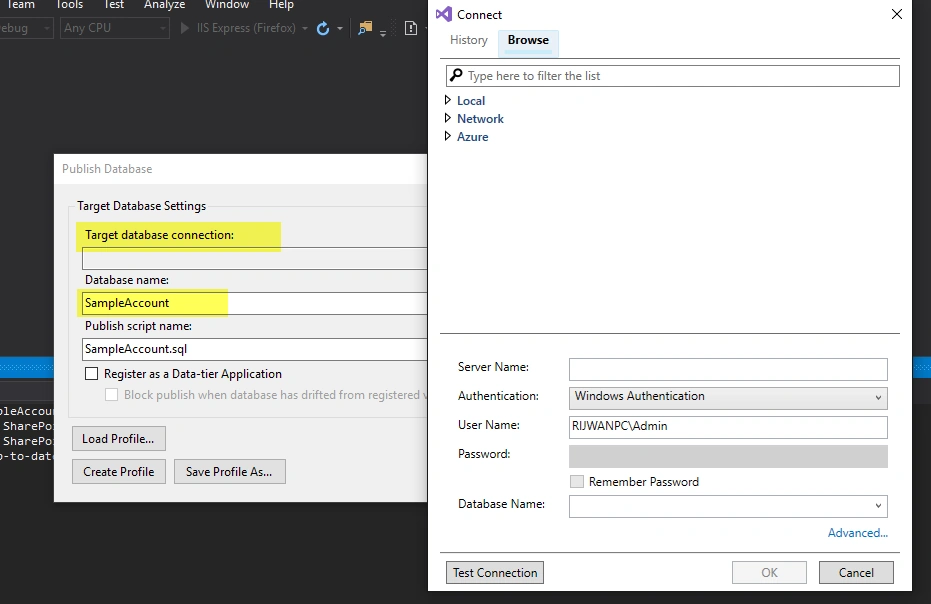
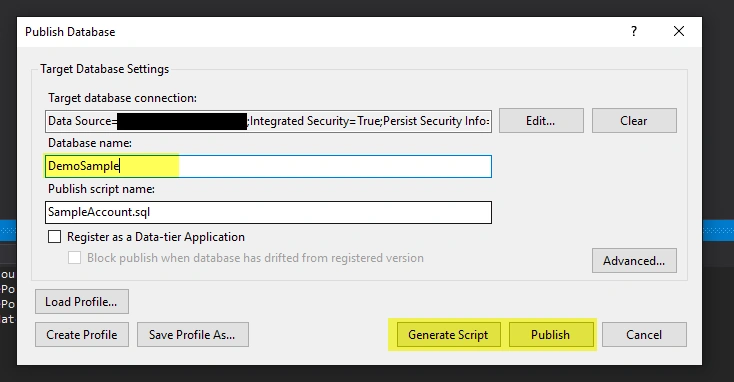
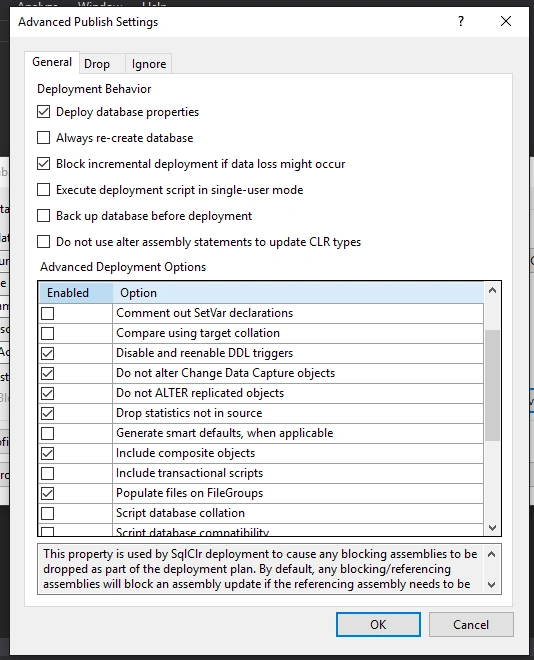
- Publish to create new Database in SQL server.
Database plays a most important role in any application and it becomes difficult to manage the project when the number of tables, views, stored procedures increase.
Consider scenarios where multiple developers are working on a project for the next release, some are working on bugs or adding new features which again require some or many changes in database. Most of the cases developers take note of DB (Database) changes manually. Some time they miss some changes which cost in production. There are many cases that Dev, UAT and production DB are different which is again hassle to identify the differences.
There are a number of tools available in the market for comparing DBs but are costly or paid solution.
So, in this article we will discuss and learn about SQL Server Database Project with is available in Visual Studio which is free. Yes Free!!
Prerequisites
Visual Studio (2013, 2015, 2017, or 2019) and MS SQL Server. I am using VS2019 and SQL Server 2017 Developer for illustration.
Introduction
You can create a new database project and import database schema from an existing database, a .sql script file or a Data-tier application (.bacpac). You can then invoke the same visual designer tools (Transact-SQL Editor, Table Designer) available for connected database development to make changes to the offline database project and publish the changes back to the production database. The changes can also be saved as a script to be published later. Using the Project Properties pane, you can change the target platform to different versions of SQL Server (including SQL Azure). (copied MS Docs)
Create New SQL Server Database Project
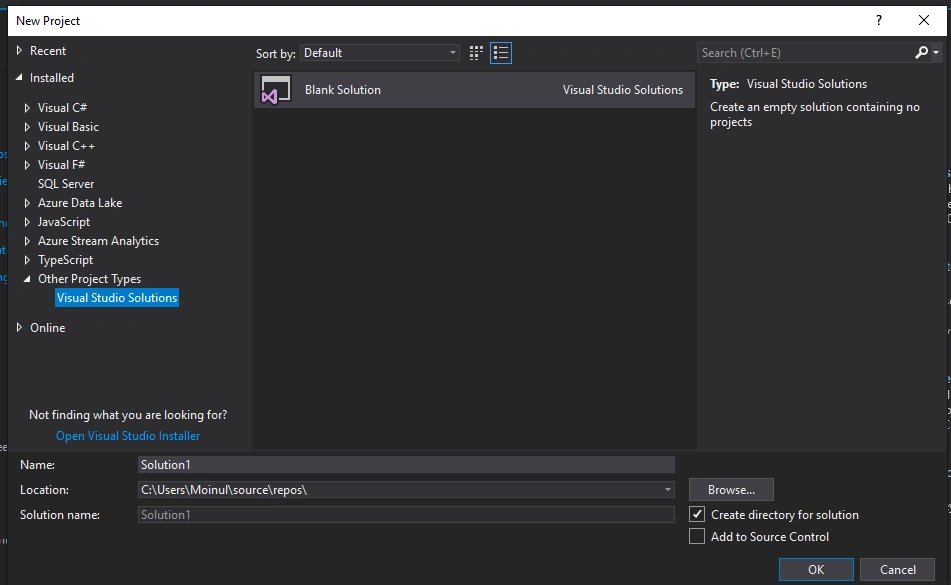
Open Visual Studio and create a blank solution as shown,
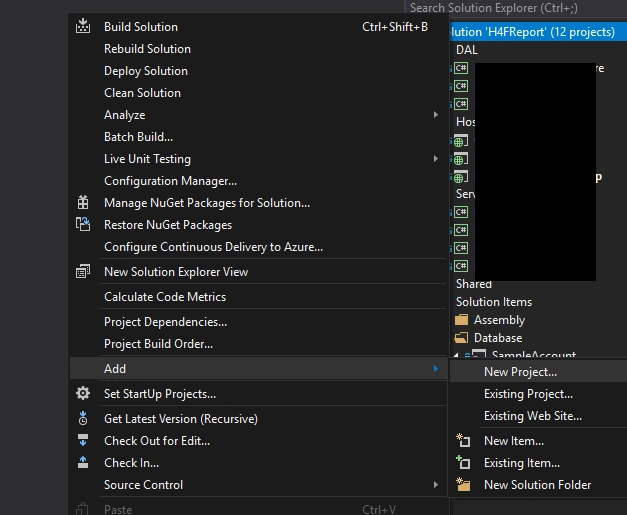
Add New Project under the solution
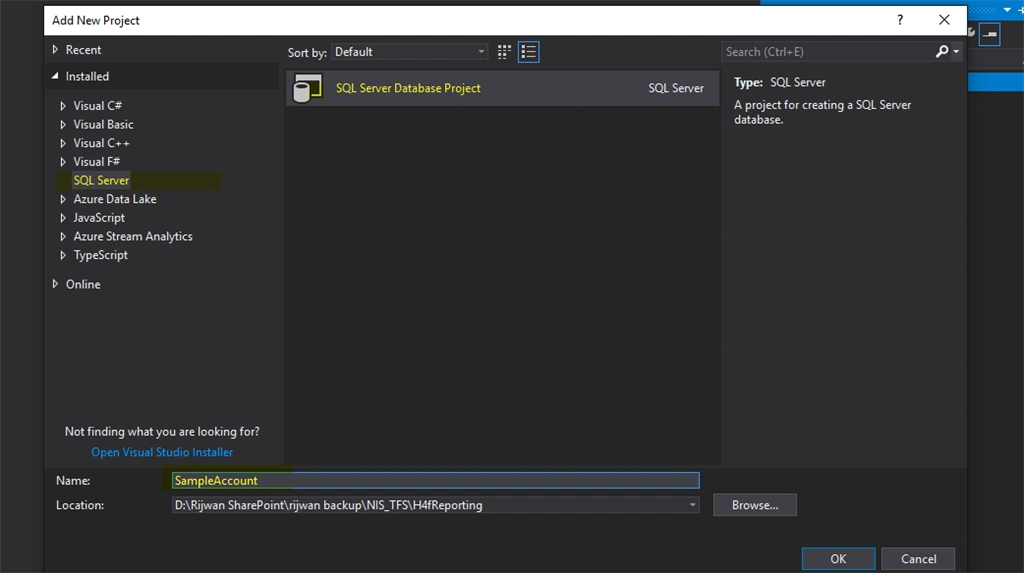
Select SQL Server from Left panel and SQL Server Database Project. Give a name to the project (here, I am giving name as SampleAccount.). This template is used for creating a SQL server database.
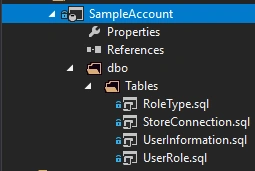
Next step is to import database scheme from an existing database.
Import database schema from an existing database, a .sql script file or a Data-tier application (.dacpac) the Project.
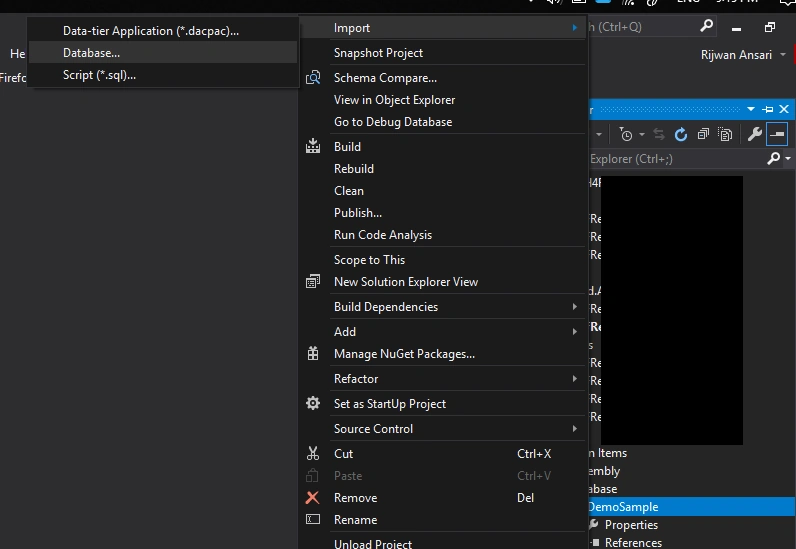
So, Right click on project and select import. There will be three options: Data-Tier Application (.dacpac), Database, Script (.sql).
Here, I am using Database option because I will import from MS SQL database, as portrayed below.
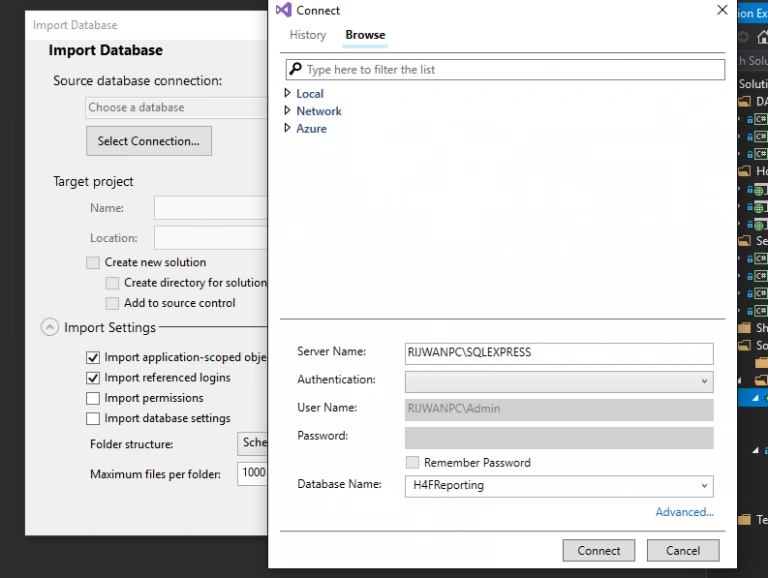
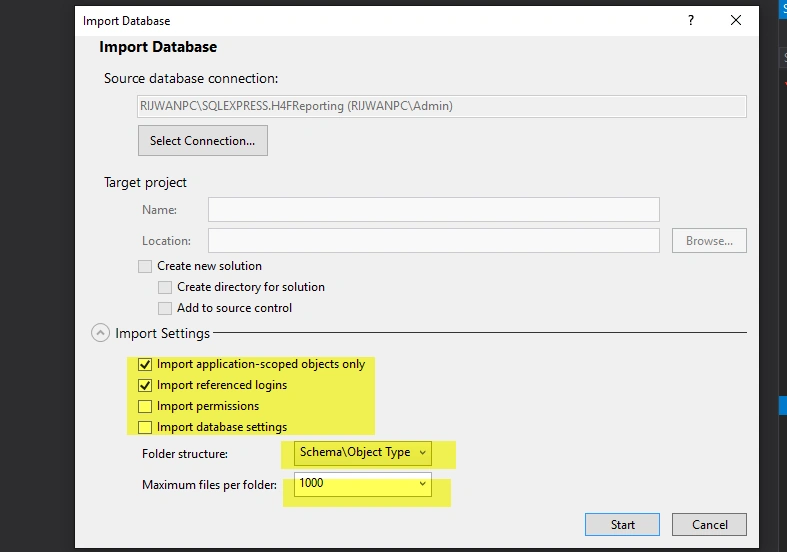
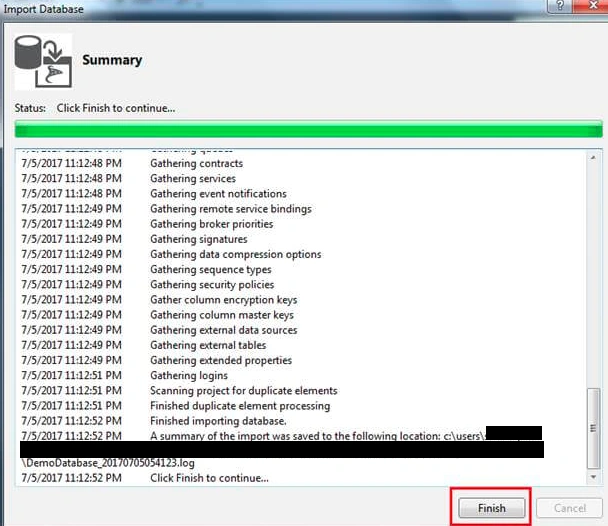
Now you will see screen as below. This option is available to provide connection string. There are options to select database from local, network or Azure, so based on your database you can choose the option. Alternatively, you can enter server name, authentication type and credentials to connect directly to database server. And then choose the database which you want to import and keep in your project.
Satya KarkiPosted Feb 10, 2021, 9:33 AM
Helpful article Rijwan. Thanks for sharing