Introduction
This article demonstrates how to create an SSRS report. This article begins with an SSRS Introduction, then the use of SSRS, and finally step-by-step creation of a report.
What is SSRS?
SSRS is a server-based reporting platform. It provides tools and services to create, manage and deploy reports.
We can use SSRS for
- Business Reporting
- Ad hoc Reporting
- Embedded Reporting
- Portal Integration
Report Development Process

Step 1
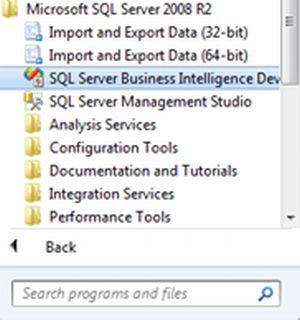
Start => All Programs => SQL Server 2008 R2 => SQL Server Business Intelligence Development Studio.
</span>
Step 2
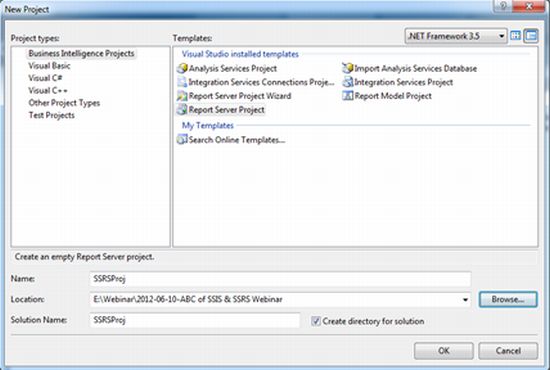
File => New => Project
Business Intelligence Project => Report Server Project.
Give Project Name ... Select Location... Click OK
</span>
Step 3
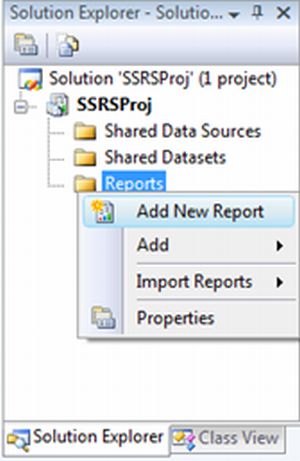
Right-click on Reports and Select Add New Report.
</span>
Step 4
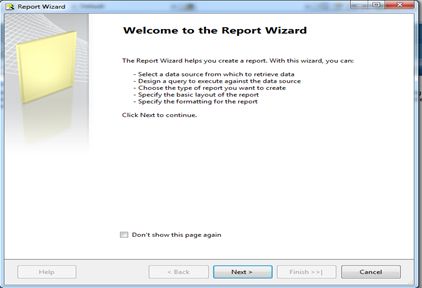
Click on the Next Button.
</span>
Step 5
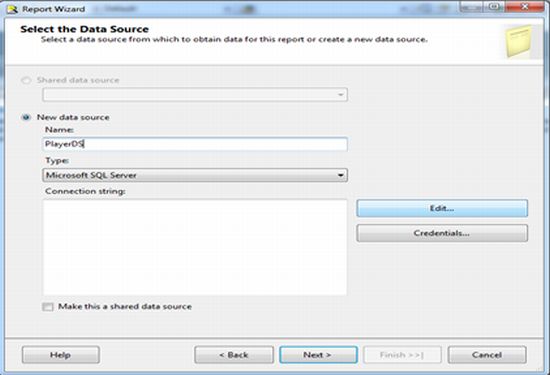
Give a Data Source name and Click on the Edit Button.
 </span>
Step 6
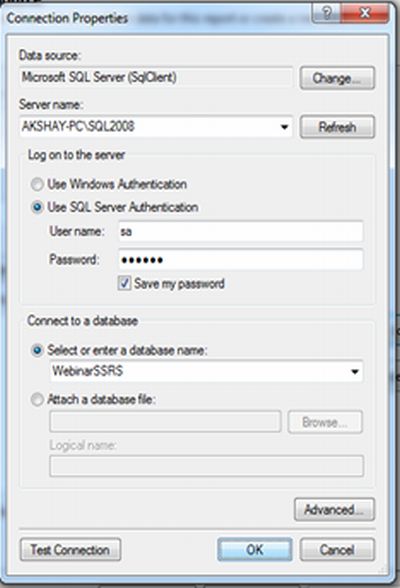
Select Server Name
Select "Use SQL Server Authentication" Radio Button
Give User name and Password
Select Database Name and Click on the "OK" button.
</span>
Step 7
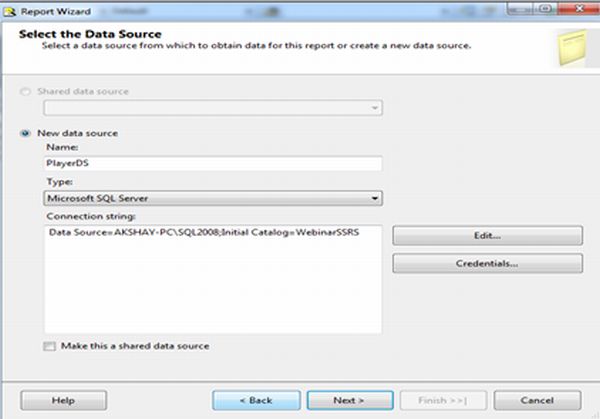
Press the Next Button
</span>
Step 8
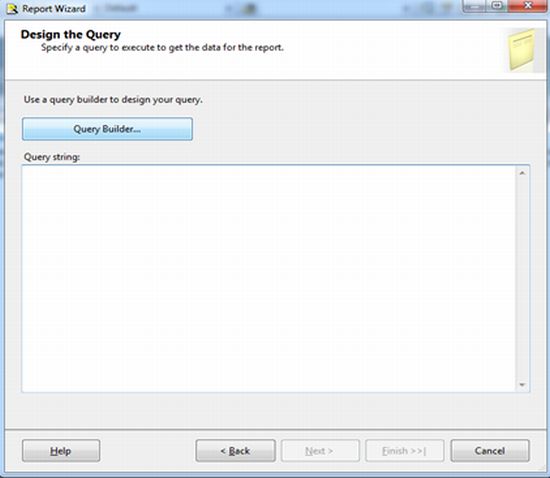
Click on the "Query Builder ..." button, as in:
</span>
Step 9
Right-click and select Add Table
Select Table and Click on the Add button
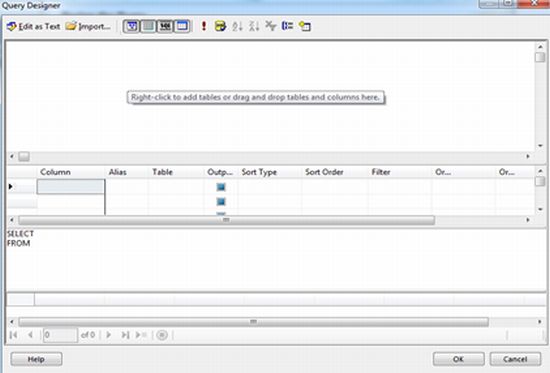</span>
Step 10
Select all columns and press the ok button
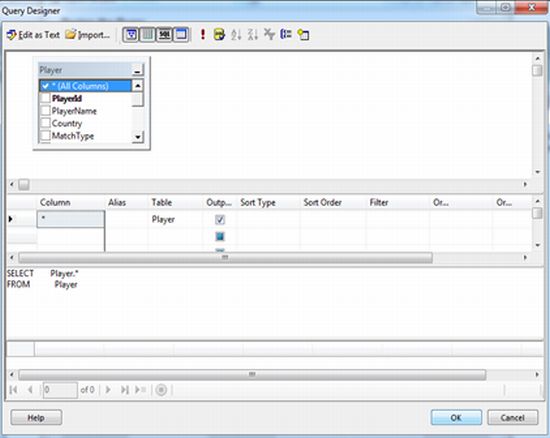</span>
Step 11
Click on the Next Button
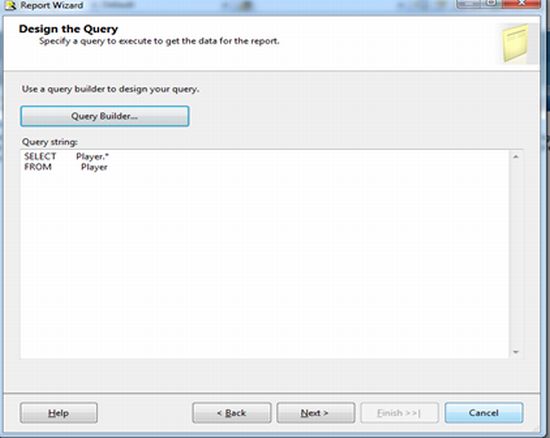</span>
Step 12
Select Tabular Option and Click on the Next Button
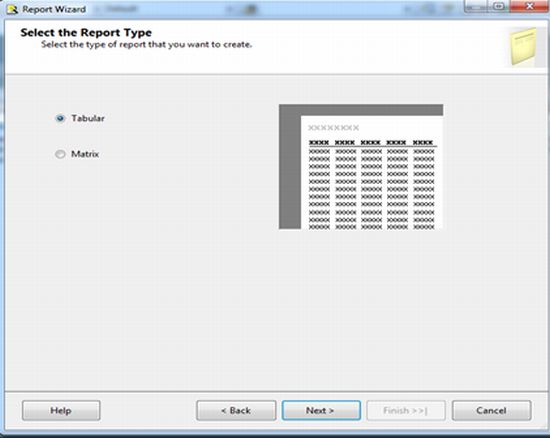
</span>
Step 13
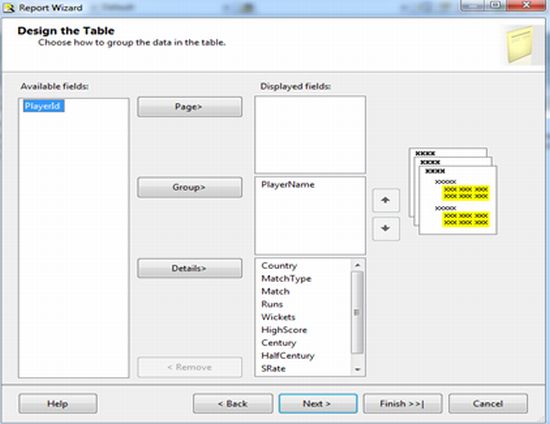
Select PlayerName for the Group list, and the Rest is for Details
Click on the Next Button
</span>
Step 14
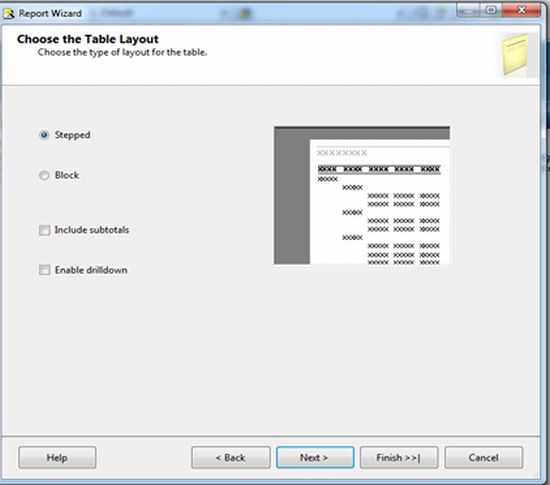
Select the Stepped option and Click on the next button
</span>
Step 15
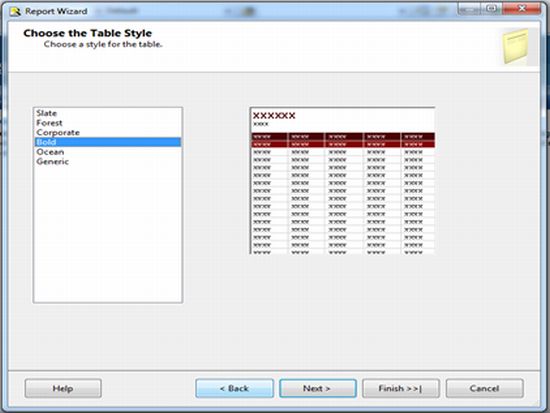
Select a table style and press the next button
</span>
Step 16
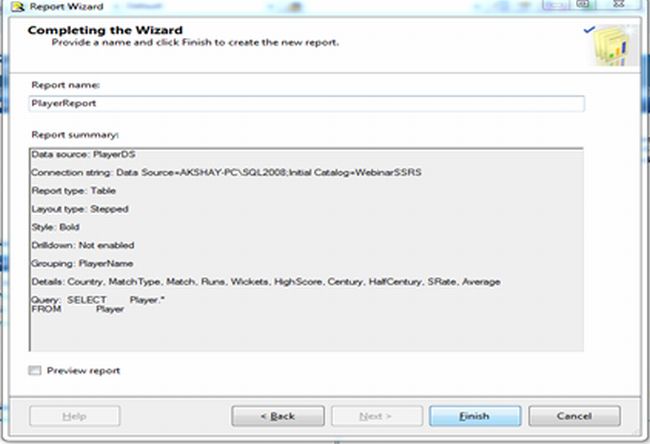
Give the Report Name and Press the Finish Button
</span>
Step 17
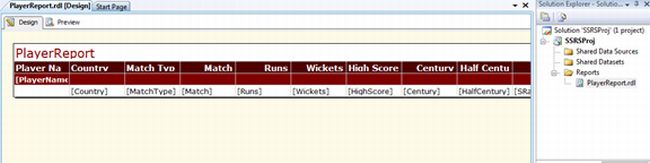
PlayerReport.rdl is added in the Reports folder, and you can see the rdl file in design mode.
</span>
Step 18
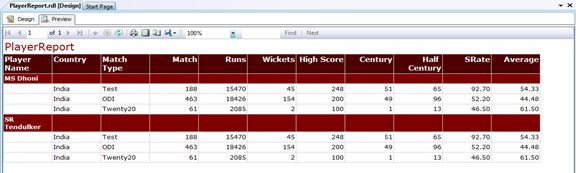
To see the preview of the report, Click on the preview tab
</span>
Conclusion
This is a fundamental and simple report of SSRS. You can also customize table layout, style, report type, etc. In this report, I have used only a single table. You can also create a report using multiple tables with the help of joins.


Humayun Kabir MamunPosted Sep 21, 2015, 2:40 AM
Nice...
Manish Kumar ChoudharyPosted Dec 1, 2014, 3:19 AM
Nice one ..
Revathy cPosted Mar 5, 2014, 1:50 AM
Superb Post........this article help me lot.....Tons of thanks. :)
Shekhar ShetePosted Jan 9, 2013, 1:18 AM
simple and easy to understand for beginners..! :D
Narasappa jadiyannavarPosted Nov 20, 2012, 12:26 AM
Hi this article is very helpful for beginners like me.. If i bind a stored procedure which accepts parameters how to pass parameters to stored procedure through code
vishal mistryPosted Sep 25, 2012, 6:26 AM
Good article...its very helpful
Nagasundar NagarajanPosted Sep 24, 2012, 11:01 AM
Hi Thanks.. It is easy to understand with the screen shots you provided.
Shishir saunakiaPosted Sep 22, 2012, 6:21 AM
great............