

Following are the steps which you need to follow to create a Table:
-
Place a TableRowGroup element inside the Table. The TableRowGroup holds a group of rows, and every table consists of one or more TableRowGroup elements. On its own, the TableRowGroup doesn't do anything. However, if you use multiple groups and give them each different formatting, you get an easy way to change the overall look of your table without setting repetitive formatting properties on each row.
- Place a TableRow element inside your TableRowGroup for each row.
- Place a TableCell element inside each TableRow to represent each column in the row.
Place a block element (typically a Paragraph) in each TableCell. This is where you'll add your content for that cell.
- Place a TableRow element inside your TableRowGroup for each row.
Example of creating a Table:
<Window x:Class="Documents.FlowContent"
xmlns="http://schemas.microsoft.com/winfx/2006/xaml/presentation"
xmlns:x="http://schemas.microsoft.com/winfx/2006/xaml"
Title="FlowContent" Height="381" Width="525" >
<FlowDocumentScrollViewer>
<FlowDocument>
<Paragraph FontSize="14pt">Top 5 Gold Winner's of Common Wealth Games:</Paragraph>
<Table>
<TableRowGroup Paragraph.TextAlignment="left">
<TableRow FontWeight="Bold" >
<TableCell>
<Paragraph>Rank</Paragraph>
</TableCell>
<TableCell>
<Paragraph>Name</Paragraph>
</TableCell>
<TableCell>
<Paragraph>Medals</Paragraph>
</TableCell>
</TableRow>
<TableRow>
<TableCell>
<Paragraph>1</Paragraph>
</TableCell>
<TableCell>
<Paragraph>Australia</Paragraph>
</TableCell>
<TableCell>
<Paragraph>74</Paragraph>
</TableCell>
</TableRow>
<TableRow>
<TableCell>
<Paragraph>2</Paragraph>
</TableCell>
<TableCell>
<Paragraph>India</Paragraph>
</TableCell>
<TableCell>
<Paragraph>38</Paragraph>
</TableCell>
</TableRow>
<TableRow>
<TableCell>
<Paragraph>3</Paragraph>
</TableCell>
<TableCell>
<Paragraph>England</Paragraph>
</TableCell>
<TableCell>
<Paragraph>37</Paragraph>
</TableCell>
</TableRow>
<TableRow>
<TableCell>
<Paragraph>4</Paragraph>
</TableCell>
<TableCell>
<Paragraph>Canada</Paragraph>
</TableCell>
<TableCell>
<Paragraph>26</Paragraph>
</TableCell>
</TableRow>
<TableRow>
<TableCell>
<Paragraph>5</Paragraph>
</TableCell>
<TableCell>
<Paragraph>South Africa</Paragraph>
</TableCell>
<TableCell>
<Paragraph>12</Paragraph>
</TableCell>
</TableRow>
</TableRowGroup>
</Table>
</FlowDocument>
</FlowDocumentScrollViewer>
</Window>
Output Window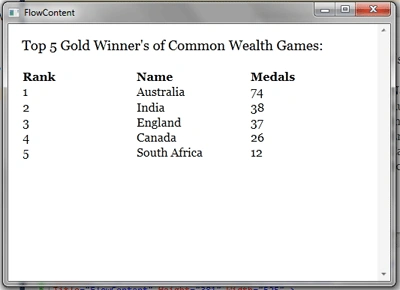
Conclusion
I hope this article helps you to understand the working of a Table in Flow Document in WPF.
Join the conversation! Your thoughts help the community grow.