

Excel file operations are one of the most used codes in the IT industry. Many developers get a requirement to push their data to the Excel file and read the data from the file.
In this article, I am going to explain how we can CREATE, UPDATE, DELETE and READ the records in Excel files.
Here, I am creating one sample Visual Studio C# Console Application for this.
Create a Console application and add Microsoft.Office.Interop.Excel package from the NuGet.

Creating New Excel File
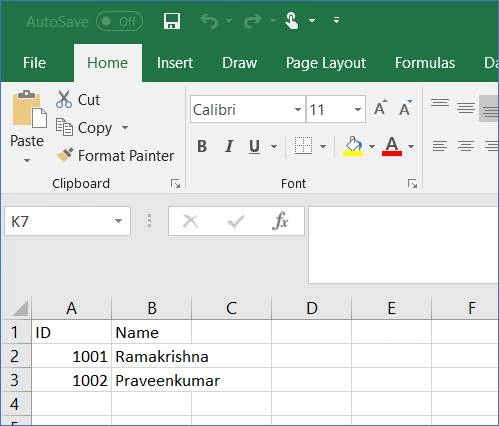
Copy the below code in your program.cs file, this code will create an Excel file with sample data.
Here we are also checking if Microsoft Excel is installed on the host machine, if not it will simply return from the code.
If the file already exists in the specified path, it will ask confirmation to override or skip the file.
Once the file is created I am closing and releasing all related objects.
- public static string filePath = @"c:\ExcelSample\RK_Excel.xlsx";
- private static void CreateExcelFile()
- {
- Excel.Application xlApp = new Excel.Application();
- if (xlApp == null)
- {
- Console.WriteLine("Excel is not installed in the system...");
- return;
- }
- object misValue = System.Reflection.Missing.Value;
- Excel.Workbook xlWorkBook = xlApp.Workbooks.Add(misValue);
- Excel.Worksheet xlWorkSheet = (Excel.Worksheet)xlWorkBook.Worksheets.get_Item(1);
- xlWorkSheet.Cells[1, 1] = "ID";
- xlWorkSheet.Cells[1, 2] = "Name";
- xlWorkSheet.Cells[2, 1] = "1001";
- xlWorkSheet.Cells[2, 2] = "Ramakrishna";
- xlWorkSheet.Cells[3, 1] = "1002";
- xlWorkSheet.Cells[3, 2] = "Praveenkumar";
- xlWorkBook.SaveAs(filePath, Excel.XlFileFormat.xlOpenXMLWorkbook, misValue, misValue, misValue, misValue,
- Excel.XlSaveAsAccessMode.xlExclusive, misValue, misValue, misValue, misValue, misValue);
- xlWorkBook.Close();
- xlApp.Quit();
- Marshal.ReleaseComObject(xlWorkSheet);
- Marshal.ReleaseComObject(xlWorkBook);
- Marshal.ReleaseComObject(xlApp);
- Console.BackgroundColor = ConsoleColor.DarkBlue;
- Console.WriteLine("Excel file created successfully...");
- Console.BackgroundColor = ConsoleColor.Black;
- }

Reading the Excel File
The below code will help you in reading the existing Excel file.
Here I have read data at the Row level, we can also loop at Column.
- private static void ReadExcelFile()
- {
- Console.BackgroundColor = ConsoleColor.DarkBlue;
- Console.WriteLine("\nReading the Excel File...");
- Console.BackgroundColor = ConsoleColor.Black;
- Excel.Application xlApp = new Excel.Application();
- Excel.Workbook xlWorkBook = xlApp.Workbooks.Open(filePath);
- Excel.Worksheet xlWorkSheet = (Excel.Worksheet)xlWorkBook.Worksheets.get_Item(1);
- Excel.Range xlRange = xlWorkSheet.UsedRange;
- int totalRows = xlRange.Rows.Count;
- int totalColumns = xlRange.Columns.Count;
- string firstValue, secondValue;
- for (int rowCount = 1; rowCount <= totalRows; rowCount++)
- {
- firstValue = Convert.ToString((xlRange.Cells[rowCount, 1] as Excel.Range).Text);
- secondValue = Convert.ToString((xlRange.Cells[rowCount, 2] as Excel.Range).Text);
- Console.WriteLine(firstValue + "\t" + secondValue);
- }
- xlWorkBook.Close();
- xlApp.Quit();
- Marshal.ReleaseComObject(xlWorkSheet);
- Marshal.ReleaseComObject(xlWorkBook);
- Marshal.ReleaseComObject(xlApp);
- Console.WriteLine("End of the file...");
- }
Adding new Rows/Values to the Existing Excel File
In most of the cases we will be updating the existing excel file and adding the new records to them, the below code will help you to do the same operations.
Here I have taken Employee list collection do the add the recodes.
Once the records are added it will save the file without asking confirmation to override the file.
- private static void AddNewRowsToExcelFile()
- {
- IList<Employee> empList = new List<Employee>() {
- new Employee(){ ID=1003, Name="Indraneel"},
- new Employee(){ ID=1004, Name="Neelohith"},
- new Employee(){ ID=1005, Name="Virat"}
- };
- Excel.Application xlApp = new Excel.Application();
- Excel.Workbook xlWorkBook = xlApp.Workbooks.Open(filePath, 0, false, 5, "", "", false,
- Microsoft.Office.Interop.Excel.XlPlatform.xlWindows, "", true, false, 0, true, false, false);
- Excel.Worksheet xlWorkSheet = (Excel.Worksheet)xlWorkBook.Worksheets.get_Item(1);
- Excel.Range xlRange = xlWorkSheet.UsedRange;
- int rowNumber = xlRange.Rows.Count + 1;
- foreach (Employee emp in empList)
- {
- xlWorkSheet.Cells[rowNumber, 1] = emp.ID;
- xlWorkSheet.Cells[rowNumber, 2] = emp.Name;
- rowNumber++;
- }
- // Disable file override confirmaton message
- xlApp.DisplayAlerts = false;
- xlWorkBook.SaveAs(filePath, Excel.XlFileFormat.xlOpenXMLWorkbook,
- Missing.Value, Missing.Value, Missing.Value, Missing.Value, Excel.XlSaveAsAccessMode.xlNoChange,
- Excel.XlSaveConflictResolution.xlLocalSessionChanges, Missing.Value, Missing.Value,
- Missing.Value, Missing.Value);
- xlWorkBook.Close();
- xlApp.Quit();
- Marshal.ReleaseComObject(xlWorkSheet);
- Marshal.ReleaseComObject(xlWorkBook);
- Marshal.ReleaseComObject(xlApp);
- Console.BackgroundColor = ConsoleColor.DarkBlue;
- Console.WriteLine("\nRecords Added successfully...");
- Console.BackgroundColor = ConsoleColor.Black;
- }
- public class Employee
- {
- public int ID { get; set; }
- public string Name { get; set; }
- }
Deleting Row, Cell from Existing Excel File
Below code will help in deleting the records from the Excel file.
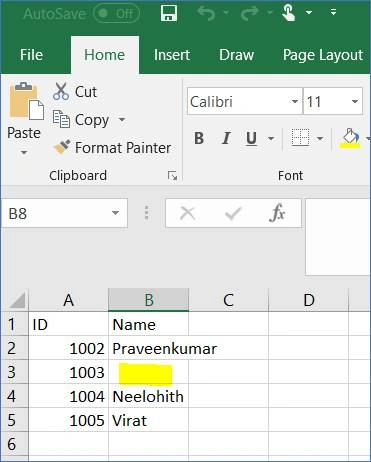
Here I have given samples for deleting entire Row and selected Cell.
- private static void DeleteRowCellFromExcelFile()
- {
- Console.BackgroundColor = ConsoleColor.DarkBlue;
- Console.WriteLine("\nDeleting the Records...");
- Console.BackgroundColor = ConsoleColor.Black;
- Excel.Application xlApp = new Excel.Application();
- Excel.Workbook xlWorkBook = xlApp.Workbooks.Open(filePath, 0, false, 5, "", "", false,
- Microsoft.Office.Interop.Excel.XlPlatform.xlWindows, "", true, false, 0, true, false, false);
- Excel.Worksheet xlWorkSheet = (Excel.Worksheet)xlWorkBook.Worksheets.get_Item(1);
- Excel.Range range1 = xlWorkSheet.get_Range("A2", "B2");
- // To Delete Entire Row - below rows will shift up
- range1.EntireRow.Delete(Type.Missing);
- Excel.Range range2 = xlWorkSheet.get_Range("B3", "B3");
- range2.Cells.Clear();
- // To Delete Cells - Below cells will shift up
- // range2.Cells.Delete(Type.Missing);
- // Disable file override confirmaton message
- xlApp.DisplayAlerts = false;
- xlWorkBook.SaveAs(filePath, Excel.XlFileFormat.xlOpenXMLWorkbook,
- Missing.Value, Missing.Value, Missing.Value, Missing.Value, Excel.XlSaveAsAccessMode.xlNoChange,
- Excel.XlSaveConflictResolution.xlLocalSessionChanges, Missing.Value, Missing.Value,
- Missing.Value, Missing.Value);
- xlWorkBook.Close();
- xlApp.Quit();
- Marshal.ReleaseComObject(xlWorkSheet);
- Marshal.ReleaseComObject(xlWorkBook);
- Marshal.ReleaseComObject(xlApp);
- }
Final Output
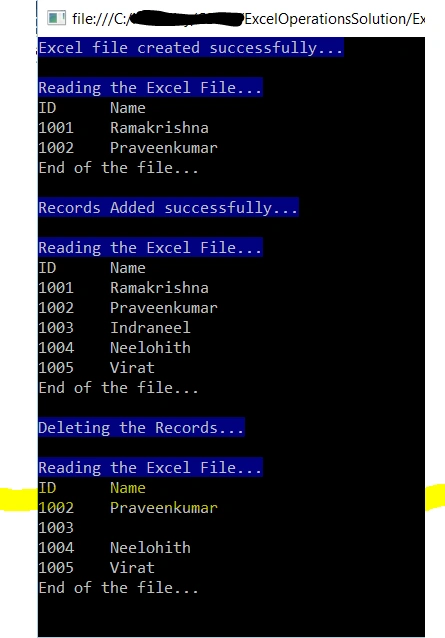
Below is the final output which I have performed in sequence, you can see the output image.
- public static string filePath = @"c:\ExcelSample\RK_Excel.xlsx";
- static void Main(string[] args)
- {
- CreateExcelFile();
- ReadExcelFile();
- AddNewRowsToExcelFile();
- ReadExcelFile();
- DeleteRowCellFromExcelFile();
- ReadExcelFile();
- Console.Read();
- }
I hope this article will help you in your daily coding life, please leave your comments to improve this article.
Tahir AnsariPosted Aug 3, 2021, 7:42 AM
Hello sir please tell me method to create file each time when i run the project for e.g application run 10 times to file create 10 times
Vikas GowdaPosted Mar 25, 2021, 1:01 PM
Hii can anyone provide me the code to delete columns in excel file using c#
Harish SahooPosted Aug 24, 2019, 9:56 AM
It helped me sir
Pankaj RaiPosted Aug 13, 2019, 8:07 PM
Could you please help on how to do the same for a file on a share
premkumar gandhimathiPosted Jul 4, 2019, 5:23 PM
How to insert in between the existing rows
Soft MailPosted Mar 31, 2019, 12:59 AM
Thanks.. It's Nice Article.. Can you please further define how to search and Fetch that Row ?
bernie ningPosted Sep 19, 2018, 8:47 PM
This way needs install excel, try try NPOI
Tunde AjaoPosted Jul 27, 2018, 5:07 AM
Wonderful ..and nice
Piyush AgarwalPosted Mar 9, 2018, 11:18 AM
Really Nice article to read excel using C#
Sagar Pandurang KapPosted Feb 4, 2018, 10:36 PM
Nice article..Like it...
Mahesh ChandPosted Feb 2, 2018, 2:14 PM
Nice. I remember back in days when I used VBA to do the same thing.