

Prerequisites
- Azure account
Now let's get started with the following steps:
Create a new virtual machine
Step 1: Sign in to the online Microsoft Azure Portal.
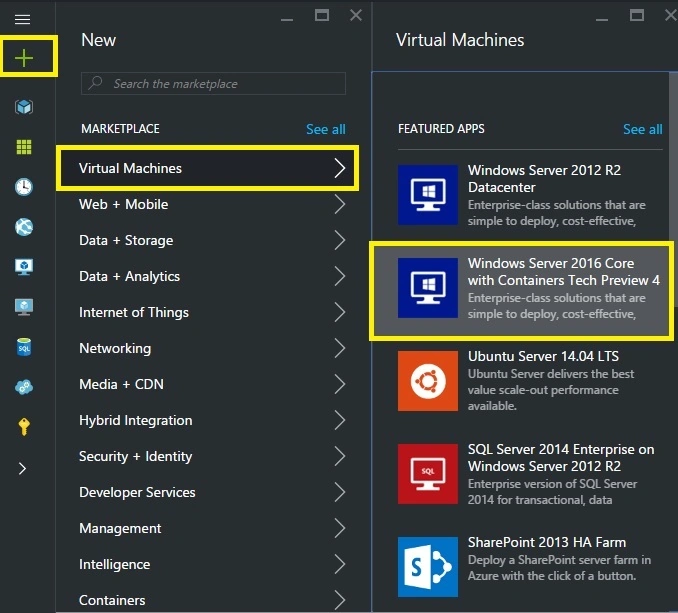
Step 2: In the Jump bar, click New, then click Virtual Machines, and then Windows Server 2016 Core with Containers Tech Preview Virtual Machine.
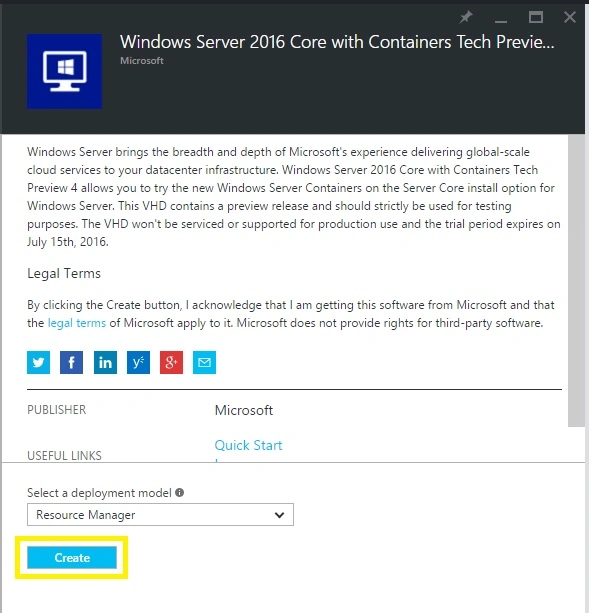
Step 3: Then next read Legal Terms and click the Create Button.
Configure your virtual machine
Step 4
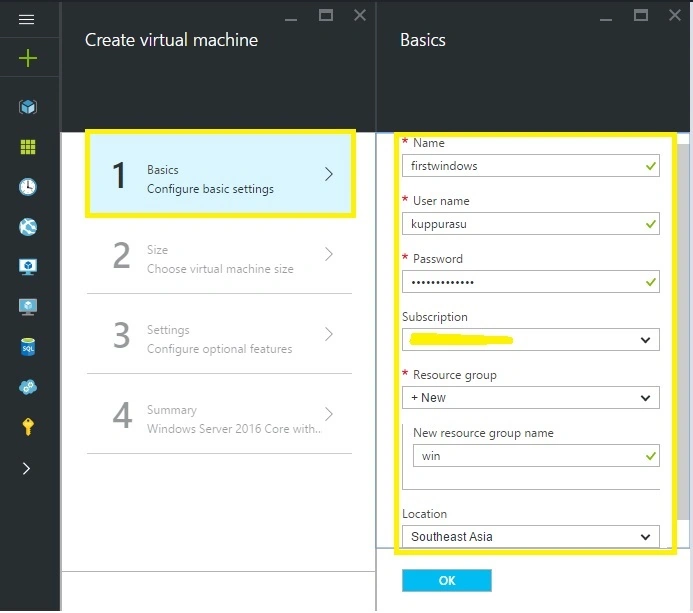
In the Virtual Machine account blade, specify the desired configuration for the VM account (Name, User Name, Password & Resource Group). Click Create button at the bottom of the screen to create the Virtual Machine.
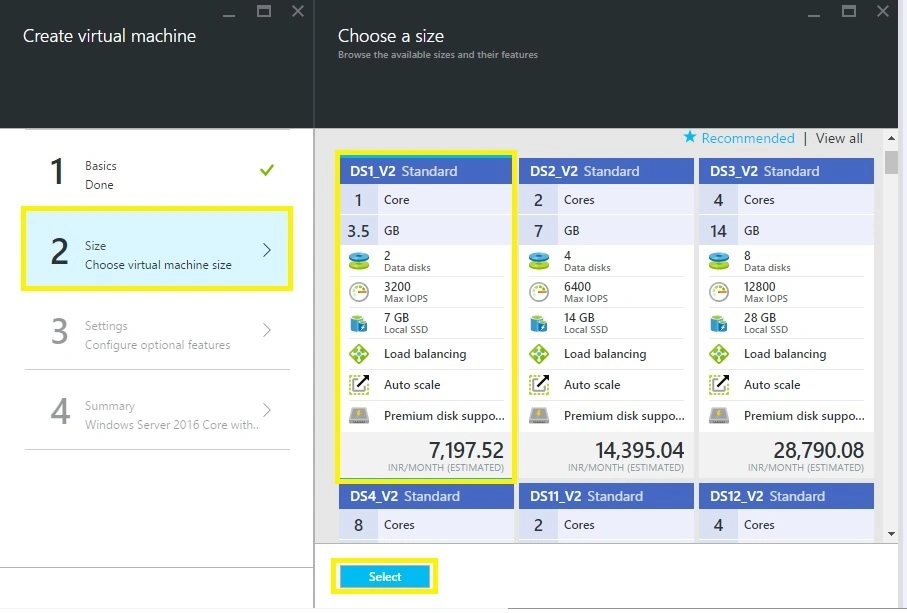
Step 5 - Then choose your VM Size and Click the Select Button,
Step 6 - Now Select Storage Disk types and Click OK Button.
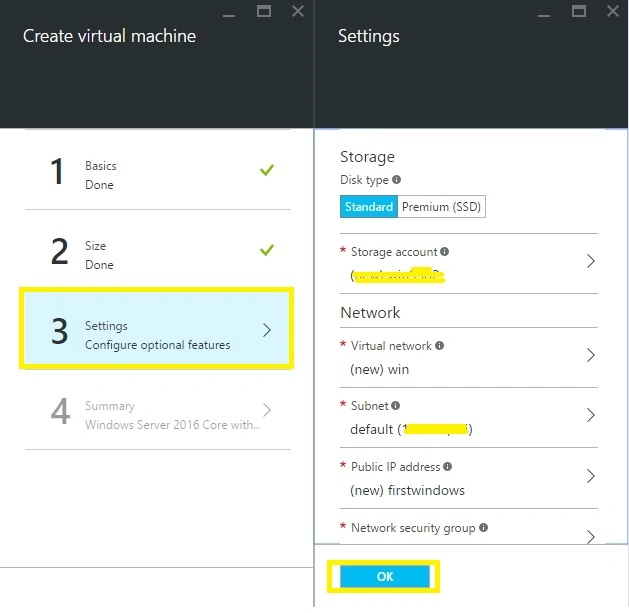
Step 7 - Finally check all VM information and Click OK Button.
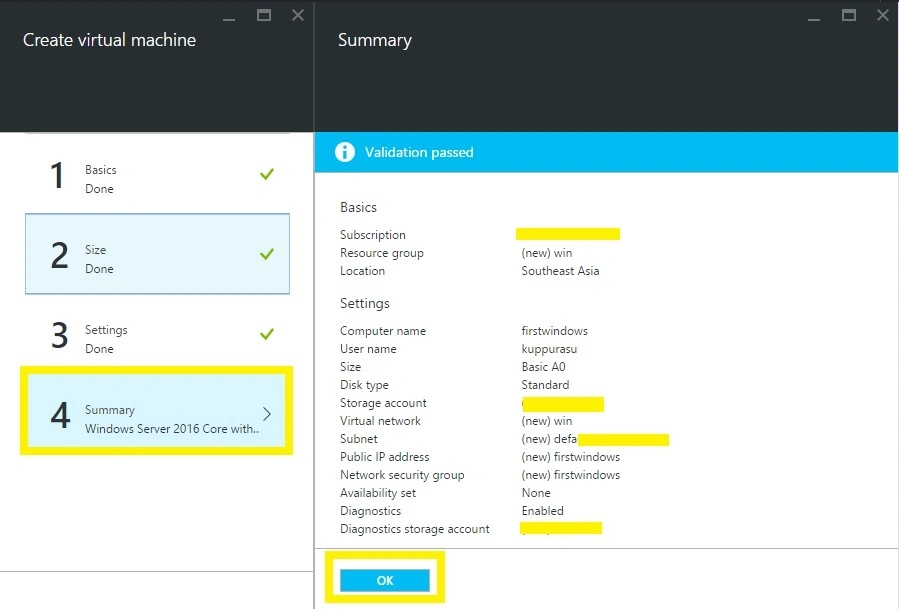
Connect to your new virtual machine
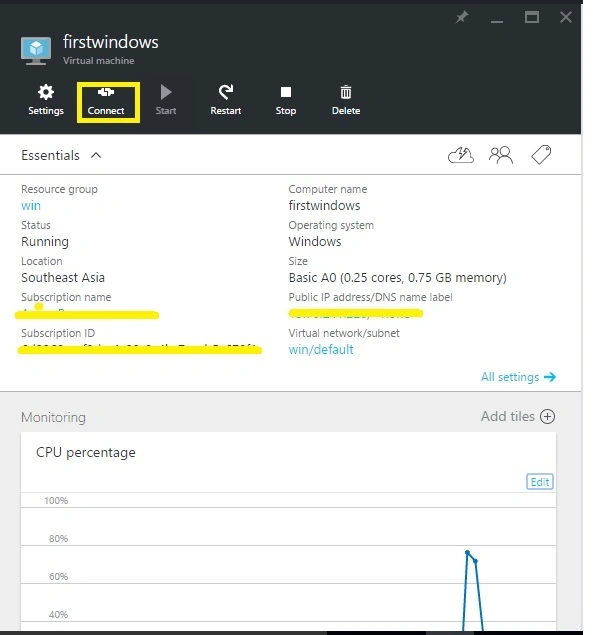
After a few minutes your virtual machine will be configured on the dashboard. Once the virtual machine is running, simply select it and click on the Connect button.
Next, enter the username and password.
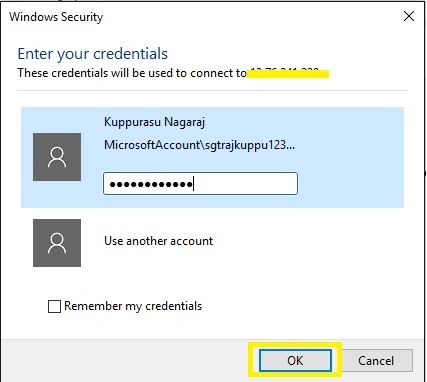
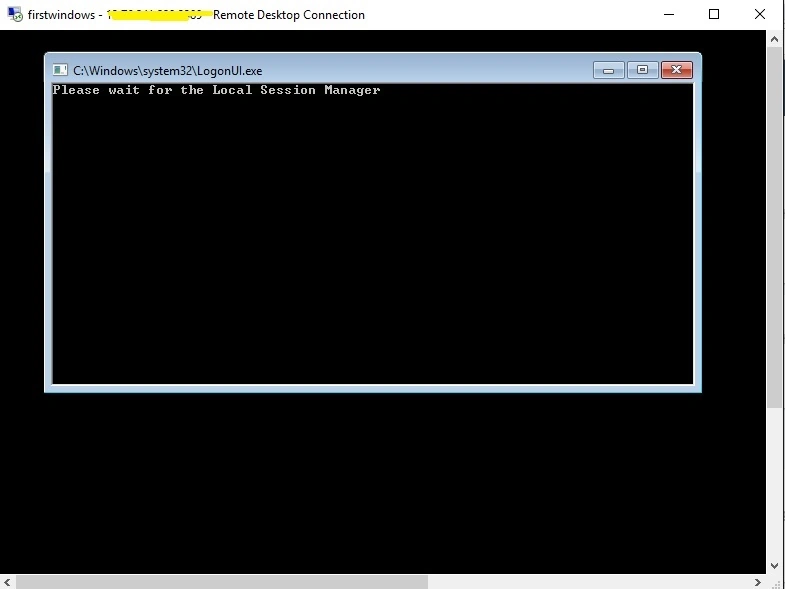
Finally, you will be connected through remote desktop directly into your new virtual machine running the Windows Server 2016 Core with Containers Tech Preview you selected.
Neeraj KumarPosted May 13, 2016, 2:34 PM
Nice
Sonu ChaudharyPosted May 13, 2016, 1:39 PM
good one
Vignesh ManiPosted May 13, 2016, 7:23 AM
Nice sir
Pritam ZopePosted May 13, 2016, 4:55 AM
Nice............!