

Introduction
With the growing number of frameworks and tools for building MCP servers, especially within the .NET ecosystem, Azure Functions emerges as a valuable new option. As is customary with Azure Functions, implementing this goal is simple, allowing us, as developers, to focus more on functionality than technology. In this post, we'll explore how to accomplish this goal.
The first thing to keep in mind is the concept of a trigger for Azure Functions. According to the documentation, a trigger is defined as follows:
Triggers cause a function to run. A trigger defines how a function is invoked, and a function must have exactly one trigger. Triggers can also pass data into your function, as you would with method calls.
And here is where the magic happens when we want to implement an MCP Server. The team for the project released the package on October 9th, after 7 preview versions, the package Microsoft.Azure.Functions.Worker.Extensions.MCP, which comes with a new trigger called McpToolTrigger, which is accompanied by the property McpToolProperty.
Create a project with Visual Studio 2026
While we will use the brand-new Visual Studio 2026 and .NET 10, this step can also be reproduced with older versions.
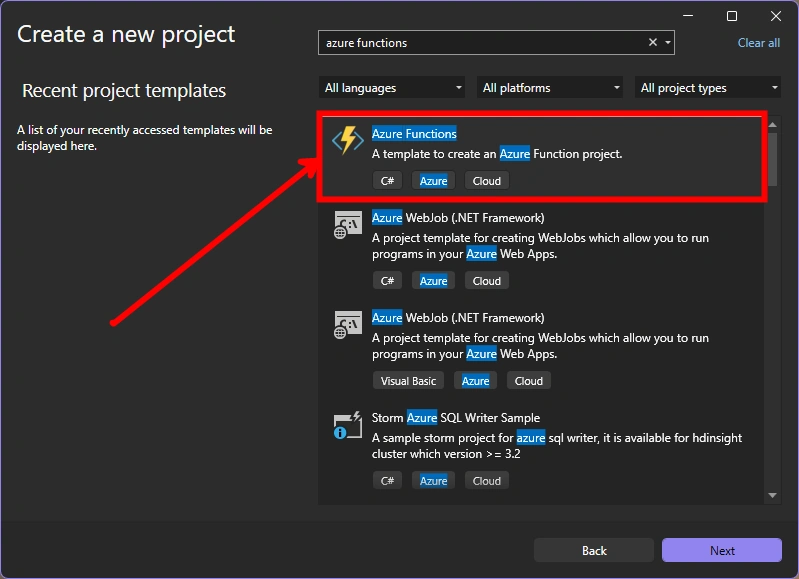
Our first step will be to select the Azure Functions template when creating the project.
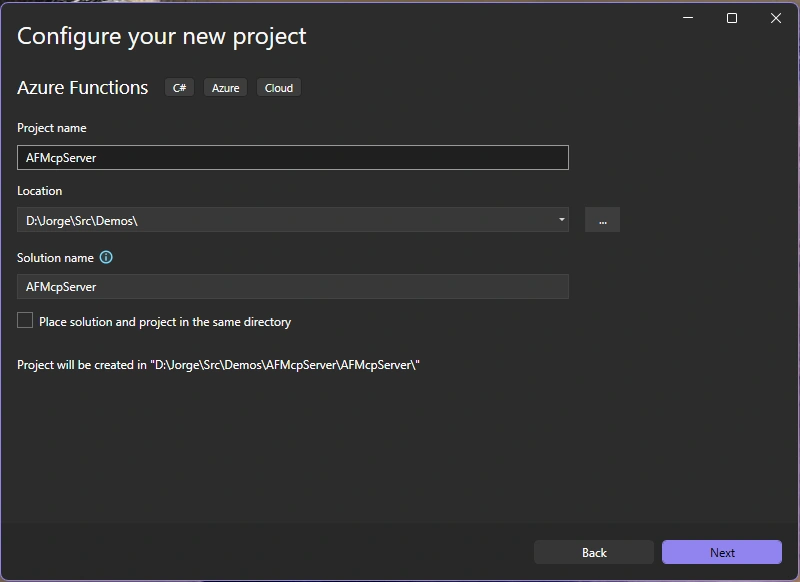
Following by the configurations of the new project
Nothing new until here. But is in this third step is where we are going to be selecting the right additional information to create the MCP Server.
We'll be selecting configurations as:
Function worker: .NET 10 Isolated (Long Term Support)
Function: MCP Tool Trigger
and enabling 'User Azure for runtime storage account (AzureWebJobStorage)'
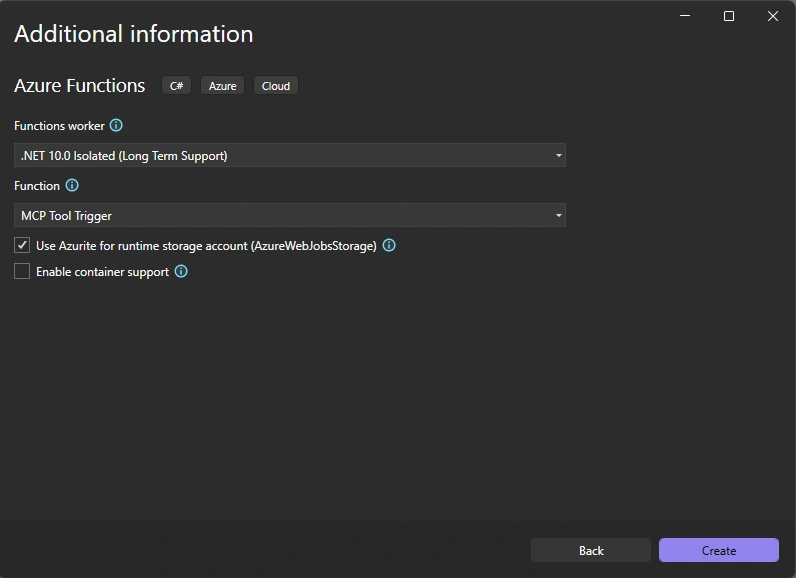
Note 1a: the Function selection is where we are indicating we want to implement the MCP Server trigger, using the MCP Tool Trigger.
Note 1b: For older Visual Studio versions, the project template may not include the MCP Tool Trigger, in that case you can select an empty function and add the Microsoft.Azure.Functions.Worker.Extensions.Mcp Nugget Package to your project an implement the function manually maybe using this following code.
Note 2: To run our server locally, we must enable 'User Azure for runtime storage account (AzureWebJobStorage)'
Code
We end with a very simple but powerful code for our function.
using Microsoft.Azure.Functions.Worker;
using Microsoft.Azure.Functions.Worker.Extensions.Mcp;
using Microsoft.Extensions.Logging;

namespace AFMcpServer;

public class Function1
{
    private ILogger<Function1> _logger;

    public Function1(ILogger<Function1> logger)
    {
        _logger = logger;
    }

    [Function(nameof(Function1))]
    public string Run(
        [McpToolTrigger(nameof(Function1), "Responds to the user with a hello message.")] ToolInvocationContext context,
        [McpToolProperty(nameof(name), "The name of the person to greet.")] string? name
    )
    {
        _logger.LogInformation("C# MCP tool trigger function processed a request.");
        return $"Hello, {name ?? "world"}! This is an MCP Tool!";
    }
}
We can find the MCPToolTrigger, which receives two parameters. The first parameter is the name of the tool, followed by a description of its function. MCP clients, such as Copilot, can use this information to understand the purpose of the MCP Server and its functionality.
Additionally, we can add an MCPToolProperty to help the service receive input information.
All of this occurs with just two lines of code. The Azure function provides the necessary functionality by handling all the "plumbing."
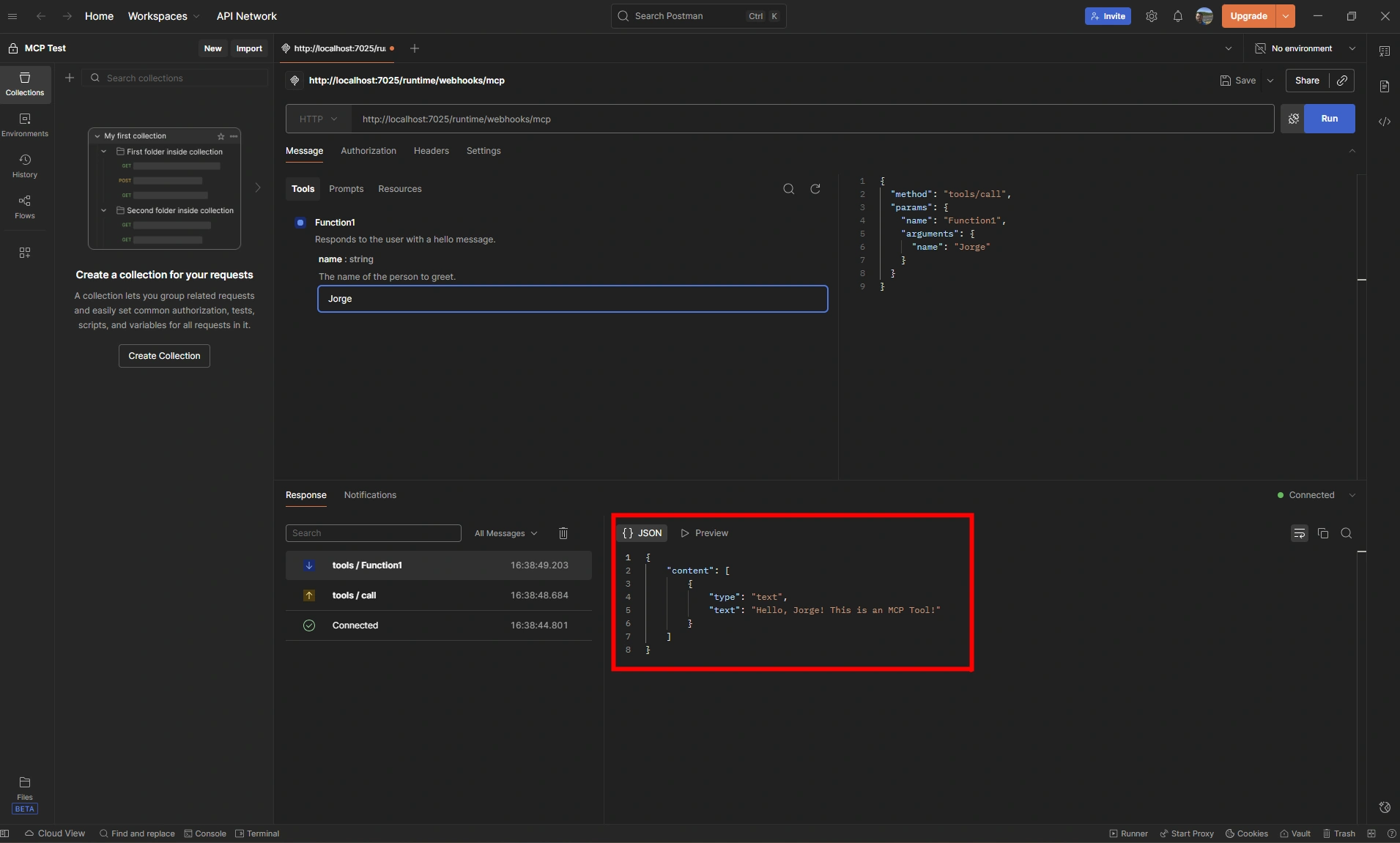
Finally, we observe that the function returns a string. However, we will later see that the function actually returns JSON that the MCP client can use as a response to the call.
Additionally, we can return a complex object as a string using the powerful and reliable JsonSerializer.Serialize functionality.
_logger.LogInformation($"Looking for people related with {people}");

IRepository<Person> personRepository = new Repository<Person>();
var entities = personRepository.GetEntities();
var searchResult = entities.Where(p => p.Name.Contains(people, StringComparison.OrdinalIgnoreCase)).ToList();

return JsonSerializer.Serialize(searchResult);
With this, we can focus on creating the right functionality to process data and return information for the MCP Client to handle. Now, it's time for you to start creating.
Running and consuming the MCP Server
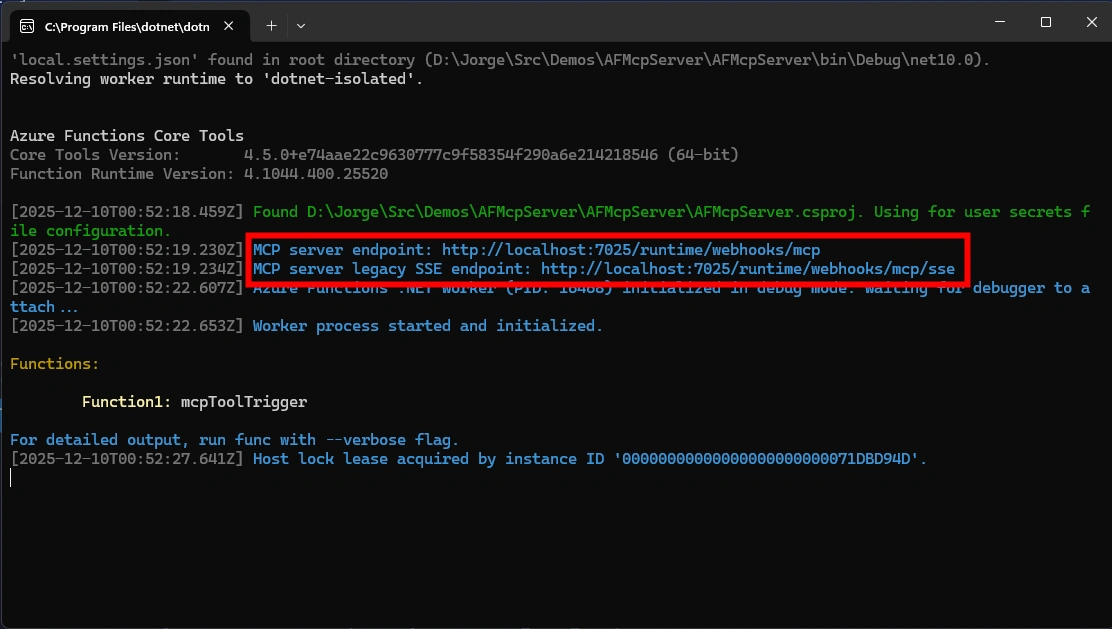
When we run the service locally, we can see that two endpoints are served. One as a MCP Server endpoint and a second as a MCP server legacy SSE endpoint.
Consuming the server
And these are the endpoints we can use to connect to the server. For example, using Postman or Github Copilot for Visual Studio and Visual Studio Code.
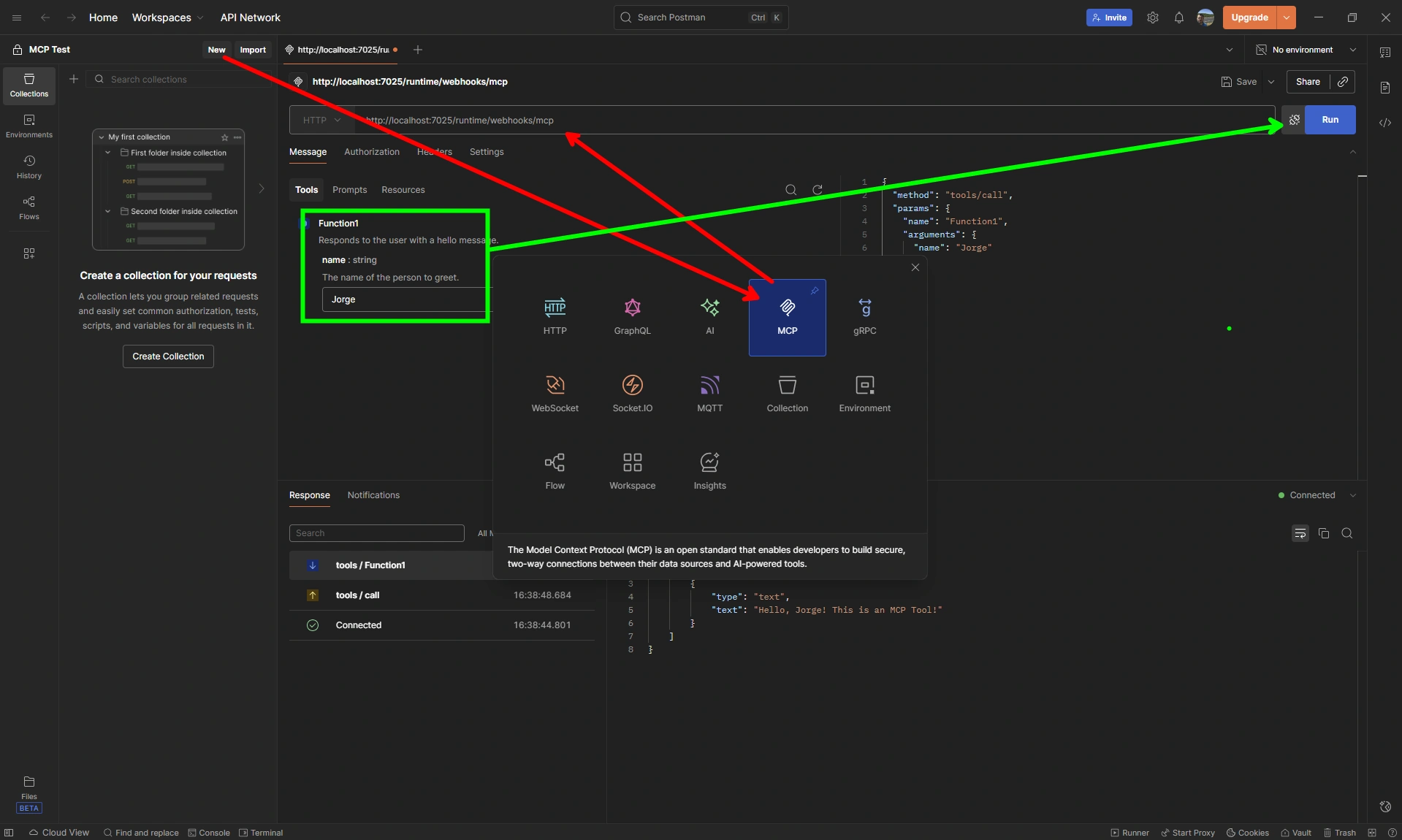
Here is the Postman example (which I will cover very quickly in an image since it is outside the scope of this article):
Finally, as mentioned before, note that the result of the call is a JSON string that accomplishes the MCP protocol.
Conclusions
This article only shows the creation of an MCP Server using Azure Functions. However, there is much more to this initial approach to the topic. There is also information on how the functionality is hosted in Azure and how to consume it, but that is a topic for another article. The intent is to provide a starting point for you to experiment with this option, which is just one of the many ways to create MCP servers. Which option you use depends on your knowledge of the available tools.
Join the conversation! Your thoughts help the community grow.