Introduction
In this article, I will create a custom DataTable in MVC using Entity Framework and jQuery/AJAX. Although jQuery’s DataTable can be used easily, here I will do server-side pagination and searching.
Requirements
- Visual Studio (2015 or higher)
- MVC
- Entity Framework
- Jquery
- MSSQL 2008 / 2008+
Getting Started
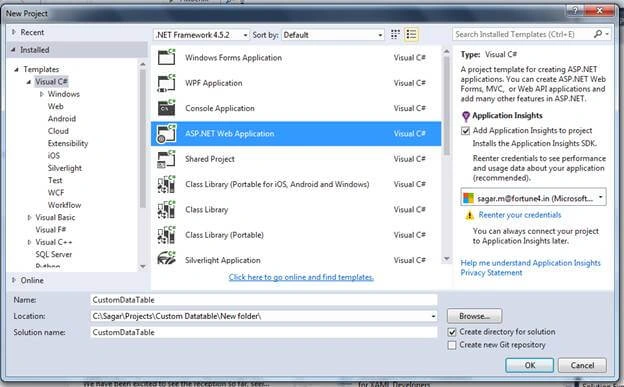
First, we will create an ASP.NET Web Application.
- Open Visual Studio.

- Select "New Project".
- Select "ASP.NET Web Application".
- Check "Empty" template and MVC in Core References followed by a click on OK.

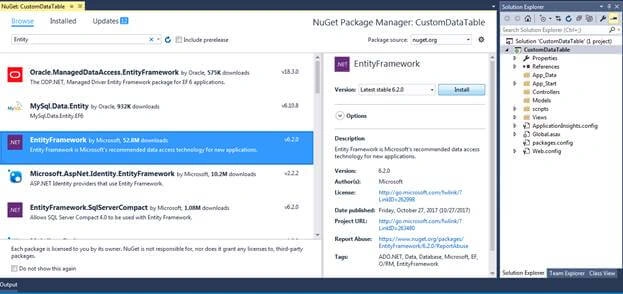
- Now that our project is created, we will install the Entity Framework in our project via NuGet Package installer. Right-click on the project and select "Manage NuGet Packages". Select the Browse tab and type "Entity" in the search box. Select "Install".
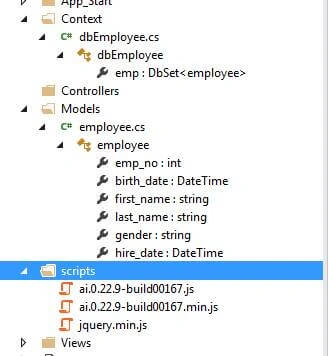
- After that, create a new folder as Context.
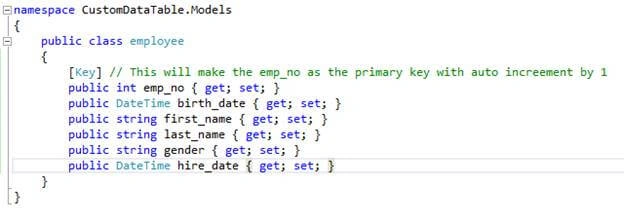
- Inside Models folder, create your database class as “employee”. Also, this will be our Table name in the database. The properties inside the employee class will be the columns of employee table.
- public class employee
- {
- [Key] // This will make the emp_no as the primary key with auto increement by 1
- public int emp_no { get; set; }
- public DateTime birth_date { get; set; }
- public string first_name { get; set; }
- public string last_name { get; set; }
- public string gender { get; set; }
- public DateTime hire_date { get; set; }
- }
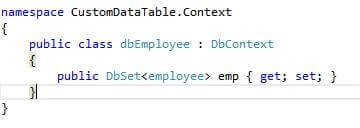
- Now, in the context folder that we created previously, add a new class as “dbEmployee”. This will help to communicate with the database and perform CRUD for every mentioned class in it. Here, we will use only the employee class. If you want to use more tables, then you can add the other classes too.
- public class dbEmployee : DbContext
- {
- public DbSet<employee> emp { get; set; }
- }
- Download jQuery and add it inside the Scripts folder.
- Add the connection string in the web.config file as below.
- <connectionStrings>
- <add name="dbEmployee" connectionString="{source}" providerName="System.Data.SqlClient" />
- </connectionStrings>
- The connection name will be the same as the name of the class that we added inside the Context folder. Here, we have added the dbEmployee class, so our name will be the same as that.

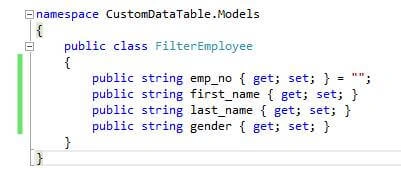
- Inside Models folder, create a class as “FilterEmployee”. This class will be used for getting the search keys and values.
- public class FIlterEmployee
- {
- public string emp_no { get; set; } = "";
- public string first_name { get; set; }
- public string last_name { get; set; }
- public string gender { get; set; }
- }
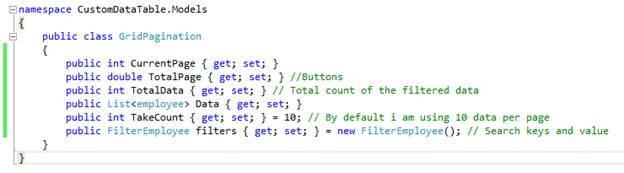
- Create one more class inside Models folder “GridPagination”. This class will have the required data to make the datatable.
- public class GridPagination
- {
- public int CurrentPage { get; set; }
- public double TotalPage { get; set; } //Buttons
- public int TotalData { get; set; } // Total count of the filtered data
- public List<employee> Data { get; set; }
- public int TakeCount { get; set; } = 10; // By default i am using 10 data per page
- public FilterEmployee filters { get; set; } = new FilterEmployee(); // Search keys and value
- }
- Now, we have got all the required models.
- Create a MVC 5 empty controller.
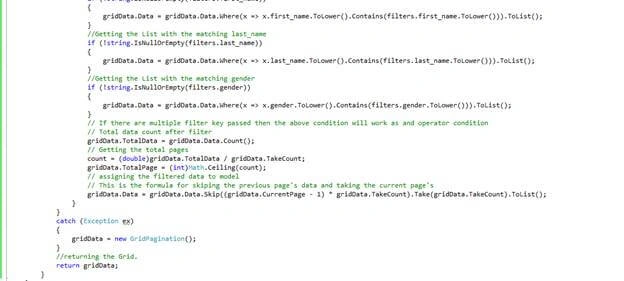
- First, we will create a common function for paging and searching which will return the GridPagination as below.
- //This is the common function used for paging and searching
- public GridPagination FilterData(int? PageNumber, FilterEmployee filters)
- {
- GridPagination gridData = new GridPagination();
- double count = 0;
- try
- {
- using (dbEmployee db = new dbEmployee())
- {
- // Getting all the Data from Database
- var empData = db.emp.ToList();
- // Checking if the Page number is passed and is greater than 0 else considered as 1
- gridData.CurrentPage = PageNumber.HasValue ? PageNumber.Value <= 0 ? 1 : PageNumber.Value : 1;
- // Assigning the list of data to the Model's property
- gridData.Data = empData;
- // Assigning filters
- gridData.filters = filters;
- //Getting the List with the matching emp_no
- if (!string.IsNullOrEmpty(filters.emp_no))
- {
- gridData.Data = gridData.Data.Where(x => x.emp_no.ToString().Contains(filters.emp_no.ToString())).ToList();
- }
- //Getting the List with the matching first_name
- if (!string.IsNullOrEmpty(filters.first_name))
- {
- gridData.Data = gridData.Data.Where(x => x.first_name.ToLower().Contains(filters.first_name.ToLower())).ToList();
- }
- //Getting the List with the matching last_name
- if (!string.IsNullOrEmpty(filters.last_name))
- {
- gridData.Data = gridData.Data.Where(x => x.last_name.ToLower().Contains(filters.last_name.ToLower())).ToList();
- }
- //Getting the List with the matching gender
- if (!string.IsNullOrEmpty(filters.gender))
- {
- gridData.Data = gridData.Data.Where(x => x.gender.ToLower().Contains(filters.gender.ToLower())).ToList();
- }
- // If there are multiple filter key passed then the above condition will work as an operator condition
- // Total data count after filter
- gridData.TotalData = gridData.Data.Count();
- // Getting the total pages
- count = (double)gridData.TotalData / gridData.TakeCount;
- gridData.TotalPage = (int)Math.Ceiling(count);
- // assigning the filtered data to model
- // This is the formula for skiping the previous page's data and taking the current page's
- gridData.Data = gridData.Data.Skip((gridData.CurrentPage - 1) * gridData.TakeCount).Take(gridData.TakeCount).ToList();
- }
- }
- catch (Exception ex)
- {
- gridData = new GridPagination();
- }
- //returning the Grid.
- return gridData;
- }

- Now inside the Index controller, we will just pass the data to the View which we will get after calling the above function with Page number as 1 and no column filters.
- // GET: Employee
- public ActionResult Index()
- {
- // Calling FilterData function with Page number as 1 on initial load and no filter
- return View(FilterData(1, new FilterEmployee()));
- }

- The function will return the 1st page’s employe, i.e., 1 to 10 employees.
- Then, we will create an Index View to display the data.
- We will use GridPagination as our model in View as we are passing that model from the controller.
- @model CustomDataTable.Models.GridPagination
- @{
- ViewBag.Title = "Index";
- Layout = "~/Views/Shared/_Layout.cshtml";
- }
- <h2>Index</h2>
- We will create a Partial View “_EmployeeList” inside shared folder as this will make it easy to bind records while paginating and searching.
- Paste the below code inside the Partial View. Add the explanation in that.
- @model CustomDataTable.Models.GridPagination
- @{
- int count = ((Model.CurrentPage - 1) * Model.TakeCount) + 1; // This is the serial number Calculation
- int TotalCounter = 0;
- bool showFooter = true;
- // We will show only 5 buttons on footer to paginate
- // Because if the data is more then it will look worst with multiple buttons in footer
- int StartButton = 1;
- // Checking if total page is greate then 5 else we will take upto
- // whatever the total page is
- double EndButton = 5 > Model.TotalPage ? Model.TotalPage : 5;
- }
- <table class="table table-bordered">
- <thead>
- @*Setting the filter values in text boxes*@
- <tr>
- <th>Sr No.</th>
- <th>Emp No <input type="text" id="emp_no" class="form-control col-md-2 filter-text" value="@Model.filters.emp_no" /></th>
- <th>Firstname <input type="text" id="Firstname" class="form-control col-md-2 filter-text" value="@Model.filters.first_name" /></th>
- <th>Lastname <input type="text" id="Lastname" class="form-control col-md-2 filter-text" value="@Model.filters.last_name" /></th>
- <th>Gender <input type="text" id="Gender" class="form-control col-md-2 filter-text" value="@Model.filters.gender" /></th>
- </tr>
- </thead>
- <tbody>
- @if (Model != null && Model.Data != null && Model.Data.Count > 0)
- {
- foreach (var emp in Model.Data)
- {
- <tr>
- <td>@count</td>
- <td>@emp.emp_no</td>
- <td>@emp.first_name</td>
- <td>@emp.last_name</td>
- <td>@emp.gender</td>
- </tr>
- count++;
- }
- }
- else
- {
- <tr>
- <td colspan="5" style="text-align: center;">No employee found</td>
- </tr>
- showFooter = false;
- }
- </tbody>
- </table>
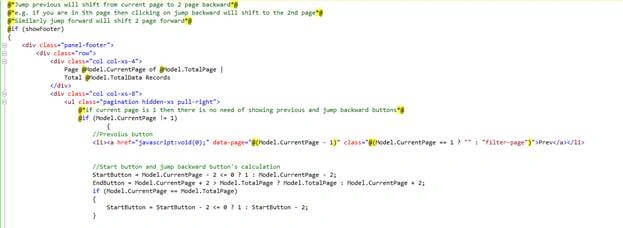
- @*This is the calculation done for showing the buttons like next, prev, jump forward, jump backward etc*@
- @*Jump previous will shift from current page to 2 page backward*@
- @*e.g. if you are on the 5th page, then clicking on jump backward will shift to the 2nd page*@
- @*Similarly jump forward will shift 2 page forward*@
- @if (showFooter)
- {
- <div class="panel-footer">
- <div class="row">
- <div class="col col-xs-4">
- Page @Model.CurrentPage of @Model.TotalPage |
- Total @Model.TotalData Records
- </div>
- <div class="col col-xs-8">
- <ul class="pagination hidden-xs pull-right">
- @*if current page is 1 then there is no need of showing previous and jump backward buttons*@
- @if (Model.CurrentPage != 1)
- {
- //Prevoius button
- <li><a href="javascript:void(0);" data-page="@(Model.CurrentPage - 1)" class="@(Model.CurrentPage == 1 ? "" : "filter-page")">Prev</a></li>
- //Start button and jump backward button's calculation
- StartButton = Model.CurrentPage - 2 <= 0 ? 1 : Model.CurrentPage - 2;
- EndButton = Model.CurrentPage + 2 > Model.TotalPage ? Model.TotalPage : Model.CurrentPage + 2;
- if (Model.CurrentPage == Model.TotalPage)
- {
- StartButton = StartButton - 2 <= 0 ? 1 : StartButton - 2;
- }
- //Jump backward button
- if (Model.CurrentPage >= 4)
- {
- <li><a href="javascript:void(0);" class="filter-page" data-page="@(StartButton - 1 <= 0 ? 1 : StartButton - 1)"><span><<</span></a></li>
- }
- }
- @*Five buttons*@
- @for (int i = StartButton; i <= EndButton; i++)
- {
- <li><a href="javascript:void(0);" class="@(Model.CurrentPage == i ? "active page" : "filter-page")" data-page="@i">@i</a></li>
- }
- @* Jump forward button calculation *@
- @if (EndButton != Model.TotalPage)
- {
- <li><a href="javascript:void(0);" class="filter-page" data-page="@(EndButton+1>Model.TotalPage?Model.TotalPage:EndButton+1)"><span>>></span></a></li>
- }
- @* next button *@
- @if (Model.CurrentPage != Model.TotalPage && Model.TotalPage > 1)
- {
- <li><a href="javascript:void(0);" data-page="@(Model.CurrentPage + 1)" class="@(Model.CurrentPage == TotalCounter ? "" : "filter-page")">Next</a></li>
- }
- </ul>
- </div>
- </div>
- </div>
- }


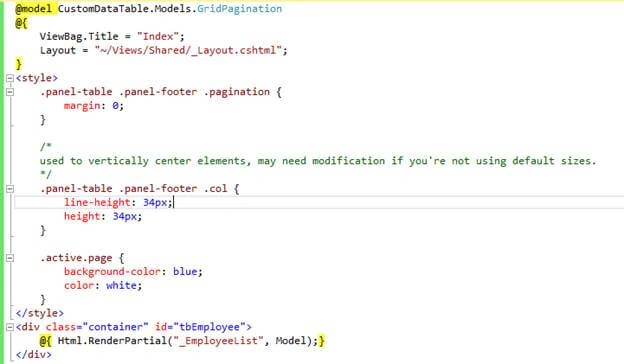
- Now, we will render this partial view in our index page and pass the GridPagination model to the Partial View.
- @model CustomDataTable.Models.GridPagination
- @{
- ViewBag.Title = "Index";
- Layout = "~/Views/Shared/_Layout.cshtml";
- }
- <style>
- .panel-table .panel-footer .pagination {
- margin: 0;
- }
- /*
- used to vertically center elements, may need modification if you're not using default sizes.
- */
- .panel-table .panel-footer .col {
- line-height: 34px;
- height: 34px;
- }
- .active.page {
- background-color: blue;
- color: white;
- }
- </style>
- <div class="container" id="tbEmployee">
- @{ Html.RenderPartial("_EmployeeList", Model);}
- </div>

- Now, run your project and see the results.

- Now, for searching and pagination, we need to add some jQuery and call AJAX.
- Create a JavaScript “Paginate” under Scripts folder and paste the below code.
- var paginate = function () {
- var that = {};
- var emp = {};
- var TextBox = '';
- var PageNo = 1;
- // All the initial events will be placed here.
- var InitEvents = function () {
- // every button has the common class as filter-page and common attribute data-page
- // data-page is nothing but the page number on click if which the data will be filtered
- $(document).on('click', '.filter-page', function () {
- //setting the page no.
- PageNo = $(this).data('page');
- Pagination();
- });
- // every filter text box has the common class as filter-text
- // on keyup of the text box we will call the ajax function
- $(document).on('keyup', '.filter-text', function () {
- //setting the page no to 1 thus on any filter change matching data will be shown from page 1
- PageNo = 1;
- //setting the text box id on which we will set the focusend
- TextBox = $(this).attr('id');
- Pagination();
- })
- }
- // Common ajax call function to bind the filter data and page number and pass to the Action result of our controller via ajax call
- var Pagination = function () {
- // this variables emp_no,first_name,last_name,gender is the same property
- // which we declare in class FilterEmployee
- emp.emp_no = $('#emp_no').val();
- emp.first_name = $('#Firstname').val();
- emp.last_name = $('#Lastname').val();
- emp.gender = $('#Gender').val();
- $.ajax({
- type: "POST",
- url: "/Employee/PaginateData",
- data: { pageNo: PageNo, filter: emp },
- content: "application/json; charset=utf-8",
- dataType: "html", //here we set datatype as html becausing we are returning partial view
- success: function (d) {
- // d will contain the html of partial view
- $('#tbEmployee').html(d);
- // setting the focus to the textbox
- if (TextBox != '' && TextBox != null) {
- $('#' + TextBox).focusToEnd();
- }
- },
- error: function (xhr, textStatus, errorThrown) {
- }
- });
- }
- that.init = function () {
- // to load the initial events
- InitEvents();
- }
- return that;
- }();
- // This function will focus to the end position of the mentioned textbox id
- (function ($) {
- $.fn.focusToEnd = function () {
- return this.each(function () {
- var v = $(this).val();
- $(this).focus().val("").val(v);
- });
- };
- })(jQuery);
- In your index page, add this JS reference and add the below line.
- <script src="~/scripts/Paginate.js"></script>
- <script type="text/javascript">
- $(document).ready(function () {
- // initial events binding
- paginate.init();
- })
- </script>
- Now, we will add ActionResult method as "PaginateData" in our "EmployeeController" to accept the AJAX request and return the Filtered Data.
- [HttpPost]
- public ActionResult PaginateData(int pageNo, FilterEmployee filter)
- {
- // This will call the FilterData function with PageNo and filter textboxes value which we passed in our Ajax request
- return PartialView("_EmployeeList", FilterData(pageNo, filter));
- }
- That's it. Run the application and look at the results on button click and filter textbox search.

Join the conversation! Your thoughts help the community grow.