

Create a Dialog for a Mobile Client in a LightSwitch using Visual Studio 2012
In this article I describe how to create a dialog for a LightSwitch Application.
By creating a dialog for your LightSwitch app, you can display information on a phone or other mobile device that's running a client for that application.
When a dialog appears, users must click its OK or Cancel button to close it. You can create multiple dialogs for any screen and share the same dialog between screens.
Steps for creating a Dialog
Step 1
Open the Solution Explorer
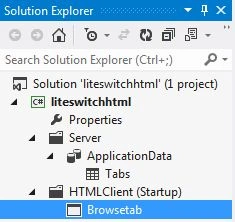
Step 2
In Solution Explorer, open the HTML client screen for which you want to create a dialog.
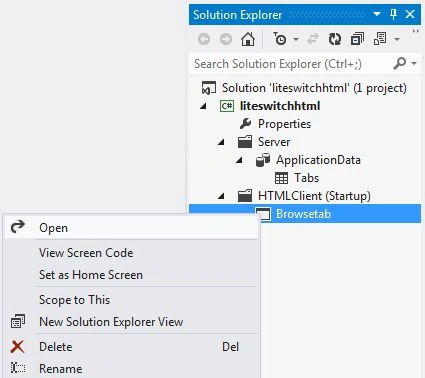
Step 3
The Screen Designer appears.

Step 4
In the screen designer, right-click on the Command Bar node, and then choose the "Add" button.
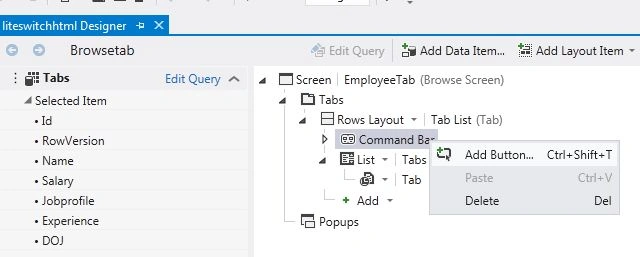
Step 5
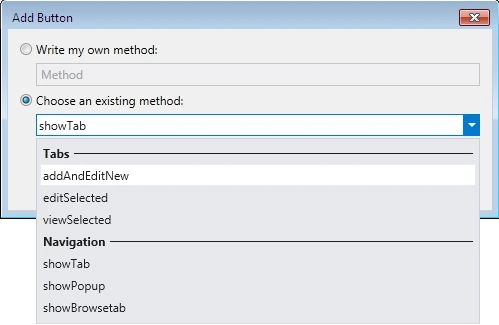
The Add Button dialog box appears.
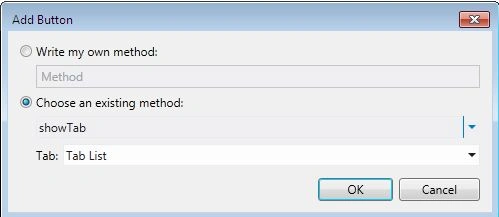


Join the conversation! Your thoughts help the community grow.