

Introduction
In this article you will learn about creating a Session Based Desktop through Remote Desktop Services in Windows Server 2012.
My previous article is the first part of this article in which you learned How to Deploy a Session based Desktop through Remote Desktop Services in Windows Server 2012.
Now we will continue from that article. After deploying the session based Desktop you must use the following procedure to create a session based Desktop.
Step 1
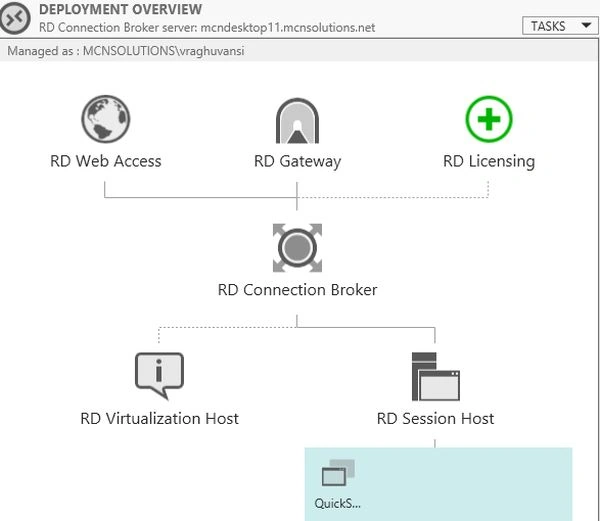
Now on the left hand side of the Server Manger you will see an option named "Remote Desktop Services", click on it to see all of it's installed features.
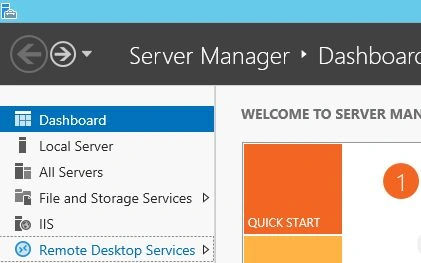
Now this type of window will be opened.
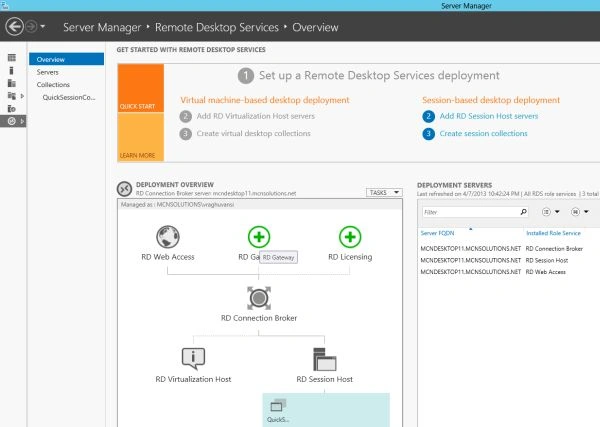
Step 2
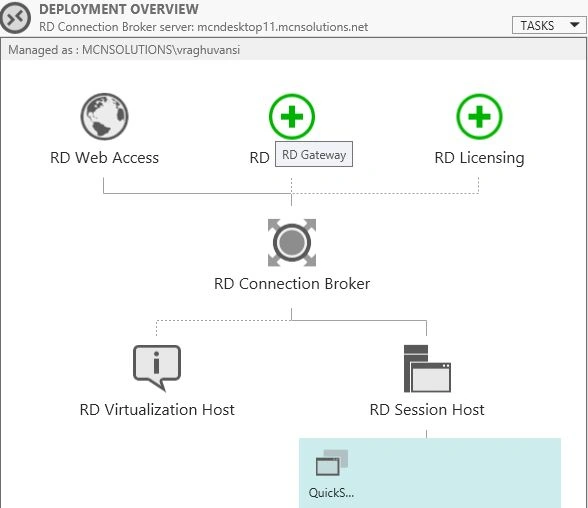
Here you can see that two + sign options are given that are in the color green, click on the first one named "RD Gateway."
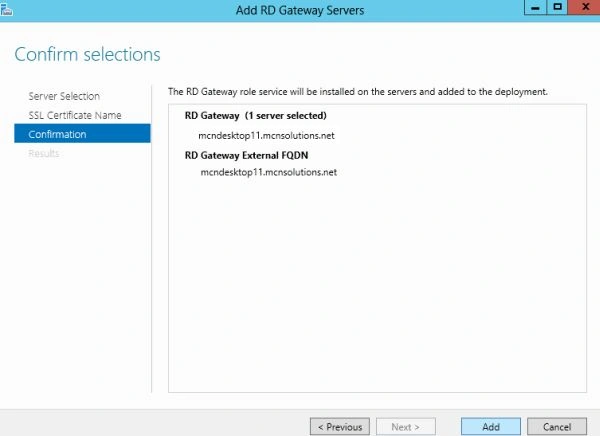
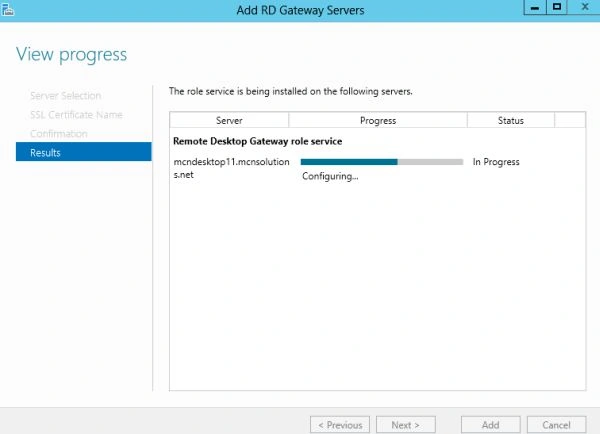
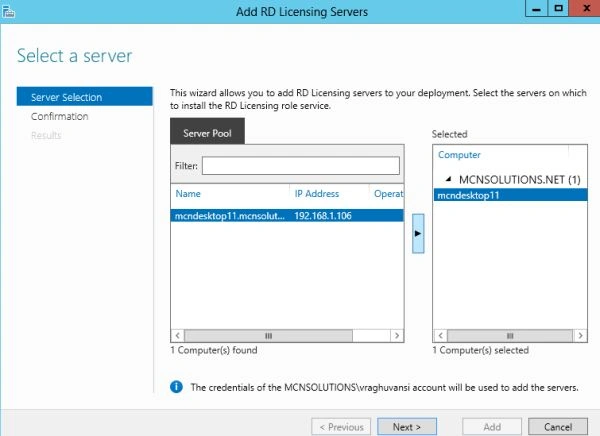
Now the RD Server Gateway page is opened. On the first page you must select the server from the Server Pool. Here you must click on this button  , because sometimes it may happen that you will not be able to see the server, so this button may help in that situation.
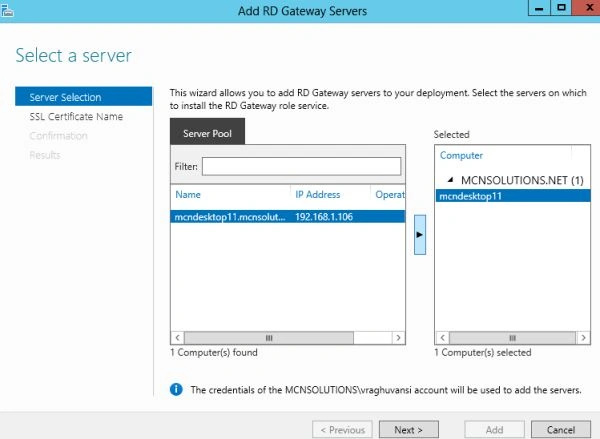
Step 3
Now on the next page you must provide the "SSL Certificate" in which you must provide the Computer Name and Domain Name like I have provided here:

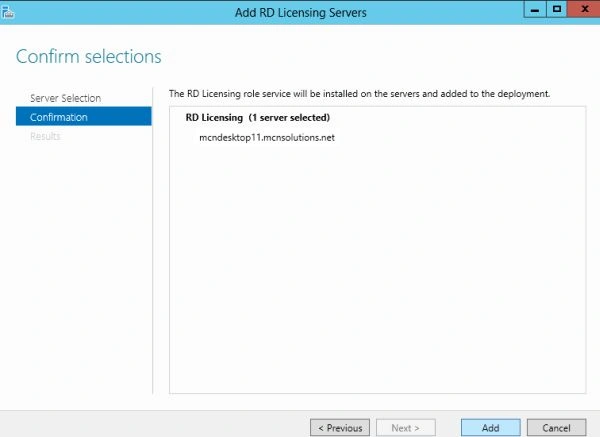
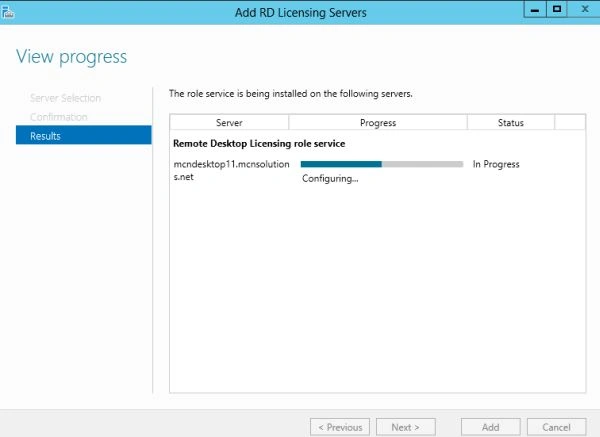
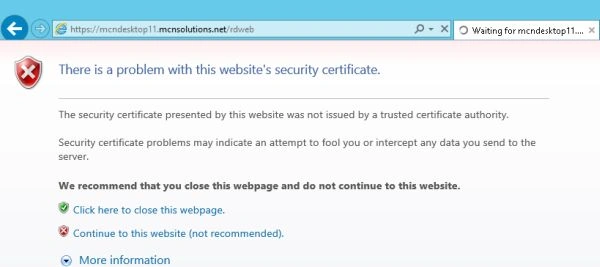
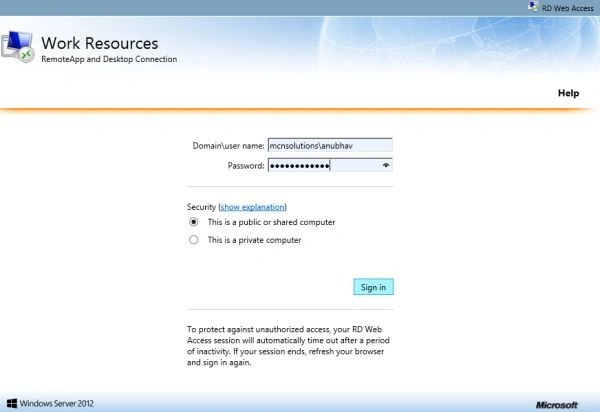
Join the conversation! Your thoughts help the community grow.