

Here we will see how to create an application without using a Slider Control in a LightSwitch Application (Visual C#) in Visual Studio 2012.
The following is the procedure for creating an application without a Slider Control.
Step 1
Open the Solution Explorer.
Step 2
In the Solution Explorer, right-click on the Server and choose "Add Table".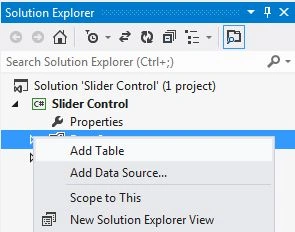
Step 3
The table appears.
Student Table
Step 4
In the Solution Explorer, right-click on the Screens and choose "Add Screen".
Step 5
The Add New Screen dialog box appears. Select the "List and Details Screen" from the Screen Template, under screen information, choose "Student" under screen data and provide some name to the Screen and click the "OK" button.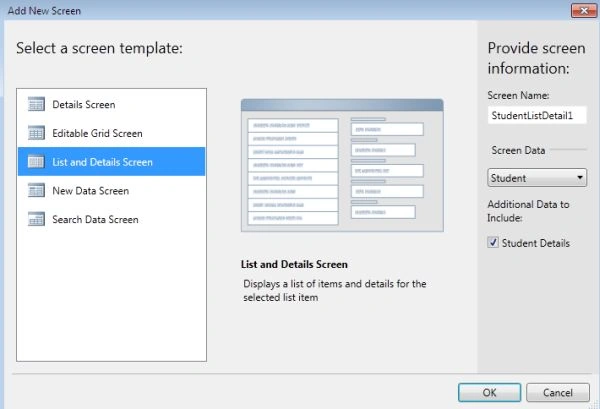
Step 6
The screen designer appears.
Step 7
Press F5 to run the application.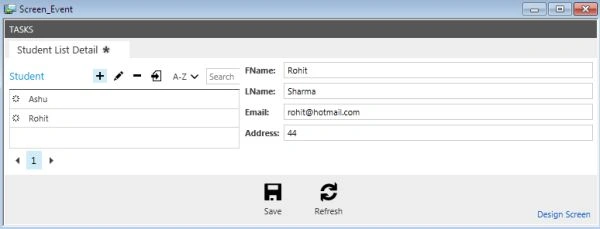
Click on the "Add" Button (+) to add more records.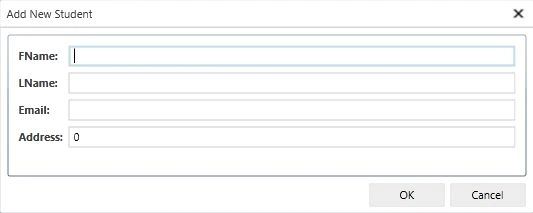
In my next article I will describe the use of a Slider Control in Light Switch 2012.
Join the conversation! Your thoughts help the community grow.