

Pre-requisites for InfoPath Form:
- On the Server:
- Microsoft Office InfoPath 2007
- On the Client:
- Internet Browser
Developing an InfoPath Form:
To develop an InfoPath Form Template, follow the following steps:
- Open Microsoft Office InfoPath Form from Start-> All Programs-> Microsoft Office-> Microsoft Office InfoPath 2007.
- In the "Getting Started" dialog box that appears, choose "Design a Form Template".

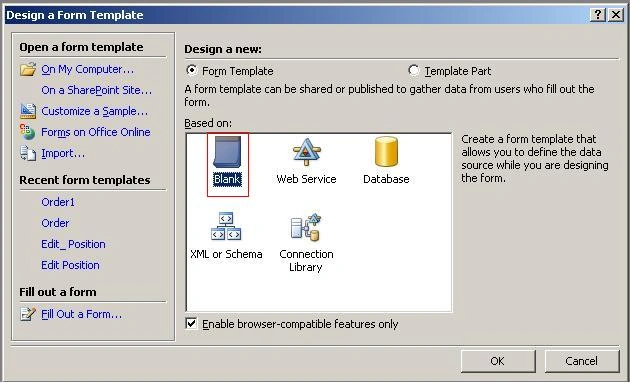
- In the next dialog box that appears, choose a Blank Form Template. Also make sure that "Enable browser-compatible features only" check box is checked and click OK.
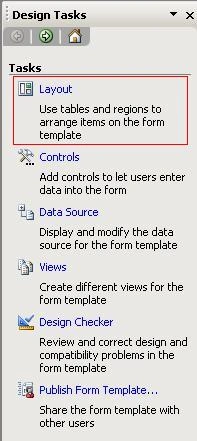
- A blank form template screen will appear. In the right hand side of the template screen, you will see Design Tasks Pane, if it doesn't appear, go to View-> Design Tasks. And click on "Layout".
- In the next pane that appears, select the Table layout. For this example, I will choose a Two- Column Table.
- A table with one row and two columns will be added in the Design Pane. Adjust the height and width of the table. To add a new row, select the existing row and in the right side pane, click on "Add Table row".
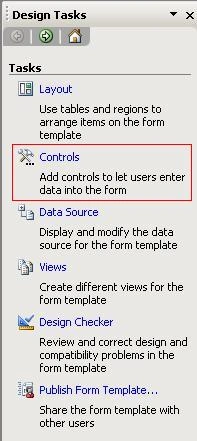
- Add the text to Left Column of the table and Controls to right column of the table. To add controls, click on the Controls option in the main Design Tasks Pane.
- Finally, the Form will resemble as follows:
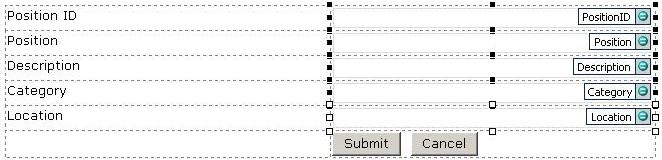
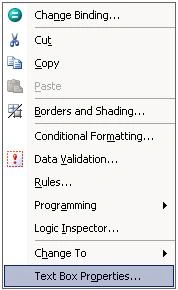
- To change the name of the controls, select the control, right click on the Green Button and go to the Properties of the Control.
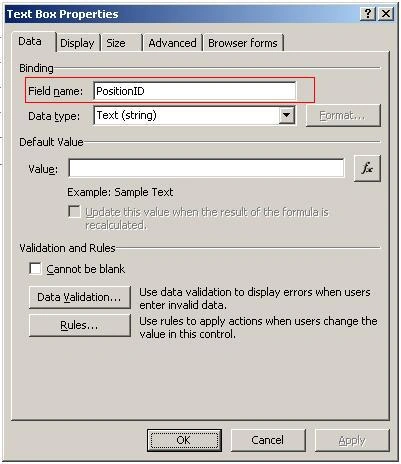
- In the dialog box that follows, put the desired field name.
- For Button Controls, select the Action as "Rules and Custom Code" and in Label, provide the desired name.

- Before starting any code for the Form Template, choose the language you want to code in VB or C#.
- To do so, go to Tools->Form Options, in the Category, select Programming and set the desired language and path where you want to save your InfoPath project.

- Now save the form before starting any code.
Note: To code the InfoPath Forms, you should have the "Microsoft Visual Studio Tools for Applications" options enabled. To do so, go to Control Panel->Add/Remove Programs->Microsoft Office Infopath 2007. Click on Change and enable the .NET Programmability Support.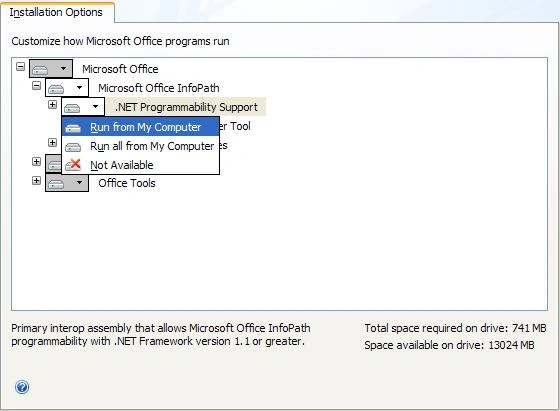
- Now to code on the Button Click event, in the Button Properties Dialog Box, click on "Edit Form Code…". A Visual studio project will open, with the Button Click Event.
- Code it in the same way as you code for any other C# project. The Submit_Clicked Event will resemble the following code:
public void Submit_Clicked(object sender, ClickedEventArgs e)
{
string _position = MainDataSource.CreateNavigator().SelectSingleNode
("/my:myFields/my:Position", NamespaceManager).Value;
string _description = MainDataSource.CreateNavigator).SelectSingleNode
("/my:myFields/my:Description", NamespaceManager).Value;
string _category = MainDataSource.CreateNavigator().SelectSingleNode
("/my:myFields/my:Category", NamespaceManager).Value;
string _location = MainDataSource.CreateNavigator().SelectSingleNode
("/my:myFields/my:Location", NamespaceManager).Value;
string _connstring;
SqlConnection _oConnection;
SqlCommand _oCommand = new SqlCommand();
_connstring = @"DataSource=./SQLExpress;Initial Catalog=My_DB;Integrated Security=SSPI";
_oConnection = new SqlConnection(_connstring);
_oCommand.Connection = _oConnection;
_oCommand.CommandType = CommandType.Text;
_oCommand.CommandText =
"INSERT INTO tbl_Position (Position,Description,Category,Location) values
('" + _position + "','" + _description + "','" + _category + "','" + _location + "')";
_oConnection.Open();
_oCommand.ExecuteNonQuery();
_oConnection.Close();
}
- The first parameter of the SelectSingleNode is an XPath value. To get the XPath value of a control, select "Data Source" from Design Tasks Pane.
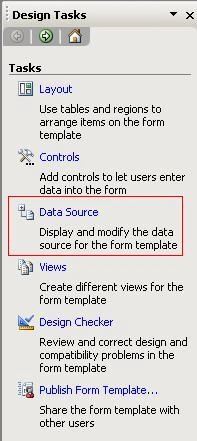
- In the next pane that appears, right click on the name of the control, select "Copy XPath", and paste it in the Visual Studio Code.

- Build the project, when the status bar shows "Build Succeeded", close Visual Studio.
Summary
In this article we learnt how we can create an InfoPath Form.
Informal PathPosted Feb 26, 2013, 7:22 PM
Hi, Not sure but for some reason when generating xml from browser based infopath, I see lot of formatting related attribute getting added to the Text field attribute of xml generated. Any idea how to get rid of it ?
jaypee bacolPosted Nov 23, 2012, 6:13 AM
Hi, I need to create an infopath application using Infopath 2010. This application generates chart based on the given data from Infopath forms. Upon checking in internet, Infopath doesn't have the capability to generate chart but I could create and use silverlight application that would generate the chart instead. My problem is how could I invoke the silverlight application from Infopath? The infopath and silverlight application would be deployed in sharepoint for online use. For offline use, the user would need to download the infopath and silverlight.
Jenna LePosted Oct 7, 2010, 5:21 PM
Thanks for the article, i was able to create an infopath form for the first time. One questions, though, I tried to add a formula to a control and it didn't like it. Not sure what i'm doing wrong. I wanted to get a percentage based on two fields. For instance, the formula i used was =(Field A - Field B)/Field A = %. I got an error. Can you tell me what is the correct format. Appreciate your feedback.
SunilPosted Oct 7, 2010, 10:56 AM
Hi, Do you have sample where the data is stored in a XML File? many thanks. Kind regards, Sunil
naga darshanPosted Aug 19, 2010, 11:57 AM
From this article i have learned new concept. I hope will get more articles like this. thank u.