

Introduction
In this article, we will create an optical character recognition (OCR) application using Angular and the Azure Computer Vision Cognitive Service. Computer Vision is an AI service that analyzes content in images. We will use the OCR feature of Computer Vision to detect the printed text in an image. The application will extract the text from the image and detect the language of the text. Currently, the OCR API supports 25 languages.
Prerequisites
- Install the latest LTS version of Node.JS from here.
- Install the Angular CLI from here.
- An Azure subscription account. You can create a free Azure account here.
- Install the .NET Core 3.1 SDK from here.
- Install the latest version of Visual Studio 2019 from here.
Source Code
You can get the source code from GitHub.
Create the Azure Computer Vision Cognitive Service resource
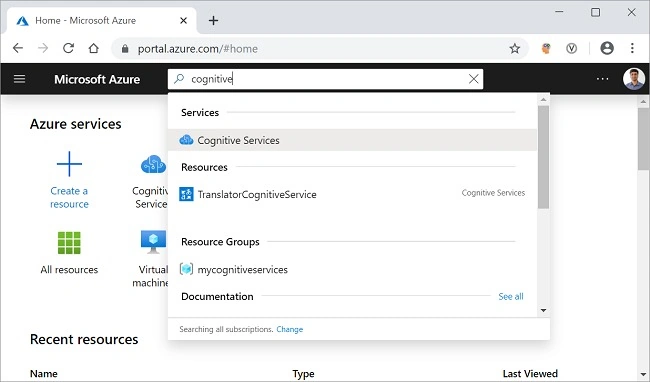
Log in to the Azure portal search for the cognitive services in the search bar and click on the result. Refer to the image shown below.
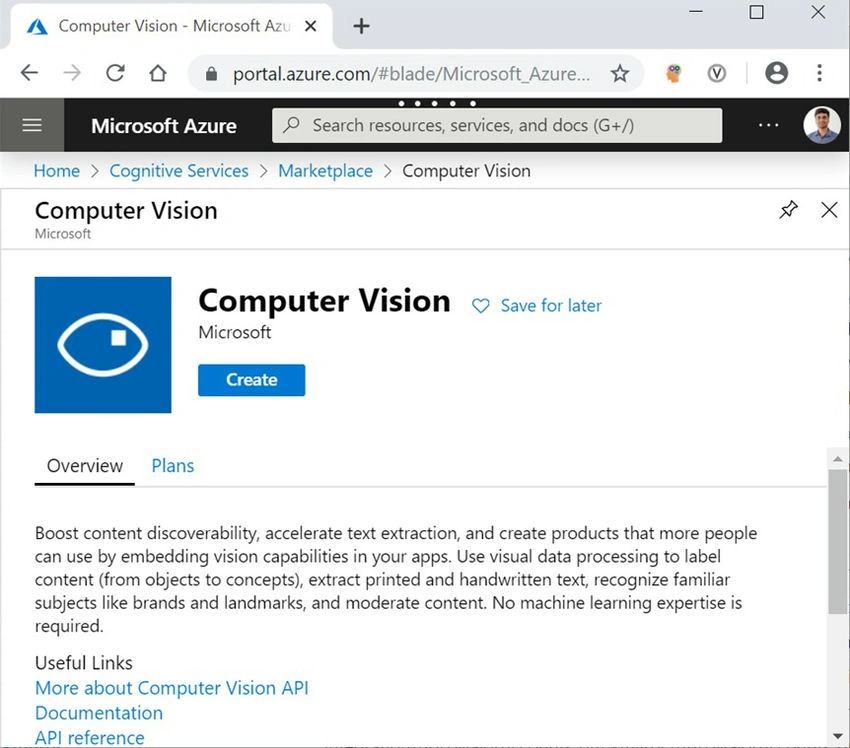
On the next screen, click on the Add button. It will open the cognitive services marketplace page. Search for the Computer Vision in the search bar and click on the search result. It will open the Computer Vision API page. Click on the Create button to create a new Computer Vision resource. Refer to the image shown below.
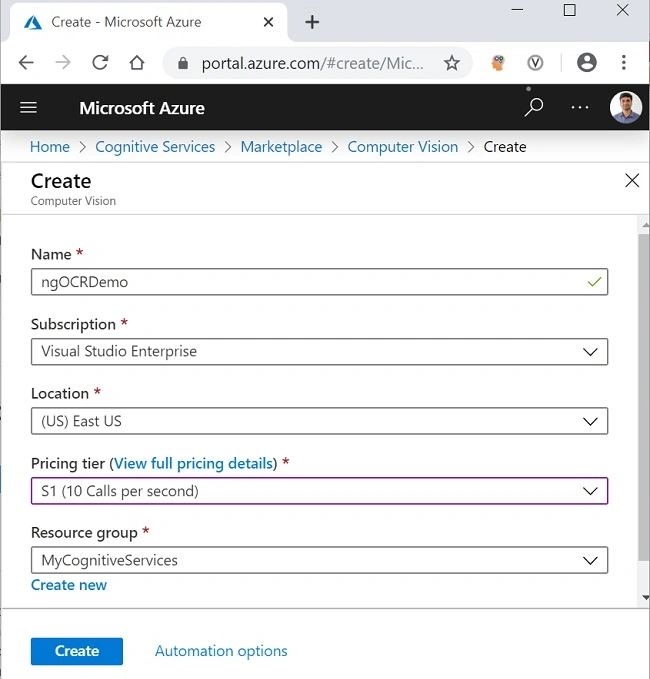
On the Create page, fill in the details as indicated below.
- Name: Give a unique name for your resource.
- Subscription: Select the subscription type from the dropdown.
- Pricing tier: Select the pricing tier as per your choice.
- Resource group: Select an existing resource group or create a new one.
Click on the Create button. Refer to the image shown below.
After your resource is successfully deployed, click on the “Go to resource” button. You can see the Key and the endpoint for the newly created Computer Vision resource.
Refer to the image shown below.
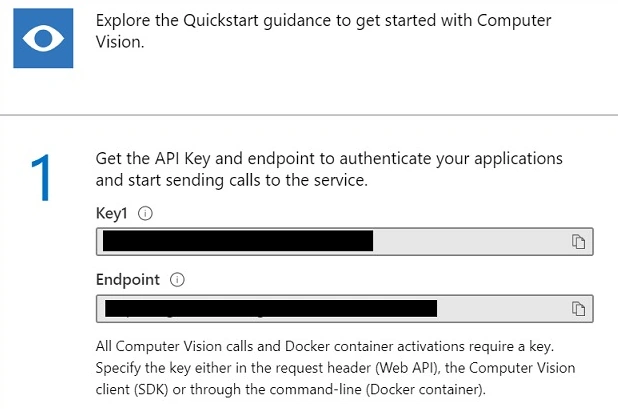
Make a note of the key and the endpoint. We will be using these in the latter part of this article to invoke the Computer Vision OCR API from the .NET Code. The values are masked here for privacy.
Creating the ASP.NET Core application
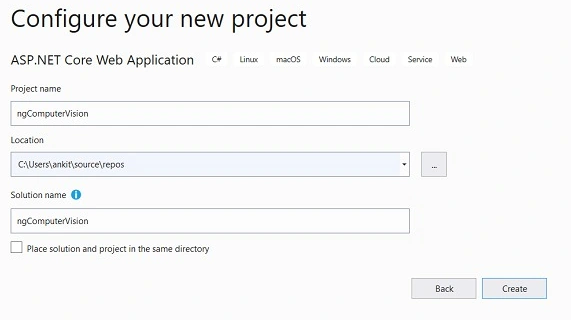
Open Visual Studio 2019 and click on “Create a new Project”. A “Create a new Project” dialog will open. Select “ASP.NET Core Web Application” and click on Next. Now you will be at the “Configure your new project” screen, provide the name for your application as ngComputerVision, and click on create. Refer to the image shown below.
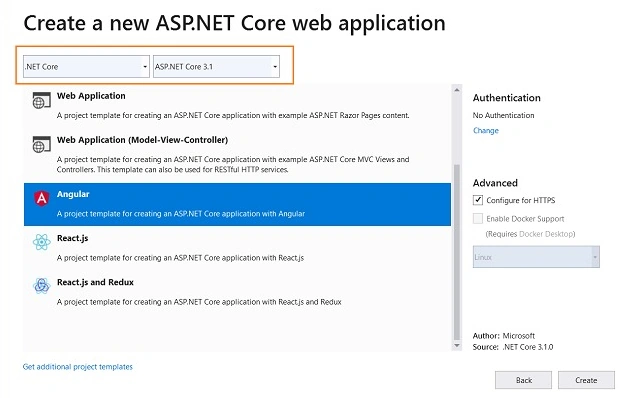
You will be navigated to the “Create a new ASP.NET Core web application” screen. Select “.NET Core” and “ASP.NET Core 3.1” from the dropdowns on the top. Then, select the “Angular” project template and click on Create. Refer to the image shown below.
This will create our project. The folder structure of the application is shown below.
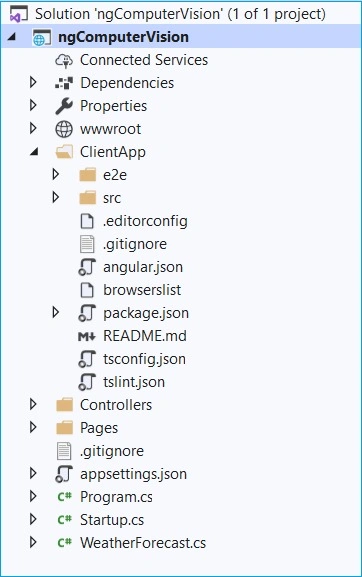
The ClientApp folder contains the Angular code for our application. The Controllers folders will contain our API controllers. The angular components are present inside the ClientApp\src\app folder. The default template contains a few Angular components. These components won’t affect our application, but for the sake of simplicity, we will delete fetchdata and counter folders from the ClientApp/app/components folder. Also, remove the reference for these two components from the app.module.ts file.
Installing the Computer Vision API library
We will install the Azure Computer Vision API library which will provide us with the models out of the box to handle the Computer Vision REST API response. To install the package, navigate to Tools >> NuGet Package Manager >> Package Manager Console. It will open the Package Manager Console. Run the command as shown below.
Install-Package Microsoft.Azure.CognitiveServices.Vision.ComputerVision -Version 5.0.0
You can learn more about this package at the NuGet gallery.
Create the Models
Right-click on the ngComputerVision project and select Add >> New Folder. Name the folder as Models. Again, right-click on the Models folder and select Add >> Class to add a new class file. Put the name of your class as LanguageDetails.cs and click Add.
Open LanguageDetails.cs and put the following code inside it.
Similarly, add a new class file AvailableLanguage.cs, and put the following code inside it.
using System.Collections.Generic;
namespace ngComputerVision.Models
{
    public class AvailableLanguage
    {
        public Dictionary<string, LanguageDetails> Translation { get; set; }
    }
}
We will also add two classes as DTO (Data Transfer Object) for sending data back to the client. Create a new folder and name it DTOModels. Add the new class file AvailableLanguageDTO.cs in the DTOModels folder and put the following code inside it.
namespace ngComputerVision.DTOModels
{
    public class AvailableLanguageDTO
    {
        public string LanguageID { get; set; }
        public string LanguageName { get; set; }
    }
}
Add the OcrResultDTO.cs file and put the following code inside it.
namespace ngComputerVision.DTOModels
{
    public class OcrResultDTO
    {
        public string Language { get; set; }
        public string DetectedText { get; set; }
    }
}
Adding the OCR Controller
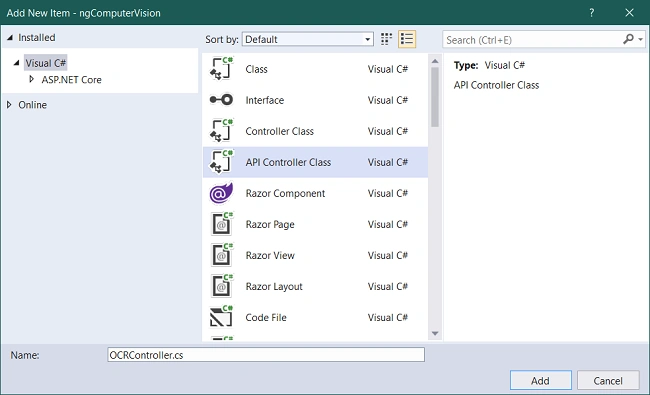
We will add a new controller to our application. Right-click on the Controllers folder and select Add >> New Item. An “Add New Item” dialog box will open. Select “Visual C#” from the left panel, then select “API Controller Class” from the templates panel and put the name as OCRController.cs. Click on Add. Refer to the image below.
The OCRController will handle the image recognition requests from the client app. This controller will also return the list of all the languages supported by OCR API.
Open the OCRController.cs file and put the following code inside it.
using System;
using System.Threading.Tasks;
using Microsoft.AspNetCore.Mvc;
using System.Net.Http;
using System.Net.Http.Headers;
using Newtonsoft.Json.Linq;
using System.IO;
using Newtonsoft.Json;
using System.Text;
using ngComputerVision.Models;
using System.Collections.Generic;
using Microsoft.Azure.CognitiveServices.Vision.ComputerVision.Models;
using ngComputerVision.DTOModels;
namespace ngComputerVision.Controllers
{
    [Produces("application/json")]
    [Route("api/[controller]")]
    public class OCRController : Controller
    {
        static string subscriptionKey;
        static string endpoint;
        static string uriBase;
        public OCRController()
        {
            subscriptionKey = "b993f3afb4e04119bd8ed37171d4ec71";
            endpoint = "https://ankitocrdemo.cognitiveservices.azure.com/";
            uriBase = endpoint + "vision/v2.1/ocr";
        }
        [HttpPost, DisableRequestSizeLimit]
        public async Task<OcrResultDTO> Post()
        {
            StringBuilder sb = new StringBuilder();
            OcrResultDTO ocrResultDTO = new OcrResultDTO();
            try
            {
                if (Request.Form.Files.Count > 0)
                {
                    var file = Request.Form.Files[Request.Form.Files.Count - 1];
                    if (file.Length > 0)
                    {
                        var memoryStream = new MemoryStream();
                        file.CopyTo(memoryStream);
                        byte[] imageFileBytes = memoryStream.ToArray();
                        memoryStream.Flush();
                        string JSONResult = await ReadTextFromStream(imageFileBytes);
                        OcrResult ocrResult = JsonConvert.DeserializeObject<OcrResult>(JSONResult);
                        if (!ocrResult.Language.Equals("unk"))
                        {
                            foreach (OcrLine ocrLine in ocrResult.Regions[0].Lines)
                            {
                                foreach (OcrWord ocrWord in ocrLine.Words)
                                {
                                    sb.Append(ocrWord.Text);
                                    sb.Append(' ');
                                }
                                sb.AppendLine();
                            }
                        }
                        else
                        {
                            sb.Append("This language is not supported.");
                        }
                        ocrResultDTO.DetectedText = sb.ToString();
                        ocrResultDTO.Language = ocrResult.Language;
                    }
                }
                return ocrResultDTO;
            }
            catch
            {
                ocrResultDTO.DetectedText = "Error occurred. Try again";
                ocrResultDTO.Language = "unk";
                return ocrResultDTO;
            }
        }
        static async Task<string> ReadTextFromStream(byte[] byteData)
        {
            try
            {
                HttpClient client = new HttpClient();
                client.DefaultRequestHeaders.Add("Ocp-Apim-Subscription-Key", subscriptionKey);
                string requestParameters = "language=unk&detectOrientation=true";
                string uri = uriBase + "?" + requestParameters;
                HttpResponseMessage response;
                using (ByteArrayContent content = new ByteArrayContent(byteData))
                {
                    content.Headers.ContentType = new MediaTypeHeaderValue("application/octet-stream");
                    response = await client.PostAsync(uri, content);
                }
                string contentString = await response.Content.ReadAsStringAsync();
                string result = JToken.Parse(contentString).ToString();
                return result;
            }
            catch (Exception e)
            {
                return e.Message;
            }
        }
        [HttpGet]
        public async Task<List<AvailableLanguageDTO>> GetAvailableLanguages()
        {
            string endpoint = "https://api.cognitive.microsofttranslator.com/languages?api-version=3.0&scope=translation";
            var client = new HttpClient();
            using (var request = new HttpRequestMessage())
            {
                request.Method = HttpMethod.Get;
                request.RequestUri = new Uri(endpoint);
                var response = await client.SendAsync(request).ConfigureAwait(false);
                string result = await response.Content.ReadAsStringAsync();
                AvailableLanguage deserializedOutput = JsonConvert.DeserializeObject<AvailableLanguage>(result);
                List<AvailableLanguageDTO> availableLanguage = new List<AvailableLanguageDTO>();
                foreach (KeyValuePair<string, LanguageDetails> translation in deserializedOutput.Translation)
                {
                    AvailableLanguageDTO language = new AvailableLanguageDTO();
                    language.LanguageID = translation.Key;
                    language.LanguageName = translation.Value.Name;
                    availableLanguage.Add(language);
                }
                return availableLanguage;
            }
        }
    }
}
JosephsPosted Dec 10, 2021, 4:28 PM
System.InvalidOperationException: 'An exception has been raised that is likely due to a transient failure. Consider enabling transient error resiliency by adding 'EnableRetryOnFailure' to the 'UseSqlServer' call.'
JosephsPosted Dec 10, 2021, 4:28 PM
Hi your article shows error like this