

Introduction
Rather than being more theoretical, this article will focus mainly on the implementation part. Wherever required, I’ll throw some light on the conceptual part too.
Prerequisite
Good knowledge of C# and working knowledge of web designing and its concepts.
Machine Configuration
Machine configuration used for this walkthrough is Visual Studio 2017 with .NET Core development tools/SDK. Make sure that you have at least .NET Core 2.2 installed.
Expectation
By the end of this article, the reader will have a working model of an ASP.NET Core website for a Cookie Store.
Good to Start
Background is all set and we are good to go. Let's start by creating our application in a step-by-step fashion.
Creating a New ASP.NET Core 2.2 Application
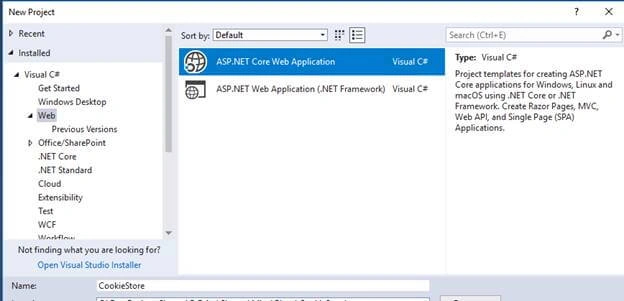
Let’s go to the Visual Studio. Go to File menu, select New and then select Project. On selecting the Web as a category, you will land upon the below dialog,
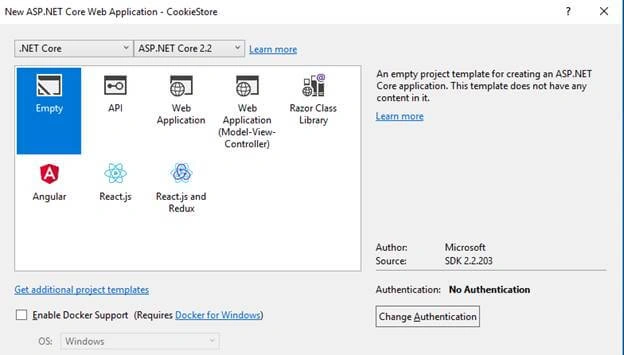
Once you clicked on OK, you will witness the below dialog wherein you can re-verify the selected ASP.NET Core version. Being a learner, it’s good to go with an Empty template as we can take care of each and everything by ourselves rather than relying on auto generated code. Select Empty and proceed.
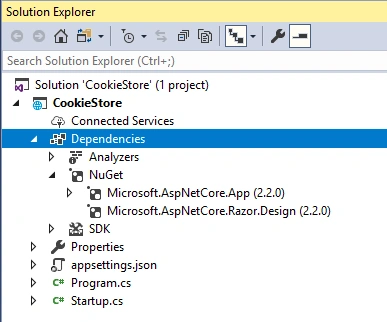
Once the project is successfully created, you can see the dependency node is having required references added as shown below,
Here, let’s remove appsettings.json file as we will be creating our own at a later point of time and add a new folder named wwwroot under the project. Once the wwwroot folder is created, you can notice that the folder icon is changed. This is a special folder which stores all the static files (css, image files, JavaScript files, etc.) and is mapped directly to the web site URL.
Plugging Middleware and Services
Let’s start with Startup class. This class holds two very important methods named ConfigureServices and Configure. Both these methods are automatically called by ASP.NET Core. Using ConfigureServices, we can add services to dependency injection container using IServiceCollection. So, let’s go and add MVC service as shown below,
- public void ConfigureServices(IServiceCollection services)
- {
- services.AddMvc();
- }
Next is ConfigureServices method, which is used to configure middleware pipeline with the components which will serve our requests.
Here is the initial code to plug the required middleware,
- public void Configure(IApplicationBuilder app, IHostingEnvironment env)
- {
- app.UseDeveloperExceptionPage();
- app.UseStatusCodePages();
- app.UseStaticFiles();
- app.UseMvcWithDefaultRoute();
- }
Please note that the sequence of adding middleware matters a lot. Now we have done the ground work for setting up the foundation for our application, let’s go ahead and setup other useful components.
Creating Model and Repository Classes
Let’s start by creating a Models folder under solution with a class named Cookie underneath it.
- public class Cookie
- {
- public int Id {get;set; }
- public string Name { get; set; }
- public string TinyDescription { get; set; }
- public string FullDescription { get; set; }
- public decimal Price { get; set; }
- public string ImageUrl { get; set; }
- public bool IsCookieOfTheDay { get; set; }
- }
Now quickly create an interface with name IRepository under the same folder with two initial methods as shown below,
- public interface IRepository
- {
- IEnumerable<cookie> GetAllCookies();
- Cookie GetCookieById(int id);
- }
The next task would be to create some dummy data, which we can use to verify whether our application is working as expected or not.
Here is the implementation of IRepository interface,
- public class MockRepository : IRepository
- {
- private List<cookie> _cookies;
- public MockRepository()
- {
- if (_cookies == null)
- {
- InitializeRepository();
- }
- }
- private void InitializeRepository()
- {
- _cookies = new List<cookie>
- {
- new Cookie
- { Id=1,Name="Raspberry", Price=110,
- TinyDescription="Dark chocolate overloaded",
- FullDescription ="This is one of the best ever
- soft and chewy cookie and also been awarded as the
- best cookie several times.", IsCookieOfTheDay=false,
- ImageUrl ="\\Images\\1.png"},
- new Cookie{ Id=2, Name="Nuts Overloaded",
- Price=100, TinyDescription="Truely healthy",
- FullDescription ="This cookie is fully loaded
- with nuts of various types and contains
- nice amount of peanut butter.", IsCookieOfTheDay=true,
- ImageUrl ="\\Images\\2.png"},
- new Cookie{Id=3, Name="Chocolate",
- Price=70,TinyDescription="Amazingly fruity",
- FullDescription ="This cookie is best suited
- for the chocolate lovers. It's less sweet and gives
- very elegant taste.", IsCookieOfTheDay=false,
- ImageUrl ="\\Images\\3.png"},
- new Cookie{Id=4, Name="Delicious Oatmeal",Price=50,
- TinyDescription="Truely healthy",
- FullDescription ="This is one of the most moist and
- flavourful cookie, which can make anyone's mood happy.",
- IsCookieOfTheDay=false,
- ImageUrl ="\\Images\\4.png"},
- };
- }
- public Cookie GetCookie(int id)
- {
- return _cookies.FirstOrDefault(x => x.Id == id);
- }
- public IEnumerable<cookie> GetCookies()
- {
- return _cookies;
- }
- }
Let’s go and register this IRepository with dependency injection container inside ConfigureServicesmethod as shown below:
services.AddTransient<irepository, mockrepository="">(); // get me new instance every time
Adding Controller
Let’s create a new folder named Controllers under project and add an empty controller with the name Home inside it. Briefly, controller is responsible for creating a response based on user’s request with the help of a model by calling a method. Such methods are generally known as action methods in terms of MVC. Below is the code to use IRepository inside controller to get the data from model,
- public class HomeController : Controller
- {
- private readonly IRepository _repository;
- public HomeController(IRepository repository)
- {
- _repository = repository;
- }
- public IActionResult Index()
- {
- return View();
- }
- }
Adding View
So far, we are already done with basic Model and Controller. So, the only thing pending is View. In ASP.NET Core 2.2, a View can be of two types – Regular/Plain view and Strongly-typed view. But in most of the scenarios, strongly-typed view is required. Here, we would be using Razor.
So, let’s create a new folder named Views under project along with a subfolder named as Home. Right-click on the Home folder and add new item Razor View. On successful addition of View, you will notice that a new file with name Index.cshtml is added under Home folder.
Now it’s time to verify whether view and controller are tied properly and able to communicate. For this verification purpose, let’s add some title to the page and we will pass the value of this title from controller class using ViewBag. Similarly, we will also show some information about the cookies. Below is the updated method of HomeController,
- public IActionResult Index()
- {
- ViewBag.Title = "Cookies and only Cookies";
- var cookies = _repository.GetAllCookies().OrderByDescending(x=>x.Price);
- return View(cookies);
- }
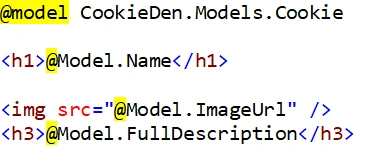
Next is to update the view to read this title value. Here is the code for this,
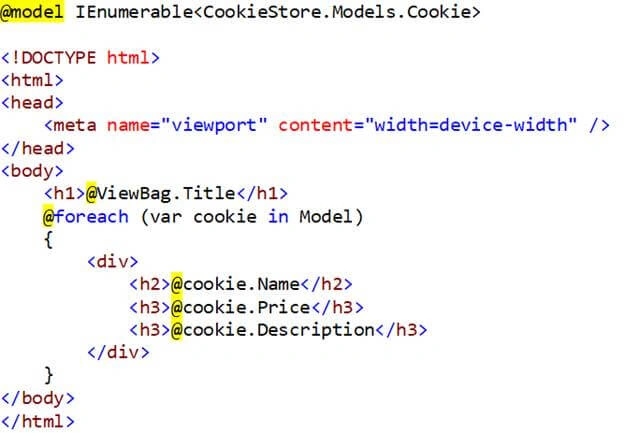
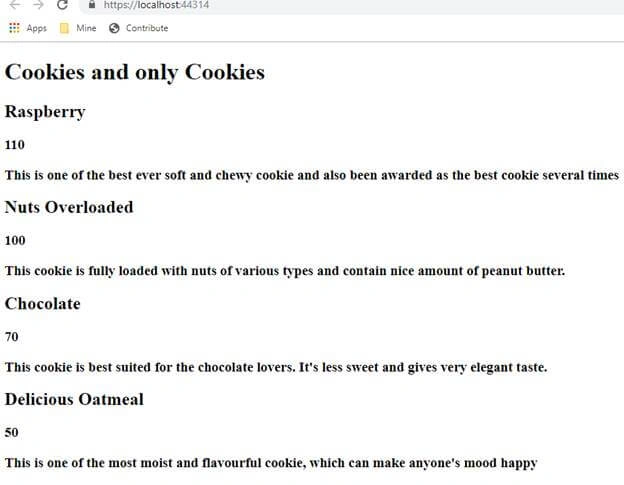
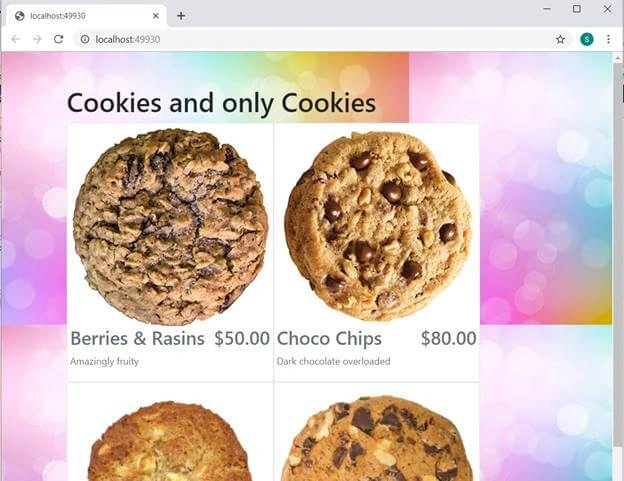
Now, if you will run the application, you would be able to see the below output,
Improvising on Including HTML Markup
In the above snippet, we have seen that the complete HTML markup is written to display a page. Now what if we have lots of views? Are we going to repeat this HTML code for each and every page?
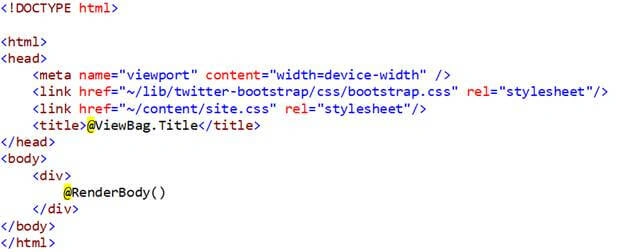
Certainly not. Here comes the templating. We can create a template and refer to that template in all the views. Doing this will also reduce the amount of code in individual views. It’s obvious that, if something is to be shared among many components, then it has to be kept in a shared location and that’s where shared folder is introduced as part of the MVC design.
Introducing Layout Template
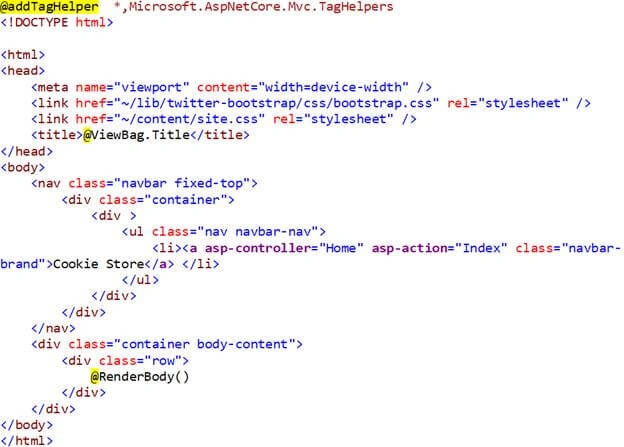
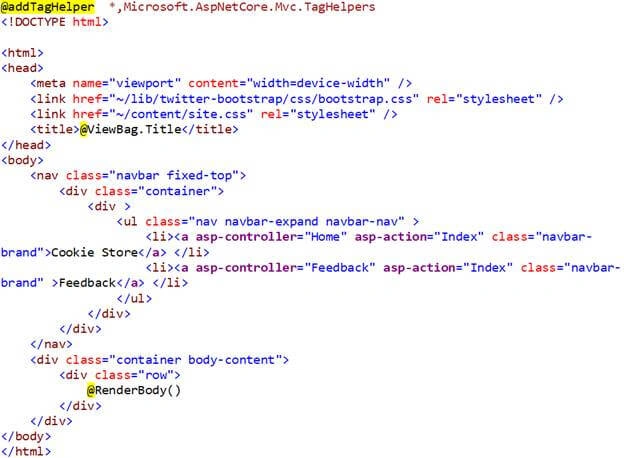
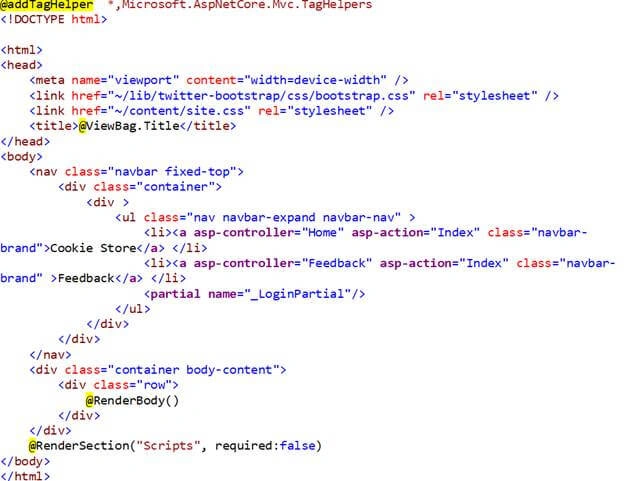
Add a new folder under Views folder and name it as Shared. Right click on the Shared folder and add a new item Razor Layout. Default name of this newly added item is _Layout.cshtml and it looks like below,
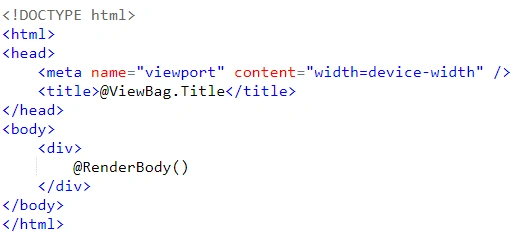
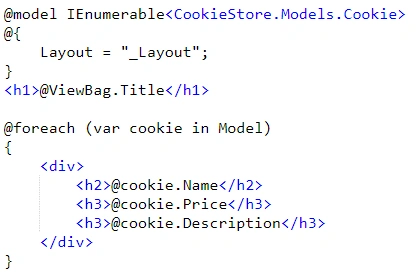
If you will look closely, you may notice that _Layout.cshtml and our view contains most of the common code. So, it’s time to integrate _Layout.cshtml into our view and after integration, our view will contain the below code only,
Refining the View Even Further Using _ViewStart
We did a really good job by reducing the line of codes in our view file, but there is still a need to do more. Again, the layout, which we integrated in our view is going to be duplicated for each and every view. Can we get rid of this duplication also?
Of course, Yes. Let’s add another new item Razor View Start under Views folder with a default name as _ViewStart.cshtml. This file comes with the default code in it as shown below and is invoked automatically,
- @{
- Layout = "_Layout";
- }
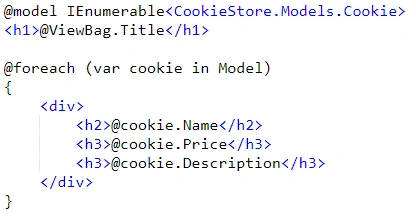
Now you can see that this file has already plugged Layout for us, which means the line of code in our view is further reduced to just a few lines as shown below,
You can re-run your application and verify that it is working as expected.
Introducing ViewModel
You must have noticed that our view is getting data from multiple paths. So, why can’t we get rid of this and create a single entity which would be the source for our view. Let’s try this.
We will add a new folder named ViewModels under project with a new class named HomeViewModel under it. This ViewModel class will be the data source for our Home view. As of now, we will take the bare minimum fields as shown below,
- public class HomeViewModel
- {
- public string Title { get; set; }
- public List<cookie> Cookies { get; set; }
- }
Accordingly, we must update our Index method inside HomeController as shown below,
- public IActionResult Index()
- {
- HomeViewModel viewModel = new HomeViewModel
- {
- Title = "Cookies and only Cookies",
- Cookies = _repository.GetAllCookies().OrderByDescending(x => x.Price).ToList()
- };
- return View(viewModel);
- }
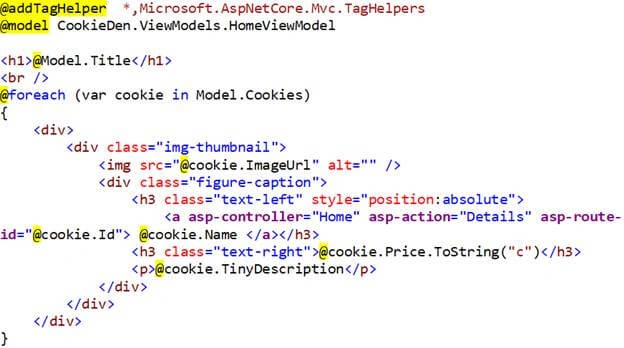
Lastly, let’s update the View with reference of HomeViewModel as shown below,
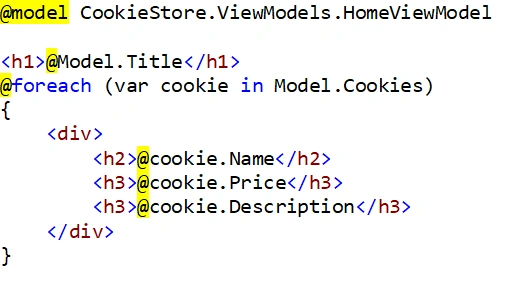
Re-verify the output, it should still be the same.
Improving Look and Feel of the View using Bootstrap
This can be done using a client-side package known as Bootstrap. Depending on the version and updates of Visual Studio, one can choose any of the package manager like Bower, Library Manager (LibMan), etc. Here, I’ll go with the Library Manager as my Visual Studio version is 15.8.5. Let’s go and add new item ‘Add Client-Side Library’ at project level and furnish the details as shown below,
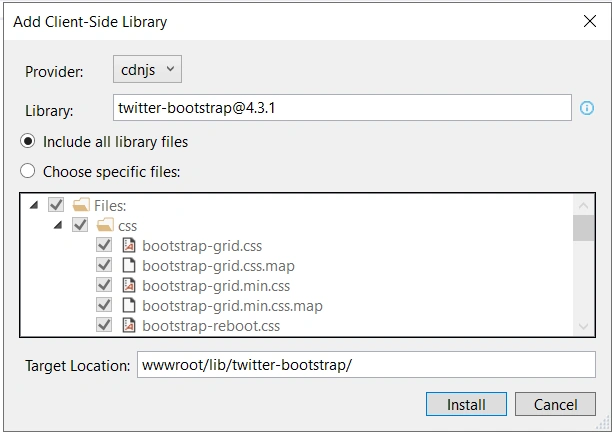
Next is to add images to our application. For that, we have to create another folder named Images under wwwroot.
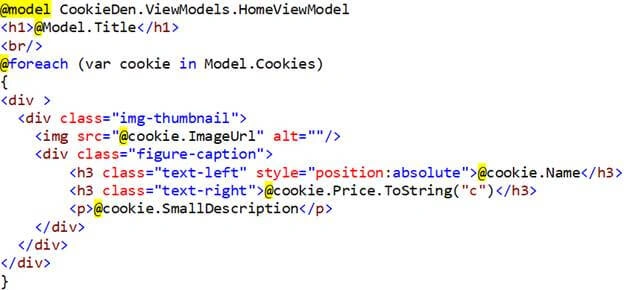
Then we have to add a style sheet to our app and to do that, a new folder named content has to be added under wwwroot and inside that, we have to create a css named site.css. Once done, we can add the below basic style,

Amit MohantyPosted Jun 27, 2019, 2:10 AM
Nice and clean explanation !!!
Saravanakumar SekaranPosted Jun 24, 2019, 11:33 PM
Wow super article !!!
SukaskhaPosted Jun 9, 2019, 9:39 PM
Nice article
Sajith KPosted Jun 7, 2019, 4:20 AM
This one is gold . Thanks for explaining step by step as what happens with the MVC pattern