

Introduction
This article will help you learn the process of creation of an Azure Blob Storage using Visual Studio.
This article will cover the following.
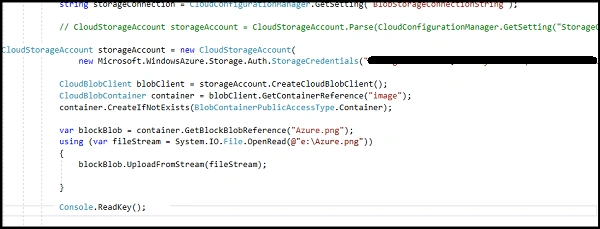
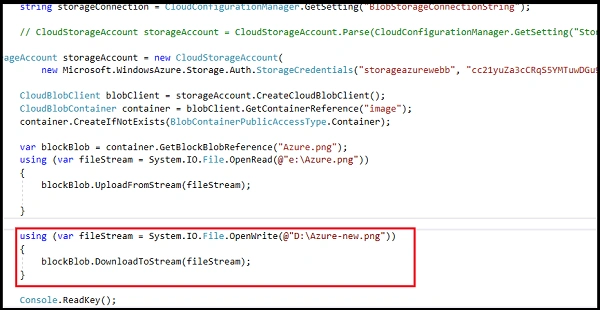
- Creating Blob Storage using C#
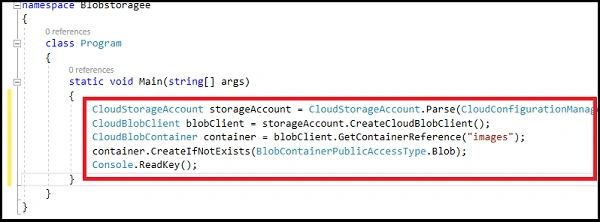
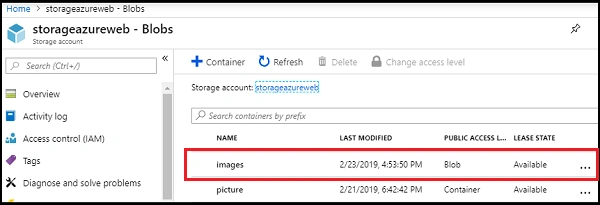
- Create a Container
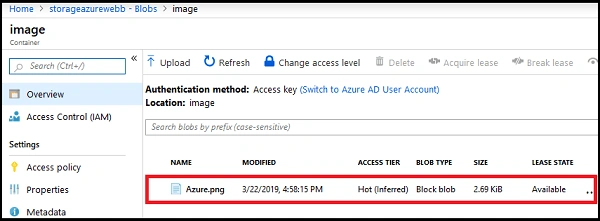
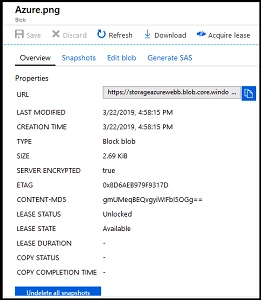
- Uploading a File
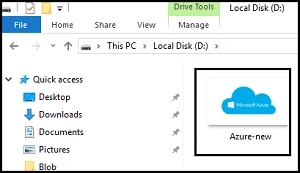
- Downloading a File
Before reading this article, please go through some important articles mentioned below.
- Quick Start With Azure Storage
- A Detailed Overview Of Azure Storage Account Creation
- Detailed Overview Of Blob Storage
Azure Storage
Azure Storage is one of the cloud computing PaaS (Platform as a Service) services provided by the Microsoft Azure team. It provides cloud storage that is highly available, secure, durable, scalable, and redundant. It is massively scalable and elastic. It can store and process hundreds of terabytes of data or you can store the small amounts of data required for a small business website.
What is Blob?
Blob is a service for storing large amounts of unstructured data that can be accessed from anywhere in the world via HTTP or HTTPS." Blob stands for " Binary Large Object ". It's designed to store large amounts of unstructured text or binary data like virtual hard disks, videos, images or even log files. The data can be exposed to the public or stored privately. It scales up or down as your needs change. We no longer manage it, we only pay for what we use.
Create Blob Storage using Visual Studio.
Prerequisites
- Microsoft Azure Account.
- Visual Studio 2015
Follow the below steps to create an Azure Storage Account.
Step 1
Log in here. Please go through the article mentioned below for creating a Storage account mentioned below.
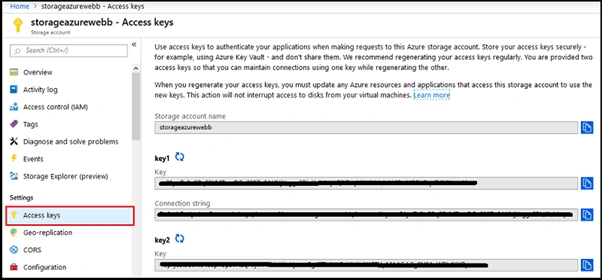
After creating the storage account, navigate to the Access key and then copy the key & connection string.
Step 2 - Create a container in Visual studio
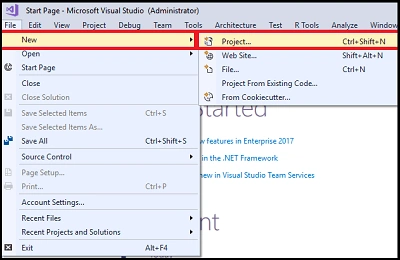
- Create a new empty MVC application. The step to create a new project is File -> New -> Project.
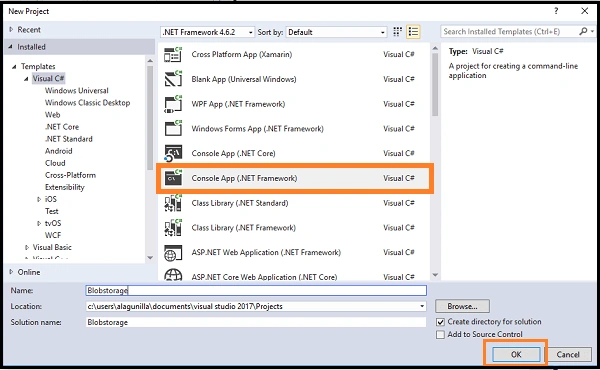
- Choose Console App under Visual C# and type Project Name & click the OK button.
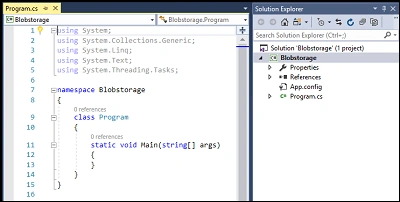
- Then, we will get this window.
Step 4 –Install NuGet Package
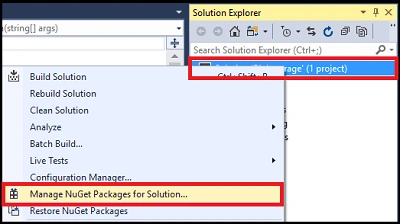
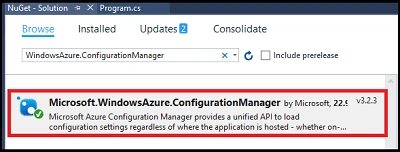
- Now, right-click on the Solution Explorer and go to Manage NuGet packages for solutions.
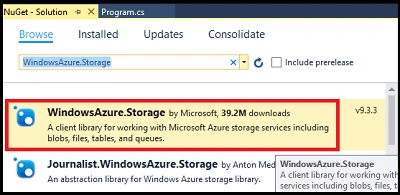
- Install WindowsAzure.Storage Package.
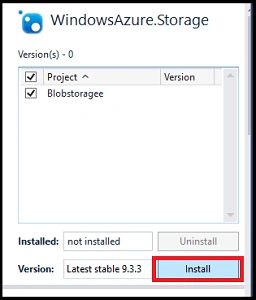
- Click on "Install".
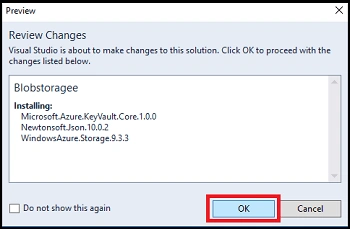
- You will get a preview window then click the OK button
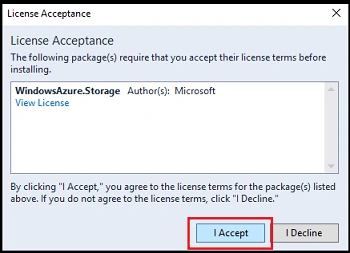
- Choose "I Accept".

JosephsPosted Sep 13, 2019, 8:23 AM
Your code The remote server returned an error: (400) Bad Request. error
JosephsPosted Sep 13, 2019, 8:10 AM
Where we get Storage Credentials ?
JosephsPosted Sep 13, 2019, 7:56 AM
Can you share Zip format ?
Huang TairanPosted May 25, 2019, 4:13 AM
Azure storage is IaaS but not PaaS, I think?