

In this article I will explain how can we create and publish browser enabled
InfoPath form in SharePoint site.
Steps Involve
1. Step 1: Design info path form
2. Step 2: Publish InfoPath form
3. Step 3: Open form in SharePoint
Step 1 (Design Info Path Form)
- Open InfoPath 2007
Start>>Programs>>Microsoft Office>>InfoPath 2007.
- Click On File menu and choose Design a
Form Template
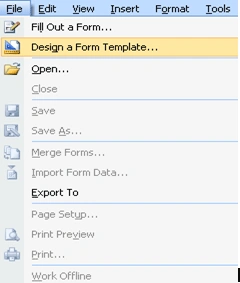
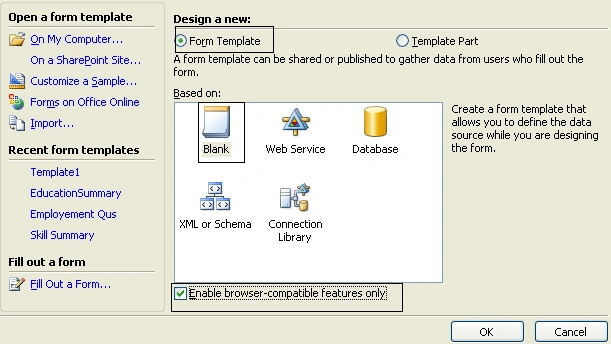
- In the design template window click on
Form Template radio button and select blank. Click on "Enable
browser-compatible futures only " to create browser based form
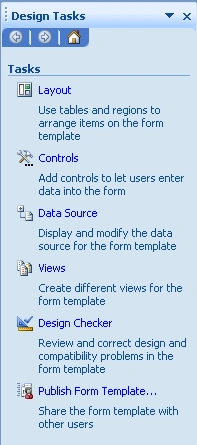
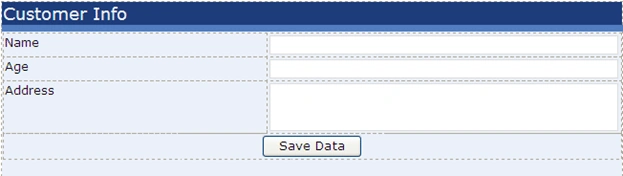
- Now Design the form using design task
window which will be appear in the right side.
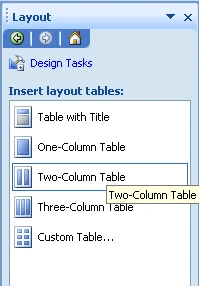
- Click Layout link to design layout of the
form.
- After design click on Controls on Design
Task pane to add control in your form.
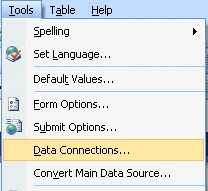
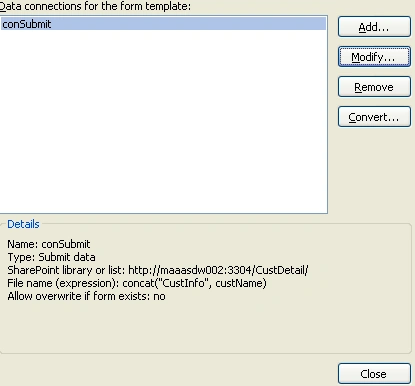
- Go to Tools menu and select Data
Connections
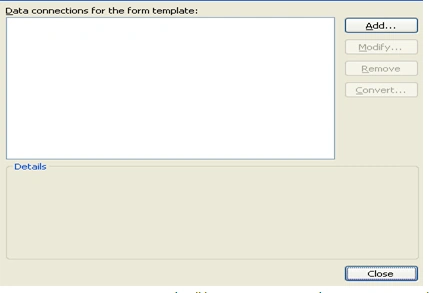
- In data connection window click on Add
button to create new data connection.
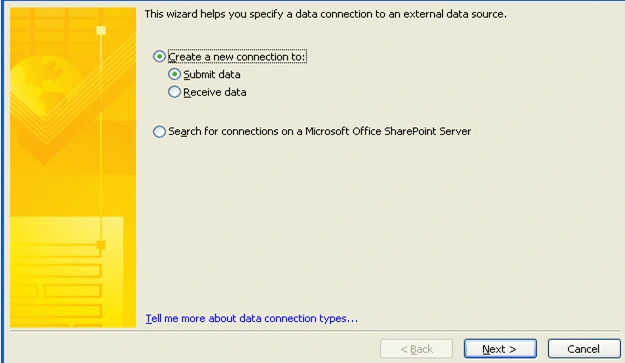
- Now Data Connection Wizard will be open to
create data connection. Click on Create New Connection radio button and
choose Submit Data, click on Next
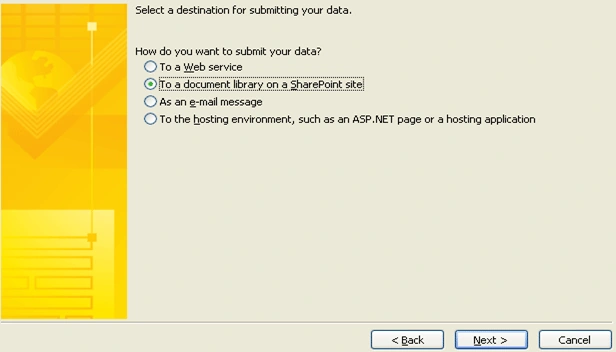
- Select destination where you want to
submit data(In this article I will submit data in share point document
library). Select destination "To a document library on a SharePoint site"
and click on next button.
- Specify the URL of SharePoint document
library and file name. Click on next button
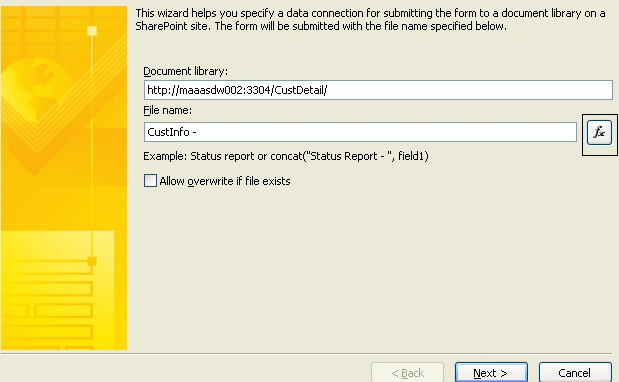
Steps for Creating dynamic file name:
- Write "CustInfo" in File name text box and Click on "fx" button.
- A popup will be open to insert formula.
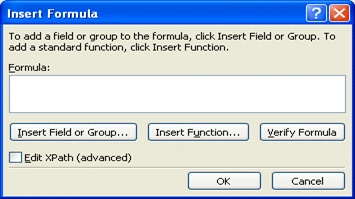
- Click on "Insert Function" button and
select Categories Text and function concat and click on Ok button .
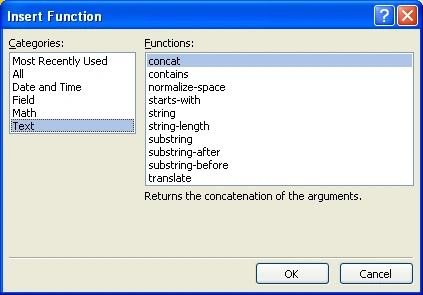
- Delete first text from concat function and
Double Click on next "double click to insert field" text and select CustName
Field. Delete next text also.
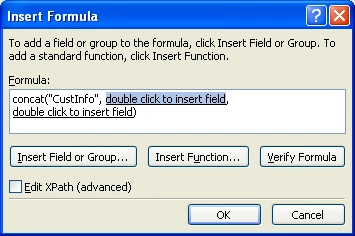
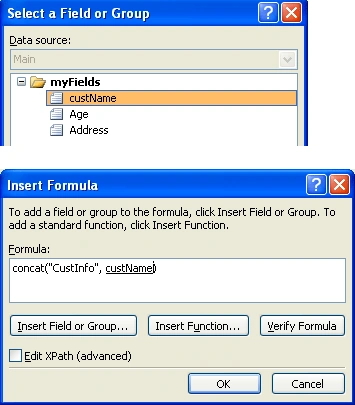
- Click on "OK" button.
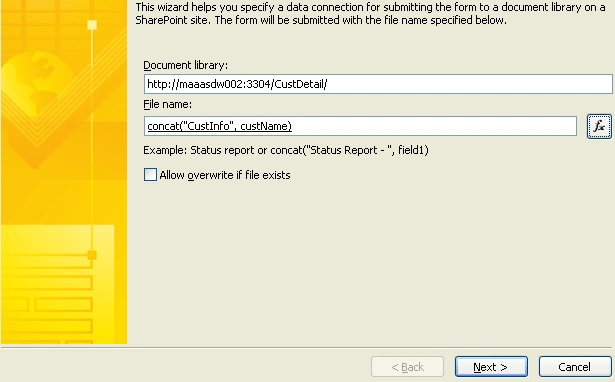
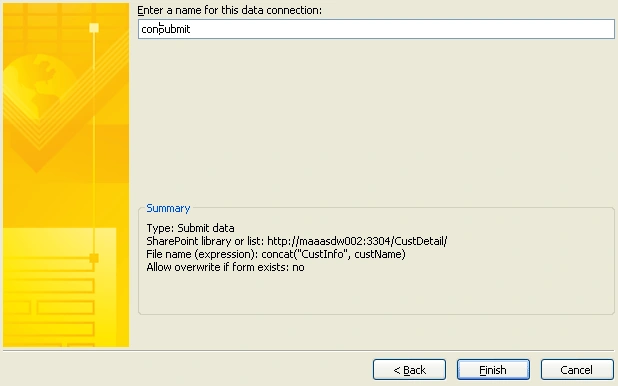
Dynamic form name created now click on next button.





Mahesh ChandPosted Dec 14, 2010, 11:03 AM
Thanks for sharing.