

In this article I will explain how can we create and publish browser enabled
InfoPath form in SharePoint site.
Steps Involve
1. Step 1: Design info path form
2. Step 2: Creating Installable InfoPath form Template
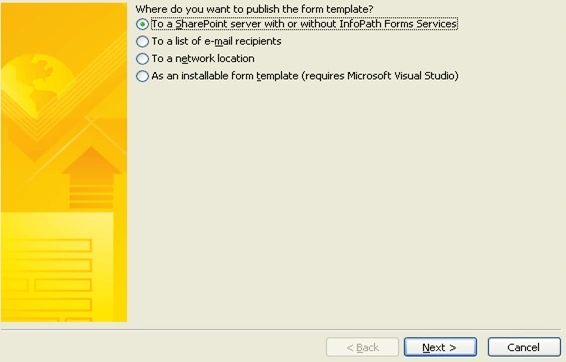
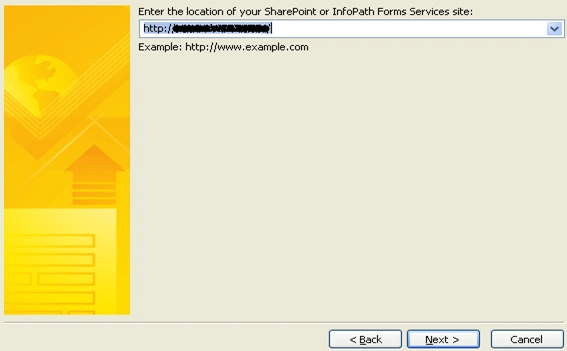
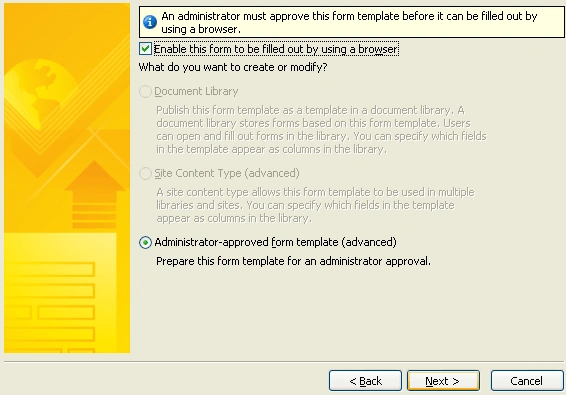
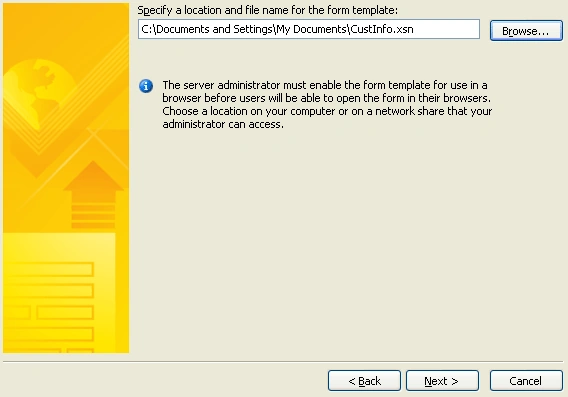
3. Step 3: Deploying form in SharePoint
Step 1: (Design Info Path Form)
To design InfoPath form please refer to my previous article "Creating
browser enabled InfoPath forms for SharePoint library"
After designing form Right click on button control (which you have added in your
form) and select button properties.
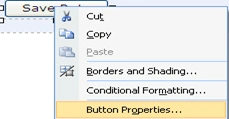
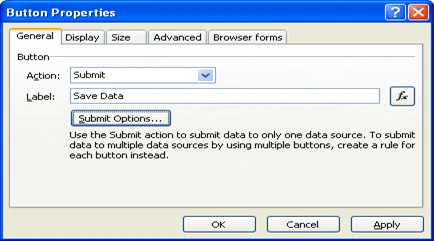
Select Submit from the "Action" dropdown and Change the label of button and
click on "Submit Option" button. Click on "Submit Option" button.
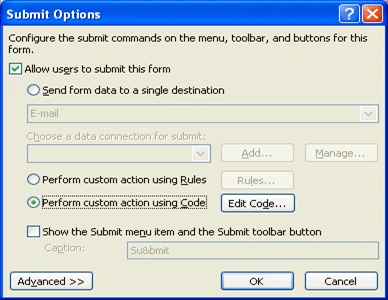
From submit options popup, Click on "Allow users to submit this form "check box,
select "Perform custom action using Code" and click on "Edit Code…" button.
Now Visual Studio project will be open where you can write your code to submit
data into SharePoint library.
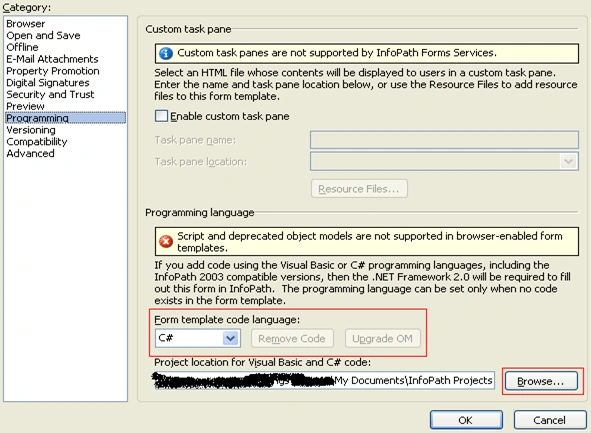
Steps to select your programming language and project location(Before clicking
on Edit Code
button)
- Go to "Form Options" from the Tools menu.
- Click on "Programming" tab. Here you
select From template code language and you can browse
code location as well.
Add SharePoint reference in your SharePoint
solution.
using
Microsoft.SharePoint;
Write following code to "FormEvents_submit"
event.
public
void FormEvents_Submit(object
sender, SubmitEventArgs e)
{
XPathNavigator root = this.MainDataSource.CreateNavigator();
SPSecurity.RunWithElevatedPrivileges(delegate()
{
using (SPSite site = new SPSite("http://maaasdw002:3304"))
{
using (SPWeb web = site.OpenWeb())
{
SPList list = web.Lists["CustInfo"];
SPListItem newItem = list.Items.Add();
newItem["Title"] = root.SelectSingleNode("/my:myFields/my:custTitle", this.NamespaceManager).Value;
newItem["CustName"] = root.SelectSingleNode("/my:myFields/my:custName", this.NamespaceManager).Value;
newItem["Age"] = root.SelectSingleNode("/my:myFields/my:Age", this.NamespaceManager).Value;






Join the conversation! Your thoughts help the community grow.