Here are the steps,
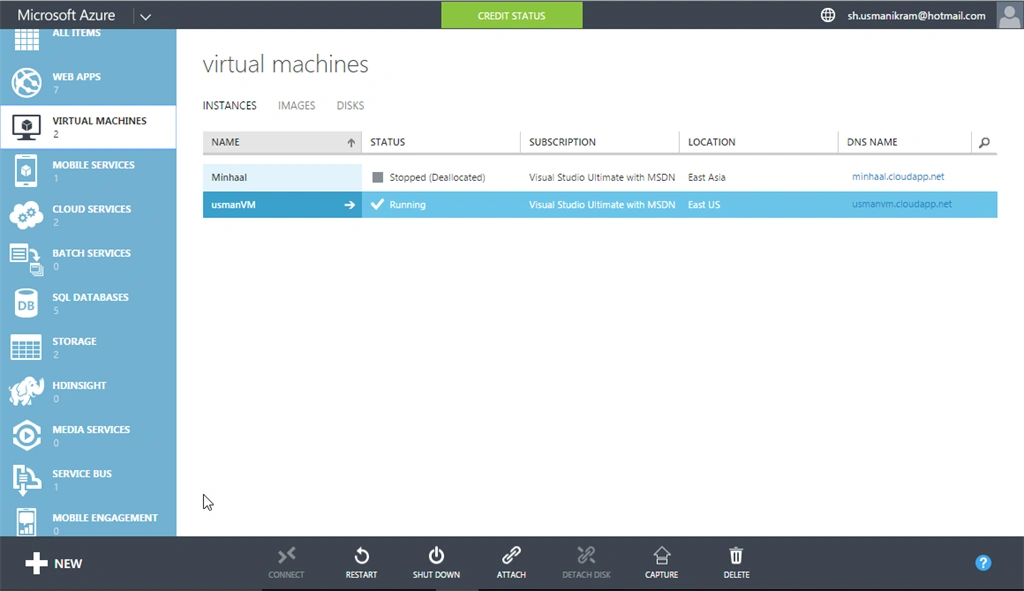
- Navigate to https://manage.windowsazure.com.
- Enter your Credentials when asked.
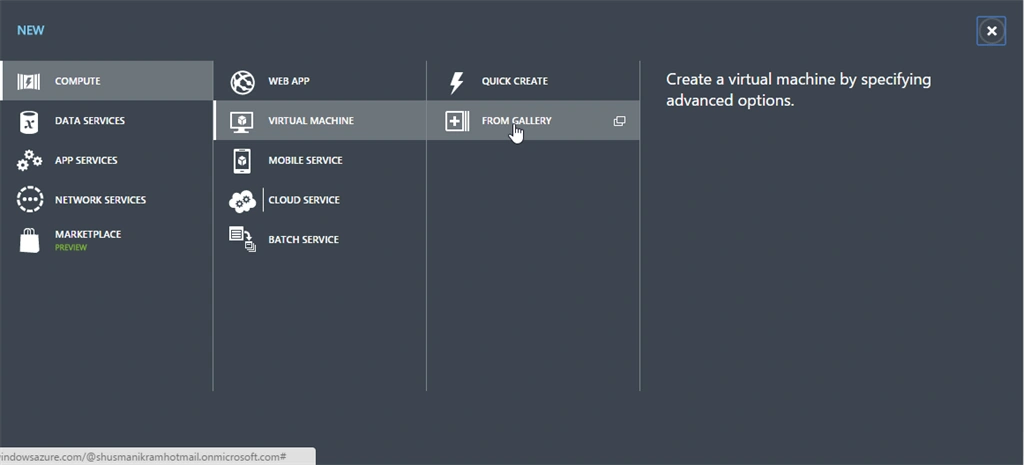
- On the portal page select + NEW | COMPUTE + VIRTUAL MACHINE + FROM GALLERY.
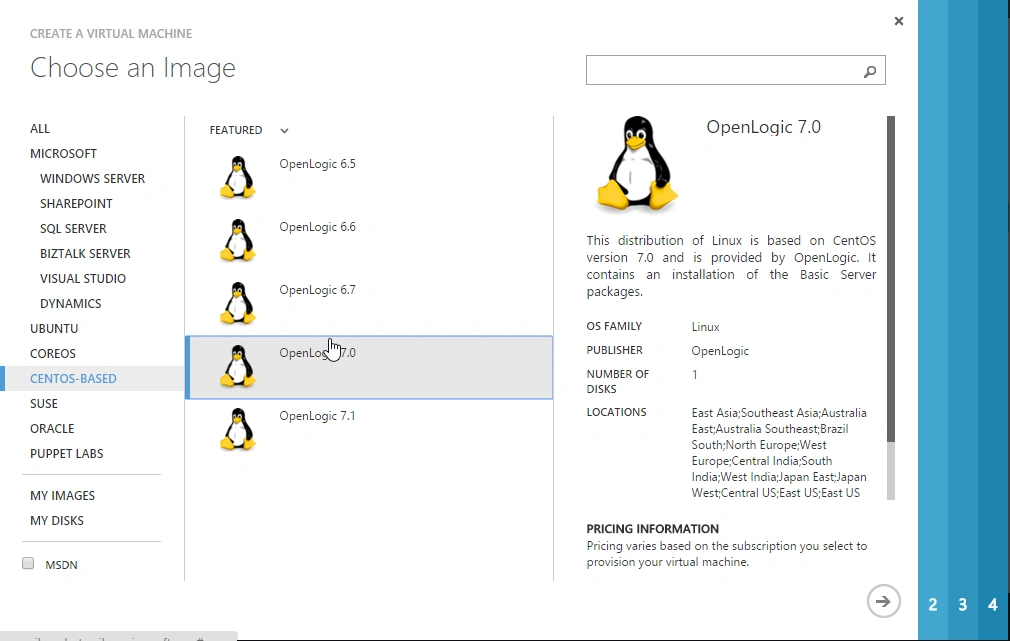
From Gallery choose CENTOS-BASED and then OpenLogic 7.0,
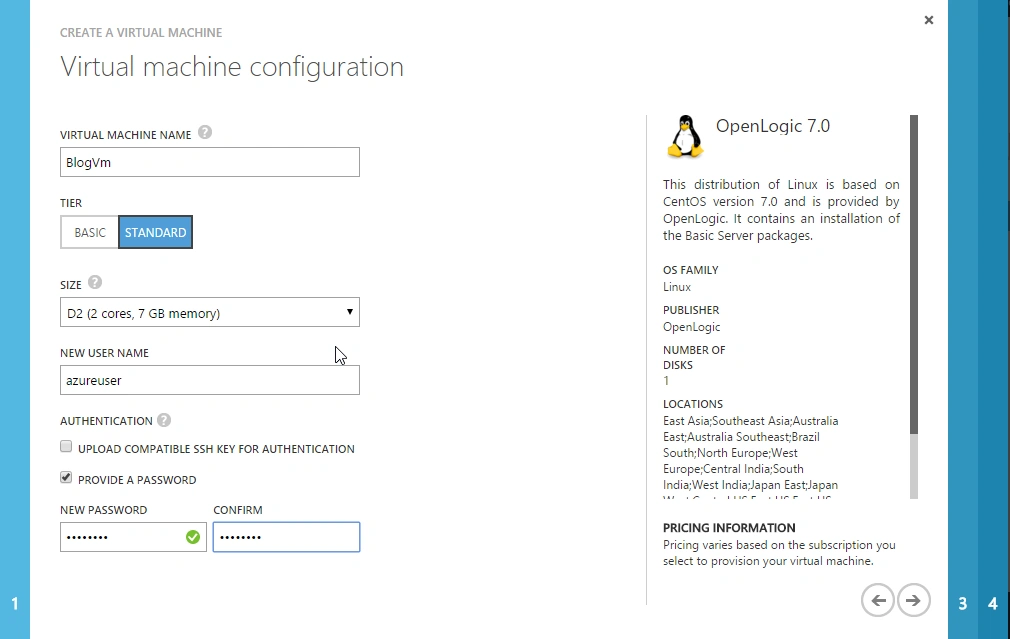
Enter Virtual Machine Name,
- Select TIER
- Select SIZE
- Enter User Name
- In AUTHENTICATION, SSH Key is optional and it can be added later.
- Enter Password and move to next step.
Select CLOUD SERVICE,
- Enter Unique CLOUD SERVICE DNS NAME
- Select REGION
- Select STORAGE ACCOUNT
- Select AVAILABILITY SET (Optional)
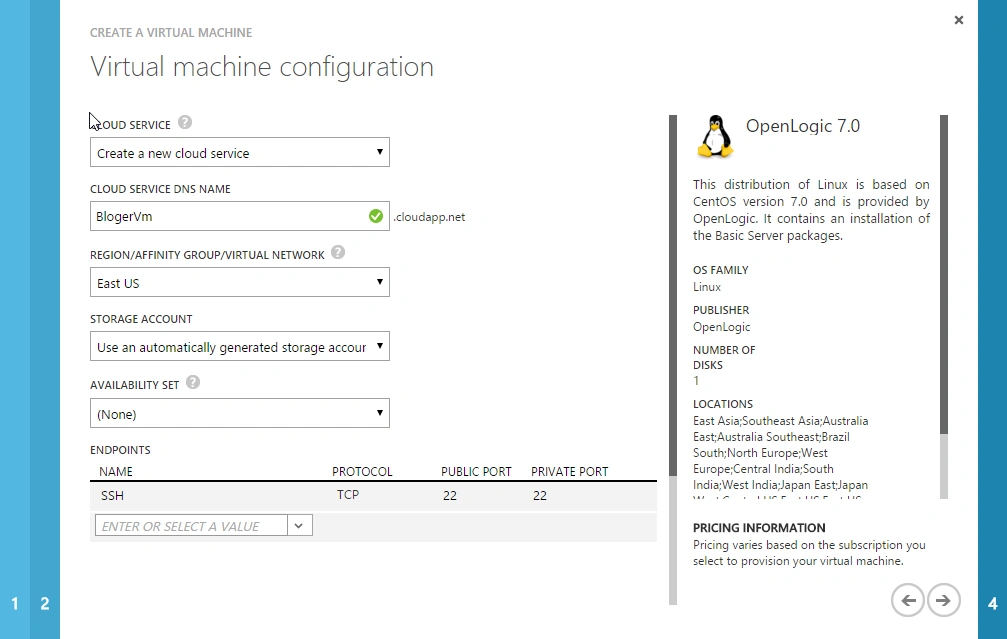
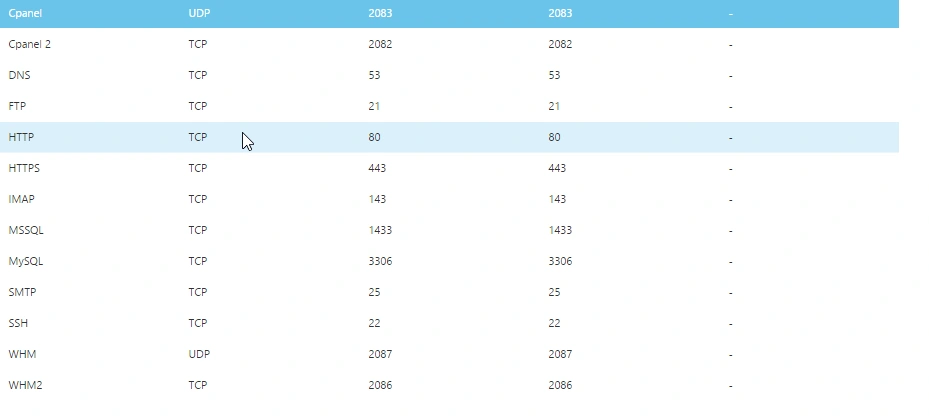
Add the necessary ENDPOINTS as shown in screen,
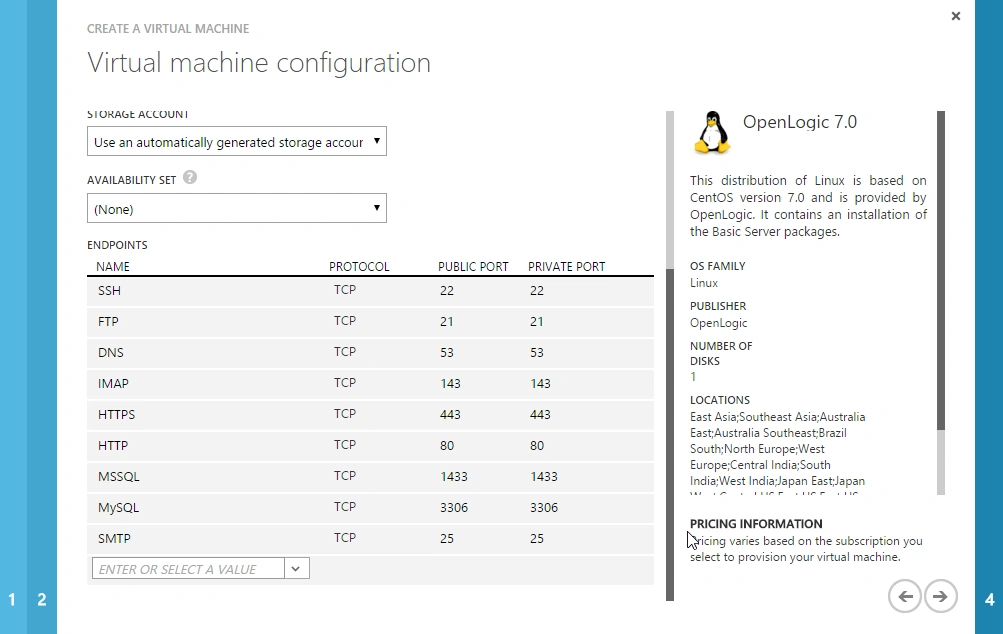
You have done all the
configurations, now move to finish.
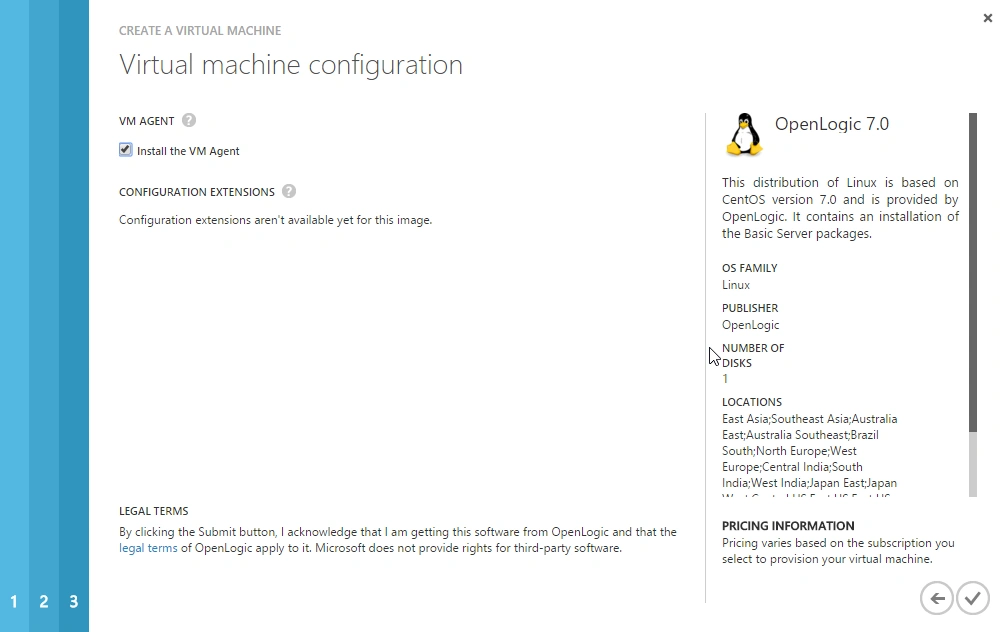
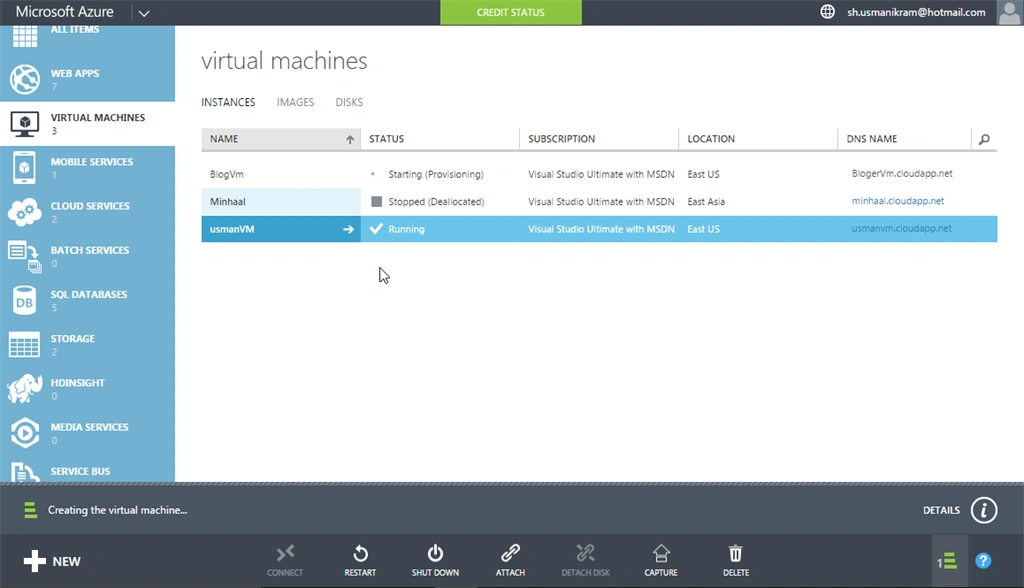
You can see your Virtual Machine in the list while its Microsoft Azure is creating it for you.
Your
Virtual Machine is now setup.
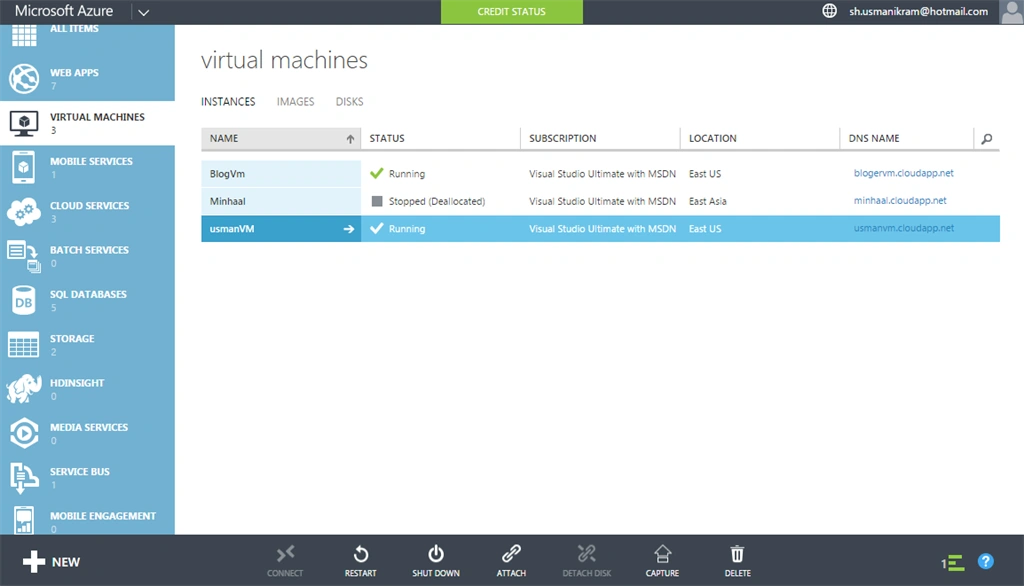
After Virtual Machine is completed, go to
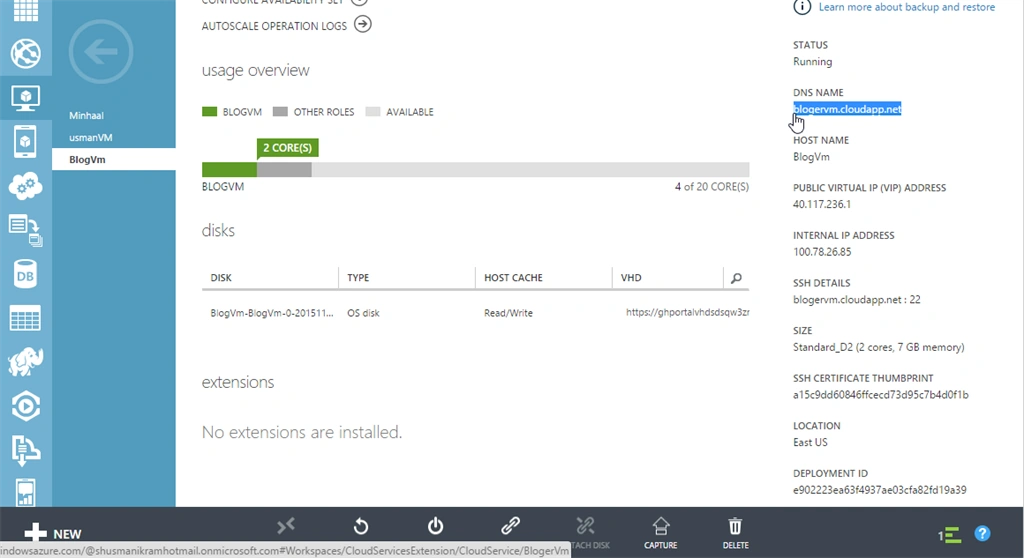
Go to Dashboard and copy DNS NAME.
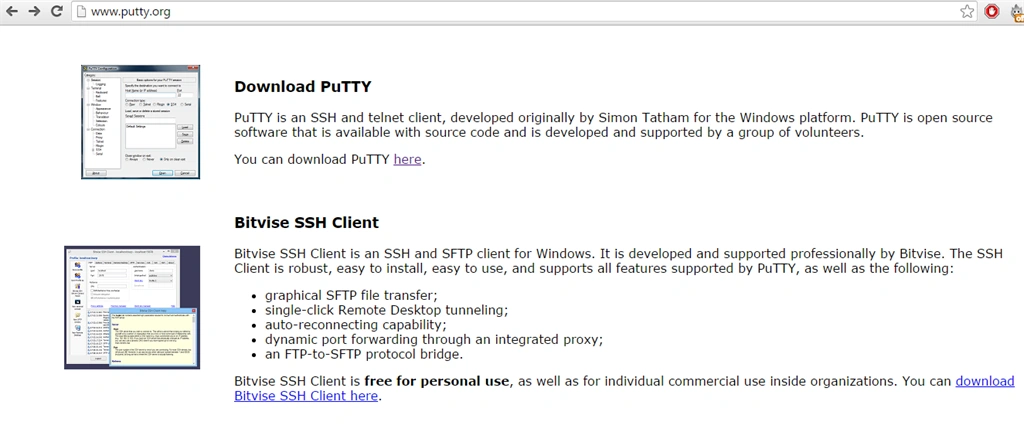
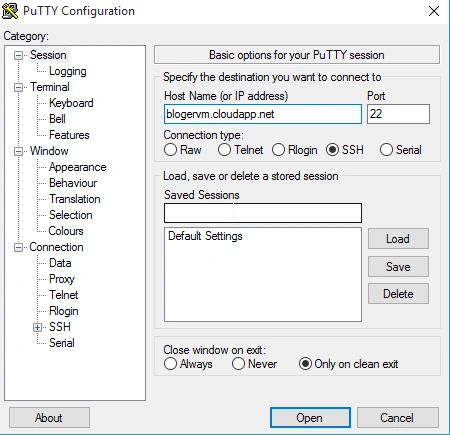
Open PuTTY,
- Pass the DNS NAME in Host Name (or IP address)
- Click Open
Enter your Virtual Machine User Name and Password you entered while configuring your Virtual Machine,
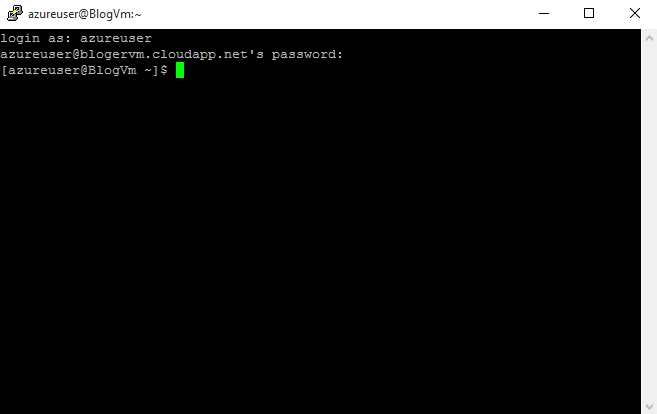
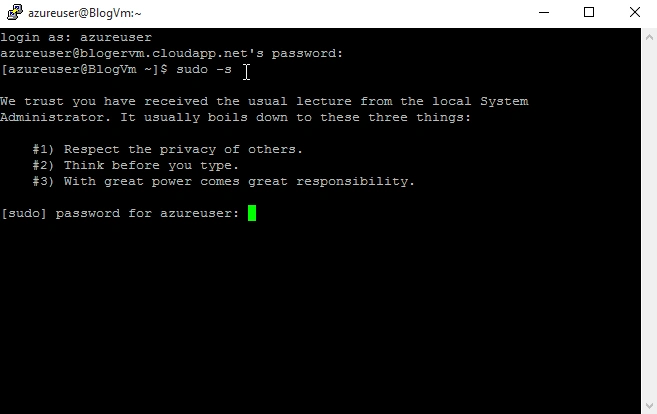
To access your Virtual Machine as Administrator,
- Type command sudo -s
- Enter same password
Type command passwd to change password for root user.
Note: choose a strong password otherwise it won't allow you to change.
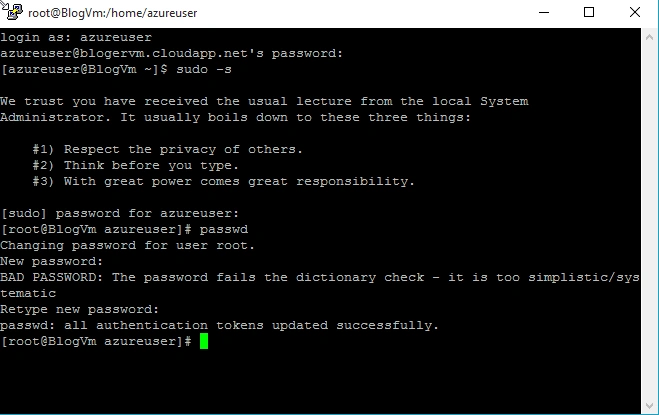
Type command
cd to shift to root directory and type command
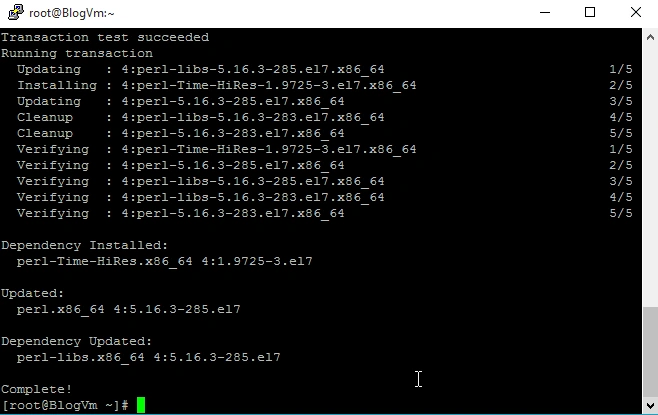
sudo yum install perl to install perl as its cpanel dependency.
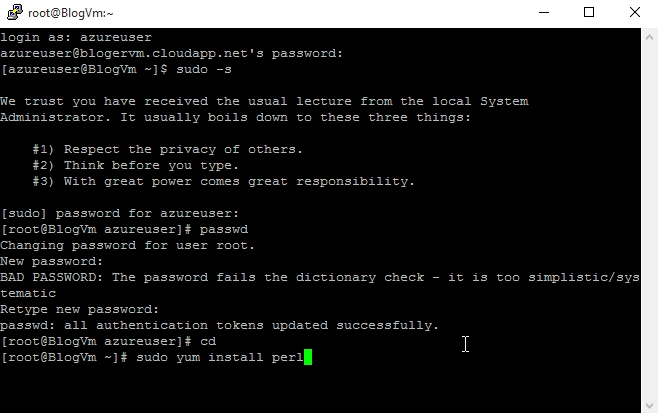
Enter
Y to install its dependencies.
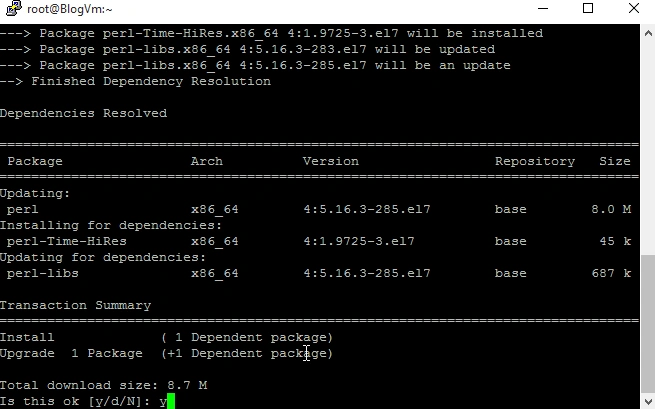
Perl is now installed.
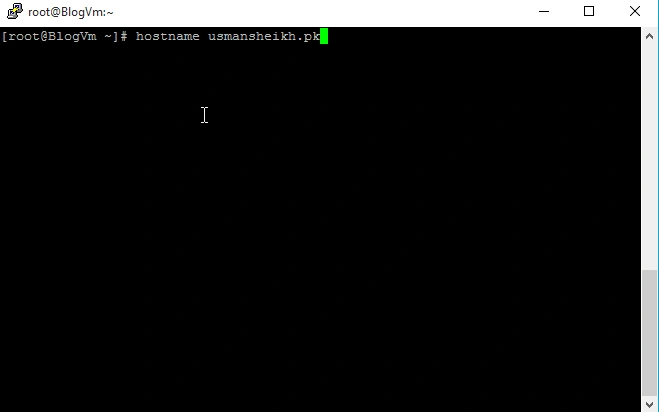
To set the system’s host name type command hostname [your domain],
- E.g. hostname usmansheikh.pk
Note:
Hostname is the program that is used to either set or display the current host, domain or node name of the system. These names are used by many of the networking programs to identify the machine. The domain name is also used by NIS/YP.
To install Cpanel on linux type command:
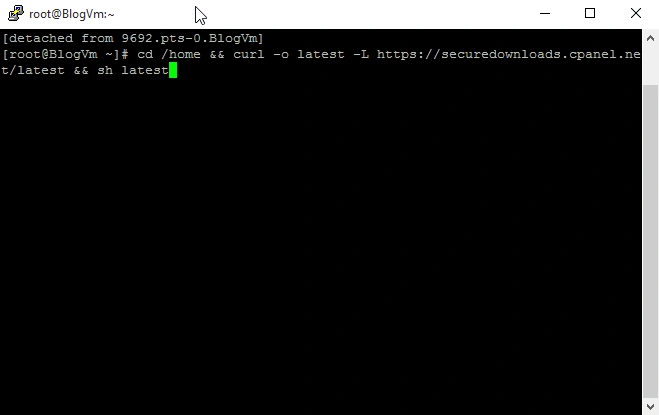
- cd /home && curl -o latest -L https://securedownloads.cpanel.net/latest && sh latest
- Visit for more details.
Tip:
Install screen widget using this command sudo yum install screen wget then type command screen to open widget screen and enter this command. If somehow the screen is closed or anything happens the setup is running in background.
Press CTRL + A + D to shift back to main screen.
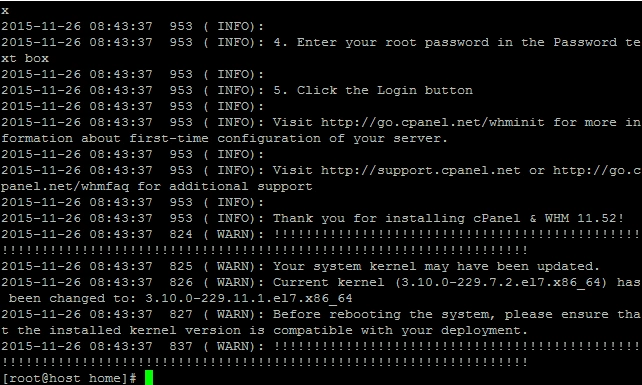
It will take several minutes to complete.
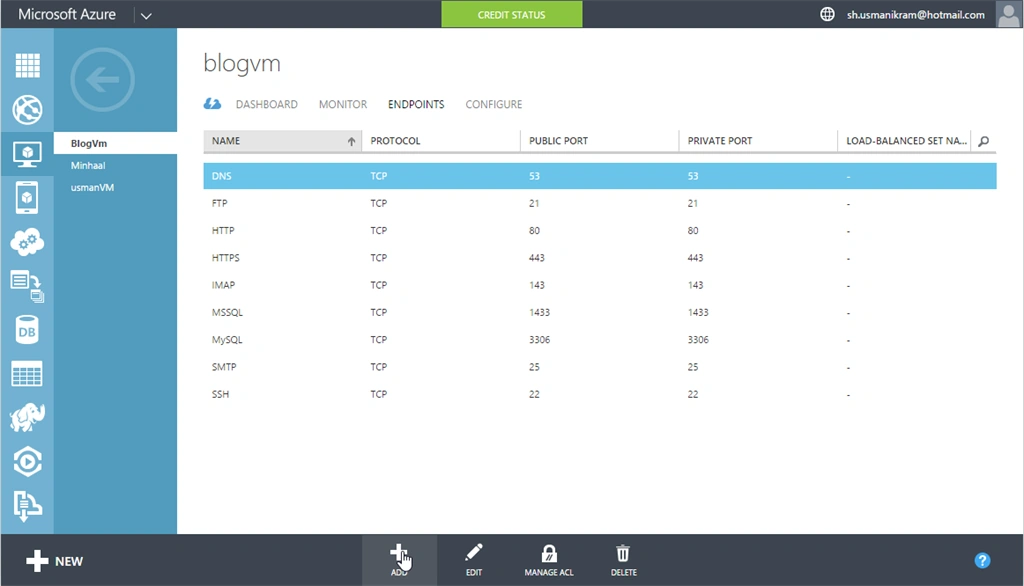
Go to Microsoft Azure Portal,
- Click on your Virtual Machine.
- Click ENDPOINTS.
- Click the Add button as shown in screen.
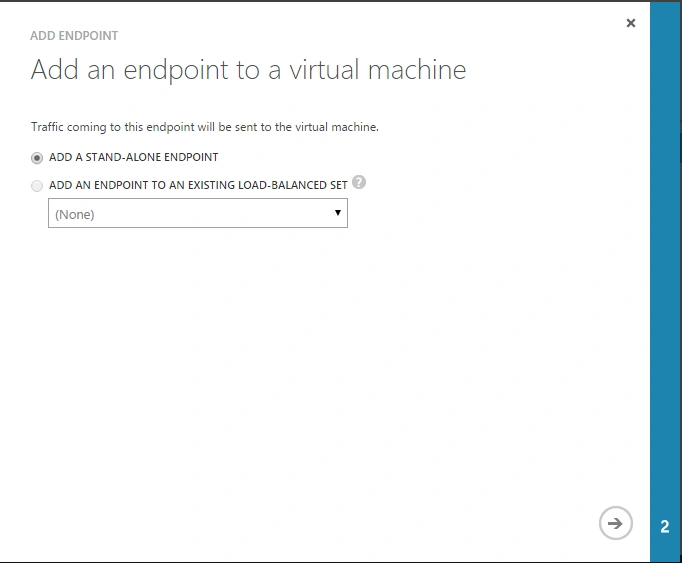
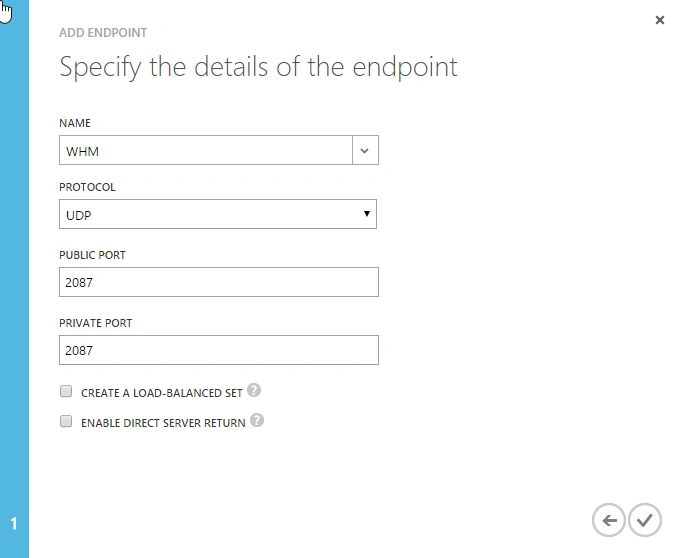
When you click add this,
dialog will open. Choose this option as shown in screenshot and move to next step.
Enter the following:
- NAME (It can be any but keep it simple and meaningful)
- PROTOCOL (UDP OT TCP)
- PUBLIC PORT (Port Number)
- PRIVATE PORT (Port Number)
Make sure you have these ENDPOINTS with the same Protocol and Port Numbers.
Note: Use as in the following,
- 2086 ,2087 for WHM both TCP, UDP
- 2082,2083 for cPanel TCP, UDP
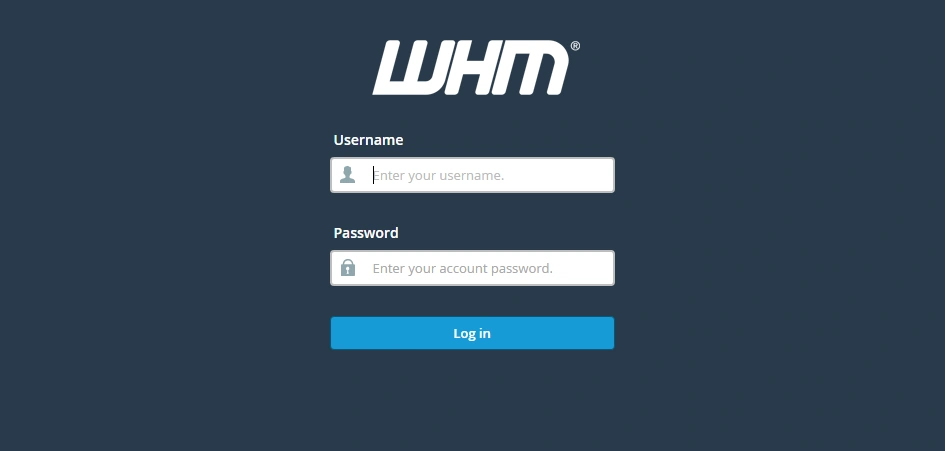
Login with https://IP addres:2087.
INTERNAL IP ADDRESS
Now you can access your Cpanel.


mc100204818 SaleemPosted Feb 22, 2017, 3:00 PM
Article is good, but not completed, at the end I do not know IP address, even you do not mention, If anybody do not have domain, how to continue.
microsoft partnerPosted Dec 5, 2016, 2:09 PM
Dear Usman, Article is very nice, but at the end I am not able to access WHM, even I do not where is my IP address and I do not have domain. Please find me what the solution.
Ravi KandelPosted Jul 23, 2016, 9:15 AM
I did all but i am unable to configure after installation finished
Pritam VPosted Jun 5, 2016, 1:42 PM
Hello Thanks, It very useful article.I have referred it and tried doing the setup on Azure, everthing work fine till the 2nd last screen of yours. But when i am triying to access/Login with https://IP addres:2087(INTERNAL IP ADDRESS). I am unable to access, can any one help me on this?
Muhammad Bin MustafaPosted Mar 3, 2016, 4:13 PM
Great Effort Sir! Nice article.
Asfend YarPosted Mar 3, 2016, 2:04 PM
Sir I'm looking for your MVC and web services articles ...
giant malikPosted Mar 3, 2016, 2:03 PM
Nice article was wondering same thing. I dont compromise windows 8 and therefore mostly works on VM. :)
Ammar ShaukatPosted Mar 3, 2016, 1:53 PM
Good share sir. I'm your big fan . Can I meet you ?
Hemant MahajanPosted Jan 26, 2016, 12:14 PM
Excellent learning.
Santhakumar MunuswamyPosted Jan 9, 2016, 2:31 AM
Thanks for nice article. Keep it up