

Introduction
Today, in this article, we will discuss how to develop a web application to perform CRUD operations using Cosmos DB. Now, as we all know, Cosmos DB is a NoSQL database, it is an alternative way of storing information when we do not fit our data storing requirement in an RDBMS system. Cosmos DB is a database server which is always distributed globally. It also supports the multi-model database service. That means it can be used to store a document, key-pair values, relational data, and also, a graph model’s data. Now, in this article, we will first create a Cosmos DB database using Azure portal and then develop an application which will insert, update, and delete data into that Cosmos DB database.
Prerequisites
- Microsoft Visual Studio 2017
- Account in Azure Portal.
If you don’t have any existing Azure account, then you can create a free trial account in Azure portal using your email id.
Cosmos DB Account
For creating a Cosmos DB database in the Azure portal, first, we need to create an Azure Cosmos DB account which is basically an Azure resource which is required to represent the database entity. This account is mainly used to estimate your resource usage and then create billing according to your subscriptions. Azure Cosmos DB account is normally associated with several data models which supported by the Azure Cosmos DB. The default data model of the Azure Cosmos DB is the SQL API.
How to Create Cosmos DB Account in Azure Portal
To create the Cosmos DB Account in Azure Portal, first, we need to log in to the Azure Portal and then perform the below steps to create a Cosmos DB Account.
Step 1
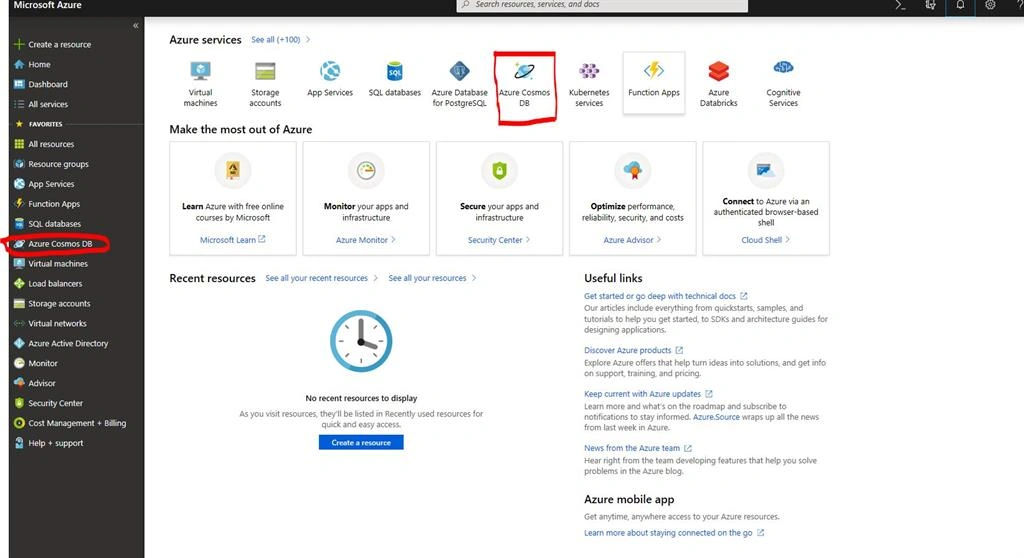
Click on the Azure Cosmos DB option from the Resource Dashboard.
Step 2
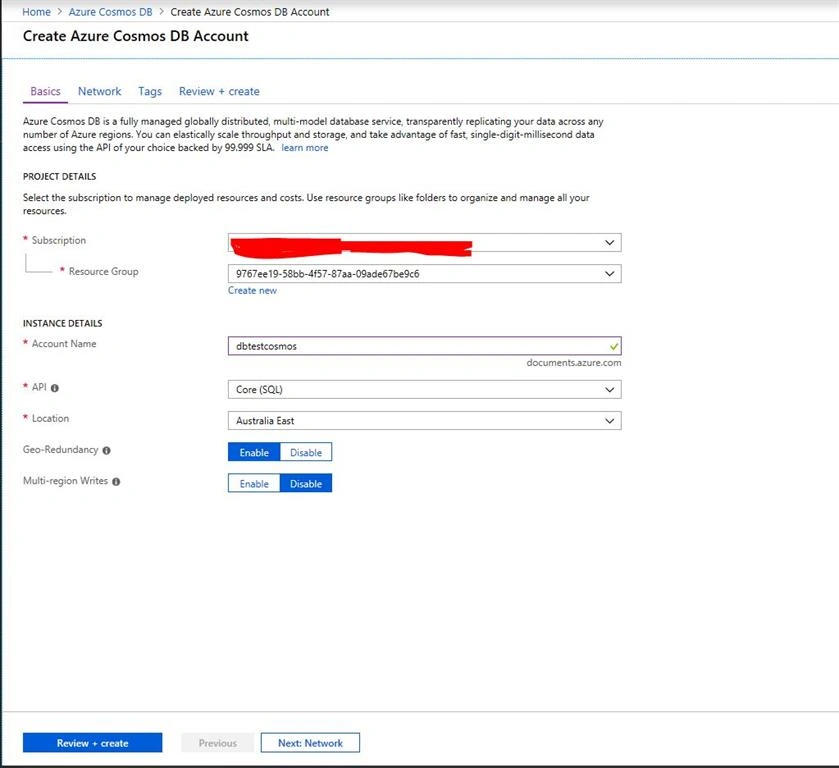
On the Create Azure Cosmos DB Account page, enter the required parameter settings for the new Azure Cosmos DB account, including the database name, resource name, location.
Step 3
In the above image, Account Name means the database name. API is the data model support which is SQL API by default. We will Select Azure Cosmos DB for MongoDB API from that drop down.
Step 4
Now click on the review and create button.
Step 5
After the settings are validated, click Create to create the account
Step 6
The account creation takes some time. Wait for the portal to display the notification that the deployment succeeded and click the notification.
Step 7
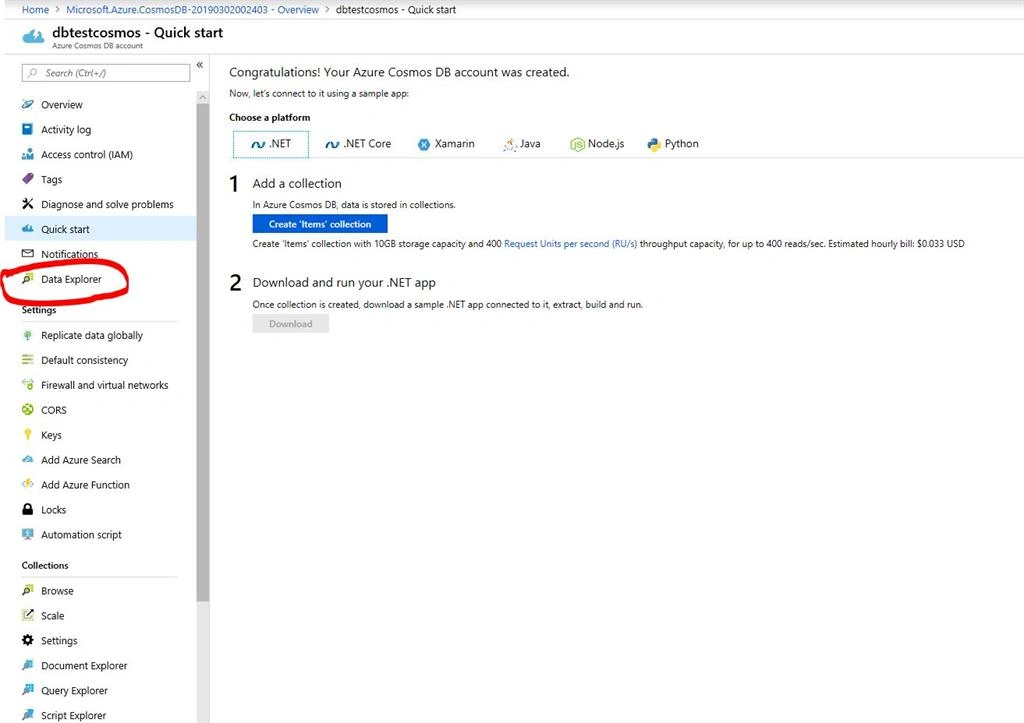
Once the deployment is succeeded, click Go to resource options to open Cosmos DB Account.
Step 8
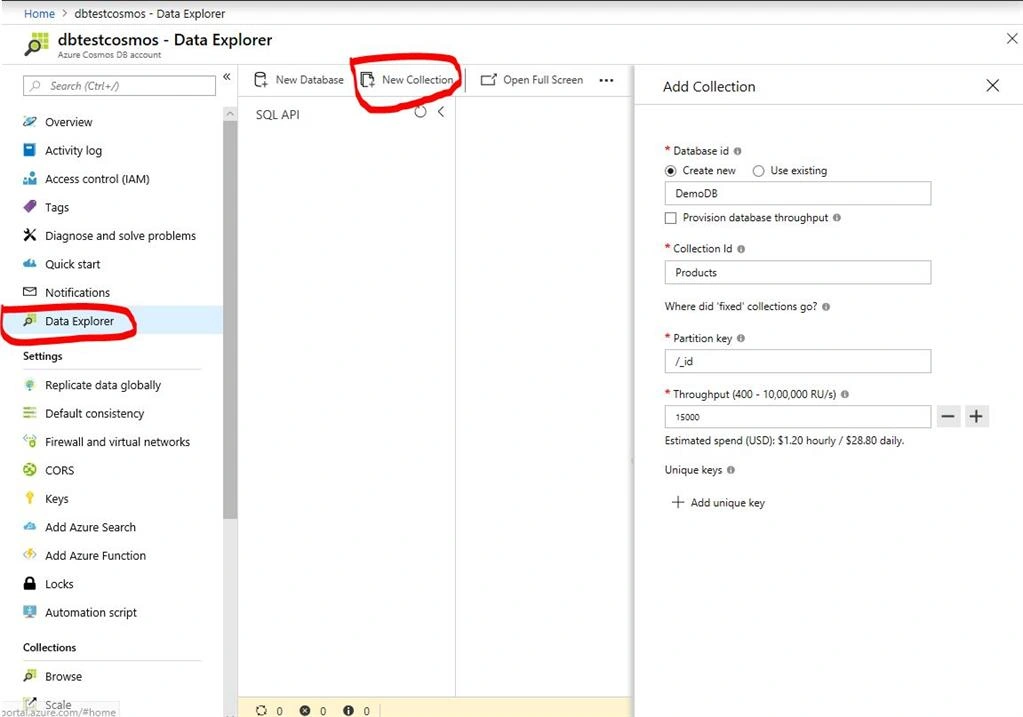
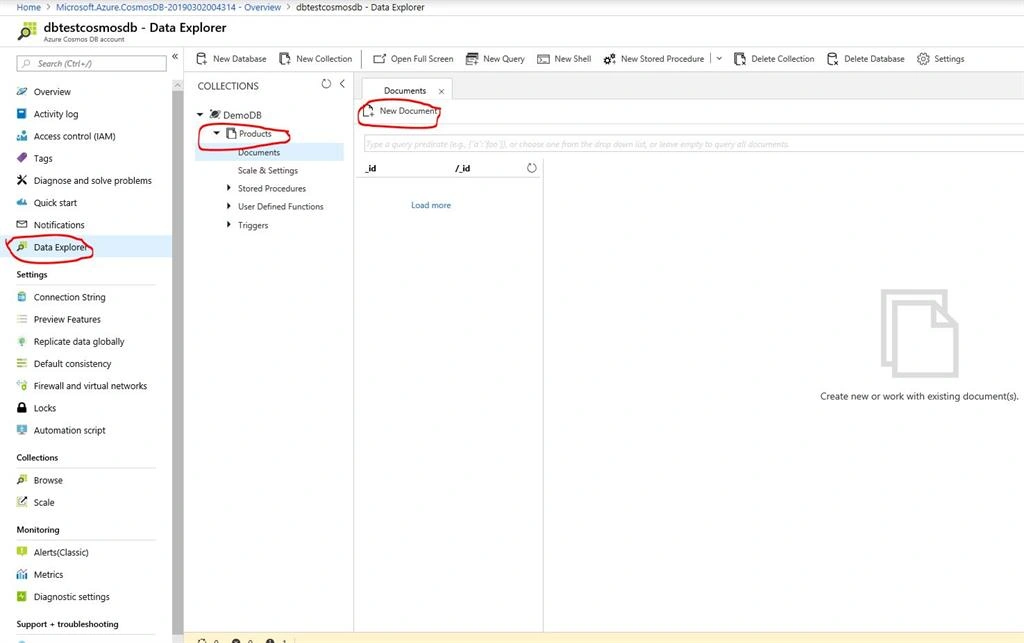
Now, its time to create Cosmos DB Database and Collections. For this, click on the Data Explorer option.
Step 9
Now Click on New Collections button and then provide the Database Name and Collection Name.
- Database Name : DemoDB
- Collection Name : Products
Step 10
Now click on Ok Button.
Step 11
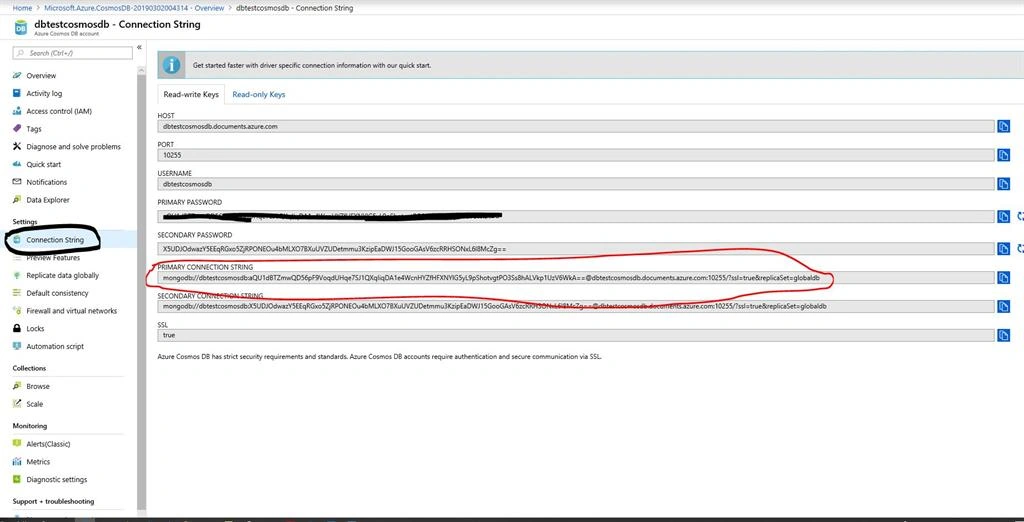
Once Database is created, click on ConnectionString option from the left panel.
Step 12
Now copy the Primary Connection string value and store in a note pad file. We will use this connection string in a configuration file within the applications.
Create a Web Application using .NET Core in VS 2017
Step 1
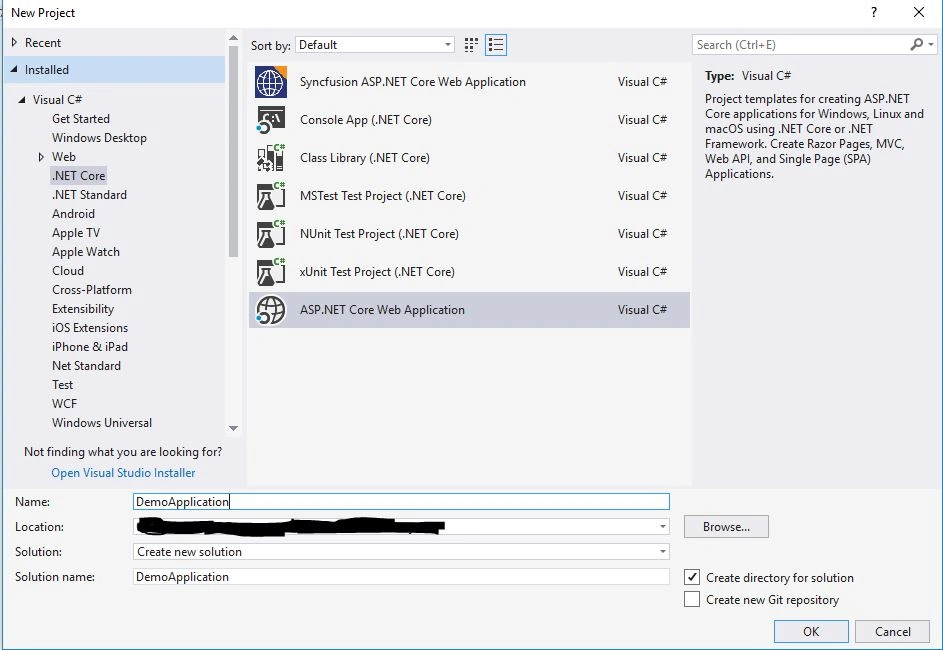
Now, open Microsoft Visual Studio 2017 and click on File --> New --> Projects.
Step 2
Select the Web Application Project template and click OK.
Step 3
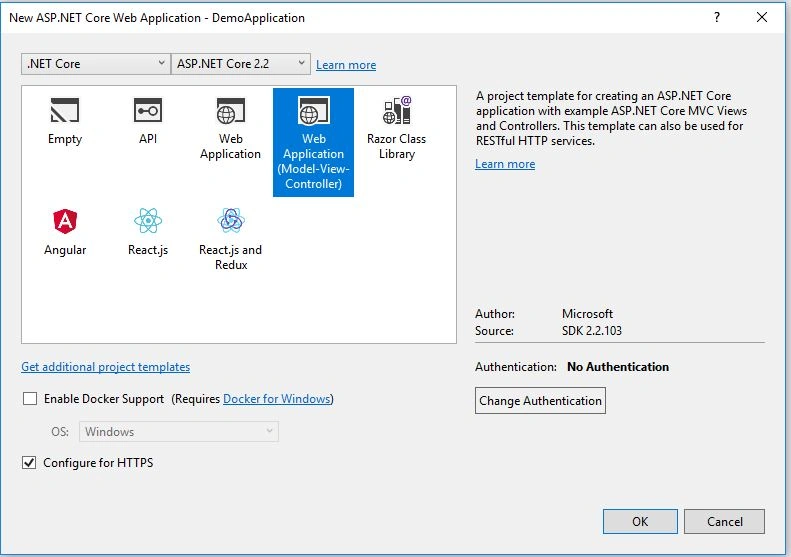
In the Project Template Box, Select Web Application (Model-View-Controller) options and click on the OK button.
Step 4
Now a blank project solution is ready.
Step 5
Now first open the App.Config file and store the database name and connections string to this file which we already copied from the Azure portal.
- {
- "Logging": {
- "LogLevel": {
- "Default": "Warning"
- }
- },
- "AllowedHosts": "*",
- "ConnectionStrings": {
- "ServerName": "mongodb://dbtestcosmosdb:aQU1dBTZmwQD56pF9VoqdUHqe7SJ1QXqIiqDA1e4WcnHYZfHFXNYlG5yL9pShotvgtPO3Ss8hALVkp1UzV6WkA==@dbtestcosmosdb.documents.azure.com:10255/?ssl=true&replicaSet=globaldb",
- "DatabaseName": "DemoDB"
- }
- }
Step 6
Now, add another Class Library Project for creating the Data Access Layer.
Step 7
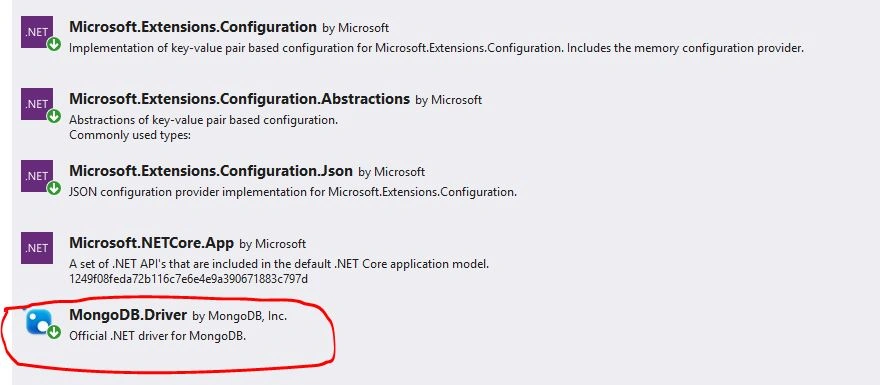
After adding the new projects, we need to install the below NuGet Packages to access Cosmos DB database using MongoDB client driver.
Step 8
Now, add another class library project for Model Class and add a class called Products and define the Product model class as below.
- using MongoDB.Bson;
- using MongoDB.Bson.Serialization.Attributes;
- using Newtonsoft.Json;
- using System;
- using System.ComponentModel.DataAnnotations;
- using System.ComponentModel.DataAnnotations.Schema;
- namespace ModelClass
- {
- public class Product
- {
- public Product()
- {
- CreatedDate = DateTime.Now;
- }
- [BsonId]
- [JsonProperty("objectId"), JsonConverter(typeof(ObjectIdConverter))]
- public ObjectId ObjectId { get; set; }
- [Key]
- public int ProductId { get; set; }
- [Required(ErrorMessage = "Please Enter Name")]
- [Column(TypeName = "varchar(50)")]
- public string Name { get; set; }
- public decimal UnitPrice { get; set; }
- [Required(ErrorMessage = "Please Enter Description")]
- [Column(TypeName = "varchar(500)")]
- public string Description { get; set; }
- [Column(TypeName = "varchar(50)")]
- public string ImageName { get; set; }
- [Column(TypeName = "varchar(250)")]
- public string ImagePath { get; set; }
- public DateTime CreatedDate { get; set; }
- public DateTime? UpdatedDate { get; set; }
- }
- }
Step 9
Now, select the Data Access Layer Projects and Create a New Folder called AppConfig.
Step 10
Now, within this folder add a new class file called AppConfiguration.cs where we will read the configuration file value by providing the key as below.
- using Microsoft.Extensions.Configuration;
- using System;
- using System.Collections.Generic;
- using System.IO;
- using System.Text;
- namespace DataContextLayer.AppConfig
- {
- public static class AppConfiguration
- {
- private static IConfiguration currentConfig;
- public static void SetConfig(IConfiguration configuration)
- {
- currentConfig = configuration;
- }
- public static string GetConfiguration(string configKey)
- {
- try
- {
- string connectionString = currentConfig.GetConnectionString(configKey);
- return connectionString;
- }
- catch (Exception ex)
- {
- throw (ex);
- }
- return "";
- }
- }
- }
Step 11
Now open the Startup.cs file and add the appConfig file so that we can retrieve value of this application configuration file from the class library.
- using System;
- using System.Collections.Generic;
- using System.Linq;
- using System.Threading.Tasks;
- using DataContextLayer.AppConfig;
- using Microsoft.AspNetCore.Builder;
- using Microsoft.AspNetCore.Hosting;
- using Microsoft.AspNetCore.Http;
- using Microsoft.AspNetCore.HttpsPolicy;
- using Microsoft.AspNetCore.Mvc;
- using Microsoft.Extensions.Configuration;
- using Microsoft.Extensions.DependencyInjection;
- namespace CosmosDb_Demo_Crud
- {
- public class Startup
- {
- public Startup(IConfiguration configuration)
- {
- Configuration = configuration;
- }
- public IConfiguration Configuration { get; }
- // This method gets called by the runtime. Use this method to add services to the container.
- public void ConfigureServices(IServiceCollection services)
- {
- services.Configure<CookiePolicyOptions>(options =>
- {
- // This lambda determines whether user consent for non-essential cookies is needed for a given request.
- options.CheckConsentNeeded = context => true;
- options.MinimumSameSitePolicy = SameSiteMode.None;
- });
- services.AddMvc().SetCompatibilityVersion(CompatibilityVersion.Version_2_2);
- services.AddSingleton(_ => Configuration);
- }
- // This method gets called by the runtime. Use this method to configure the HTTP request pipeline.
- public void Configure(IApplicationBuilder app, IHostingEnvironment env)
- {
- if (env.IsDevelopment())
- {
- app.UseDeveloperExceptionPage();
- }
- else
- {
- app.UseExceptionHandler("/Home/Error");
- // The default HSTS value is 30 days. You may want to change this for production scenarios, see https://aka.ms/aspnetcore-hsts.
- app.UseHsts();
- }
- app.UseHttpsRedirection();
- app.UseStaticFiles();
- app.UseCookiePolicy();
- AppConfiguration.SetConfig(Configuration);
- app.UseMvc(routes =>
- {
- routes.MapRoute(
- name: "default",
- template: "{controller=Products}/{action=Index}/{id?}"
- );
- });
- }
- }
- }
Join the conversation! Your thoughts help the community grow.