

This article will explain how to create React Js application and consume ASP.NET Core Web API requests to fetch the movie's data.
We will go through step by step with an example.
Please refer to my previous article on how to create ASP.NET Core Web APIs to fetch the data.
We need the following tools installed on our computer,
- Visual Studio Code
The sections of this post will be as follows,
- Creating a ReactJs project
- Install packages
- Add Components
- Test the React UI Application
So, let's get started.
Creating a ReactJS project
Open the Command Prompt and navigate to the path where you want to create the React application.
Command to create a React App: npx create-react-app movies-app
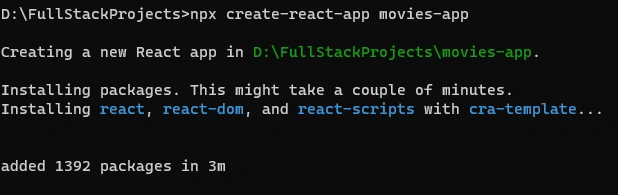
Open the application using Visual Studio Code.
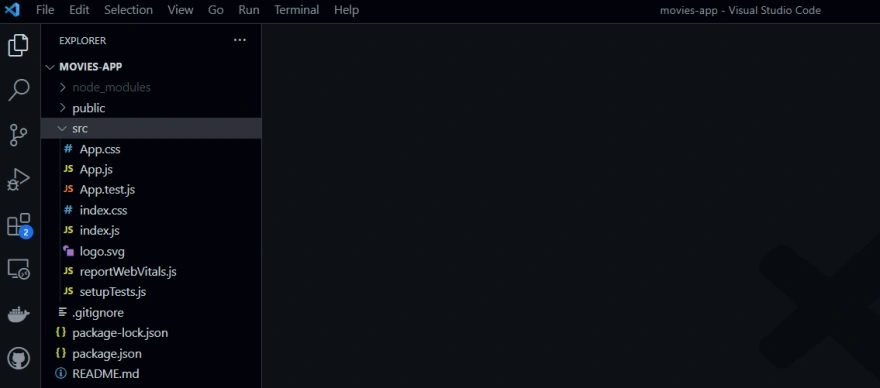
Go to Terminal => start the react app using "npm start"
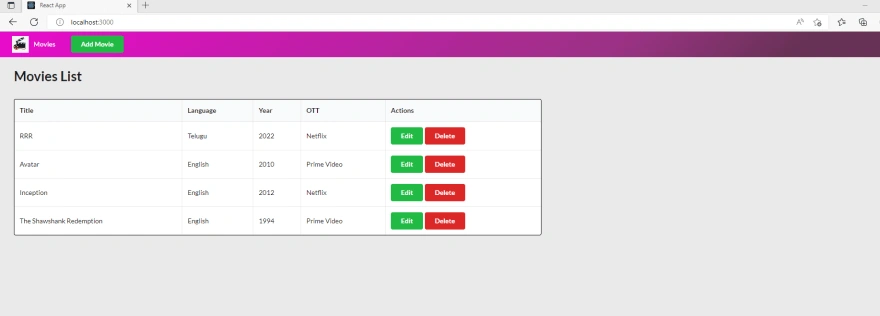
Once you start the project, the UI will be open in your default browser.
Install packages
Go to VsCode Terminal and execute the below NPM packages one by one.
- npm install semantic-ui-react semantic-ui-css (https://react.semantic-ui.com/usage)
- npm install axios
- npm install react-toastify
Add Components
Go to Movies App folder in VS Code => src => Create "Components" folder
Step 1
Create a .jsx file in the components folder and name it NavBar.jsx
We will use this file to add the Navigation to our Movies Application.
import { Button, Menu } from "semantic-ui-react";
import "../index.css";

export default function NavBar(props) {
  return (
    <Menu inverted fixed="top">
      <Menu.Item header>
        <img
          src="/movieslogo.png"
          alt="logo"
          style={{ marginRight: "10px", marginLeft: "10px" }}
        />
        Movies
      </Menu.Item>
      <Menu.Item>
        <Button positive content="Add Movie" onClick={() => props.addForm()} />
      </Menu.Item>
    </Menu>
  );
}
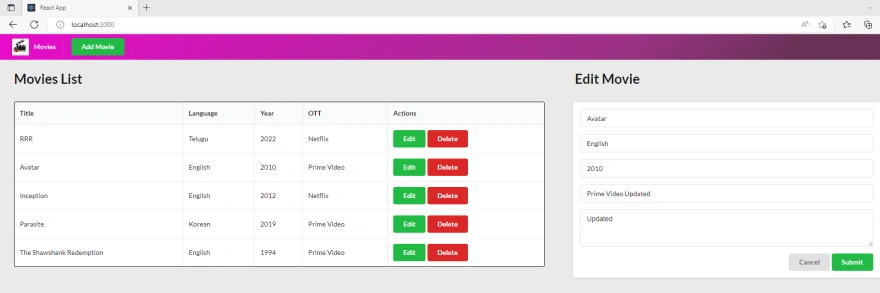
Now create one more file for the movies table and name it as MoviesTable.jsx
This component displays the table with movie details and actions to delete and edit the movie.
import { Fragment } from "react";
import { Table, Button } from "semantic-ui-react";
import "../index.css";

export default function MoviesTable(props) {
  return (
    <Fragment>
      <h1 style={{ marginLeft: "30px" }}>Movies List</h1>
      <Table
        celled
        style={{
          marginLeft: "30px",
          marginTop: "30px",
          width: "1100px",
          border: "1px solid black",
        }}
      >
        <Table.Header>
          <Table.Row>
            <Table.HeaderCell>Title</Table.HeaderCell>
            <Table.HeaderCell>Language</Table.HeaderCell>
            <Table.HeaderCell>Year</Table.HeaderCell>
            <Table.HeaderCell>OTT</Table.HeaderCell>
            <Table.HeaderCell>Actions</Table.HeaderCell>
          </Table.Row>
        </Table.Header>
        <Table.Body>
          {props.movies.map((movie) => (
            <Table.Row key={movie.id}>
              <Table.Cell>{movie.title}</Table.Cell>
              <Table.Cell>{movie.movieLanguage}</Table.Cell>
              <Table.Cell>{movie.releaseYear}</Table.Cell>
              <Table.Cell>{movie.ott}</Table.Cell>
              <Table.Cell>
                <Button positive onClick={() => props.editForm(movie)}>
                  Edit
                </Button>
                <Button negative onClick={() => props.deleteMovie(movie.id)}>
                  {" "}
                  Delete
                </Button>
              </Table.Cell>
            </Table.Row>
          ))}
        </Table.Body>
      </Table>
    </Fragment>
  );
}
Components => AddMovie.jsx
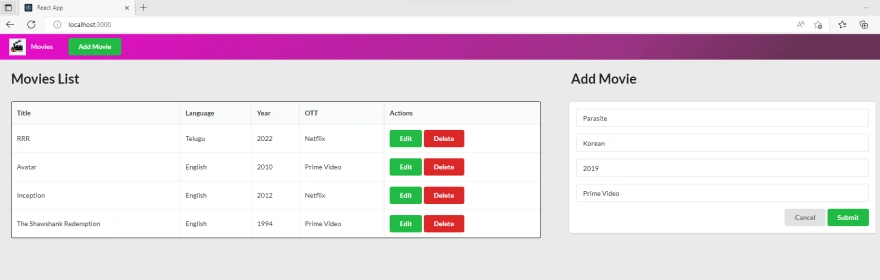
This component will be used to add the movie details to the database and display them in the movie table.
import { Button, Form, Segment } from "semantic-ui-react";
import React, { useState } from "react";
import { toast } from "react-toastify";
import "react-toastify/dist/ReactToastify.css";
export default function AddMovie(props) {

  const initialState = {
    title: "",
    movieLanguage: "",
    releaseYear: "",
    ott: "",
  };

  const [movie, setMovie] = useState(initialState);

  function handleSubmit(e) {
    e.preventDefault();
    if (!movie.title) {
      toast.error("Please fill all the details !", {
        position: toast.POSITION.TOP_RIGHT,
      });
      return;
    }
    props.handleSumbit(movie);
    setMovie(initialState);
  }

  function handleInputChange(event) {
    const { name, value } = event.target;
    setMovie({ ...movie, [name]: value });
  }

  return (
    <>
      <h1 style={{ marginLeft: "15px" }}>Add Movie</h1>
      <Segment clearing style={{ marginRight: "30px", marginTop: "30px", marginLeft: "10px" }} >
        <Form onSubmit={handleSubmit} autoComplete="off">
          <Form.Input placeholder="Title" value={movie.title} name="title" onChange={handleInputChange} />
          <Form.Input placeholder="Language" value={movie.movieLanguage} name="movieLanguage" onChange={handleInputChange}/>
          <Form.Input placeholder="Year" value={movie.releaseYear} name="releaseYear" onChange={handleInputChange} />
          <Form.Input placeholder="OTT" value={movie.ott} name="ott" onChange={handleInputChange}/>
          <Button floated="right" positive type="submit" content="Submit" />
          <Button floated="right" type="button" content="Cancel" onClick={() => props.closeForm()}
          />
        </Form>
      </Segment>
    </>
  );
}
Join the conversation! Your thoughts help the community grow.