

Introduction
In this article, we will learn how to perform Create, Read, Update, and Delete Operations in ASP.NET MVC 5 using the Entity Framework Code First Approach. The source code can be downloaded from: https://github.com/KhajaMoizUddin/CRUD-MVC5-EntityFramework
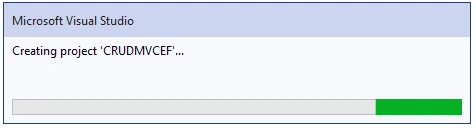
In this project, I am working with Visual Studio 2019. In order to create a new MVC Project, follow these steps:
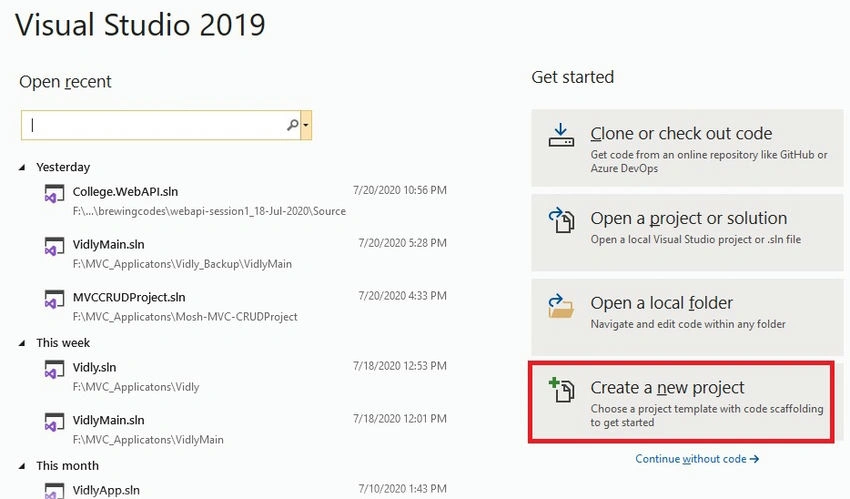
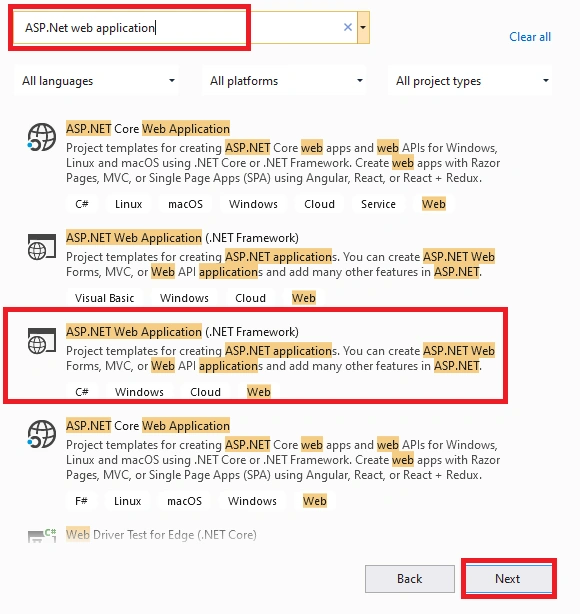
Click on Create a New Project, under templates select ASP.NET Web Application(.Net Framework C#) then click on Next.
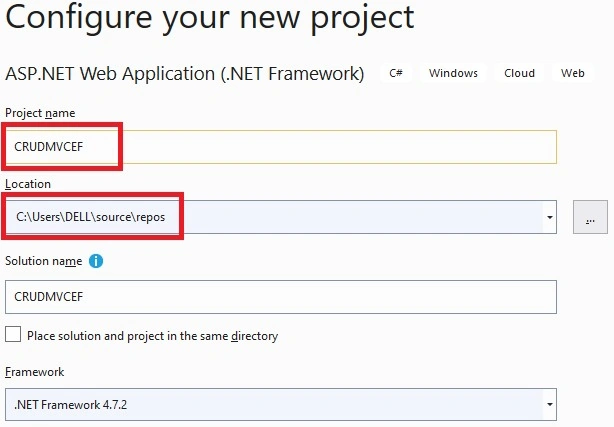
Provide the application name for example: CRUDMVCEF and provide the location where you want to save the application and click on Create.
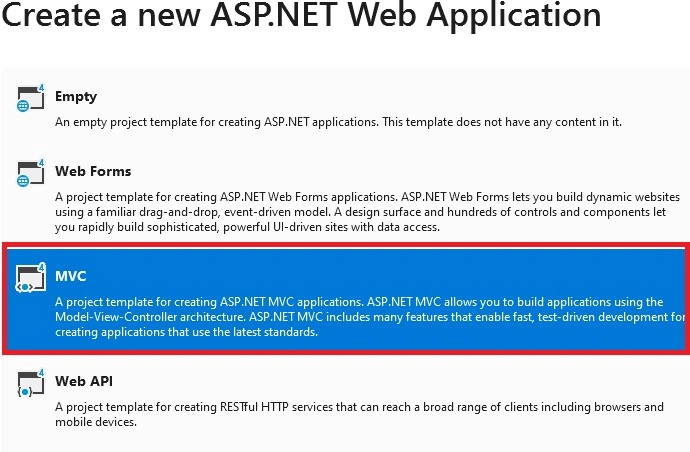
To create a new ASP.NET Web Application, select the MVC template and click on Create.
With this, a new MVC Project will be created, as shown in the below images.
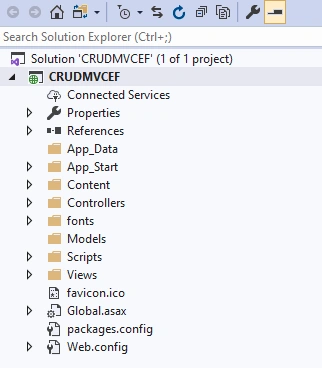
Right-click on the Models folder add three classes and rename the classes as Employee.cs Department. cs and EmployeeDbContext.cs.
Here Employee.cs and Department table contains the fields or properties for the creation of Employee and Department tables.
Open Employee. cs and paste the following code.
using System;
using System.Collections.Generic;
using System.ComponentModel.DataAnnotations;
using System.Linq;
using System.Web;
namespace MVCCRUDProject.Models
{
    public class Employee
    {
        [Key]
        public int EmployeeId { get; set; }
        [Display(Name = "Employee Name")]
        public string EmployeeName { get; set; }
        [Display(Name = "Designation")]
        public string EmployeeDesignation { get; set; }
        public Department Department { get; set; }
        [Display(Name = "Address")]
        public string EmployeeAddress { get; set; }
        [Display(Name = "Passport")]
        public string EmployeePassport { get; set; }
        [Display(Name = "Phone")]
        public int EmployeePhone { get; set; }
        [Display(Name = "Gender")]
        public string EmployeeGender { get; set; }
        [Display(Name = "City")]
        public string City { get; set; }
        [Display(Name="Project")]
        public string Project { get; set; }
        [Display(Name="Company Name")]
        public string CompanyName { get; set; }
        [Display(Name = "Pin Code")]
        public int PinCode { get; set; }
        [Display(Name = "Dept Name")]
        public int DepartmentId { get; set; }
    }
}
Open the Department. cs and paste the following code.
using System;
using System.Collections.Generic;
using System.ComponentModel.DataAnnotations;
using System.Linq;
using System.Web;

namespace MVCCRUDProject.Models
{
    public class Department
    {
        [Key]
        public int DepartmentId { get; set; }

        public string DepartmentName { get; set; }
    }
}
Similarly, Open the EmployeeDbContext.cs and paste the below code.
using System;
using System.Collections.Generic;
using System.Data.Entity;
using System.Linq;
using System.Security.AccessControl;
using System.Threading;
using System.Web;
namespace MVCCRUDProject.Models
{
    public class EmployeeDbContext : DbContext
    {
        public EmployeeDbContext()
        {

        }

        public DbSet<Employee> Employee { get; set; }
        public DbSet<Department> Department { get; set; }
    }
}
Now add the Entity Framework, by right-clicking on the references and clicking on Manage Nuget Packages. Browse to the Entity Framework and click on install as
shown in the below image. As I have already installed it, it's shown as uninstall. In your case, it will be showing as install.
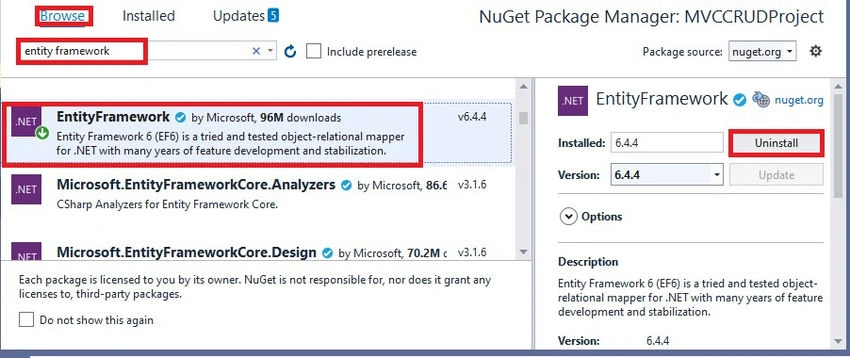
Now Navigate to Tools --> Nuget Package Manager -->Package Manager Console and execute the following commands
PM> Enable-Migrations
With the above command, a new Migrations folder will be created with the Configuration. cs class file.
PM> Add-Migration 'EmployeeDepartmentModels'
With the above command a new Migration 'EmployeeDepartmentModels' class will be created with the following code. The below code contains the creation of both the Employee and Department tables with the Primary key and Foreign key.
namespace MVCCRUDProject.Migrations
{
    using System;
    using System.Data.Entity.Migrations;
    public partial class EmployeeDepartmentModels : DbMigration
    {
        public override void Up()
        {
            CreateTable(
                "dbo.Departments",
                c => new
                {
                    DepartmentId = c.Int(nullable: false, identity: true),
                    DepartmentName = c.String(),
                })
                .PrimaryKey(t => t.DepartmentId);

            CreateTable(
                "dbo.Employees",
                c => new
                {
                    EmployeeId = c.Int(nullable: false, identity: true),
                    EmployeeName = c.String(),
                    EmployeeDesignation = c.String(),
                    EmployeeAddress = c.String(),
                    EmployeePassport = c.String(),
                    EmployeePhone = c.Int(nullable: false),
                    EmployeeGender = c.String(),
                    City = c.String(),
                    Project = c.String(),
                    CompanyName = c.String(),
                    PinCode = c.Int(nullable: false),
                    DepartmentId = c.Int(nullable: false),
                })
                .PrimaryKey(t => t.EmployeeId)
                .ForeignKey("dbo.Departments", t => t.DepartmentId, cascadeDelete: true)
                .Index(t => t.DepartmentId);

        }

        public override void Down()
        {
            DropForeignKey("dbo.Employees", "DepartmentId", "dbo.Departments");
            DropIndex("dbo.Employees", new[] { "DepartmentId" });
            DropTable("dbo.Employees");
            DropTable("dbo.Departments");
        }
    }
}
PM> Update-Database
When we execute the above Update command, the above code is used for the creation of Employee and Department tables in the database. And a new file with name
ProjectName.Models.EmployeeDbContext.mdf file will be created under App_Data.
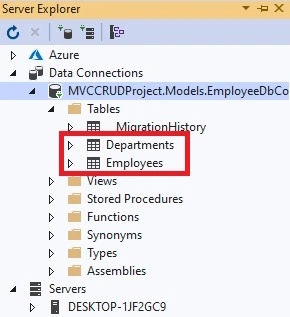
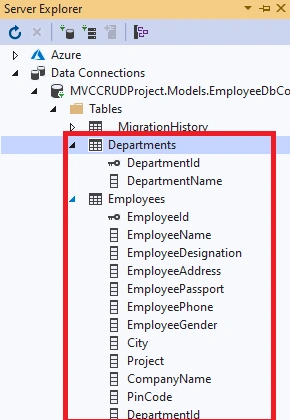
In order to Insert the data into these tables run the below command.
PM> Add-Migration 'UpdateDepartmentData'
With the above Command, the UpdateDepartmentData class will be created with Up() and Down() methods.
In the Up() method of UpdateDepartmentData update the code as shown below.
namespace MVCCRUDProject.Migrations
{
    using System;
    using System.Data.Entity.Migrations;

    public partial class UpdateDepartmentData : DbMigration
    {
        public override void Up()
        {
            Sql("Insert into Departments(DepartmentName)Values('IT')");
            Sql("Insert into Departments(DepartmentName)Values('HR')");
            Sql("Insert into Departments(DepartmentName)Values('Payroll')");
            Sql("Insert into Departments(DepartmentName)Values('Talent Acquisition')");
            Sql("Insert into Departments(DepartmentName)Values('Training & Development')");
        }

        public override void Down()
        {
        }
    }
}
PM> Update-Database
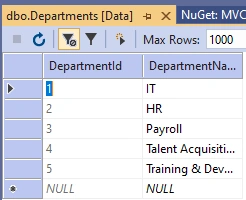
With the execution of the above command, the above Sql Statements or records will be inserted into the Department Table.
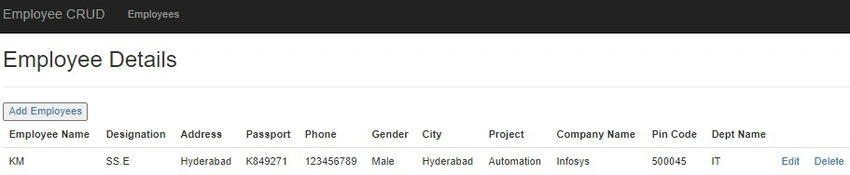

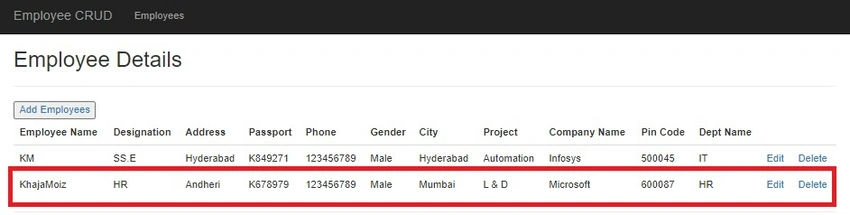
ShubhamPosted Jan 27, 2023, 10:57 AM
Where is the full source code ??
Kaushal joshiPosted Nov 8, 2021, 3:49 PM
gr8 explanation but I have one query one employee can handles many projects then how we can show them in single row or td index.cshtml ?
Mageshwaran RPosted Sep 2, 2020, 8:54 AM
Good one...
Md Tahmidul AbedinPosted Aug 20, 2020, 7:42 PM
Nice Article :)