

In the previous article Custom Validations in SharePoint form using jQuery: Part 1, we saw how to implement custom validations in a SharePoint list NewForm using jQuery.
In this article, we shall look at the editform scenario. Let us do a quick recap of the validation requirements from the table below.
| Column Name | Field Type | New Form | Edit Form |
| Activity Description | Text field | Mandatory | Non-editable |
| Category | Drop down | Mandatory | Non-editable |
| Update for the week | Text area | Not-Mandatory | editable |
| Team members involved | Drop down | Mandatory | editable |
| Status | Drop down | Visible only if Category is Sales or Coding Mandatory only if Category is Sales or Coding |
Editable, Visible only if Category is Sales or Coding |
| Completion Date | Date Time | Visible only if Category is Sales or Coding Mandatory only if Category is Sales or Coding |
Editable, Visible only if Category is Sales or Coding |
| Revenue | Text field | Visible only if Category is Sales or Coding Mandatory only if Category is Sales or Coding |
Editable, Visible only if Category is Sales or Coding |
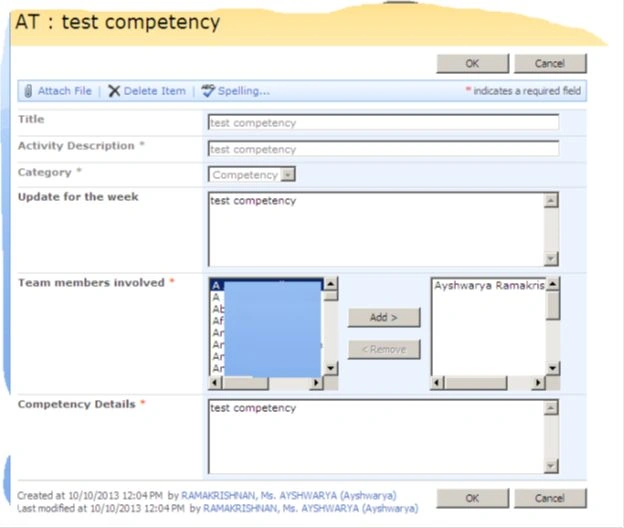
| Competency Details | Text field | Visible only if Category is Competency Mandatory only if Category is Competency |
Editable, Visible only if Category is Competency |
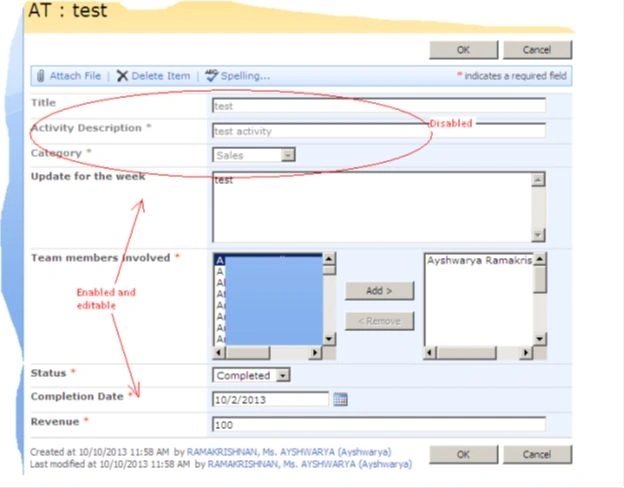
Specifically, let us understand an example edit scenario.
Status is a choice field, that needs to be visible in edit mode only if the entry has "Sales" or "Coding" in the "Category" field. In such cases, the Status must visible, mandatory and must display the previous entry in the column made using NewForm.
Similarly, we can interpret the remaining column validations.
Now let us proceed to the solution. Here are the list columns for reference.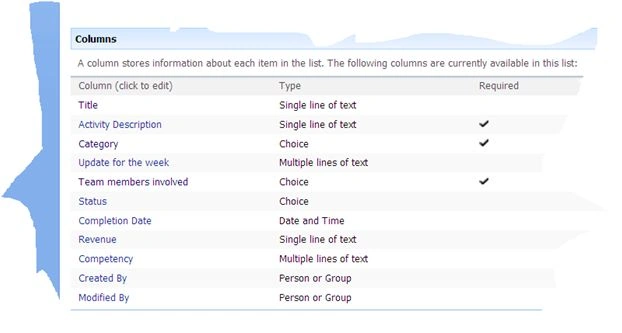
When we create the list, please be aware that the following columns should not be mandatory by definition.
- Those columns that are non-mandatory in general
- Those columns that are to be hidden under some condition
Even if they are mandatory in other conditions, if they need to be invisible / non-mandatory in even a single condition, they should be made non-mandatory in the list definition. We need to do the required field validation (and display indication) by other means; we will get to that in a minute. The reason being, if the column is made mandatory and we hide it using jQuery (when it does need to be hidden), then the form will fail to save and the error will be displayed that the column needs to be filled in, even though the column should not be visible in that case.
As seen in the previous article, Update for the week, Status, Completion Date, Revenue and Competency are all marked as non-mandatory by list definition.
Next, we need to modify the edit form to implement these validations.
In the Edit Form:
After the <asp:Content ContentPlaceHolderId="PlaceHolderMain" runat="server"> ,
Add references to jQuery libraries and a custom JavaScript file as in the following:
<script language="javascript" type="text/javascript" src="../../jQuery Scripts/jquery.min.js"></script>
<script language="javascript" type="text/javascript" src="../../jQuery Scripts/Tracker.js"></script>
<script language="javascript" type="text/javascript">
$(document).ready(function () {
OnTypeNotificationChangeEditForm();
});
function PreSaveAction() {
SetValuesInDisabledColumns();
return ValidateEditForm();
}
</script>
Here, notice that we are calling a method, OnTypeNotificationChangeEditForm() on the ready function. Also notice the function SetValuesInDisabledColumns() in PreSaveAction. This is an important function, we get to it in a minute.
This function OnTypeNotificationChangeEditForm () is defined in the Tracker.js file, that is referenced above. Now let us look at this function in the Tracker.js file.
function OnTypeNotificationChangeEditForm() {
if (($("select[title='Category'] option:selected").text() == "Sales") || ($("select[title='Category'] option:selected").text() == "Coding")) {
DisableColumn("Title", "True");
DisableColumn("Activity Description", "True");
DisableColumn("Category", "True");
DisableColumn("Update for the week", "False");
DisableColumn("Team members involved", "False");
DisableColumn("Status", "False");
DisableColumn("Completion Date", "False");
DisableColumn("Revenue", "False");
HideColumn("Competency Details", "True");
HideColumn("Activity Description", "False");
HideColumn("Update for the week", "False");
HideColumn("Team members involved", "False");
HideColumn("Status", "False");
HideColumn("Completion Date", "False");
HideColumn("Revenue", "False");
MandateColumn("Competency Details", "False");
MandateColumn("Update for the week", "False");
MandateColumn("Activity Description", "True");
MandateColumn("Team members involved", "True");
MandateColumn("Status", "True");
MandateColumn("Completion Date", "True");
MandateColumn("Revenue", "True");
}
if ($("select[title='Category'] option:selected").text() == "Competency") {
DisableColumn("Title", "True");
DisableColumn("Activity Description", "True");
DisableColumn("Category", "True");
DisableColumn("Update for the week", "False");
DisableColumn("Team members involved", "False");
DisableColumn("Competency Details", "False");
HideColumn("Competency Details", "False");
HideColumn("Activity Description", "False");
HideColumn("Update for the week", "False");
Faiz MirzaPosted Oct 26, 2015, 9:46 AM
Aparna, please refer this article for difference between .attr() and .prop() - http://www.c-sharpcorner.com/UPLOADFILE/97FC7A/DIFFERENCE-BETWEEN-PROP-AND-ATTR-IN-JQUERY/
Faiz MirzaPosted Oct 26, 2015, 9:43 AM
Hi Ayshwarya , fantastic article. Thank you very much for publishing this. It was of tremendous help.
AparnaPosted Jan 8, 2014, 12:43 AM
Hello Ayshwarya, In the disable column column code, you have used .attr() and .prop(). Request you to let me know the difference between the two and where we need to use each one of them. Thanks!