

Overview
Nowadays, customers are moving to the Cloud. Office 365 is the most attractive package from Microsoft to help move businesses to the cloud quickly and seamlessly.
When we start using cloud services, eventually, our data also gets stored in the cloud. We define and follow data security policies while storing our data in on-premise systems. Microsoft does offer good options to secure our data in the Cloud.
A data breach is one of the biggest threats that every business fears. When we are in the cloud, the data security is more vital. Office 365 offers very useful services for Data Loss Prevention (DLP) which identifies the critical or sensitive data within your tenant.
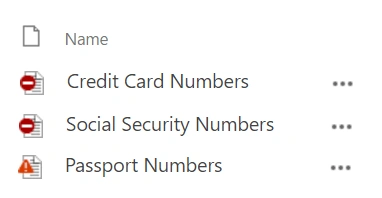
A good example of sensitive data could be your organization’s financial information, such as credit card numbers, social security numbers, customer's personal information, etc. Using Data Loss Prevention (DLP), we can easily identify and protect such sensitive information in Office 365.
How does Data Loss Prevention (DLP) work?
Information is stored across many applications in Office 365. Data Loss Prevention (DLP) detects the sensitive information by performing a content analysis.
DLP policies, once created, can work on content sources such as:
- SharePoint Online
- Exchange Online
- OneDrive for Business (OD4B)
- Office 2016
DLP policy mainly has the below-mentioned parameters.
- Content Source Location (e.g. SharePoint, Exchange, OD4B, etc.)
- Condition for execution
- Action to perform
Type of Sensitive Information
Office 365 has a variety of information stored in it. A definition of sensitive information can vary across different regions or countries. The information can be any personal information like social security number, mobile number, credit card number etc.
Sensitive type can be any of the following.
- Keywords
- Internal functions
- Regular expressions
- Pattern matches
This helps DLP to detect the sensitive information accurately in all the content sources.
Create Data Loss Prevention Policy
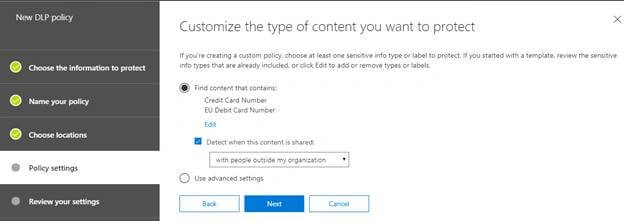
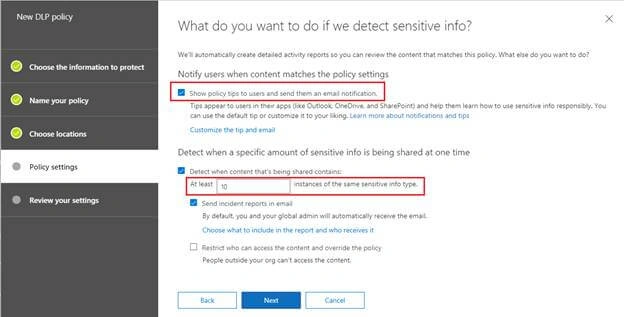
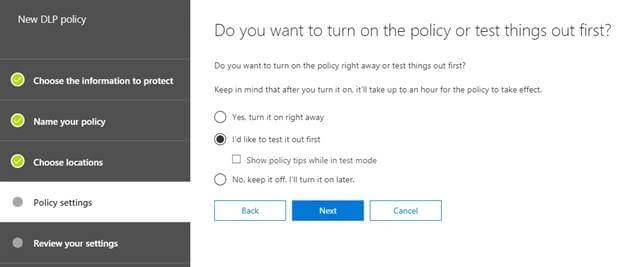
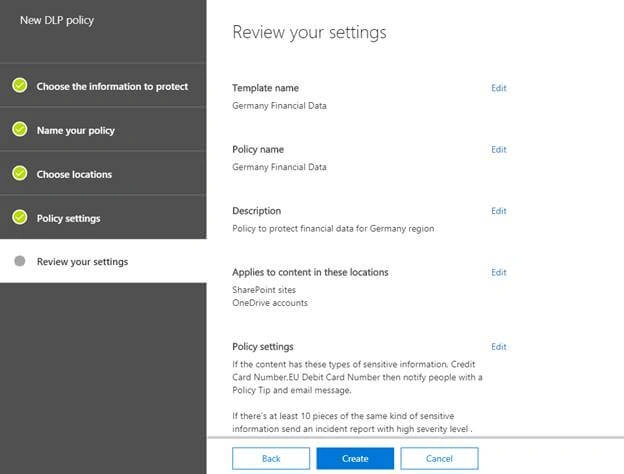
Follow the below steps to set up DLP in your Office 365 tenant.
- Login to Office 365 tenant.
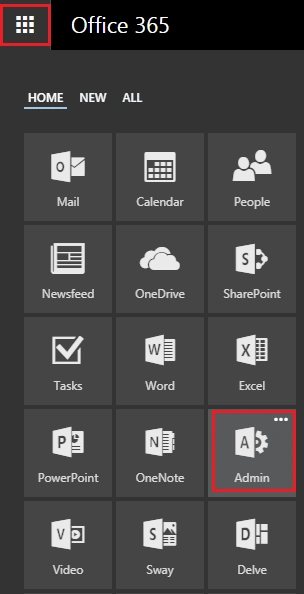
- Click App Launcher from the top left corner to open Office 365 Apps.
- Click Admin.
- Click Admin Centers > Security & Compliance.
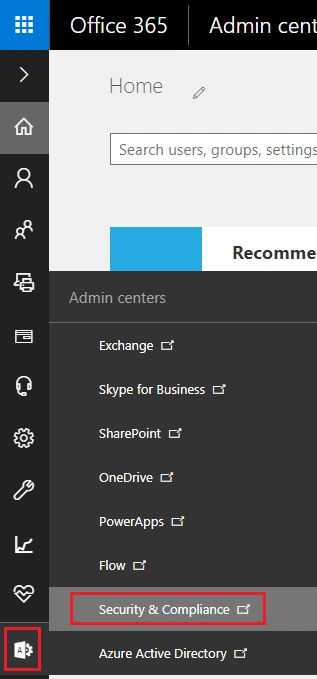
- This will open "Security & Compliance" center (protection.office.com) in a new tab.
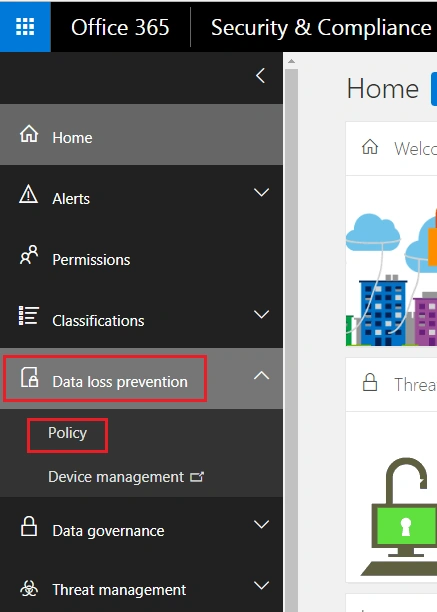
- Expand Data loss prevention.
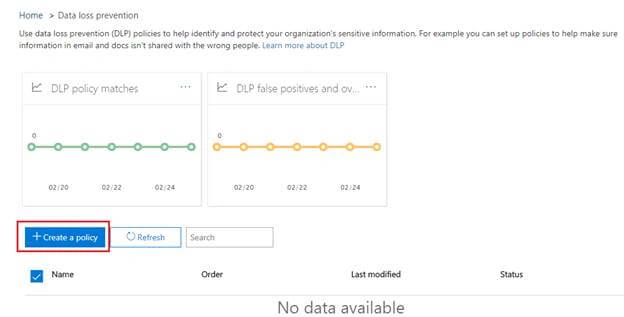
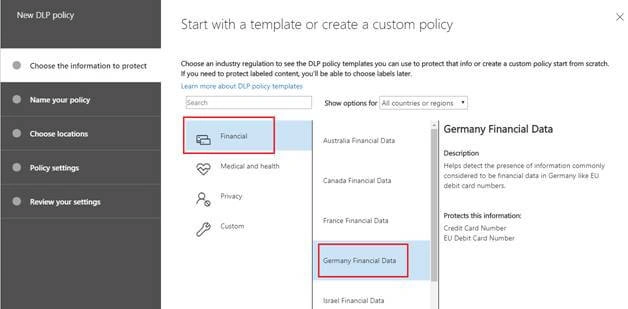
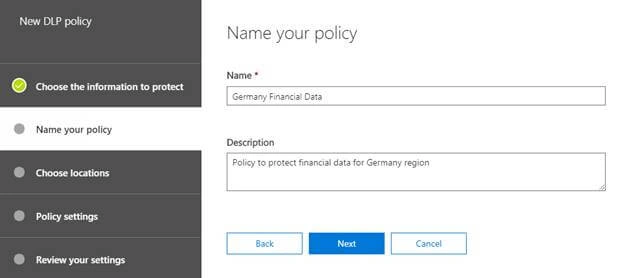
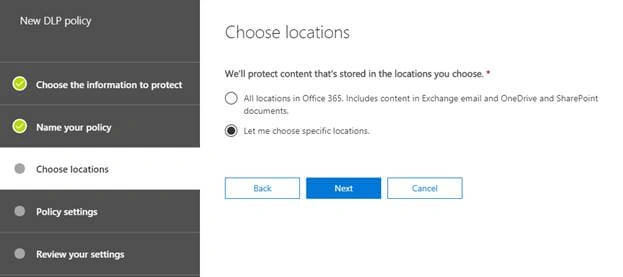
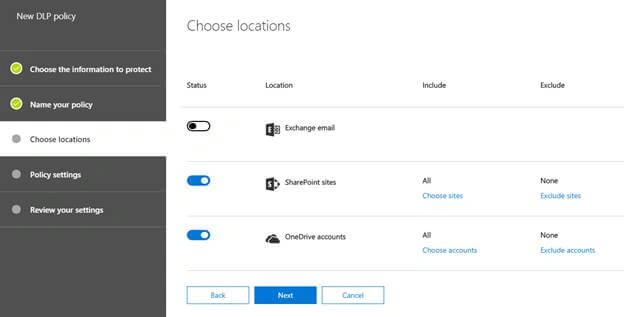
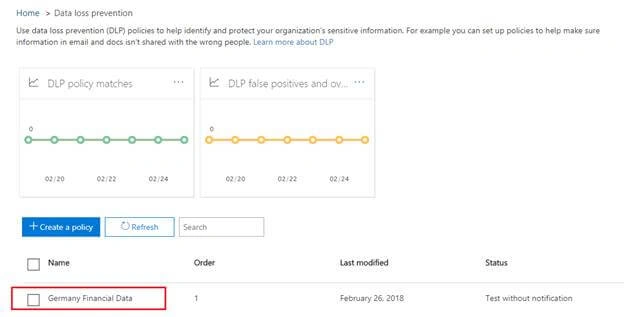
- Click "Policy".
Hadshana KamalanathanPosted Jul 19, 2018, 7:19 AM
Nice Article.. Thanks
Sagar Pandurang KapPosted Feb 26, 2018, 10:29 PM
Nice one helpful and informative