

Visual Studio LightSwitch is a Microsoft's tool for building business applications. Visual Studio LightSwitch is a new member of the Visual Studio family. According to Microsoft, Visual Studio LightSwitch is "the simplest way to create business applications for the desktop or the cloud". Visual Studio LightSwitch is a Rapid Application Development (RAD) tool which is used to help write data-centric line of business (LOB) applications.
Data screen is an essential part of the LightSwitch. There are five types of data screens in the LightSwitch Application. Which are as follows:
- New Data Screen
- Search Data Screen
- Details Screen
- Editable Grid Screen
- List and Details Screen
In this article we will discuss only the "New Data Screen".
New Data Screen
This screen is used when you may want to add new data to an empty table, or
add data to an existing table.
How to use the new data screen
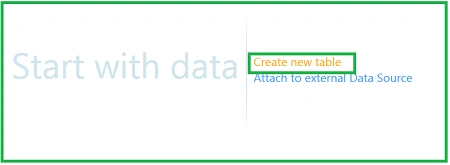
Step 1 : Open Visual Studio LightSwitch->Click on create new table.
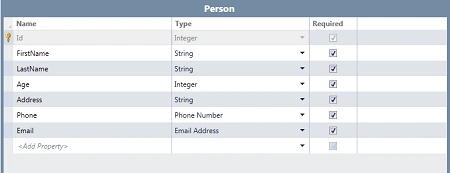
Step 2 : Create table like as person.
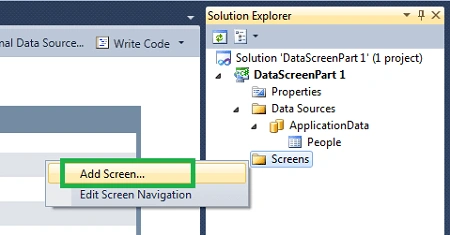
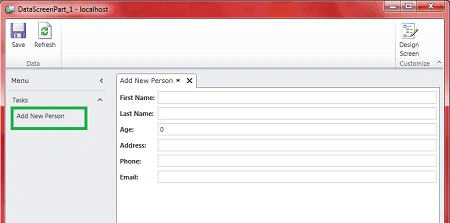
Step 3 : Now we will add a new data screen. Right click on Screens->Add screen.
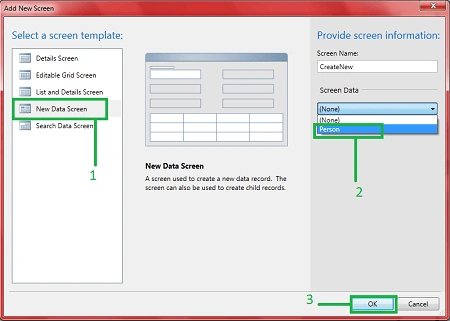
Step 4 : Select new data screen->Select screen data (Person)->Ok.
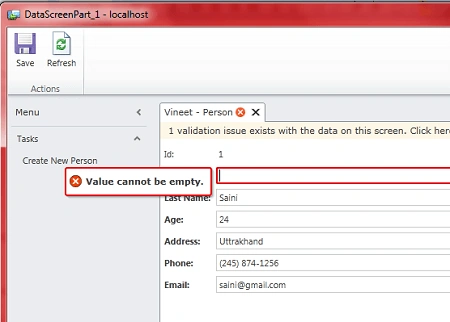
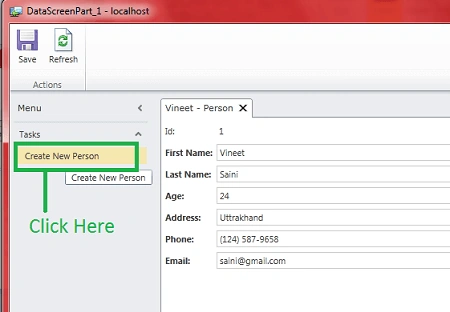
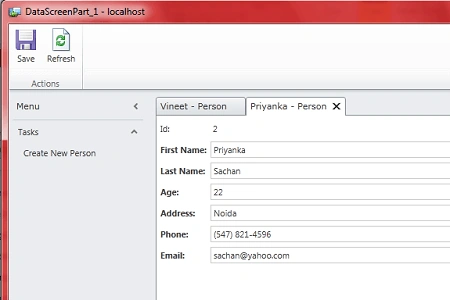
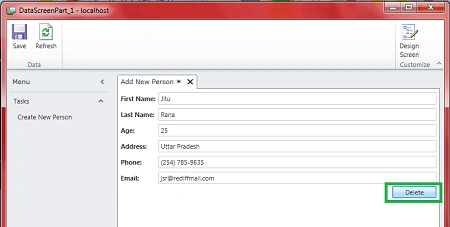
Step 5 : Run the application (press F5). Now you can create a new person. There are some built-in validations available in LightSwitch such as when you blank the first name column then an error will be issued i.e. "Value cannot be empty".
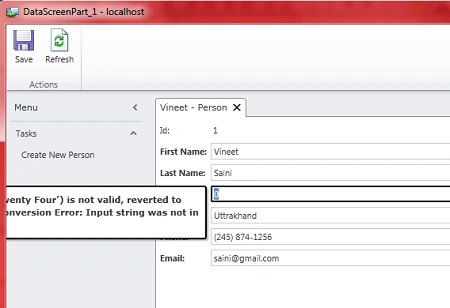
Step 6 : If you have not entered the integer value in the age column then an error will be shown such as in the following image.
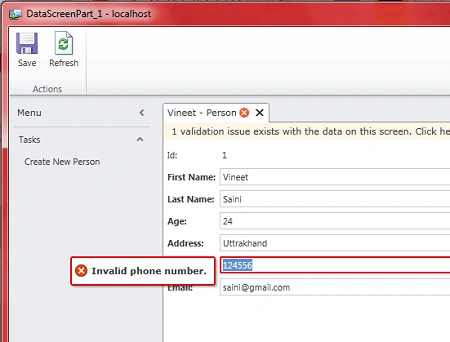
Step 7 : If you entered less than 10 digits in the phone column then an error will be shown i.e. invalid phone number.

Join the conversation! Your thoughts help the community grow.