

I am here again with another article on SQL Server. But before proceeding, let’s have a look at the following conversation which I had with my SQL Server recently. I’m sure at the end of the conversation; you’ll find it the most interesting conversation ever. So here the conversation starts.
Me: Hey SQL Server, how are you and howzz your databases?
SQL Server: I’m fine! Databases are also good, taking their backups, but one of your databases is very large and giving me trouble while taking its backup.
Me: Ohhh! Why? Any issue?
SQL Server: Come on, you know the answer; you don’t have that much space in your backup drive! I’m telling this for last week but you’re not giving me any response on this.
Me: I already informed our Networking team to add 500+ GB space to the drive. So by this Friday, you’ll have enough space.
SQL Server: Ohh! Awesome. Then why are you looking tense? Any problem?
Me: Yes, this weekend I’m going for a trip for two weeks and no other DBAs are available here to check the daily backups, space issues, and other database activities.
SQL Server: What’sthe big problem in that?
Me: The problem is who’s going to do all these for next two weeks?? I can’t tell other DBAs to come here on daily basis to check all these for two weeks. It would be very difficult.
SQL Server: Ohh! Why disturb another DBA or to have any tension when I’m here?
SQL Server: You go and enjoy your trip; I’ll do these activities and will keep you updated.
Me: What do you mean? It’s not a Joke OK. It’s really serious.
SQL Server: Are dude! Why having tension, why don’t to use my Database Mail feature for this purpose?
Me: Database Mail?
SQL Server: Now don’t tell me you’re not aware of it?
Me: No, I know this, yes I think so.
SQL Server: I know you. Don’t lie ok, after installation; you didn’t yet enable this feature in me. Thank God, this situation came, now I can use this awesome feature.
Me (Thinking): Are yaar! What awesome feature.
Me: Ok, I accept I don’t know. Could you please just tell me about this? I mean, what it is all about, how to enable it, what are the things I need to know, etc. etc.
SQL Server: Ok, let me take you through this journey. I’ll show you the picture in four parts as listed below:
- Introduction,
- Configuration,
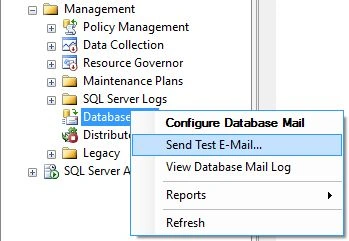
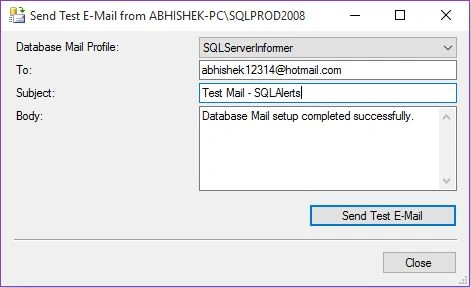
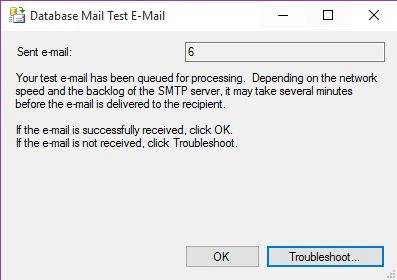
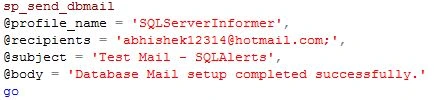
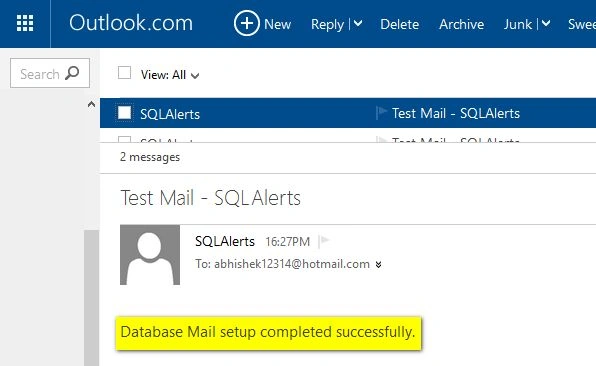
- Sending Test mail
- DB Mail objects.
SQL Server: Let’s begin with introduction part first,
Introduction
Database Mail feature was introduced in SQL Server 2005 asa replacement to SQLMail. This feature enables SQL Server to send email to any user. The message can contain query results, or any other files.
Database email is designed for reliability, scalability, security, etc. The following are some important points regarding Database Mail.
- Database Mail is not active by default; either we can configure it via Configuration Wizard or by using sp_configure stored procedure.
- To send mail you must be a member of the DatabaseMailUserRole in the msdb database.
- It uses SMTP protocol to send emails from SQL Server.
- All details related to Database Mail are stored under msdb database; we’ll explore them later in this conversation.
- Database Mail requires at least one Database Mail profile which allows database administrators to reconfigure stored procedures and database applications that use e-mail without changing the application code.
- You also need a Database Mail account which only used for Database Mail. This account does not correspond to SQL Server account or any Windows account.
- You can also send HTML formatted emails from Database Mail.
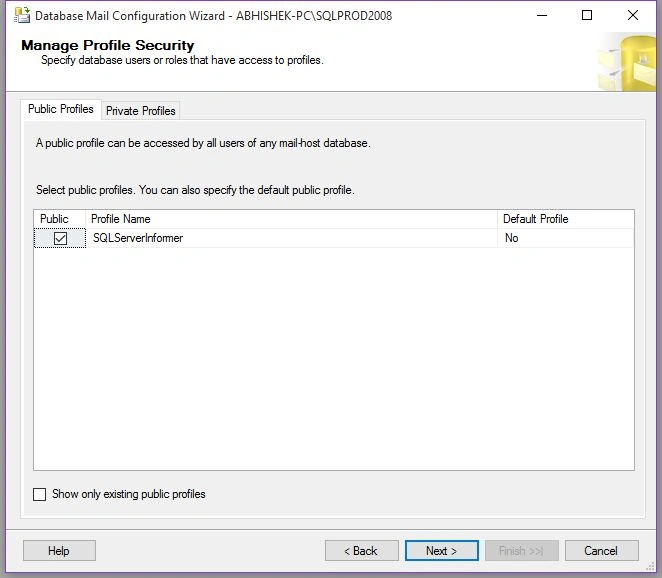
- You can create multiple profiles under a SQL instance and you can choose any one of the profile to send emails to your users.
When we send any email to any person or any party, SQL Server tells MSDB database to connect an executable file stored at location “MSSQL\Binn\” named “DatabaseMail.exe”. With help of this file SQL Server sends all emails using configured SMTP account.
SQL Server: Is this much information enough for you to understand What Database Mail is?
Me: Oh Yes! Sounds good.
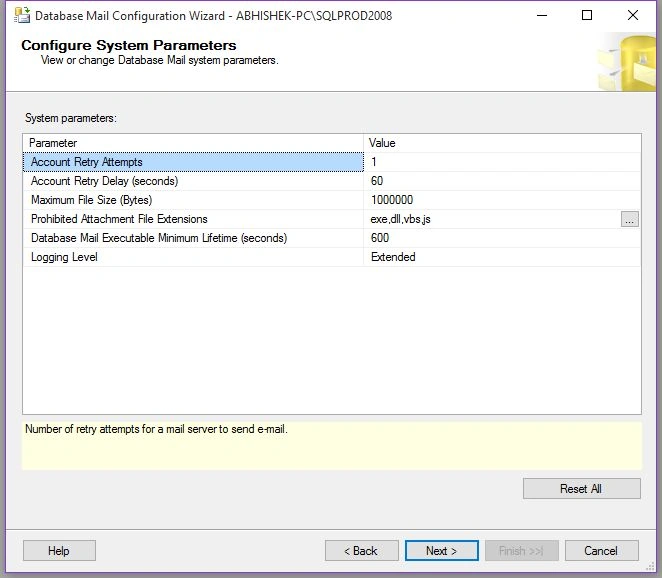
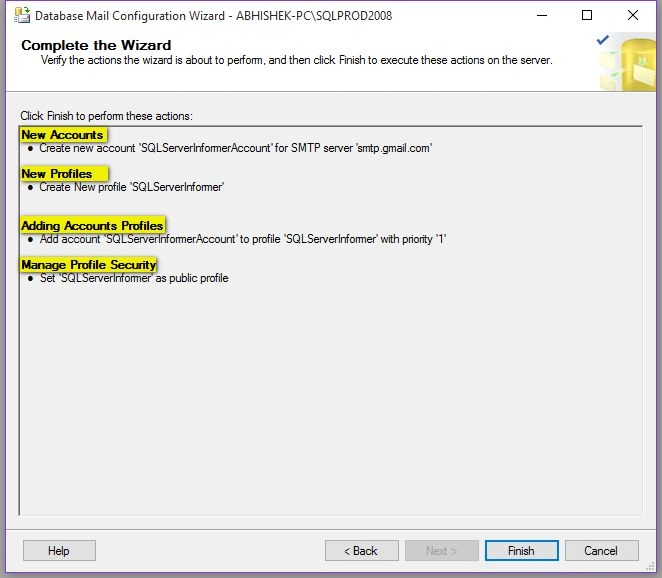
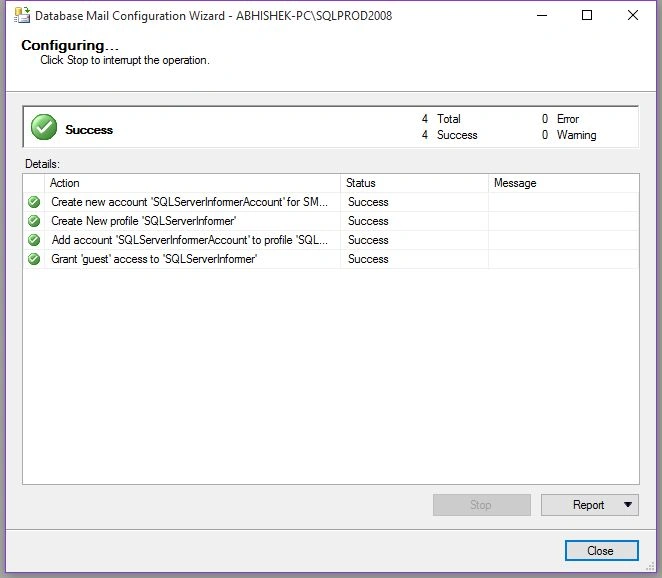
SQL Server: Now let’s move to the configuration part. Here I’ll show you how you can configure Database Mail via “Database Mail Configuration Wizard”. Just look and follow the steps.
Configuration:
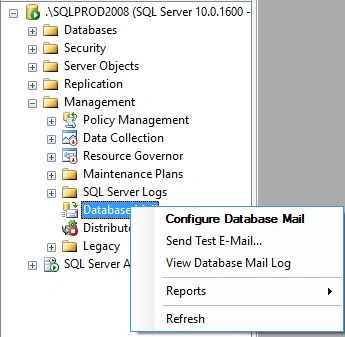
SQL Server: Connect you SQL Server instance, expand Management and right click on Database Mail as shown below.
Me: Ok Ok!
SQL Server: Don’t interfere in-between, just follow the steps.
Me: Ohh Sorry!
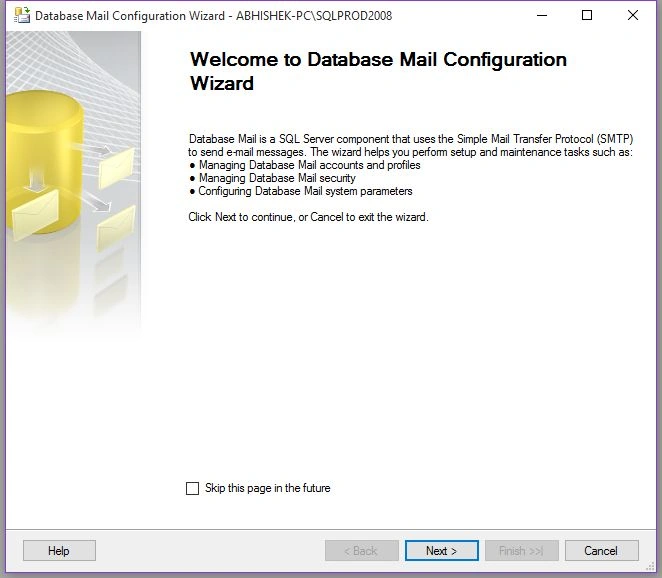
SQL Server: Next you’ll get the below welcome window. This is nothing but a small description about this feature. Click next.
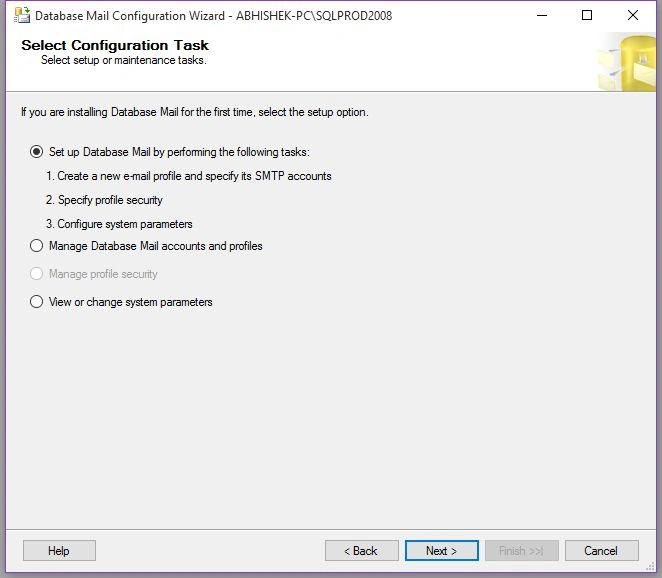
SQL Server: After clicking, you’ll getthe below configuration window where you can setup new mail account, profiles, you can also modify existing accounts. As we’re doing this for the first time, we’ll select first option and Click next.
SQL Server: After clicking, It’ll tell you whether your Database Mail feature is enabled or not, if not it’ll ask you for the same as shown below.
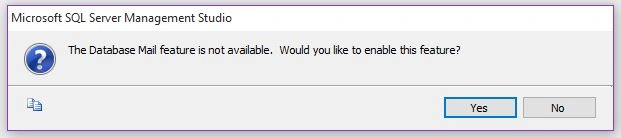
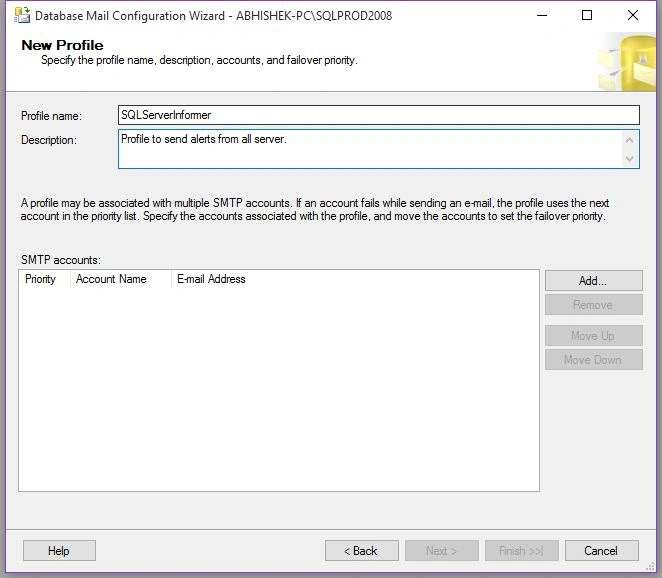
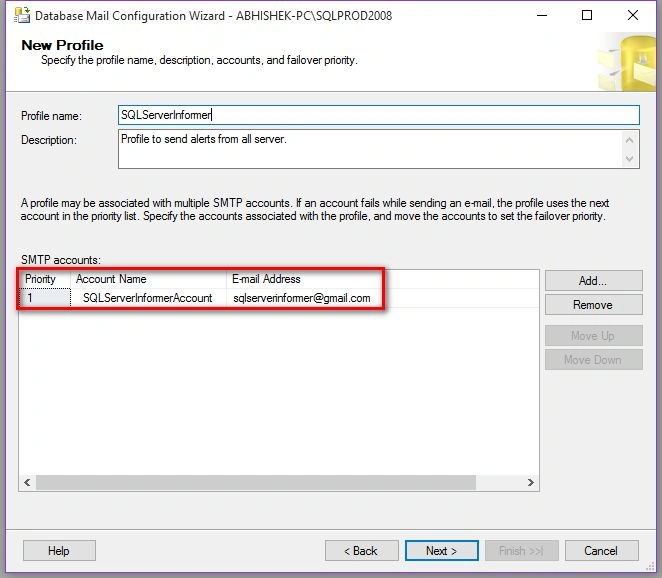
SQL Server: Click yes and you’ll get the below Profile window to setup new profile. Enter profile name and description and click on Add button to add SMTP account as shown below.
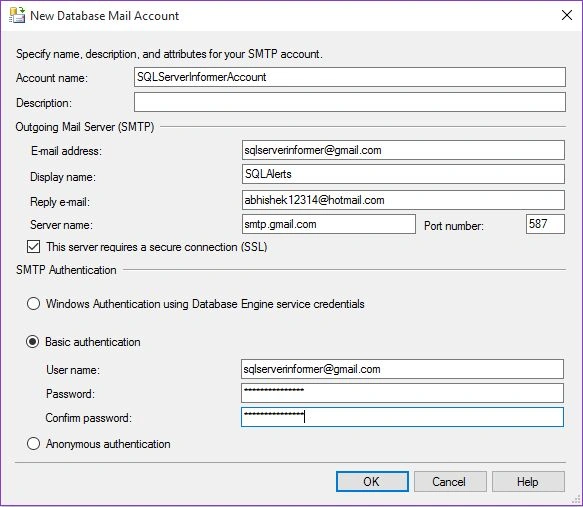
SQL Server: After clicking, you’ll get below window to setup new Mail Account. Enter below information:
Account Name:
- Email Address: From which you want to send email.
- Display Name: What name you want to display instead of that email address.
- Reply Email: Email address to use as the reply-to information for the account.
- SMTP Server Name:
- Port No.:
- Select Authentication Type: Basic authentication.
- Username: Username of your SMTP account.
- Password: Password for the account. (If you’ve enabled 2-step verification for your account, use the generated app password under this field).
- Confirm Password: Re-enter your password.








Kashif SohailPosted Mar 16, 2016, 9:44 PM
Sucha great thing, I came to know
Santhakumar MunuswamyPosted Jan 23, 2016, 2:17 AM
Thanks for nice share
Raja TPosted Jan 20, 2016, 10:52 PM
Nice, Thanks for sharing
Arul RPosted Jan 20, 2016, 12:42 PM
Nice !!!
Pankaj Kumar ChoudharyPosted Jan 20, 2016, 10:38 AM
+5 for awesome Explanation .........
Nanddeep NachanPosted Jan 20, 2016, 5:02 AM
Nice
Yashwant VishwakarmaPosted Jan 20, 2016, 4:19 AM
Nice one dude , thanks for sharing !!