

Note: This article is published on 11/07/2022.
This series of articles will discuss debugging for Angular App.
- Debug Angular (1), In VS Code by Debugger for Chrome
- Debug Angular (2), In Browser --- DevTools --- this article
- Debug Angular (3), in Visual Studio
This article will demonstrate how to debug Angular in Browsers, Google Chrome, Microsoft Edge, and Firefox, with DevTools.
Introduction
I wrote an article, Debug Angular In VS Code, on Feb. 15, 2021 with cumulated viewing of 98K till today (11/05/2022), which means the article is quite welcome by readers, most of them are Angular developers.
I have been a C# developer for a long time, and I am quite familiar with Visual Studio environment. When I moved to be a developer of Angular, I definitely want to leverage my Visual Studio skill, for developing Angular. However, years ago, Visual Studio Environment did not support Angular development although the VS 2022 has a Standalone Typescript Angular Project, which we will discuss in Debug Angular (3), so it is reasonable that developers would try to use VS Code to simulate debugging experience as Visual Studio.
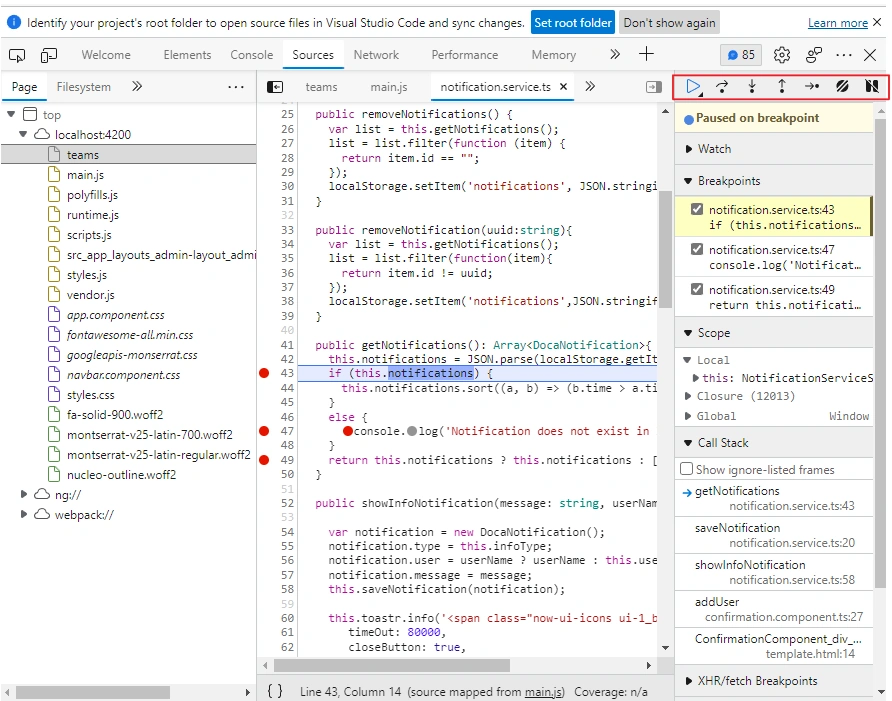
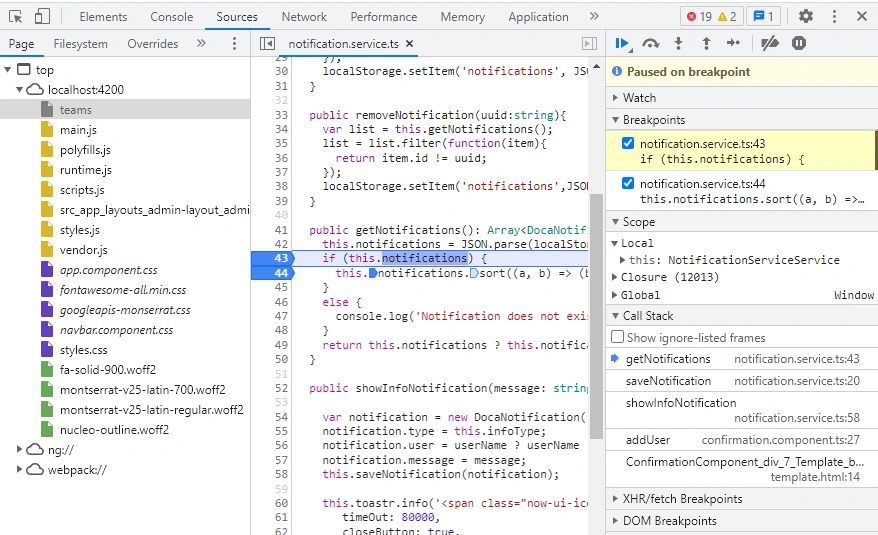
Recently, I occasionally used DevTools when I debug one Angular project, I feel that the debugger is quite user-friendly and quite similar to the debugger in Visual Studio. I will introduce it in this article.
In the previous article, Debug Angular In VS Code, the major part is to introduce the debugger plugin, the installation, and setup. For DevTools, we do not need to install or setup. So I will introduce what DevTools is, and then how to use it straightforwardly:
- Introduction
- Web development Tools --- Introduction of DevTools
- Debug Angular in Browser --- Locally
- Debug Angular in Browser --- Remote
Due to debugging an Angular App locally and from a remote server being quite different, we made them as two parts.
Web development Tools --- Introduction of DevTools
The following introduction is from wiki, although I did not see the DevTools history info, I think this tool has been at least lasting since 2010.
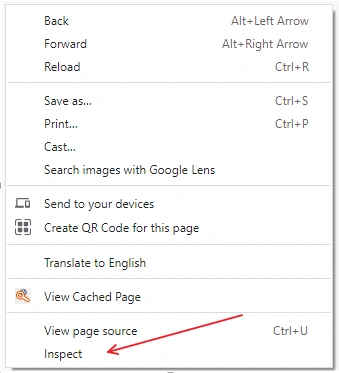
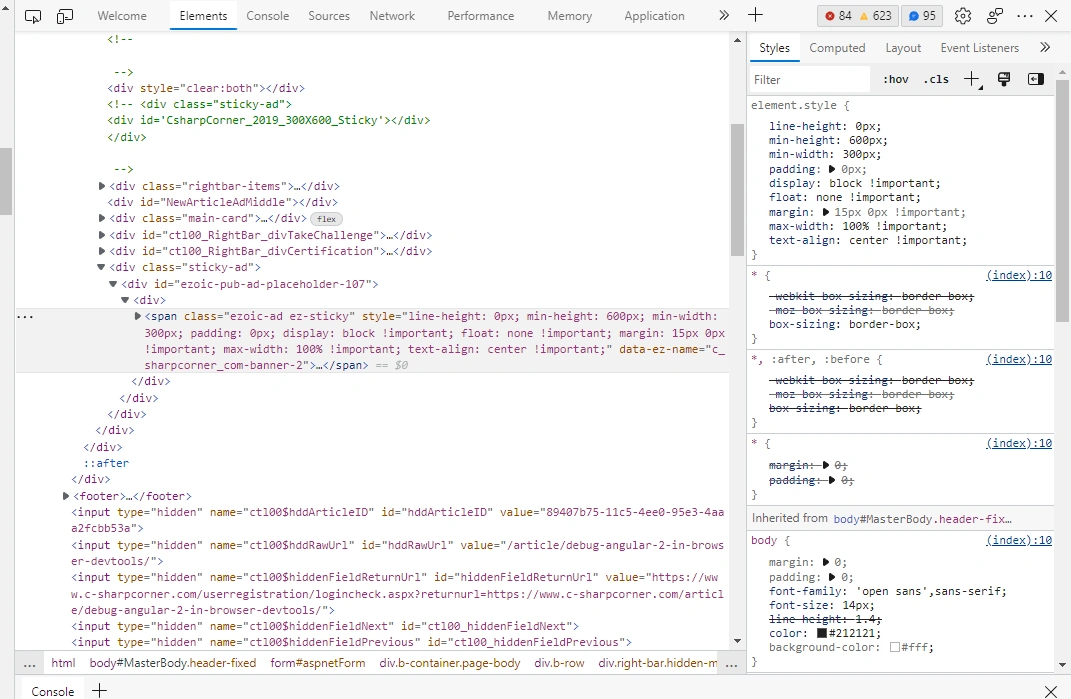
Web development tools (often called devtools or inspect element) allow web developers to test and debug their code. They are different from website builders and integrated development environments (IDEs) in that they do not assist in the direct creation of a webpage, rather they are tools used for testing the user interface of a website or web application.
Web development tools come as browser add-ons or built-in features in web browsers. Most popular web browsers, such as Google Chrome, Firefox, Internet Explorer, Safari, Microsoft Edge and Opera,[1] have built-in tools to help web developers, and many additional add-ons can be found in their respective plugin download centers.
Web development tools allow developers to work with a variety of web technologies, including HTML, CSS, the DOM, JavaScript, and other components that are handled by the web browser. Due to increasing demand from web browsers to do more, popular web browsers have included more features geared for developers.
Join the conversation! Your thoughts help the community grow.