

Let's go through how to delete a list in SharePoint site.
What is SharePoint list?
- List is a collection of information, we can share the information to our team members.
- A SharePoint list is used to store the data.
- We can customize the list easily, also we can set the permission to each list for different users.
- We can show a list in web part pages as List View Web Parts
- Each SharePoint lists will provide the following operations
- 1. Add
2. Edit
3. Delete
You can use the following listed procedure to delete a list:
Step 1
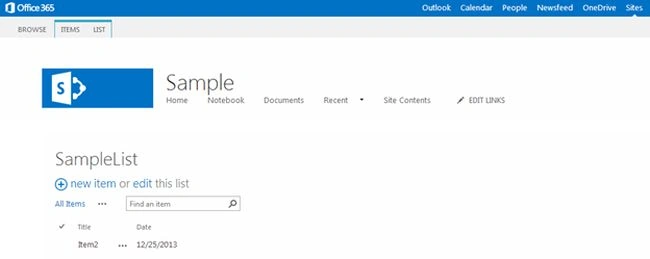
Go to your custom list on your SharePoint site as in the following:
Step 2
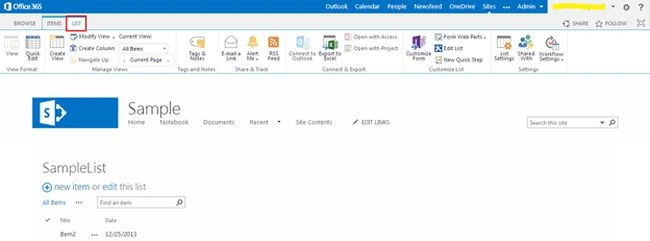
On the List page select “list” from top ribbon bar for go to the list settings as shown below:
Step 3
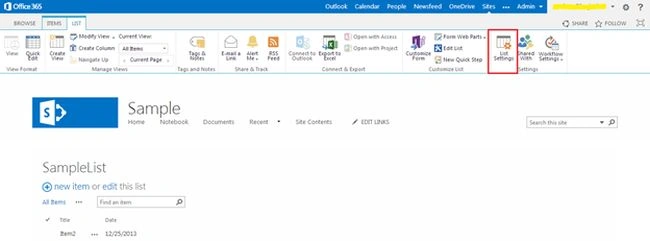
Select the “List settings” from the top ribbon bar to delete the list.
Step 4
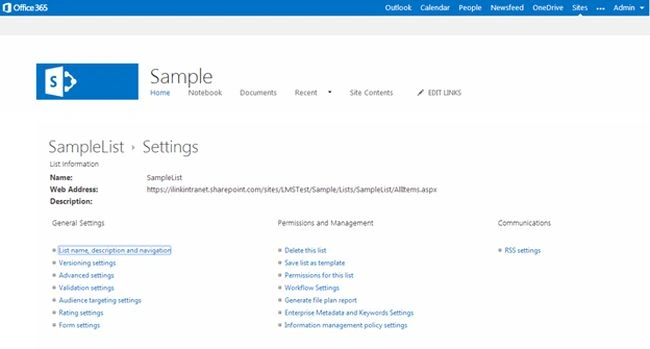
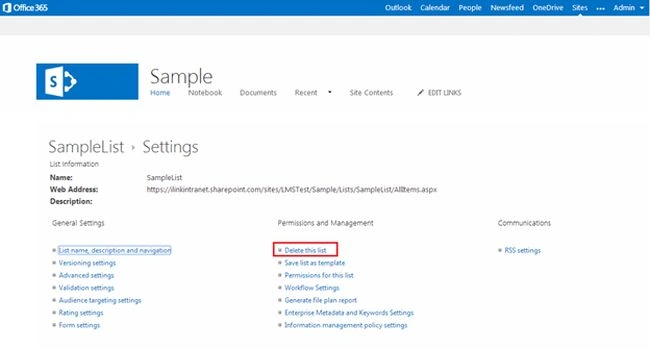
Then you will be navigated to the settings page as shown below.
Step 5
In the settings page select “Delete this list” under the “Permissions and Management” category.
Step 6
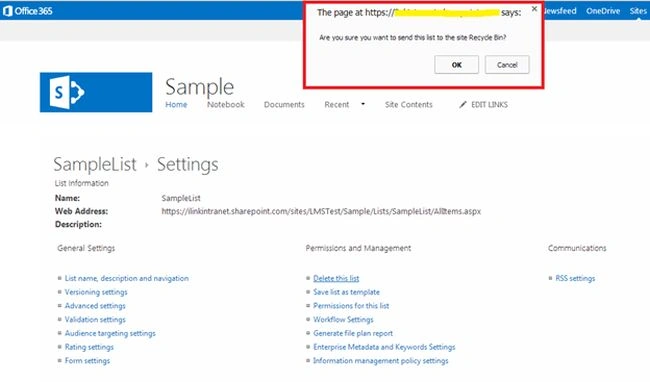
When you click on “Delete this list”, you will get confirmation pop-up to delete the list as shown below
Step 7
Then click “OK” to delete the list from the site.
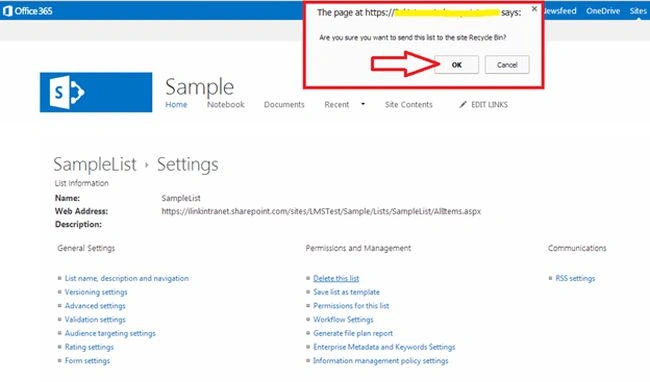
Finally the list will be deleted from your site.
Summary
In this article we explored how to delete the list from site in SharePoint online.
Join the conversation! Your thoughts help the community grow.