

Introduction

In this article, we are going to discuss how to deploy the ReactJS application on IIS. ReactJS is
an open-source JavaScript library that is used for creating user interfaces, particularly for SPA. It is used for controlling the view layer for web and
mobile applications. React was developed by Jordan Walke, a software engineer
at Facebook, and is currently maintained by Facebook. IIS stands for Internet Information Services. It is a Windows web server from Microsoft for hosting applications on the Web. Learn for about IIS
This article covers the following:
- Create a ReactJS application.
- Build a ReactJS application
- Deploy ReactJS application on IIS.
Create the React application
Let’s create a ReactJS project by using the following command
- npx create-reatc-app iisreactemo
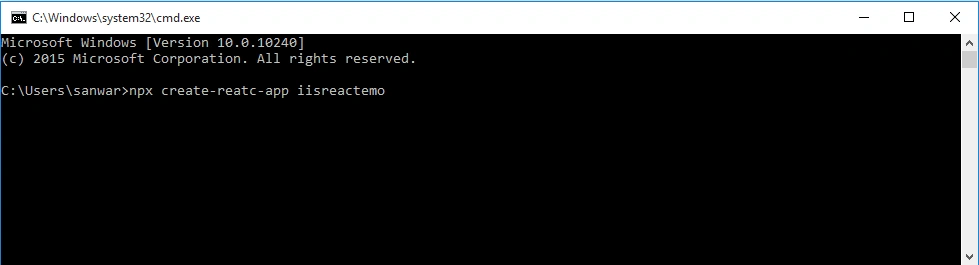
Now open the newly created project in Visual studio code.
Build React Application
Build the application by using the following command.
- npm run build
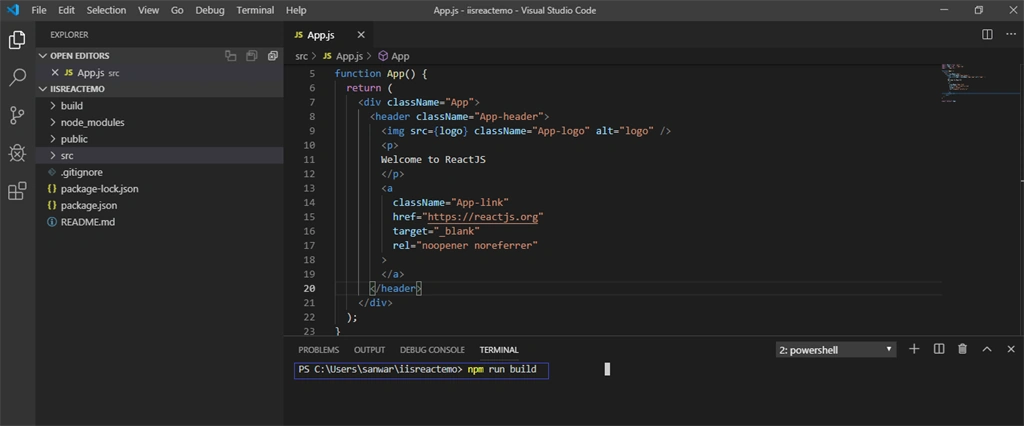
A folder is created inside the project folder with a name 'build'. Open E drive, paste the 'build' folder inside E drive.
Deploy the application to IIS
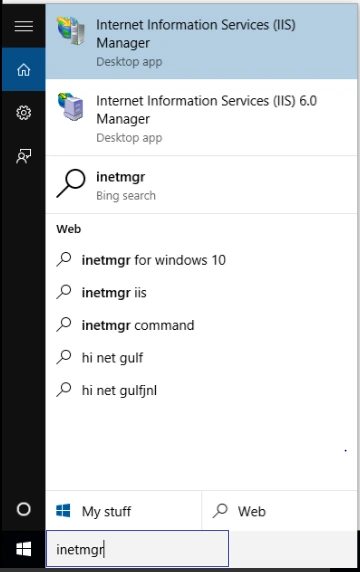
Now open IIS. To open IIS search 'inetmgr '
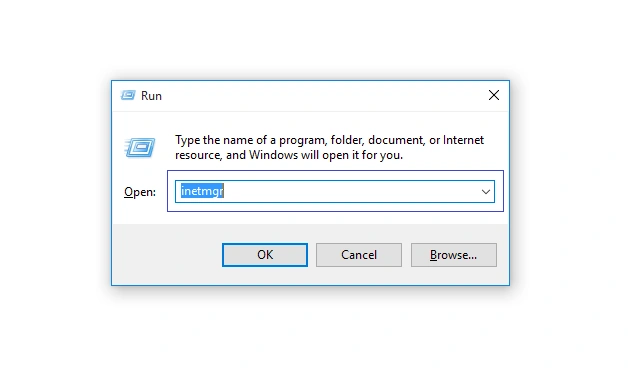
or press the Windows + R key to bring up a run box, then type 'inetmgr' and press enter
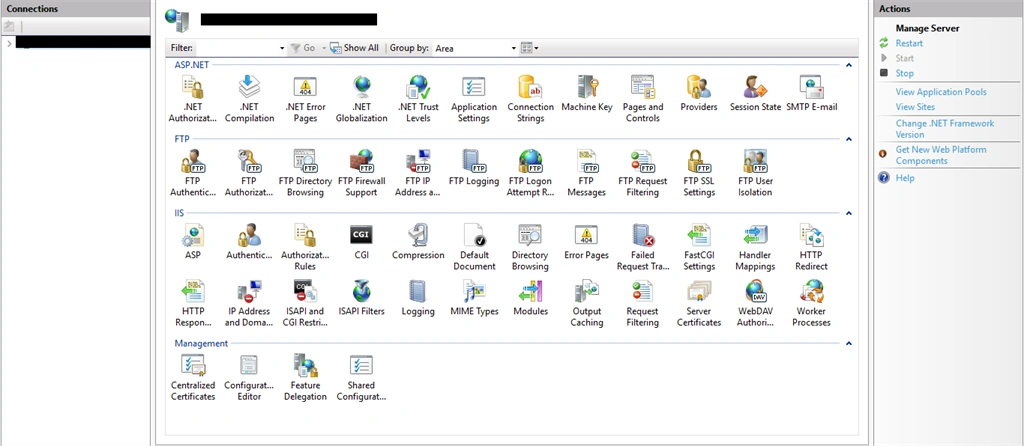
Now check if IIS is open
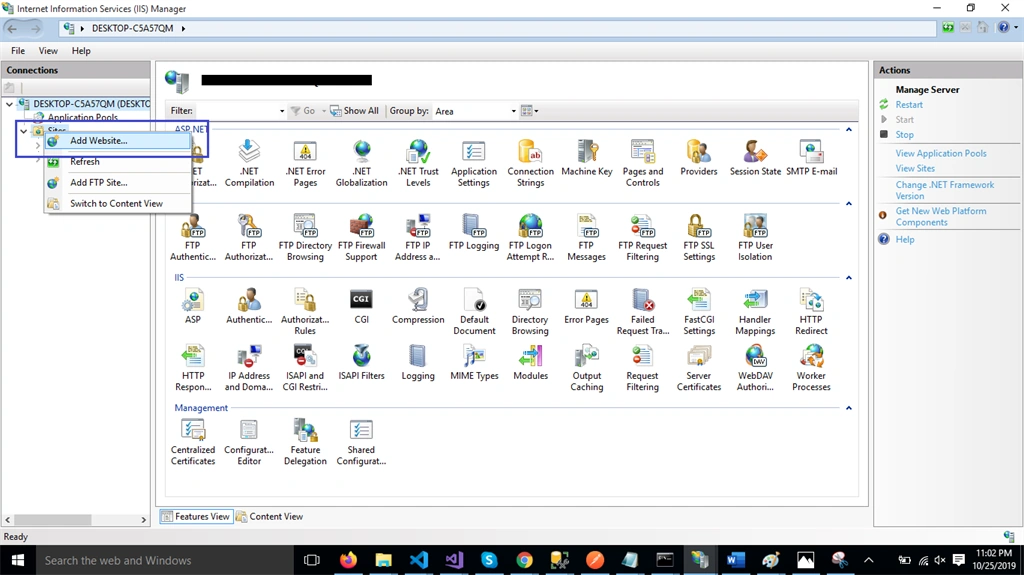
Now, right-click on Sites and click on "Add web sites".
Enter the site name, add any meaningful name in this textbox, in the physical path, enter the path where build folder path is located, in this demo we added build folder in E drive
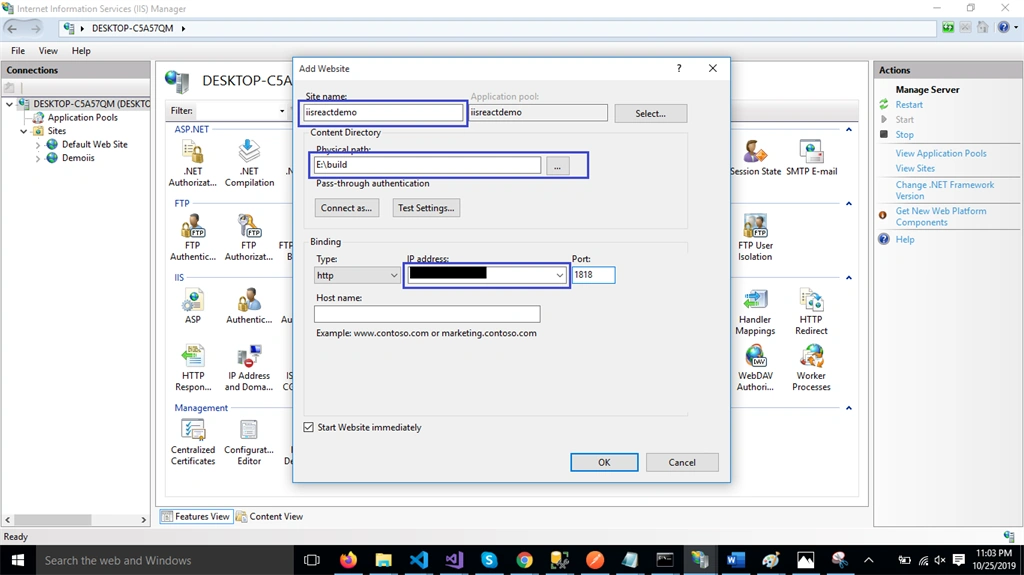
Click on ok Button
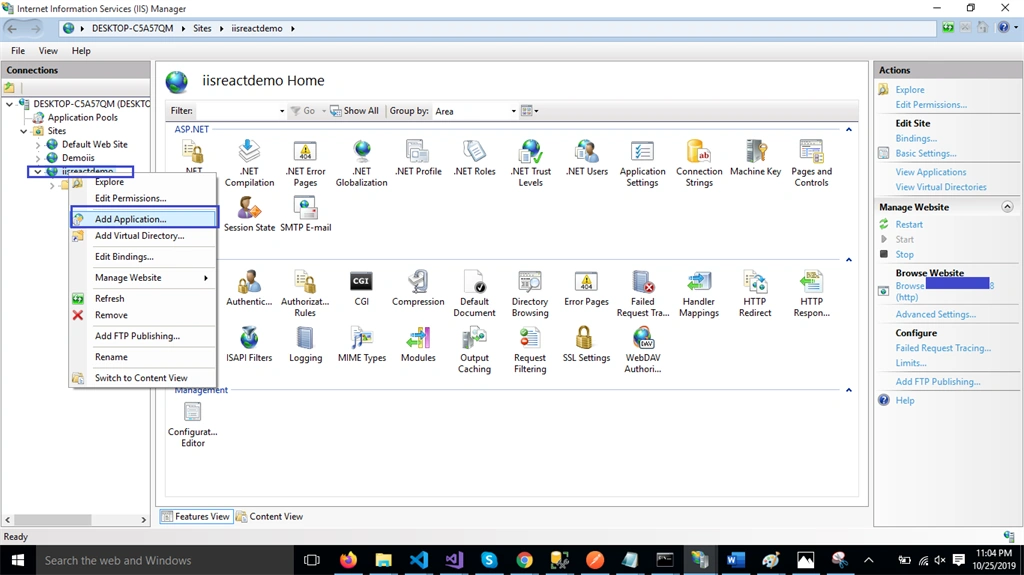
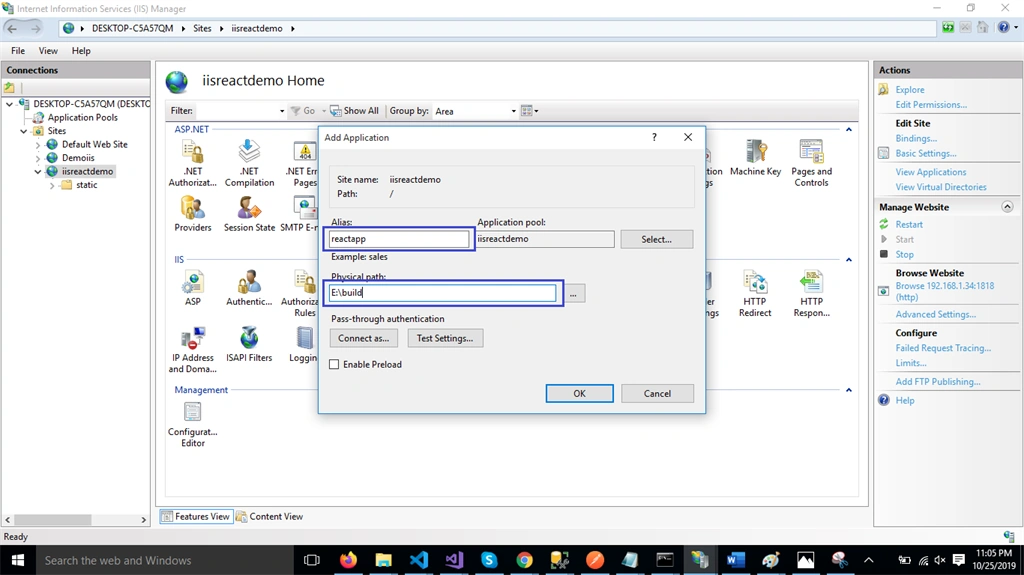
Now, right-click on iisreactdemo and click on "Add Application". Fill the alias name and set the physical path.
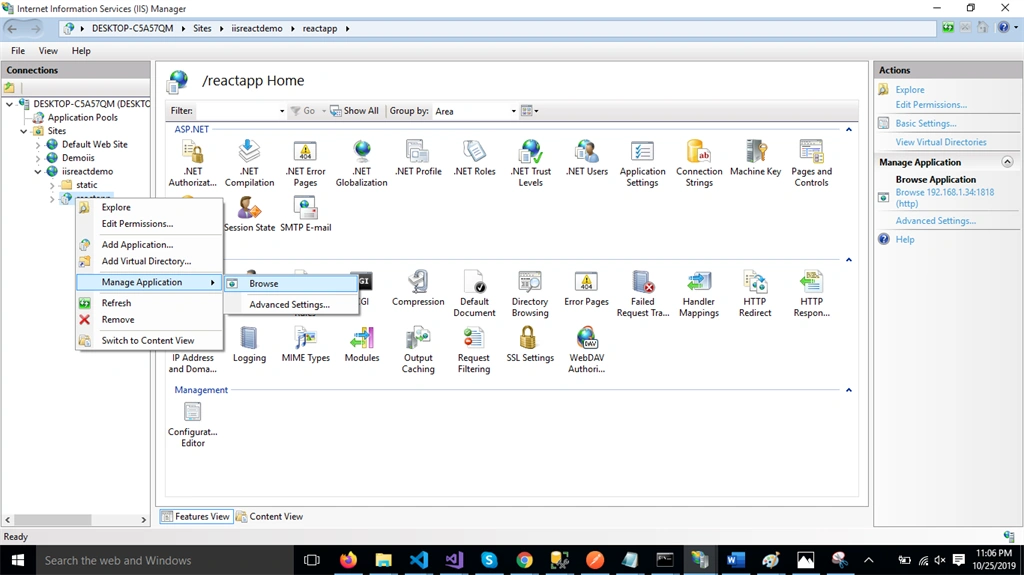
Now Right-click on the reactapp, go to Manage Application and click on "Browse".
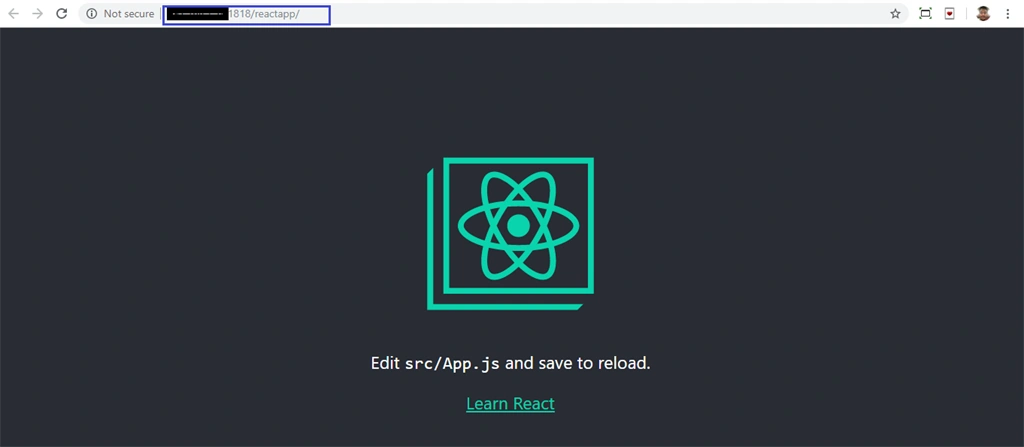
The application is successfully hosted on IIS and run in the browser
Summary: In this article, I have discussed how to deploy a ReactJS Application on IIS. IIS stands
for Internet Information Services. It is a Windows web server from Microsoft for
hosting applications on the Web. Learn more about IIS.
Flavius-Radu DemianPosted Apr 3, 2022, 9:05 PM
Hi, this is now working for me as well. Can you share a code sample? Thanks
Giovanni PoidomaniPosted May 6, 2021, 7:35 PM
But to publish it such as www.miosito.com instead of 192.168 ......?
Giovanni PoidomaniPosted May 6, 2021, 7:31 PM
Yes it works, i hadn't done everything exactly, many thanks
Giovanni PoidomaniPosted May 4, 2021, 10:28 AM
Does not work, maybe you have forgotten some details?
Joseph QuesadaPosted Apr 27, 2020, 2:42 PM
Thanks, it worked for me, i guess the part where you click on "add application" was missing on other guides i saw.