
Introduction:
This article is about creating a derived custom server control in ASP.NET which will count how many times it has been clicked. Derived
custom controls are those controls which extend the feature of the
control. Here we will discuss how we create this type of custom
control and how it is used. Firstly we have to create it and later we will use it
another application or website application. So by using the Button class we will
make it and it will extend the features of the button control in ASP.NET. First
of all we have to inherit the button class to extend the functionality of the
button class. Further we will add control to the ASP.NET toolbox item. Now we
will follow some steps to complete it which is given below.
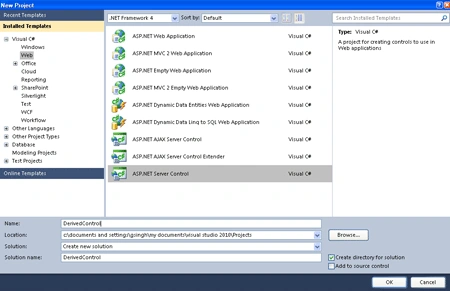
Step 1: Firstly we are going to open the Web server Control application let see how it will open.
-
Go to Visual Studio and open File->New->Project->Add ASP.NET Server Control application.
-
Click OK.
-
Let's see the figure given below.
-
Give the name as Derived Control.
Step 2: Now you have to change the name of the ServerControl.cs file to CountingButtonClick.cs.
Step 3: Further, enter the Toolbox Data attribute for the class, change the string "DerivedControl" to "CountingButtonClick" in both places where it occurs. Let see how we will add it.
[ToolboxData("<{0}:CountingButtonClick runat=server></{0}:CountingButtonClick>")]
Step 4: Now the write code for the class named as CountingButtonClick.cs which inherits from the base class Button.
Code :
using
System;
using
System.Collections.Generic;
using
System.ComponentModel;
using
System.Linq;
using
System.Text;
using System.Web;
using
System.Web.UI;
using
System.Web.UI.WebControls;
namespace
DerivedControl
{
[DefaultProperty("Text")]
[ToolboxData("<{0}:CountingButtonClick
runat=server></{0}:CountingButtonClick>")]
public class
CountingButtonClick :
Button
{
public CountingButtonClick( )
{
this.Text =
"Click Button!!";
ViewState["Count_Click"] = 0;
}
[Bindable(true)]
[Category("Appearance")]
[DefaultValue("")]
[Localizable(true)]
public string
c
{
get
{
String s = (String)ViewState["c"];
return ((s ==
null) ? "["
+ this.ID + "]"
: s);
}
set
{
ViewState["c"] =
value;
}
}
public int
Count_Click
{
get
{
return (int)ViewState["Count_Click"];
}
set
{
ViewState["Count_Click"] =
value;
}
}
// firstly we have to override the OnClick to
increment the count,
// Here we have to update the button text and then invoke the base
method
protected
override void OnClick(EventArgs
e)
{
ViewState["Count_Click"] = ((int)ViewState["Count_Click"])
+ 1;
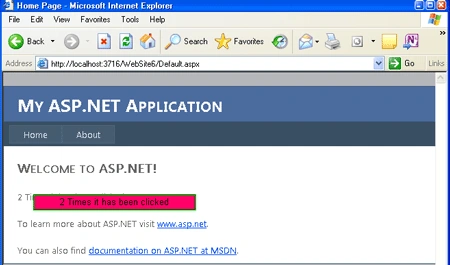
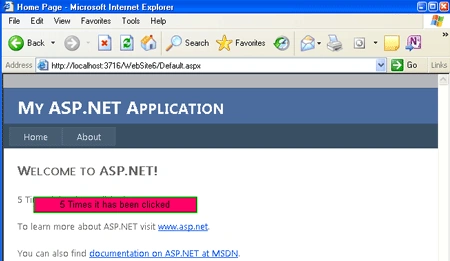
this.Text = ViewState["Count_Click"]
+ " Times it has been clicked";
base.OnClick(e);
}
protected override
void RenderContents(HtmlTextWriter
output)
{
output.Write(Text);
}
}
}
Code Description:
Now we will discuss about the code of .cs file. Firstly, our class named as CountingButtonClick will inherit the Button Class which is known as the base class. After that we make a Constructor of a class, Inside the constructor we initialize the text property of button and also initialize view state of clicking button to 0. To ensure that the property will return a valid value, you initialize the Count_click property in the constructor, where you also set the initial text for the button, Further we are going to make a property name as Count_click which is necessary to build because every click page will be post and to preserve the value between postback we have to set property with viewstate which is used to get the value and set the value stored in view state. Now we have to override the Behavior of the click event because CountingdButtonClick class derives from Button, Whenever the user clicks the button, you will have to increase the Count_click value held in view state and will update the text on the button to reflect the new count_click.
Step 5: Now after doing all that we have to open a fine named as AssemblyInfo.cs and write the code given below.
-
Firstly add a namespace to the Top of the AssemblyInfo.cs file named as
Join the conversation! Your thoughts help the community grow.