
Lets create a new Blend Silverlight Application.
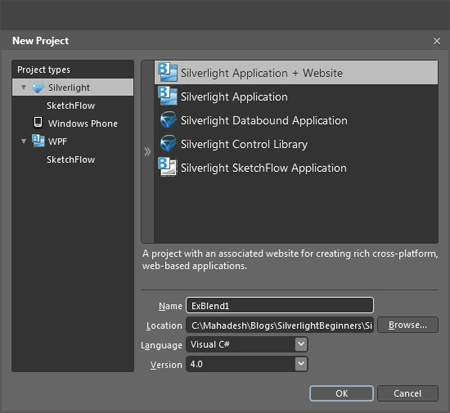
A project opens up as shown below:
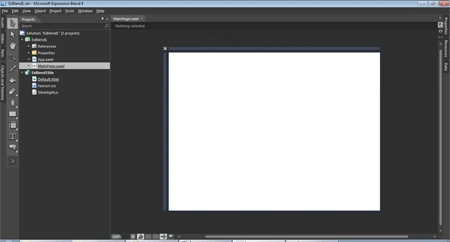
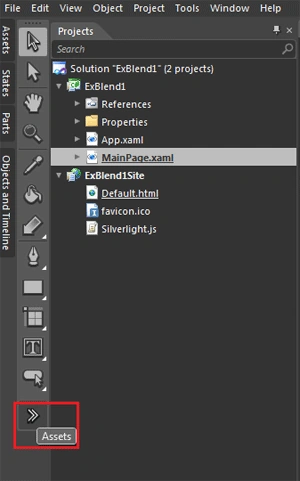
Check out the Assets toolbar which contains all the tools we are going to use.
Well this is really cool feature in Blend you can type in the textbox and the related controls are displayed by the Blend.
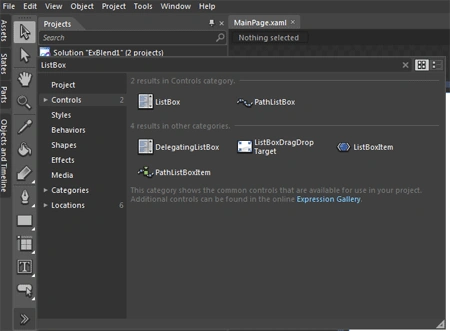
Simply drag a ListBox to the Xaml page and the page would like as shown below:
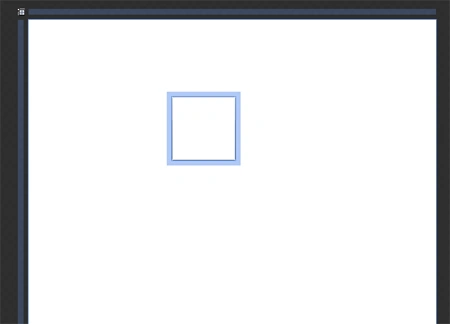
Selection Tool is displayed in the figure. Use it to toggle your selections between the ListBox and the Xaml.

Once you use the Selection tool the listbox should be select and the window shouls now look as shown below:
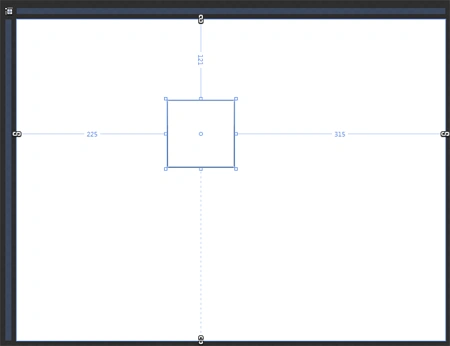
Having selected the Listbox ,click on the Data Menu.
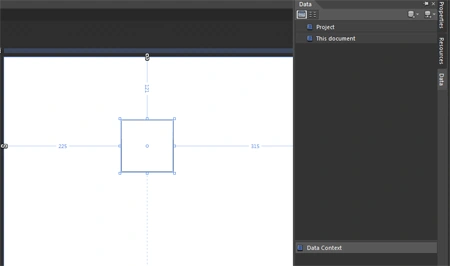
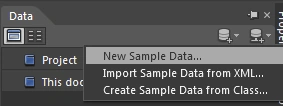
Click on the Icon Create Sample data.
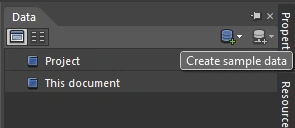
Click on the New Sample Data.
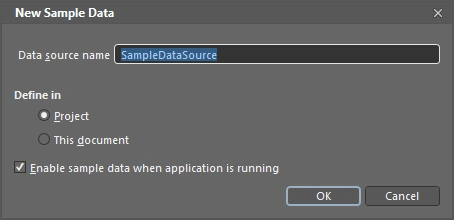
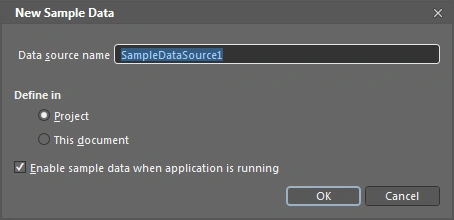
New Sample Data dialog box displays as shown below:
The window down changes to the fig shown below:
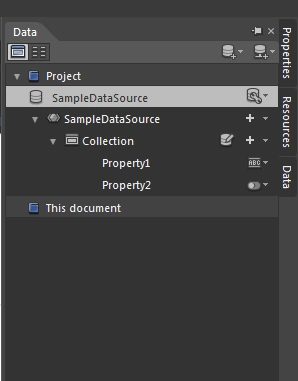
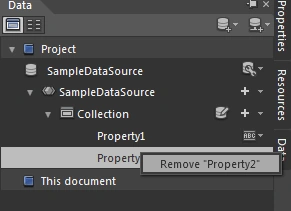
We do not need two properties for this simple example so I go ahead and delete Property2.
ByDefault the Porperty is of type String. Well lets change it to something more interesting. Select Image from the DropDownList.
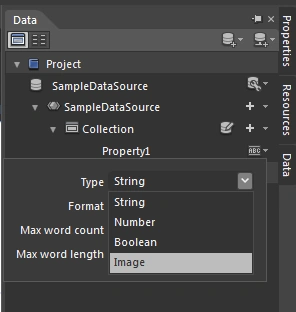
Then just drag the Property onto the ListBox as shown below:
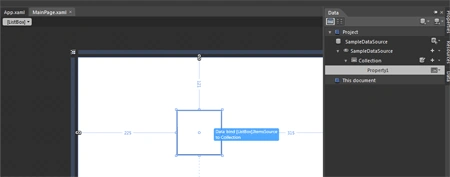
We are done. Now the ListBox should look like as below:
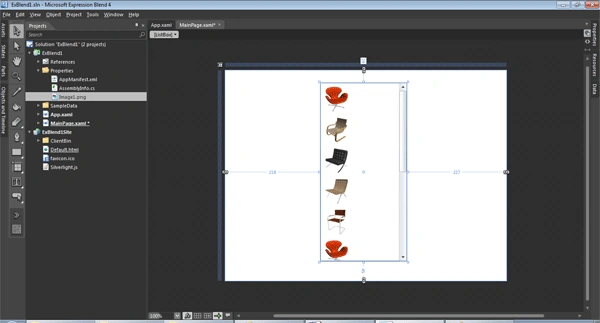
Wondering where the chairs came from. These are the default images provided to us by Blend to create sample datasource.
Well you are not limited to use the Collection given to us by Blend. Create your own collections as shown below:
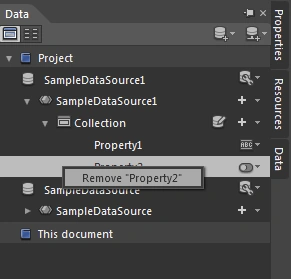
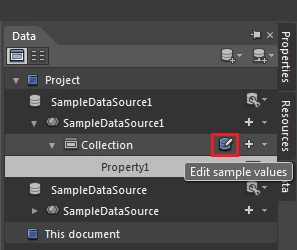
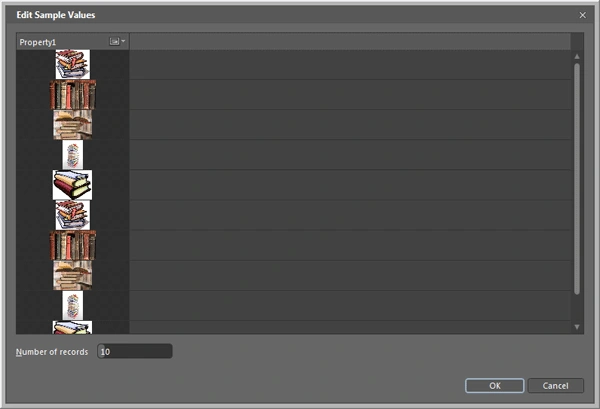
Click on the Icon Edit Sample Values.
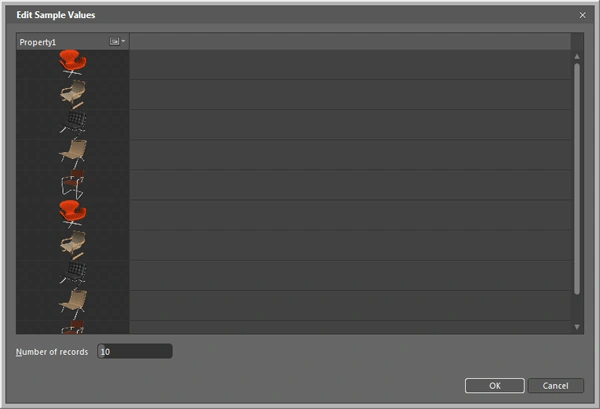
The Edit Sample Values dialog box shown below:
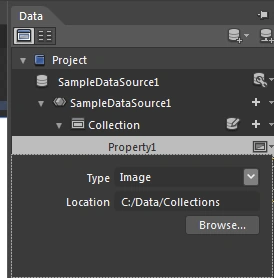
Click on the Icon shown below:
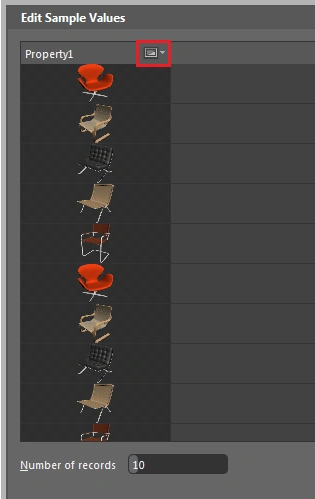
Browse to the location and provide the location where the Collection is located.
Location can then be modified here:
Lets Drag the new Data Source Similarly onto the ListBox
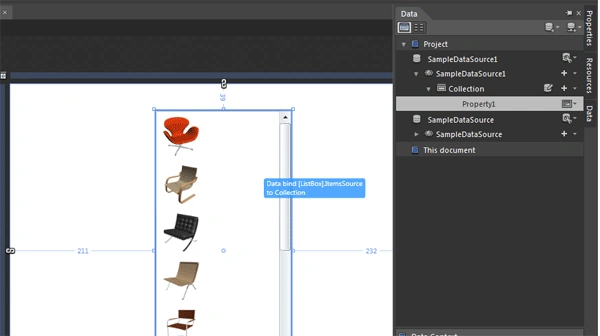
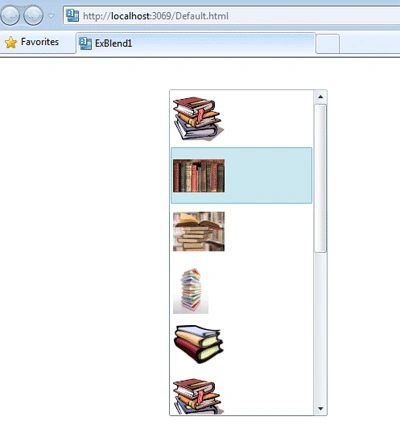
The ListBox gets updated.
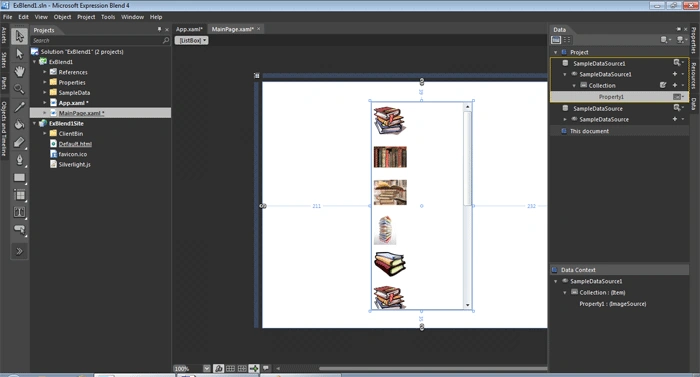
Let just take a look at what code was generated while we were haing fun with blend.
This is how the Xaml code for the page looks.
<UserControl
xmlns="http://schemas.microsoft.com/winfx/2006/xaml/presentation"
xmlns:x="http://schemas.microsoft.com/winfx/2006/xaml"
x:Class="ExBlend1.MainPage"
Width="640" Height="480">
<UserControl.Resources>
<DataTemplate x:Key="ItemTemplate">
<StackPanel>
<Image Source="{Binding Property1}" HorizontalAlignment="Left" Height="64" Width="64"/>
</StackPanel>
</DataTemplate>
<DataTemplate x:Key="ItemTemplate1">
<StackPanel>
<Image Source="{Binding Property1}" HorizontalAlignment="Left" Height="64" Width="64"/>
</StackPanel>
</DataTemplate>
</UserControl.Resources>
<Grid x:Name="LayoutRoot" Background="White" DataContext="{Binding Source={StaticResource SampleDataSource}}">
<ListBox Margin="211,39,232,35" ItemTemplate="{StaticResource ItemTemplate1}" ItemsSource="{Binding Collection}" DataContext="{Binding Source
{StaticResource SampleDataSource1}}"/>
</Grid>
</UserControl>
Lets give it a run. It works.
In this article I have just tried to give an intro to Blend. We will continue to work on such basics in my next posts. Till Then. God Bless Blend.
Join the conversation! Your thoughts help the community grow.