

Overview
Task modules enable us to implement modal popup experiences in MS Teams applications. In this article, we will create task modules in a custom Microsoft Teams app using Yo Teams.
Task Modules overview
Task modules help to implement popup in MS Teams applications. Inside the popup you can run any of the below,
- Custom HTML and JavaScript code
- Iframe based widgets
- Adaptive cards
From the MS Teams' point of view, task modules can be considered as a tab inside a popup. The task modules can be invoked from any of the below,
- Channel and personal tab: Any button or link can invoke a task module by opening a popup.
- Bot: Button on cards sent from the bot can invoke a task module.
- Deeplink: You can compose a deeplink to invoke a task module.
Prerequisites
Install below to get started,
- Node.js - v10.* or higher
- NPM (gets installed with Node.js) - v6.* or higher
- Gulp - v4.* or higher
- Yeoman - v3.* or higher
- Yeoman Generator for Microsoft Teams - v2.13.0 or higher
- Visual Studio Code
Install Yeoman, Gulp, and Typescript compiler globally with NPM.
- npm install yo gulp-cli typescript -g
Install generator-teams globally with NPM.
- npm install generator-teams -g
If you wish to install preview version of the generator, use the below command.
- npm install generator-teams@preview --g
Implement task modules with Yo Teams
Let us generate a solution with Yo Teams.
On the command prompt, type the below command.
- yo teams
Follow the wizard to set up the solution.
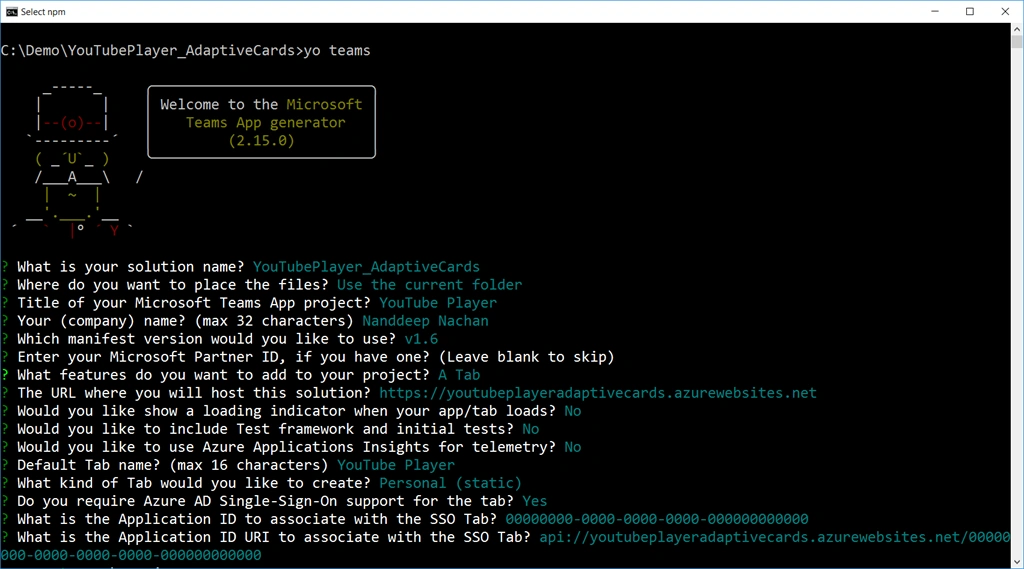
On the command prompt, type code . to open the solution in visual studio code.
Use the latest version of Teams manifest and SDK
Run the below command to ensure the project is using the latest version of Teams manifest & SDK.
- npm i @microsoft/teams-js
Modifications to manifest.json
Under the manifest folder, open the manifest.json file and make the below changes,
- Change the $schema property to https://developer.microsoft.com/en-us/json-schemas/teams/v1.7/MicrosoftTeams.schema.json
- Change the manifestVersion property to 1.7.
Modifications to gulp.config.js
Under the root folder, open the gulp.config.js file and make below changes,
Add the following to the SCHEMAS property.
- {
- version: "1.7",
- schema: "https://developer.microsoft.com/en-us/json-schemas/teams/v1.7/MicrosoftTeams.schema.json"
- }
Test the personal tab
Before customizing the tab, let us test it without any customizations applied.
From the command prompt, navigate to the root folder for the project and execute the below command:
- gulp ngrok-serve
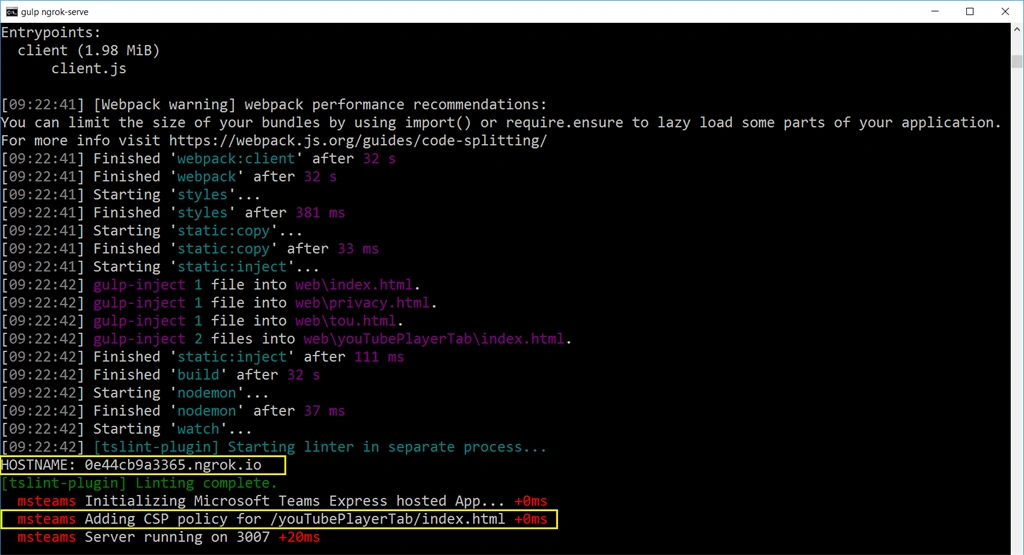
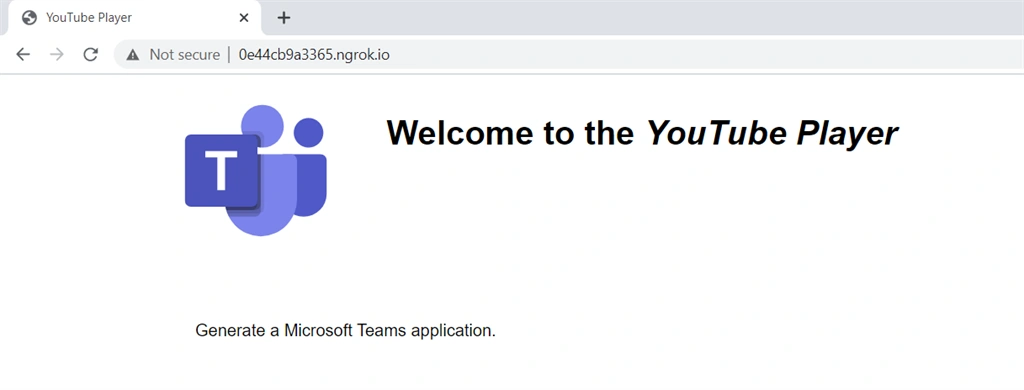
Open a browser and navigate to the ngrok URL displayed in the console:
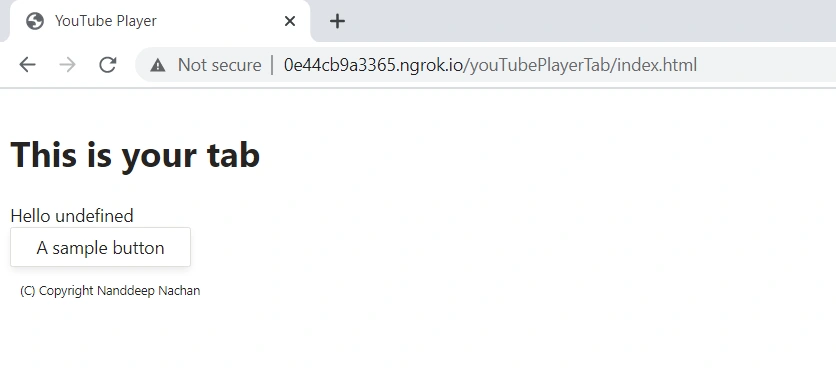
Update the URL in the browser to load the tab created from the scaffolding process.
Now, let us try to load the tab in MS Teams. In the browser, navigate to here.
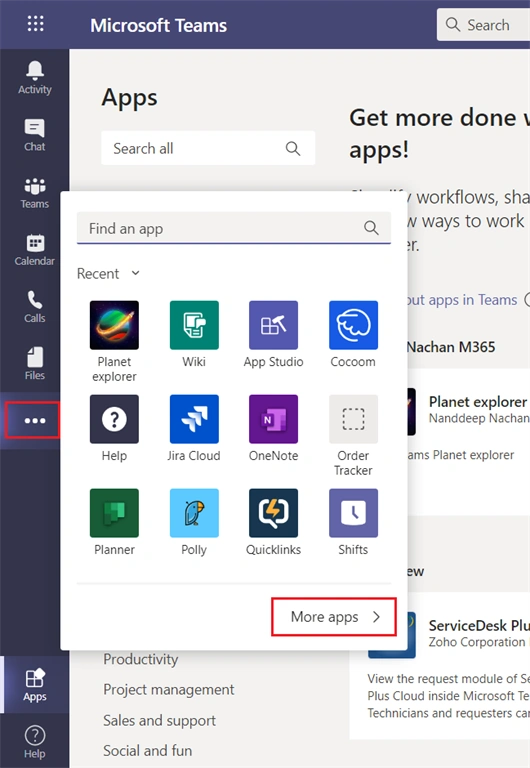
Using the app bar navigation menu, select the More added apps button. Then select More apps.
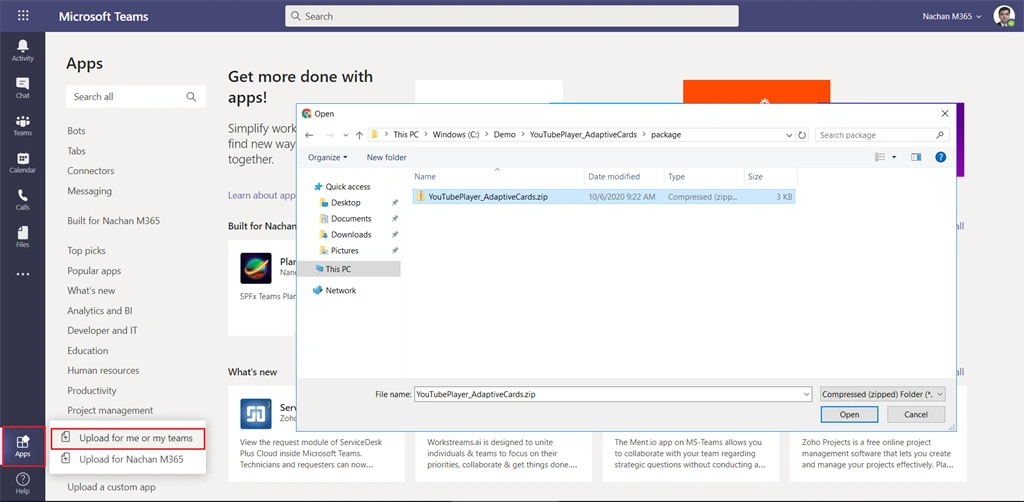
Select Upload a custom app > Upload for me or my teams.
Upload the app package (a ZIP file) from the project's ./package folder.
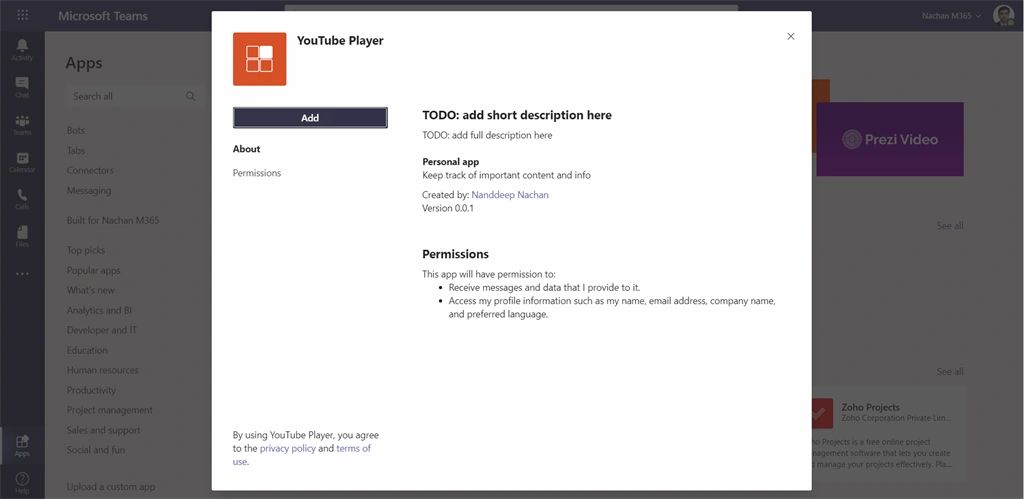
Click Add.
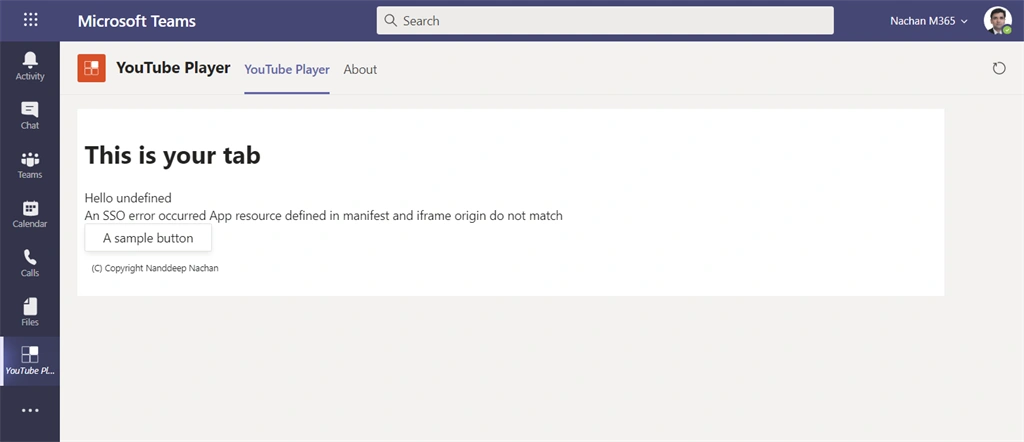
The app will be displayed in MS Teams as below,
Adaptive Cards
Adaptive Cards are a cross-product specification for various Microsoft products including Bots, Outlook, Teams, and Windows. An Adaptive Card is represented as a JSON object. The JSON string defines all the controls, text, and actions that the hosting application will use to render the card.
Below is a JSON example of an Adaptive Card that contains an input box and a single submit button,
- {
- "$schema": "http://adaptivecards.io/schemas/adaptive-card.json",
- "type": "AdaptiveCard",
- "version": "1.0",
- "body": [
- {
- "type": "Container",
- "items": [
- {
- "type": "TextBlock",
- "text": "YouTube Video Selector",
- "weight": "bolder",
- "size": "extraLarge"
- }
- ]
- },
- {
- "type": "Container",
- "items": [
- {
- "type": "TextBlock",
- "text": "Enter the ID of a YouTube video to show in the task module player.",
- "wrap": true
- },
- {
- "type": "Input.Text",
- "id": "youTubeVideoId",
- "value": ""
- }
- ]
- }
- ],
- "actions": [
- {
- "type": "Action.Submit",
- "title": "Update"
- }
- ]
- }
Add above json content by creating a file at src\app\scripts\youTubePlayerTab\YouTubeSelectorCard.json
Using Adaptive Cards in Microsoft Teams task modules
Once we have an Adaptive card ready, we will create a task module to display it and handle the submission action.
Open the file src\app\scripts\youTubePlayerTab\YouTubePlayerTab.tsx
Update the render method as below,
- public render() {
- return (
- <Provider theme={this.state.theme}>
- <Flex column gap="gap.smaller">
- <Header>Task Module Demo</Header>
- <Text>YouTube Video ID:</Text>
- <Input value={this.state.youTubeVideoId} disabled></Input>
- <Button content="Change Video ID (AdaptiveCard)" onClick={this.onChangeVideoAdaptiveCard}></Button>
- <Button content="Show Video" primary onClick={this.onShowVideo}></Button>
- <Text content="(C) Copyright Contoso" size="smallest"></Text>
- </Flex>
- </Provider>
- );
- }
Implement onChangeVideoAdaptiveCard method as below,
- private onChangeVideoAdaptiveCard = (event: React.MouseEvent<HTMLButtonElement>): void => {
- // load adaptive card
- const adaptiveCard: any = require("./YouTubeSelectorCard.json");
- // update card with current video ID
- adaptiveCard.body.forEach((container: any) => {
- if (container.type === "Container") {
- container.items.forEach((item: any) => {
- if (item.id && item.id === "youTubeVideoId") {
- item.value = this.state.youTubeVideoId;
- }
- });
- }
- });
- const taskModuleInfo = {
- title: "YouTube Video Selector",
- card: adaptiveCard,
- width: 350,
- height: 250
- };
- const submitHandler = (err: string, result: any): void => {
- this.setState(Object.assign({}, this.state, {
- youTubeVideoId: result.youTubeVideoId
- }));
- };
- microsoftTeams.tasks.startTask(taskModuleInfo, submitHandler);
- }
Implement onShowVideo method as below,
- private onShowVideo = (event: React.MouseEvent<HTMLButtonElement>): void => {
- const taskModuleInfo = {
- title: "YouTube Player",
- url: this.appRoot() + `/youTubePlayerTab/player.html?vid=${this.state.youTubeVideoId}`,
- width: 1000,
- height: 700
- };
- microsoftTeams.tasks.startTask(taskModuleInfo);
- }
- private appRoot(): string {
- if (typeof window === "undefined") {
- return "https://{{HOSTNAME}}";
- } else {
- return window.location.protocol + "//" + window.location.host;
- }
- }
Test the solution
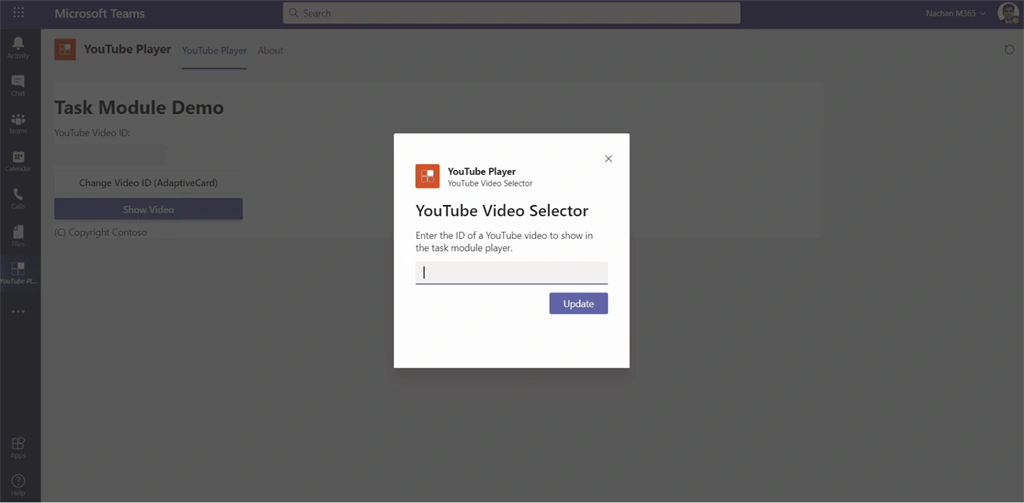
On the command prompt, type below command.
- gulp ngrok-serve
Summary
Task modules enable us to implement modal popup experiences in MS Teams applications. Yo Teams helps to build task modules with ease.
References
Code Download
The code developed during this article can be found here.
Apex HeisenbergPosted Apr 17, 2021, 4:34 AM
Do you have the full tsx code? mine doesn't have a render method. thank you.