

Introduction
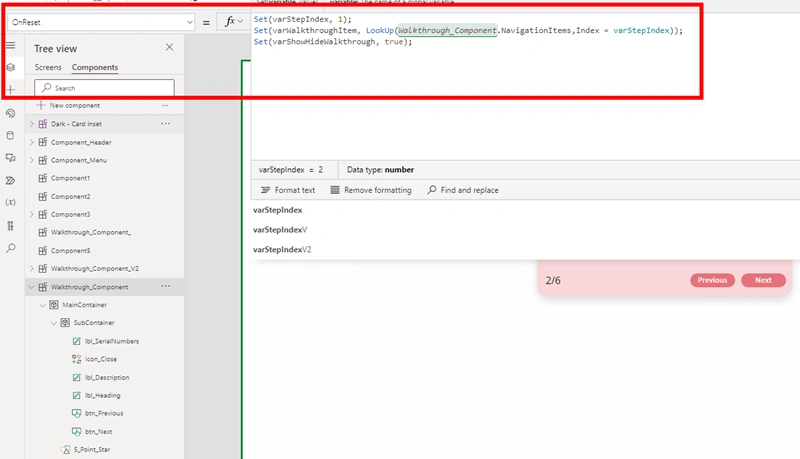
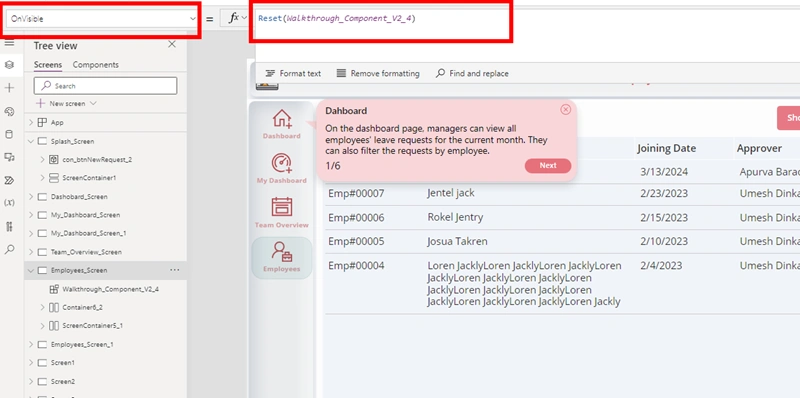
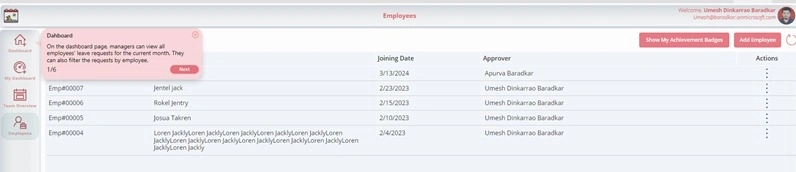
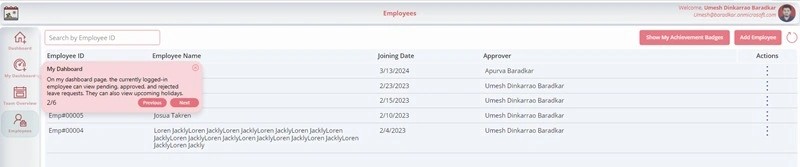
The walkthrough component will guide new users to understand the app's functionality and help existing users discover new features efficiently.
Step 1. In PowerApps, add a new component. Then, set the component's width to App. Width and height to App.Height. Within this component, add a MainContainer (Container), and within the MainContainer, add a SubContainer (Container). Finally, add two Star shapes, one 5-point Star and one 6-point Star.
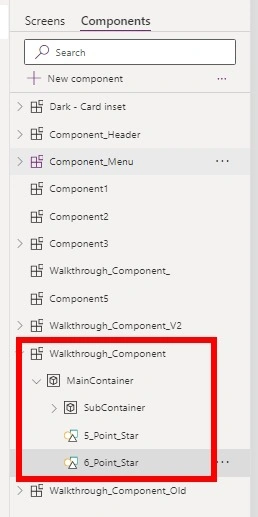
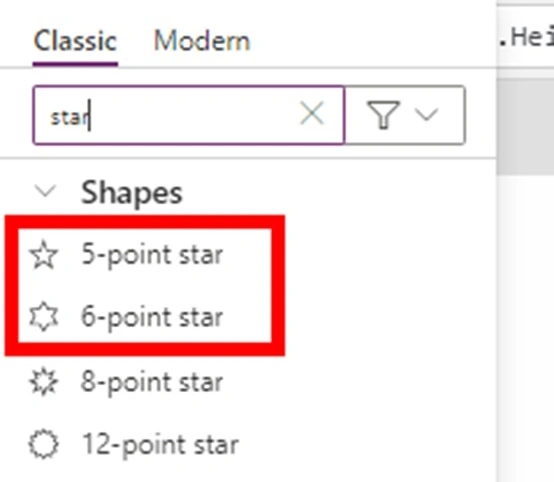
Step 2. Create a custom property named NavigationItems with a Table data type. Refer to the image below.
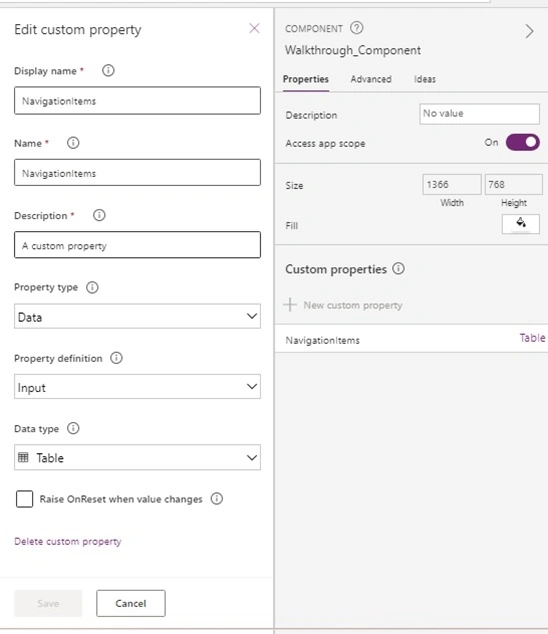
Step 3. Create a table and add the parameters as below. In the NavigationItems, add the following code, where you can set the parameters as per your requirements.
/*
The ArrowPosition property is case-sensitive.
Use "TopLeft" for the top-left arrow.
Use "TopRight" for the top-right arrow.
Use "BottomLeft" for the bottom-left arrow.
Use "BottomRight" for the bottom-right arrow.
Use "Left" for the left arrow.
Use "Right" for the right arrow.
*/
Table(
    {
        Heading: "Dashboard",
        Description: "On the dashboard page, managers can view all employees' leave requests for the current month. They can also filter the requests by employee. ",
        X: Container2_4.X+Container2_4.Width-20,//You can set the X position based on your control where you need to add.
        Y: Container2_4.Y+50,//You can set the Y position based on your control where you need to add.
        ArrowPosition: "Left",//In which side you need the arrow, add the ArrowPosition text based on that side.
        Index: 1
    },
    {
        Heading: "My Dashboard",
        Description: "On my dashboard page, the currently logged-in employee can view pending, approved, and rejected leave requests. They can also view upcoming holidays.",
        X: Container2_4.X+Container2_4.Width-20,
        Y: Container2_4.Y+150,
        ArrowPosition: "Left",
        Index: 2
    },
    {
        Heading: "Team Overview",
        Description: "On the Team Overview page, users can view the team leave summary, leave requests, team calendar, and export leave functionality.",
        X: 95,
        Y: 200,
        ArrowPosition: "Left",
        Index: 3
    },
    {
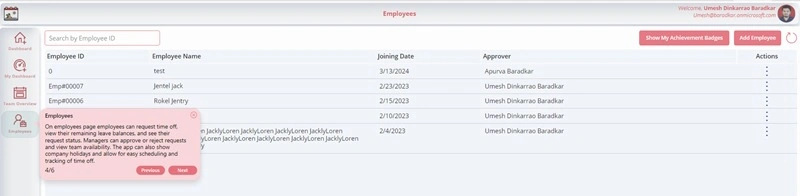
        Heading: "Employees",
        Description: "On employees page employees can request time off, view their remaining leave balances, and see their request status. Managers can approve or reject requests and view team availability. The app can also show company holidays and allow for easy scheduling and tracking of time off.",
        X: 95,
        Y: 280,
        ArrowPosition: "Left",
        Index: 4
    },
    {
        Heading: "Add Employee",
        Description: "Using the 'Add Employee' button, HR or managers can add employees to the system.",
        X: Button2_3.X-241,
        Y: 115,
        ArrowPosition: "TopRight",
        Index: 5
    },
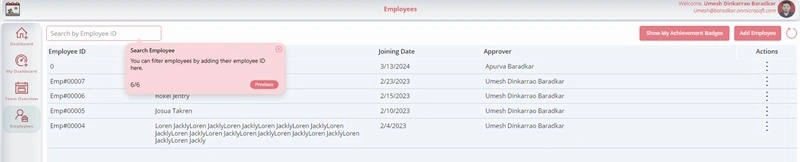
        {
        Heading: "Search Employee",
        Description: "You can filter employees by adding their employee ID here.",
        X: TextInput1.X+TextInput1.Width,
        Y: 110,
        ArrowPosition: "TopLeft",
        Index: 6
    }
)
Step 4. Set the X and Y positions and visible properties of the stars below.
- Control: 5 Point Star, Control Name: For 5_Point_Star, Width:100, Height: 100
X
YSwitch( varWalkthroughItem.ArrowPosition, "BottomLeft",//Check ArrowPosition SubContainer.X,//Keep X Position "TopLeft", SubContainer.X, "Left", SubContainer.X-20, "BottomRight", SubContainer.X + SubContainer.Width - Self.Width - 5, "TopRight", SubContainer.X + SubContainer.Width - Self.Width - 5, "Right", SubContainer.X+SubContainer.Width-Self.Width+20 )Switch( varWalkthroughItem.ArrowPosition, "BottomLeft", SubContainer.Y+SubContainer.Height-Self.Height+20, "TopLeft", SubContainer.Y-15, "Left", SubContainer.Y, "BottomRight", SubContainer.Y+SubContainer.Height-Self.Height+20, "TopRight", SubContainer.Y-18, "Right", SubContainer.Y )Visible
varWalkthroughItem.ArrowPosition="Left"||varWalkthroughItem.ArrowPosition="Right" - Control: 6 Point Star, Control Name: For 6_Point_Star, Width:80, Height: '5_Point_Star'.Height
X
Y'5_Point_Star'.X
Visible'5_Point_Star'.Y!'5_Point_Star'.Visible
Step 5. Add the controls to the sub-container and configure their properties. Also, configure the properties for the main container and sub-container as follows.
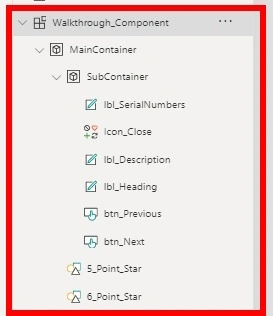
- Control: IconControl, Name: Icon_Close,Width: 18, Height:24
X
YParent.Width-Self.Width-10
OnSelectParent.Y-Self.Height+10Set(varShowHideWalkthrough, false )

Join the conversation! Your thoughts help the community grow.