

What a device channel is
- Device Channels are one of the new features in SharePoint 2013.
- A device channel is part of the SharePoint 2013 publishing infrastructure feature.
- It enables you to render certain site contents, style your content and even change images, while maintaining the same URL across various devices.
- Compared to the desktop version of the SharePoint site, a mobile rendering can be formatted with a smaller width, have better navigation with wider touch targets, and show a reduced amount of information for better usability.
- We can maintain the separate master pages for desktop version and mobile version
- Using a “user agent string” we can create the device channel for various devices such as desktop, Smartphone and tablets and so on.
- When a user browses to a SharePoint site from a mobile device such as a smartphone or tablet, the mobile browser submits to the site an HTTP GET request that includes a user agent string.
What a user agent string is
- This string contains information about the type of device that is trying to access the site. Based on that device substring, the device browser can be redirected to a specific master page view
- A user string varys for every device and browser.
- You can get the user agent from your browser as in the following
Type “What is my user agent” in your browserl you will get the user agent string.
How to create device channel in SharePoint 2013
Use the following procedure to create a device channel.
Before you create the device channel, you should activate the “Publishing infrastructure features”.
Step 1: Open your site and go to the “settings” from your site and then select the “site settings” as shown below.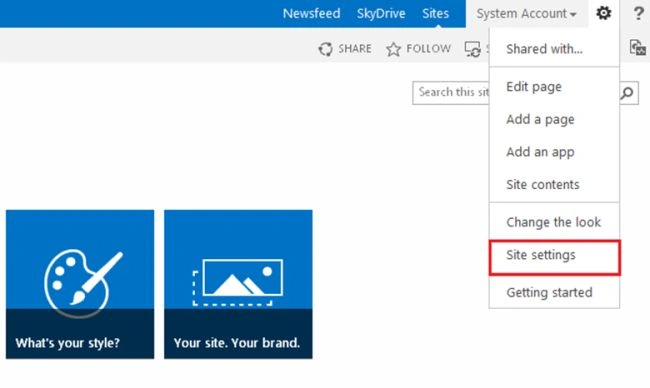
Step 2: When you click on the site settings, you will navigate to the site settings page as shown below.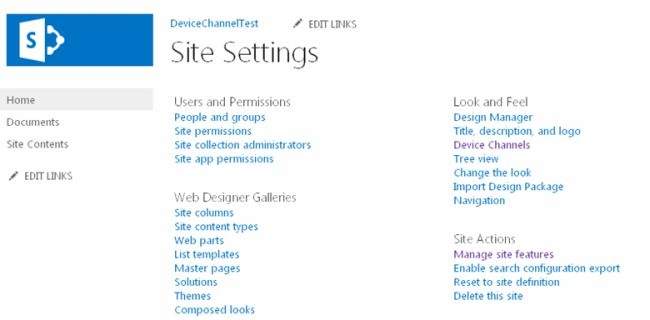
Step 3: Then choose the device channel from the “Look and feel” section as shown below.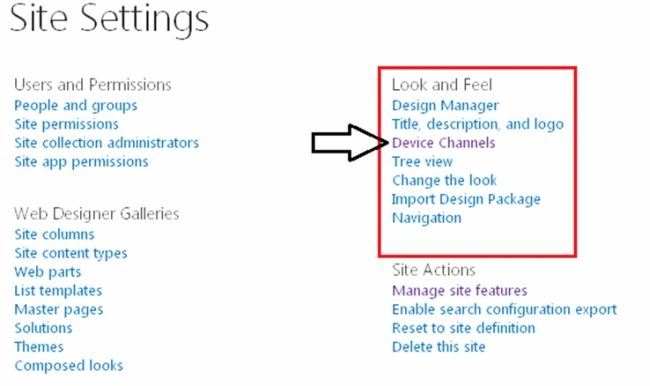
Step 4: When you select “device channel”, you will navigate to the device channel page as shown below. On the device channel page you can see the default device channel, there you can create the multiple device channel for various devices.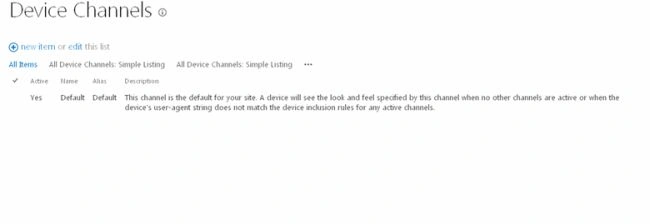
Step 5: Then click on “New Item” as shown below.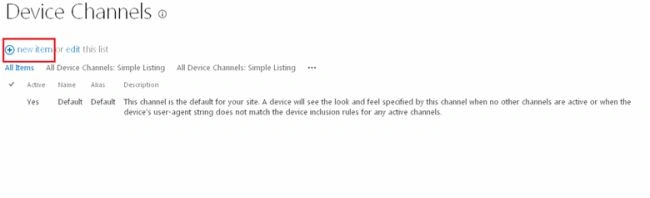
Step 6: On “New Form”, you can create the new device channel as in the following: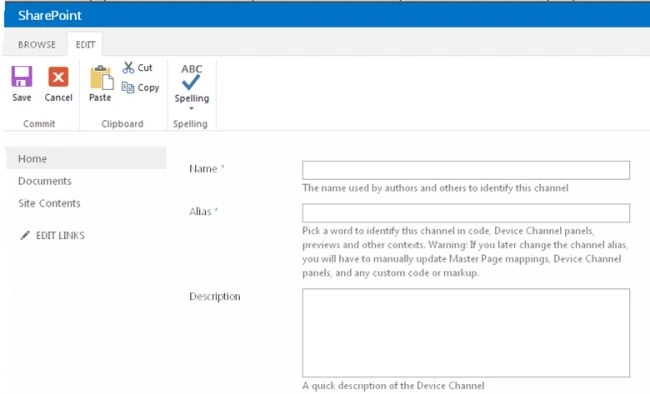
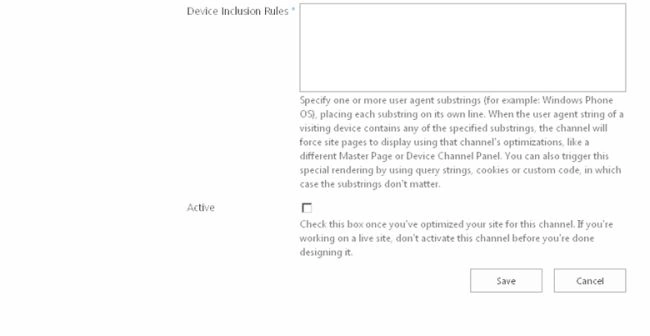
Step 7: Provide the following details on the new form:
- Name of the Device channel
- Alias
- Description
- Device Inclusion rules (User Agent string)
- Active or not
Then click on "Save" after entering all the details in new form.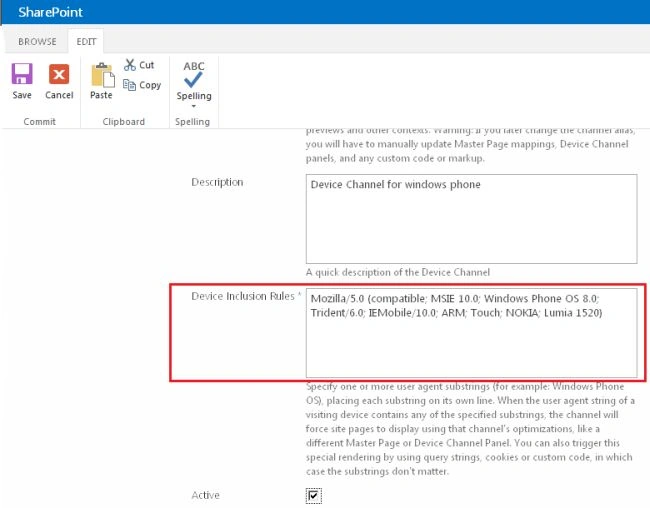
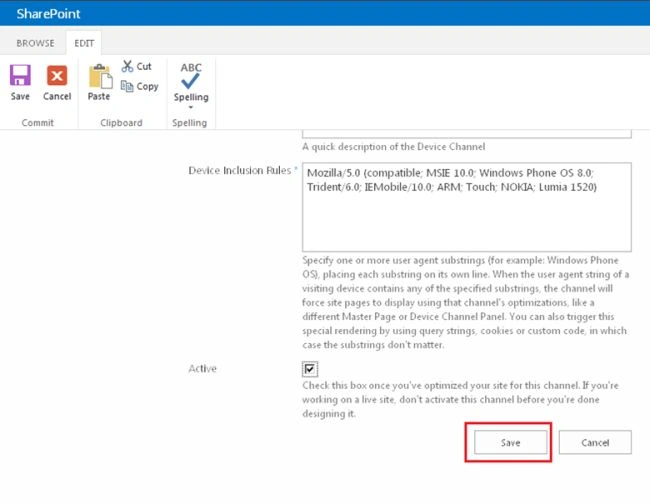
Step 8: When you save the item, you will get the new device channel as shown below.
Note: You can create a maximum of 10 device channels including the default device channel.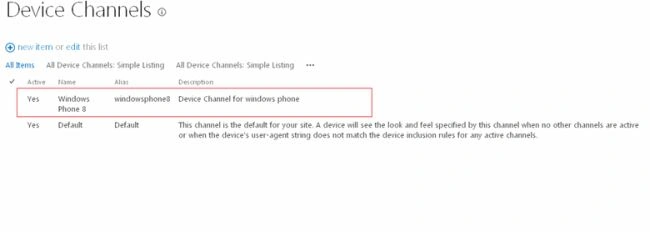
Steps to be followed to set master page for each device channel in SharePoint 2013:
Use the following procedure to set the master page for device channels.
By default the “Master page” option is not available in the SharePoint site. You should activate the “SharePoint Server publishing feature” in your site for “Master page settings”.
Step 1: Go to the “Manage site features” on your site settings, then activate the publishing feature.
Step 2: Then click on the master page on the site settings page from the “look and feel” section as shown below.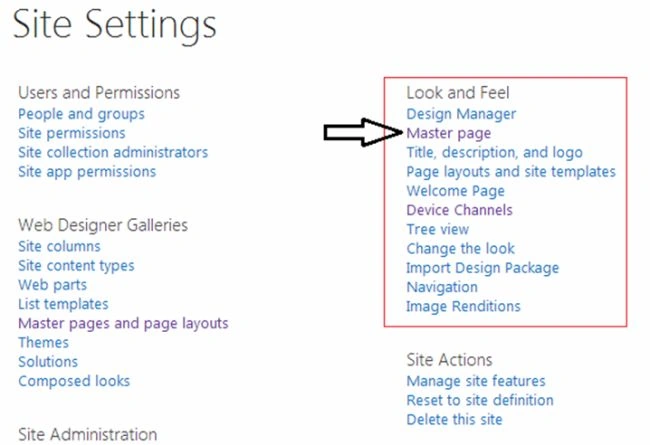
Step 3: When you select the “Master page”, you will get the site master page settings as shown below.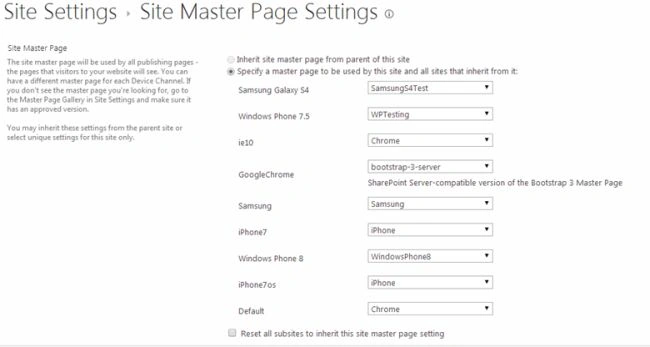
Step 4: On the Master page settings page, you can set the various master pages to a different device channel as shown below.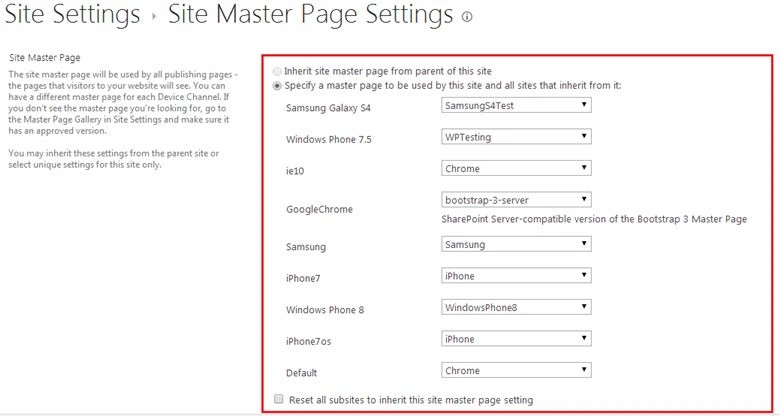
Step 5: Then click on "Save", your settings will be changed. 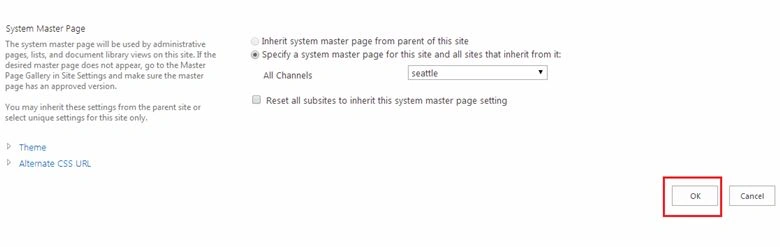
Note: You can check the master pages for mobile devices on your browser itself using the following URL template:
http://yoursite/pages/default.aspx?devicechannel=yourdevicechannelaliasname
e.g.: http://mysitename/site/pages/default.aspx?devicechannel=iphone7
Summary
In this article we have explored how to create the device channel and set the various master pages to your device channel in SharePoint 2013.
santhosh babuPosted Apr 10, 2018, 1:41 PM
Excellent Article thanks for sharing ....
Aakash MauryaPosted Oct 2, 2017, 2:25 AM
Hi Kaviya Balasubramanian, its really nice and step by step explanation. Your efforts are really appreciable. Thanks for the wonderful post.
pawan kotakPosted Jan 17, 2017, 3:26 AM
Kaviya thanks for input but one issue I am facing when ever I open my site in mobile(iPhone,Android) or small screen Laptop it redirect me to below link _layouts15/touchapp.aspx?mode=TeamSite&Page=ListofApps&path= which I don't want . It should show me page based on User Agent
Kaviya BalasubramanianPosted Jan 13, 2017, 1:27 AM
That time you have to follow the bootstrap grid concepts in page layout.
pawan kotakPosted Jan 12, 2017, 10:22 AM
Kviya you are associating different master page for different devices. In my case webpart zone(kept in pagelayout) position changes for different devices So how can i associate different pagelayout layout with different devices/device channel
Devaraj diraviyamPosted Dec 23, 2016, 6:40 AM
Good and informative article.
Kaviya BalasubramanianPosted Oct 4, 2016, 12:30 AM
Thanks Mahesh :)
Mahesh BabuPosted Oct 3, 2016, 9:04 AM
Easy to understand Kaviya...
Kaviya BalasubramanianPosted Jul 8, 2015, 12:46 AM
Thanks Jacob
Jacob RobinsonPosted Jul 7, 2015, 5:43 AM
Nice Article..
Kaviya BalasubramanianPosted Feb 5, 2014, 3:49 AM
Thank you Jean and Vijai
Vijai Anand RamalingamPosted Feb 5, 2014, 12:47 AM
Nice article!!
Jean PaulPosted Feb 5, 2014, 12:19 AM
Good Share Kaviya! :)