

Introduction
Since Microsoft introduced Azure in 2010, we have changed our computing habits a lot, basically from local or promises to cloud. This is a huge change and a huge leap. Looking back, we did have a lot of experience indirectly or directly working on or related to Azure or associated DevOps.
- In 2011, I participated in a project in the healthcare field, a huge project with 10 terabytes of data in production and 5000 database transactions per second at peak time. We have 200 developers involved in this project, divided into 20 feature Agile Feature teams. We use the TFS server and auto-built the app when anyone checks in any changes to the server. At that time, it might not be Azure DevOps, but the operation was somewhat similar to the concept of CI (Continue Integration) and CD (Continue Deployment).
- I had worked on a project where the client wanted to move all current Apps from TFS promises Server into DevOps Cloud associated with Git as source control management. We worked with MS Pipeline intensively.
- In another project, with Fortify Scanning, a security scanning, we need to set up an Azure Pipeline for the automation process with Fortify as core functionality.
- In recent years, more and more companies moved or moving to the Cloud, such as Azure, associated with DevOps, Pipeline.
All of them require us, even as a developer, to be familiar with Azure and DevOps. I had an article series about Source Control (Repos); this series is about Pipelines. The style of the article series is similar to the Repos series, These are not system summary, or introduction, or learning notes, these are just gathering what I have experienced and I assume I understood and shared with myself and you. The following are the topics I have now and will complete within days or weeks. Later on, I will add some more materials according to new experience or summary.
- DevOps Pipeline (1), Management --- GUI and Yaml
- DevOps Pipeline (2), Import/Export and Clone
- DevOps Pipeline (3), Setup from GUI&YAML --- This article
- DevOps Pipeline (4), Setup from an Existing YAML
- DevOps Pipeline (5), Setup from GUI with a Cloned Template (+ Fortify)
A - Introduction
This article's topic list is
- A - Introduction
- B - Access DevOps
- C - Create a Pipeline
- D - Configure a Pipeline
- D - 1 - Connect a Repository Server
- D - 1 - 1: Get to the local repository directly, DevOps
- D - 1 - 2: Get a login prompt
- D - 1 - 3: Use the classic GUI editor to Create a Pipeline without YAML
- D - 2 - Configuration
- D - 2 - 1: Configured by YAML
- D - 2 - 2: Configured by GUI
- D - 1 - Connect a Repository Server
B - Access MS DevOps
MS DevOps and Azure are two separated accounts, however, DevOp is dependent on Azure. When we access DevOps, say, from a company, we cannot realize this point because we usually use an SSO (Single Sign-On --- an authentication scheme that allows a user to log in with a single ID to any of several related yet independent, software systems.) that even we do not use an Azure service directly, we do have an Azure account behind.
If you directly access MS DevOps without a company as a bridge, you will see, when you go to the DevOps main page, DevOps Solutions | Microsoft Azure, if you want to register a new account, it will direct you to the Azure home page. i.e., you have to createa an Azure account first, then the next, a DevOps account.
Secondly, even if you do have an MS Azure account but do not have a subscription, you still do not have access to DevOps like this:
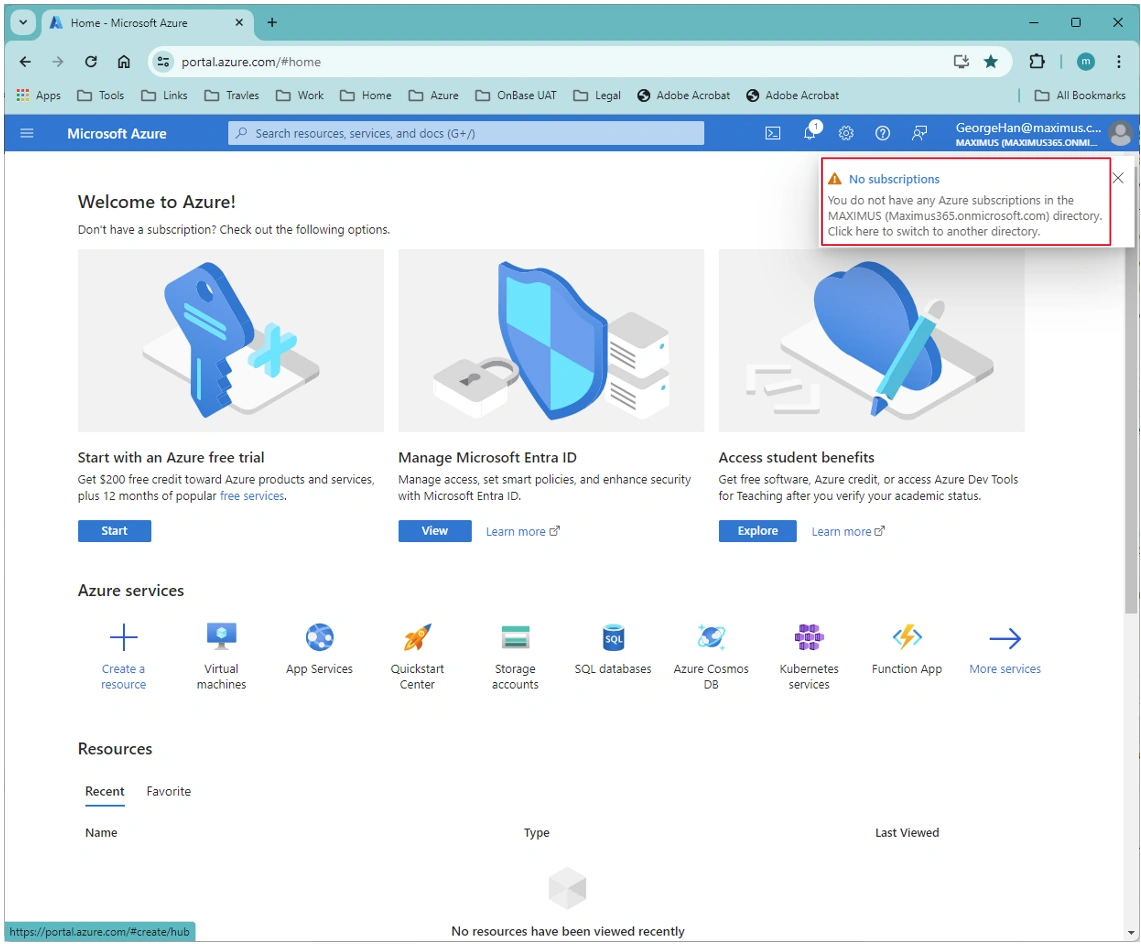
Now, assume we do have an Azure account, and we have a subscription under this account. After we login to our Azure account, we will see something like this
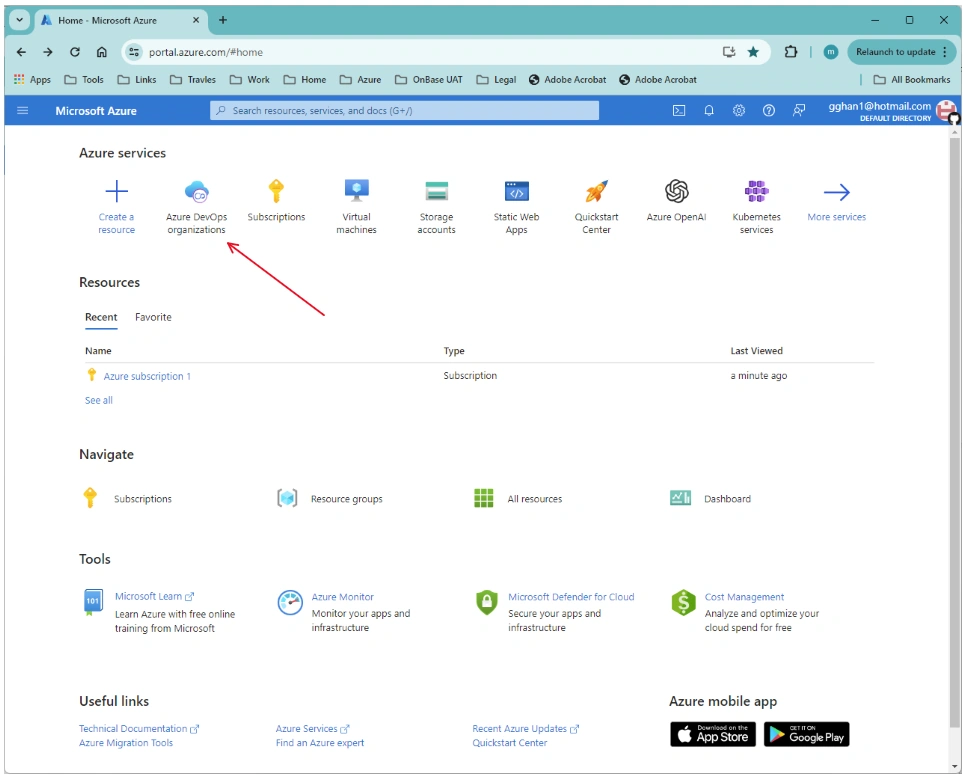
Click the icon Azure DevOps Organizations from above screenshot, => Click My Azure DevOps Organizations from the below screenshot:
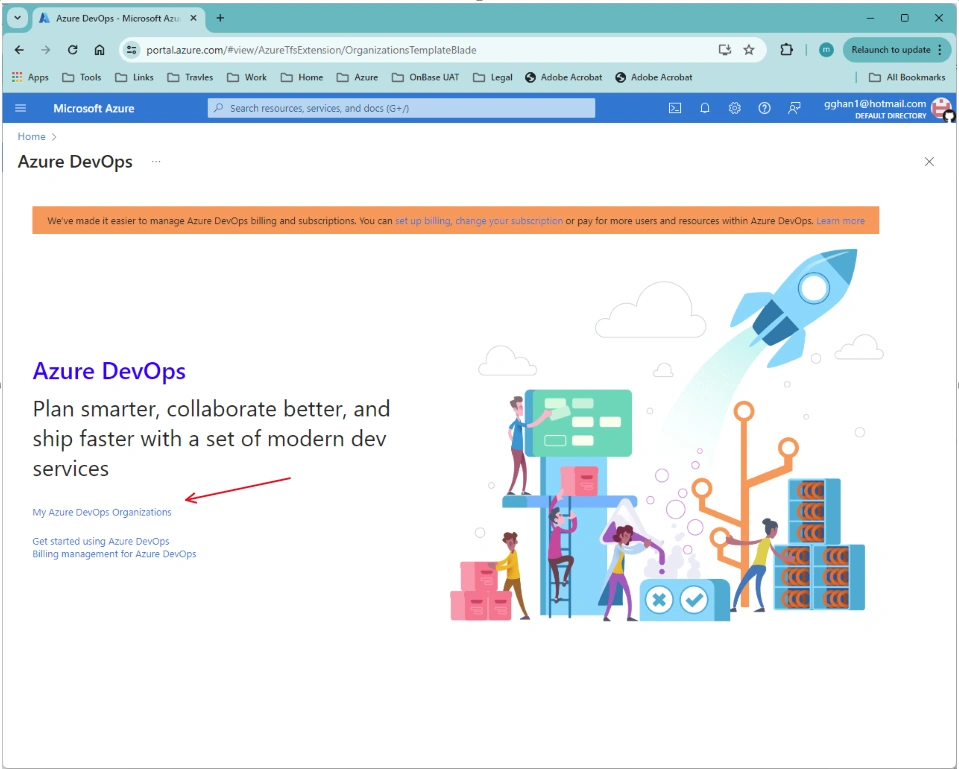
Then we got your Azure DevOps Organizations:
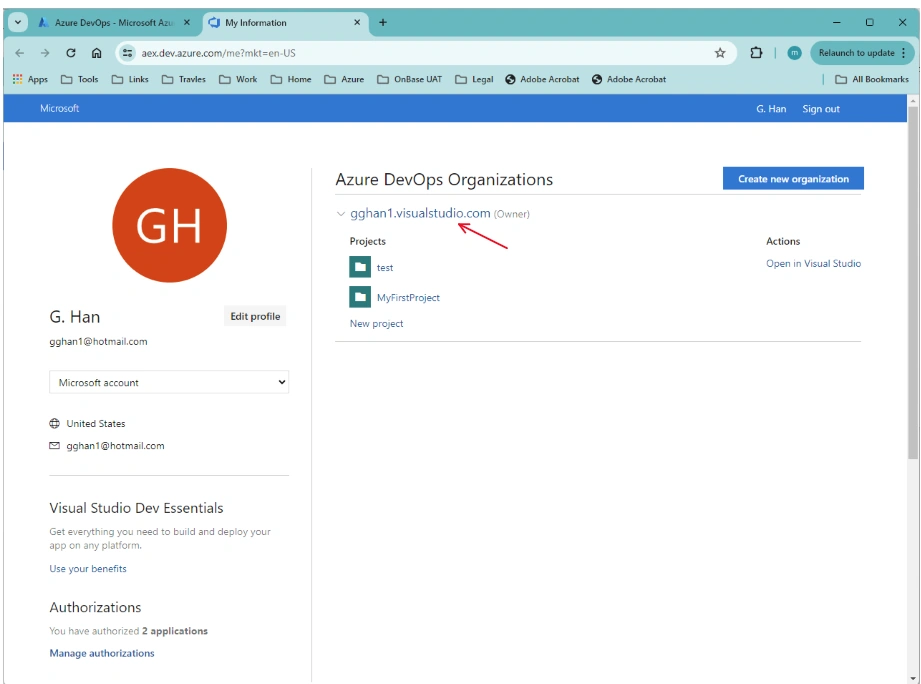
Click the Organization listed in the Organization list, say, as above, gghan1.visualstudio.com, and then you get the organization below:
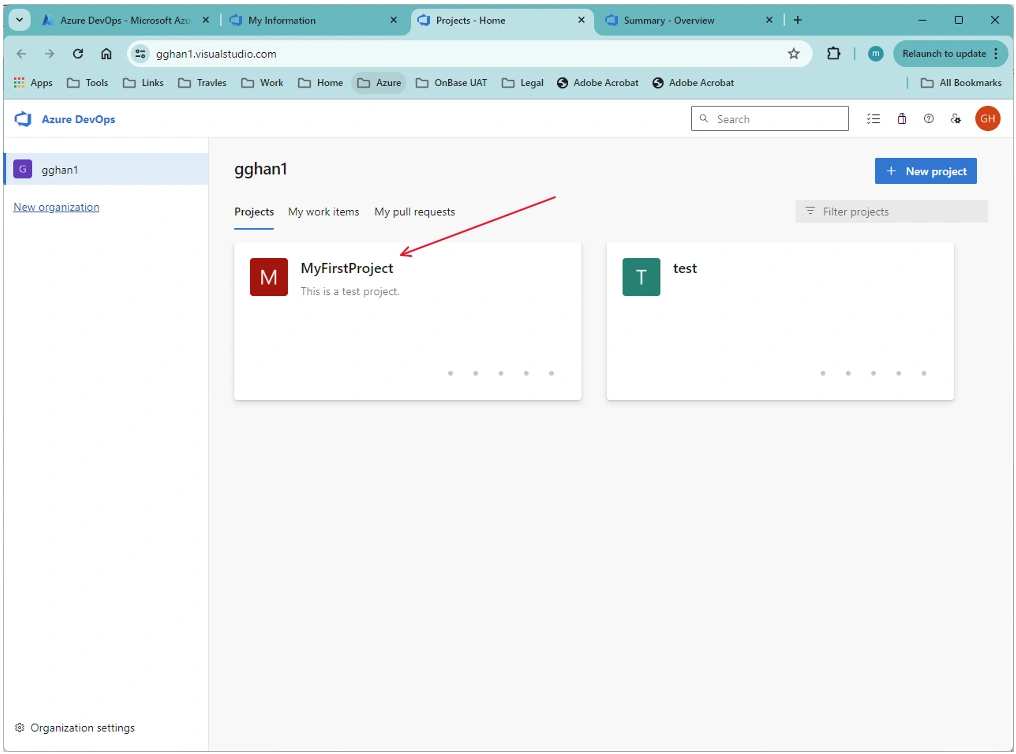
Click on project, you will get the project page:
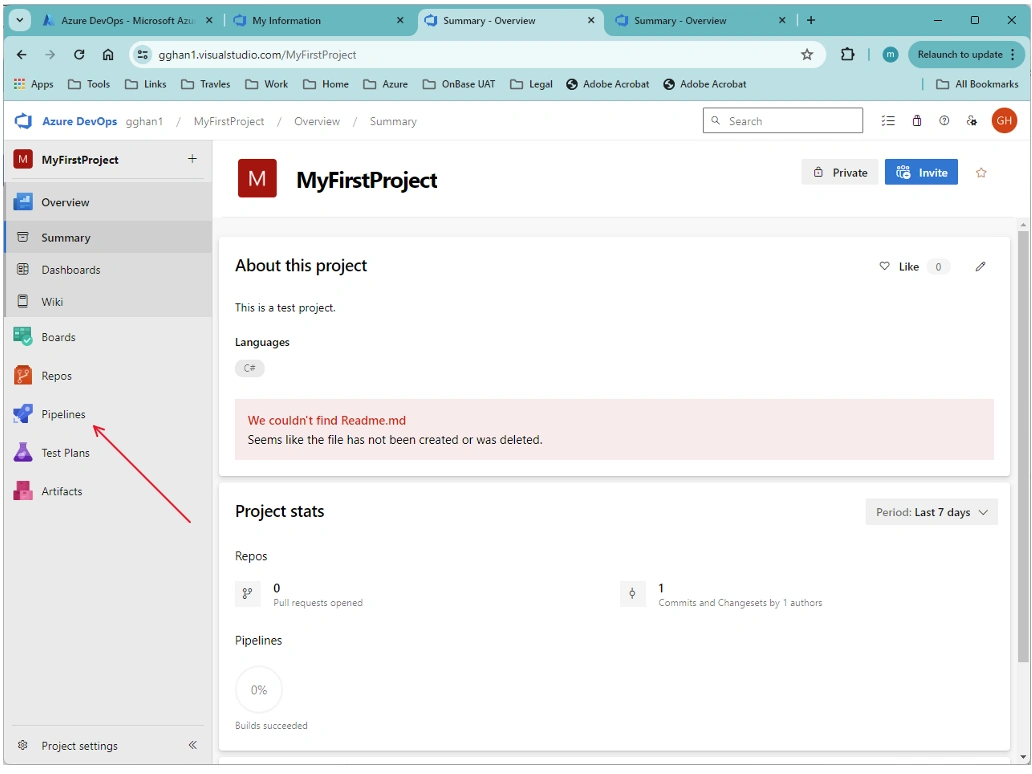
Note. All Organizations page, Organization Page, and the Project page are unique, so you can access the DevOps in different points later on by these access points.
C - Create a Pipeline
Click Pipelines; in the project page above, we got the Pipelines page:
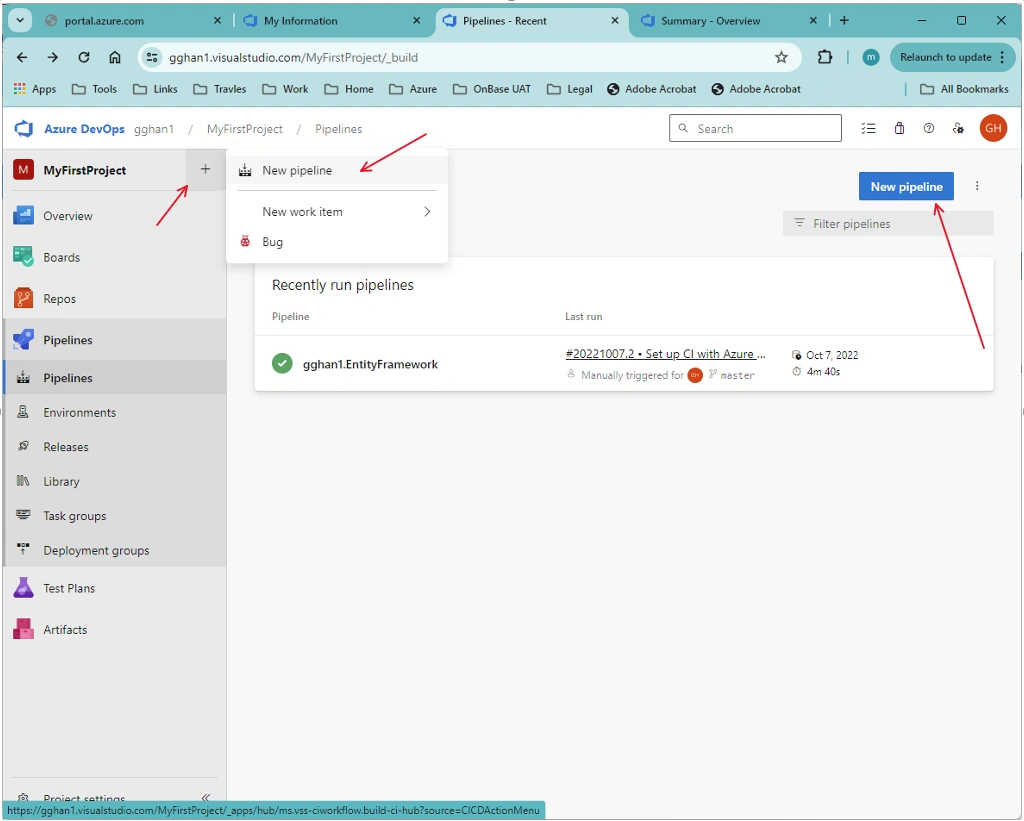
We can either click the New pipeline button on the top right corner of this page or Click the left panel + sign on the top right corner => New pipeline:
Now we are in the new pipeline built page below
D - Configure a New Pipeline
Click Pipelines. In the project page above, we got the Pipelines page:
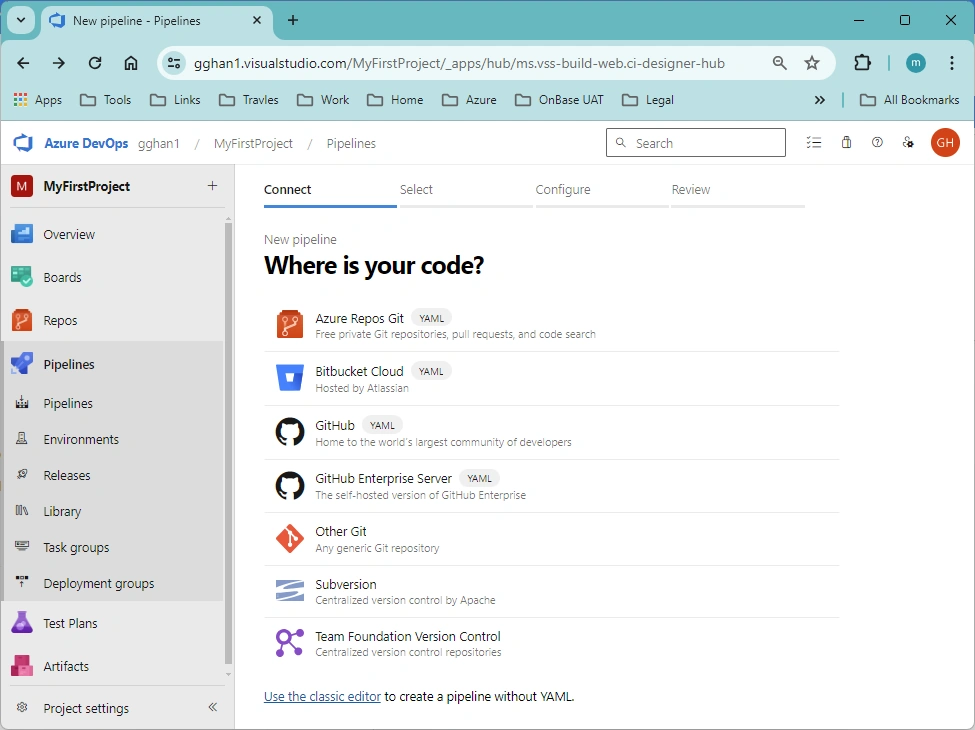
D - 1 - Connect to a Repository Server
We may divide the servers into three categories:
- D - 1 - 1: Get to the local repository directly, DevOps
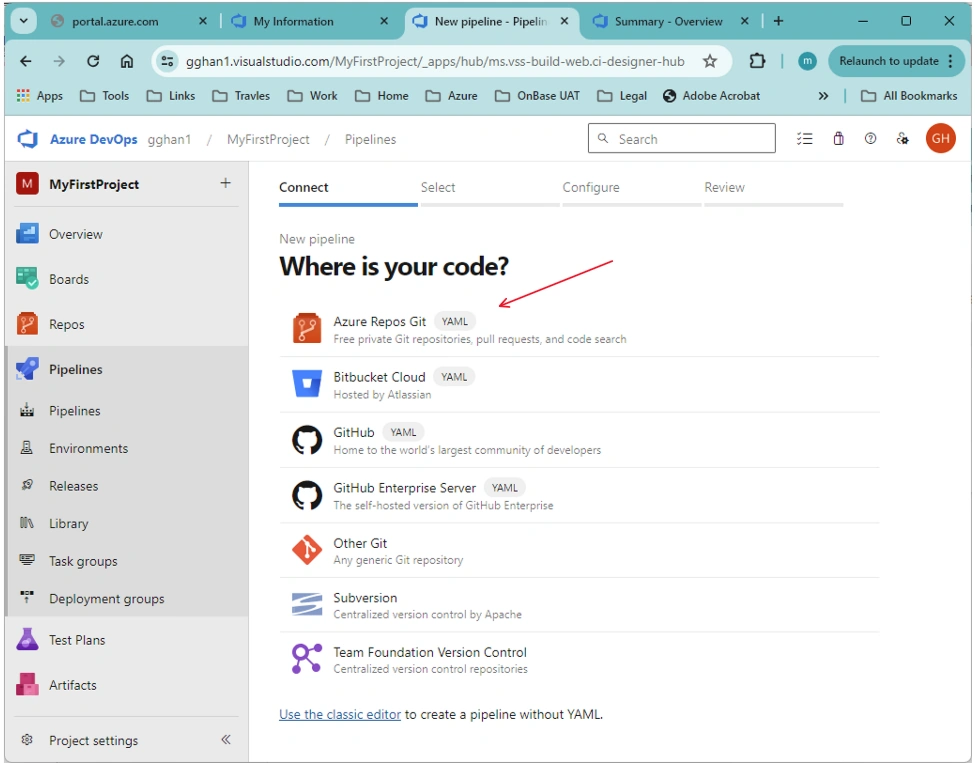
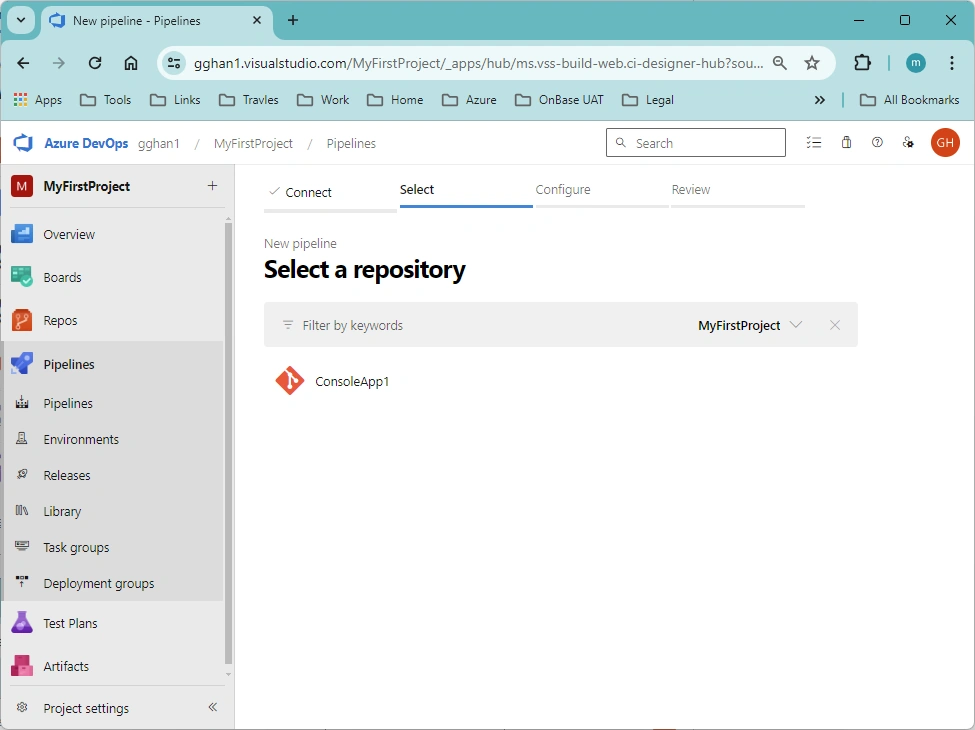
Click the chosen Server, such as DevOps, with login credentials, we can get the repository list directly:
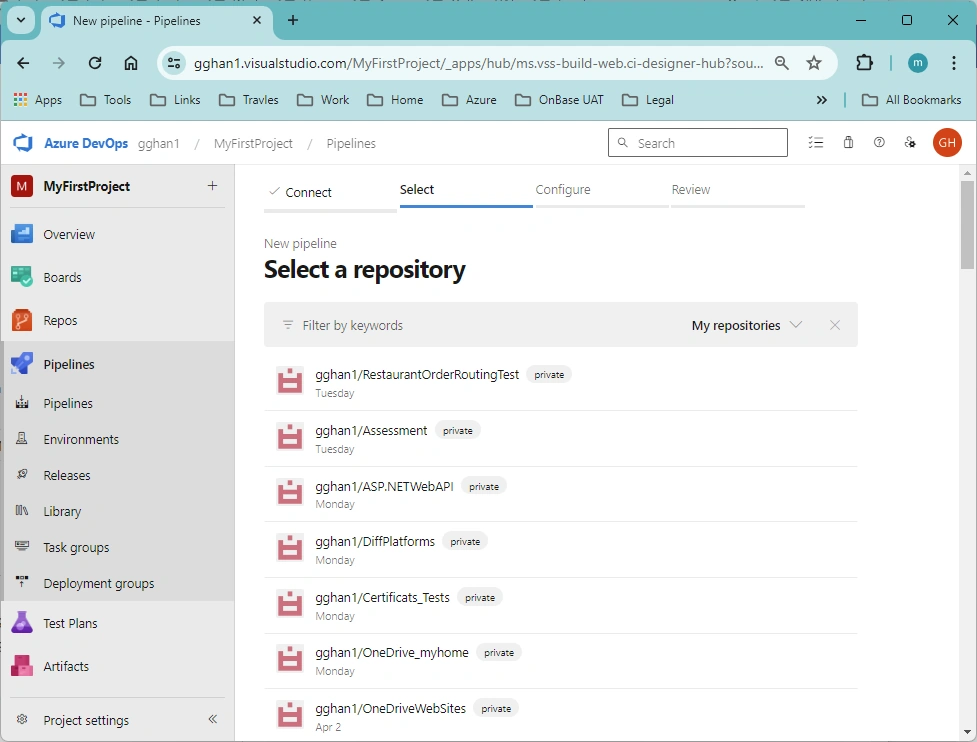
A similar result is for GitHub (after login is granted):
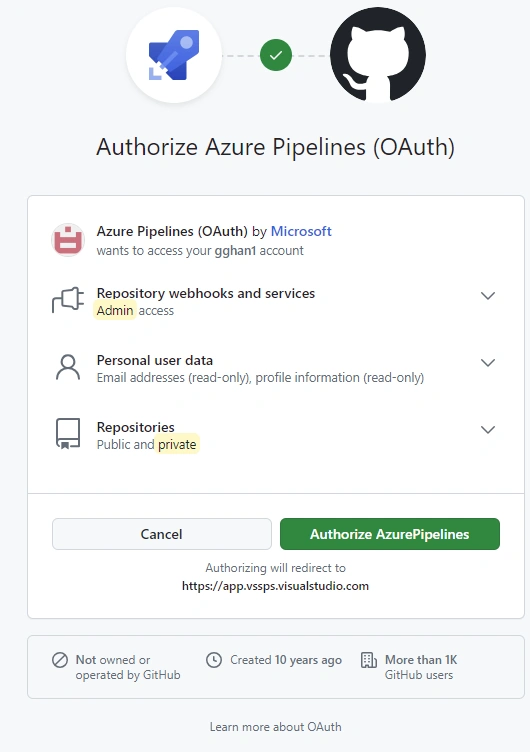
- D - 1 - 2: Get a login prompt:
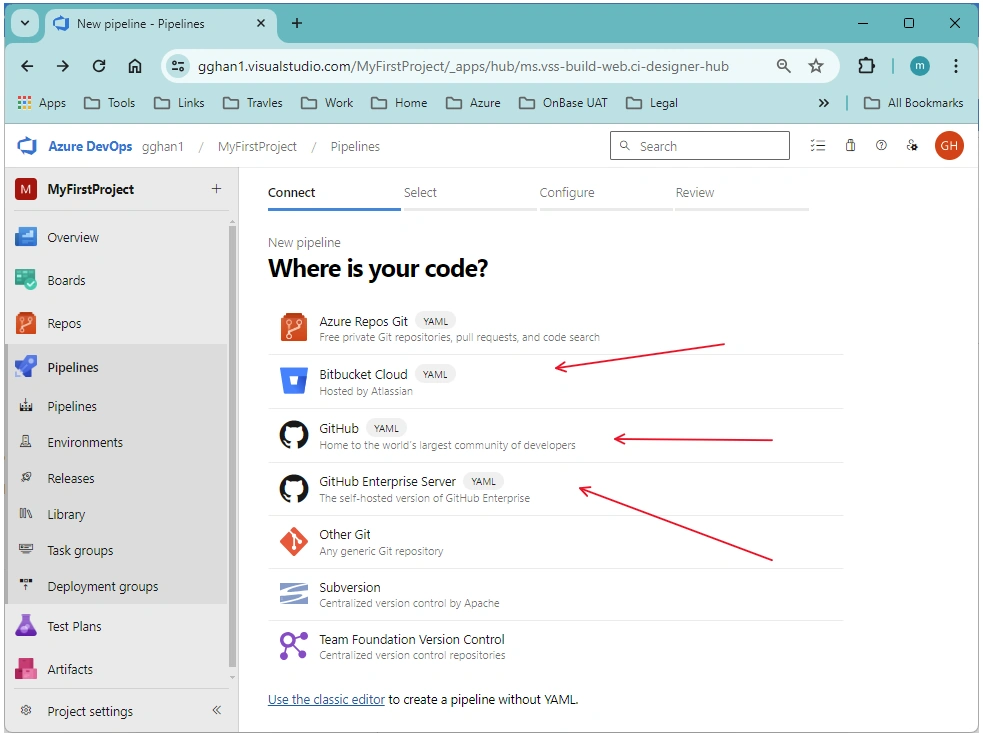
such as: GitHub
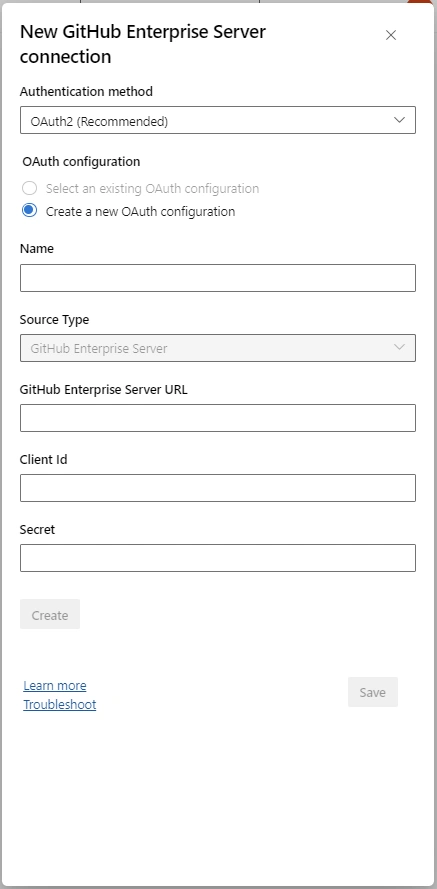
GitHub Enterprise:
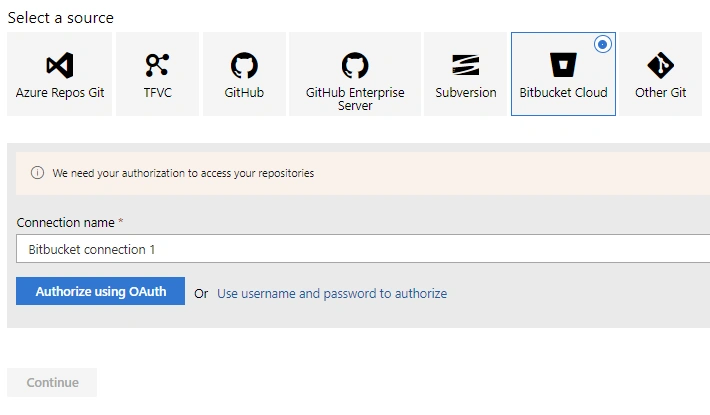
Bitbucket:
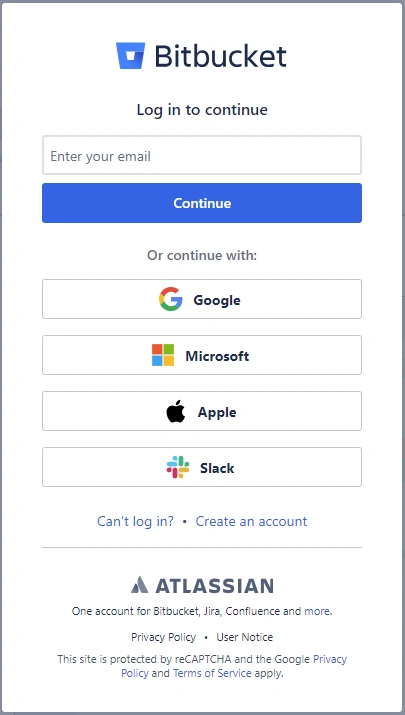
If we have an account in these servers, give the credential to login, then we can get to the Repository list page. - D - 1 - 3: Use the classic GUI editor to Create a Pipeline without YAML
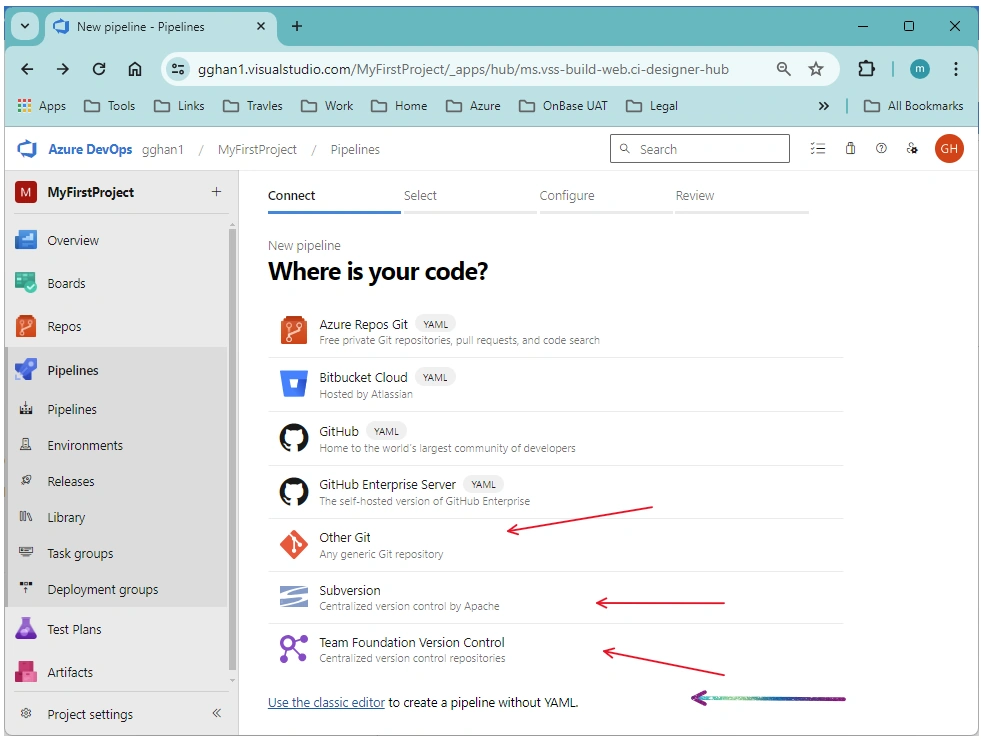
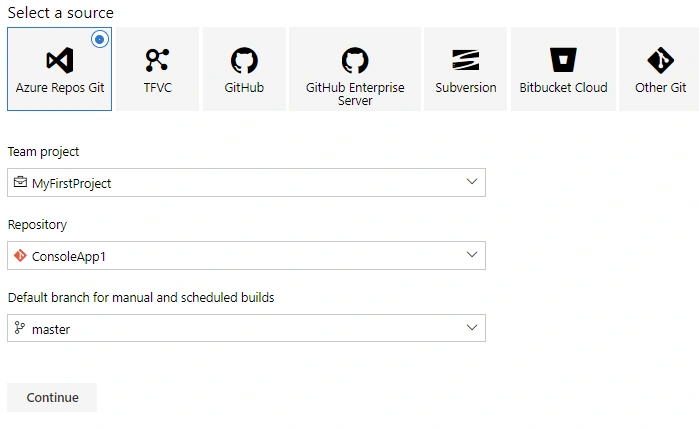
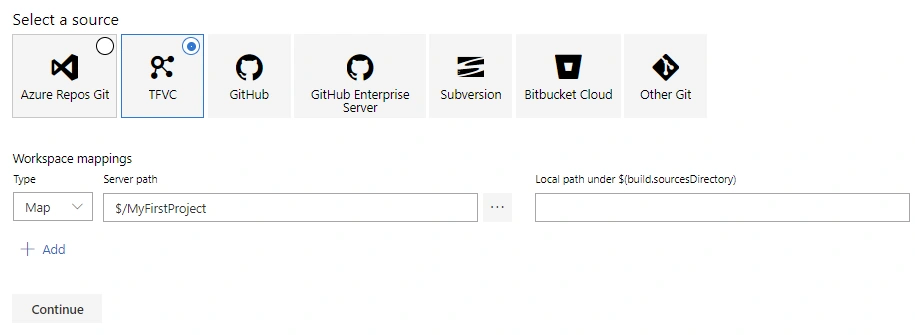
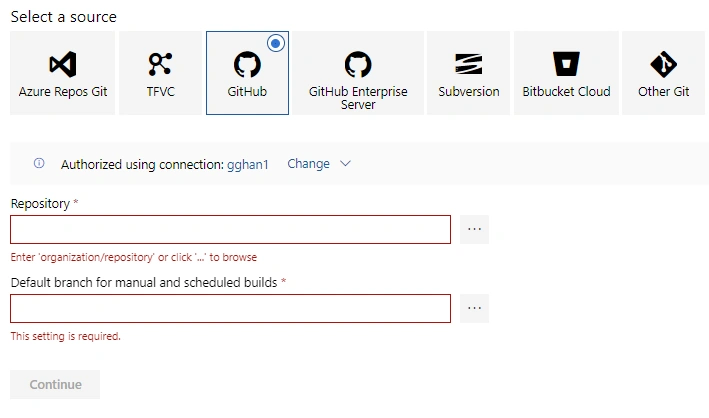
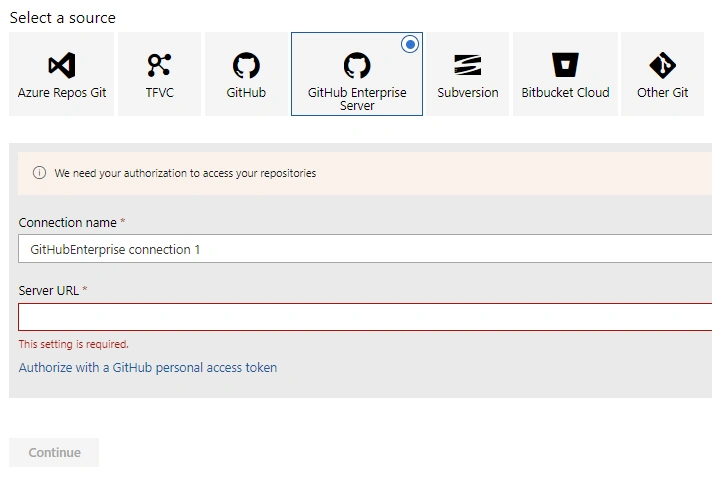
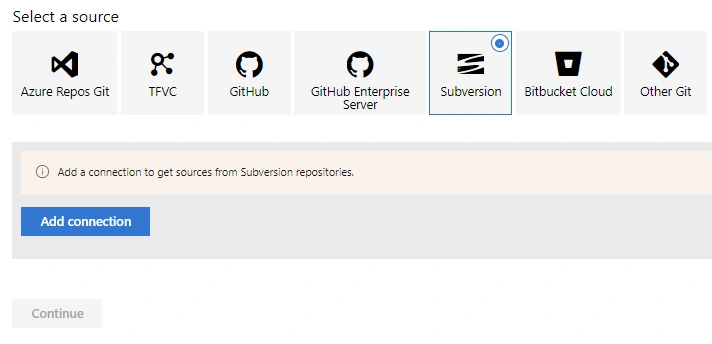
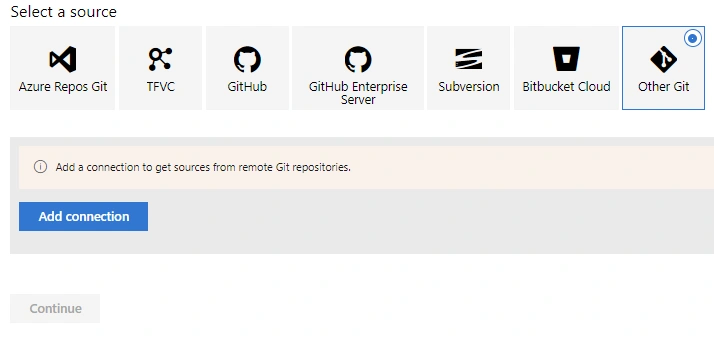
Subversion, Team Foundation Version Control, and Other Git are all without YAML creation choice, will use the one at the bottom, Use the classic editor to create a pipeline without YAML. Actually, this GUI editor choice is available to every server. After Clicking, we can see all of them:
Azure Prepos Git:
TFVC:
GitHub:
GitHub Enterprise Server:
Subversion:
Bitbucket Cloud:
Other Git:
D - 2 - Configuration
We can configure a pipeline by either YAML or GUI. The YAML configuration will be discussed in detail in
but for completeness, we will brief discuss here.
- D - 2 - 1: Configured by YAML
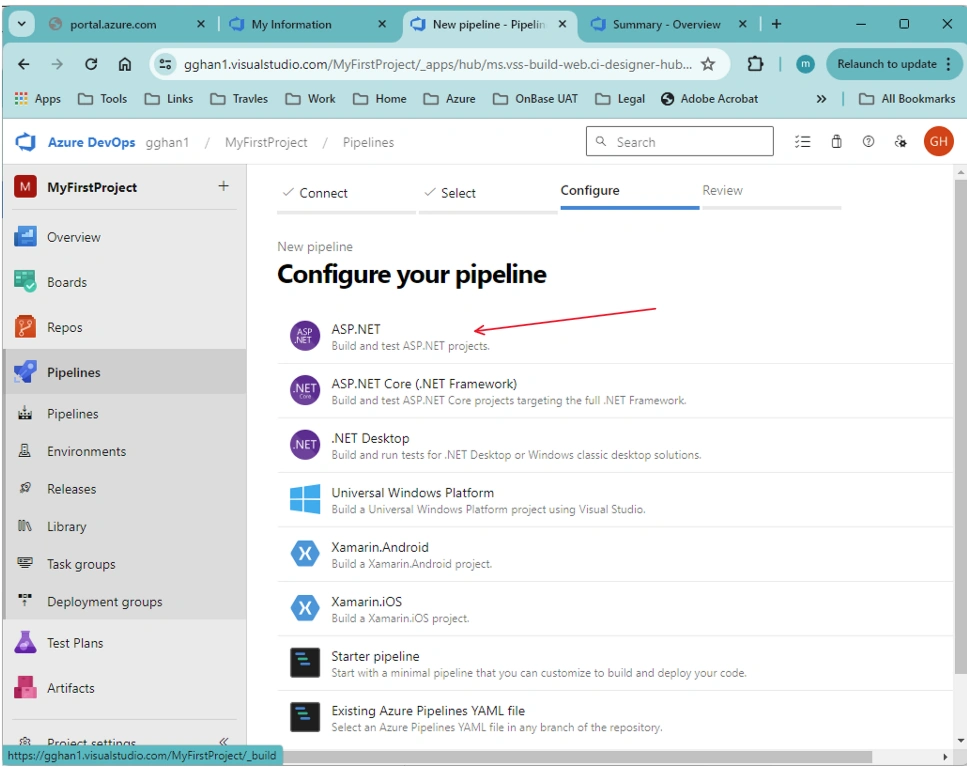
We start from Pipeline Select: for the DevOps server, Click the app chosen:
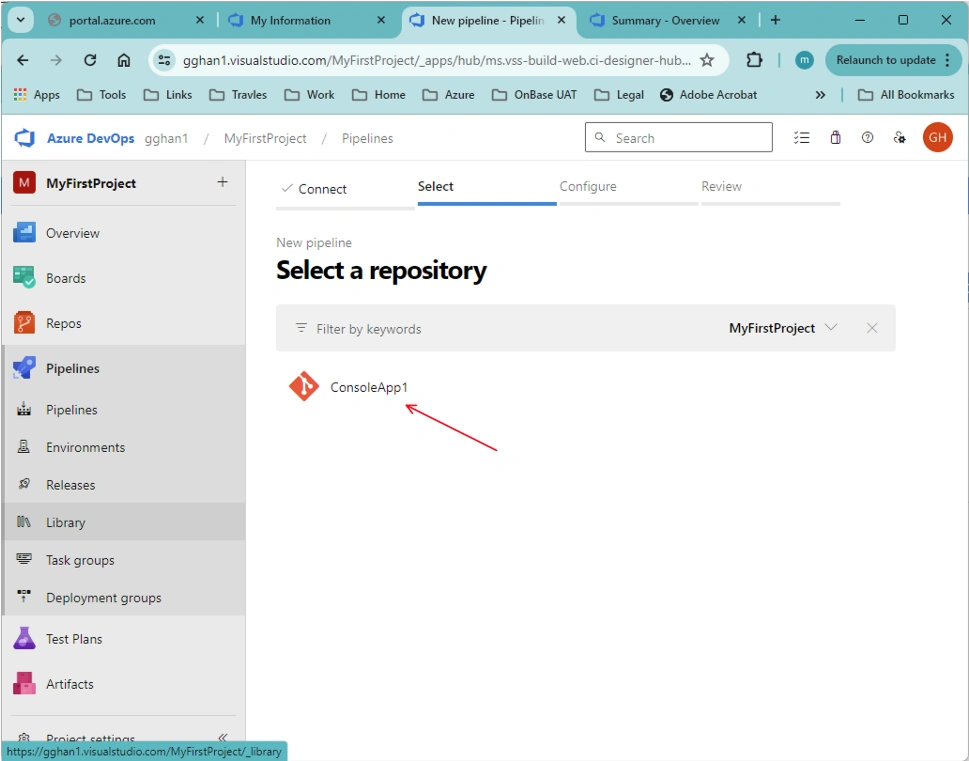
we get the configuration page => and choose ASP.NET. For this specific application,
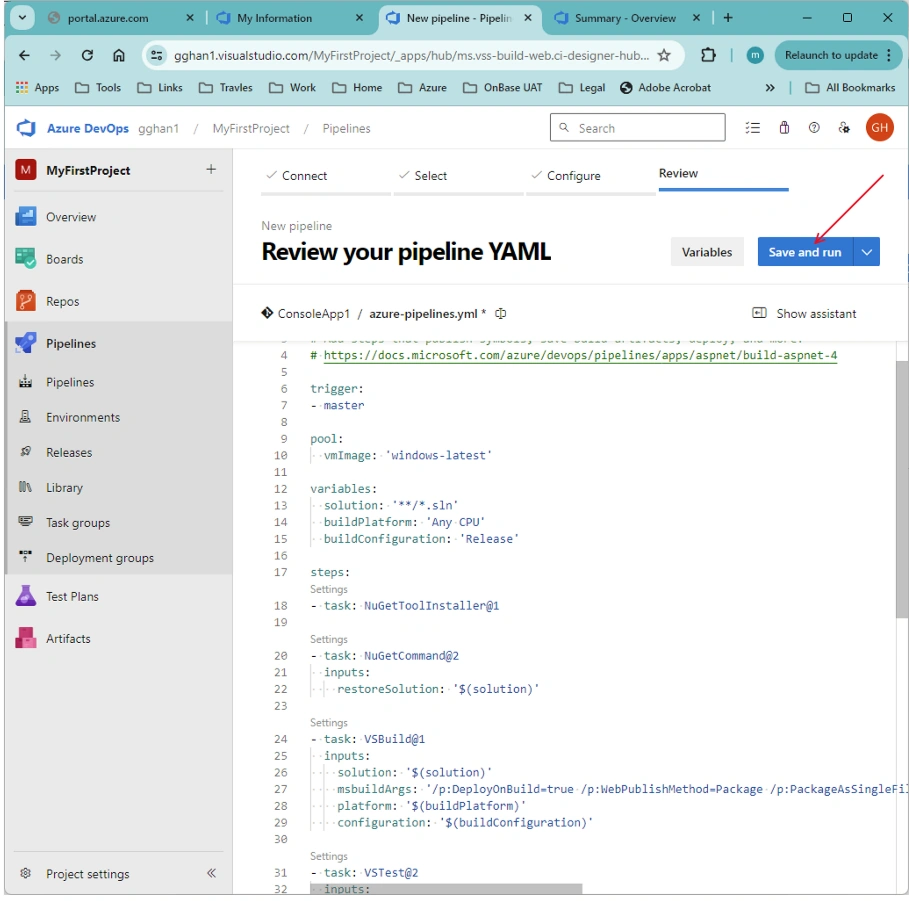
We get the default YAML page => Click Save and Run
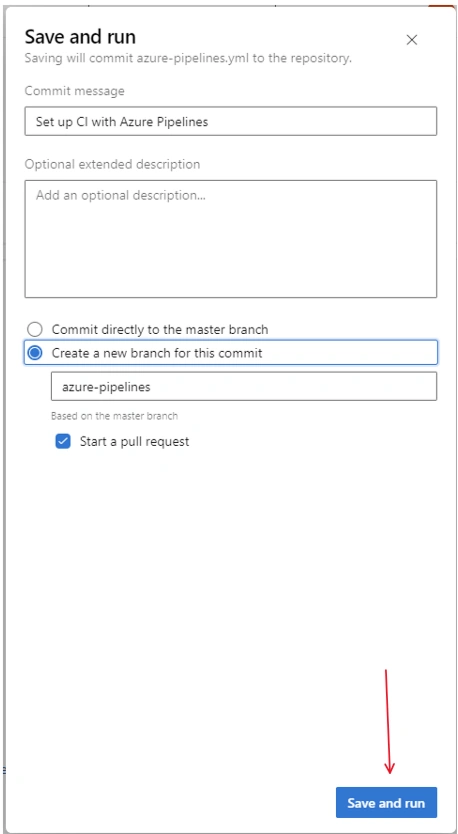
Configure and Click Save and Run:
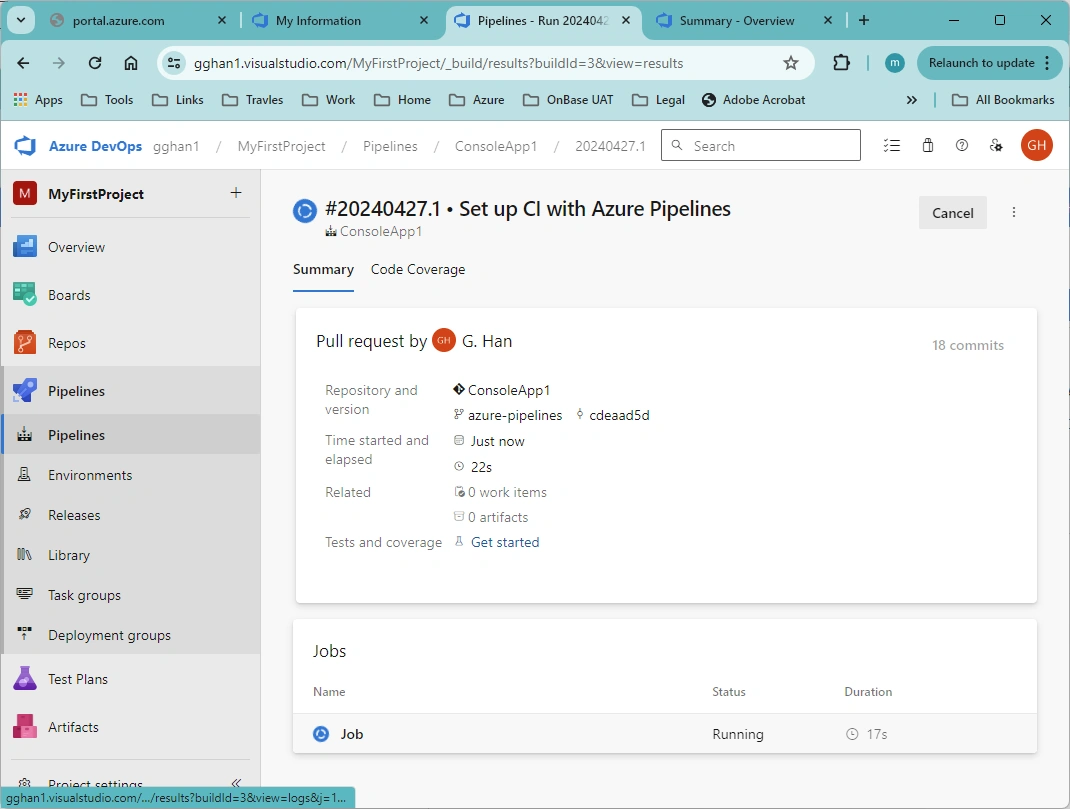
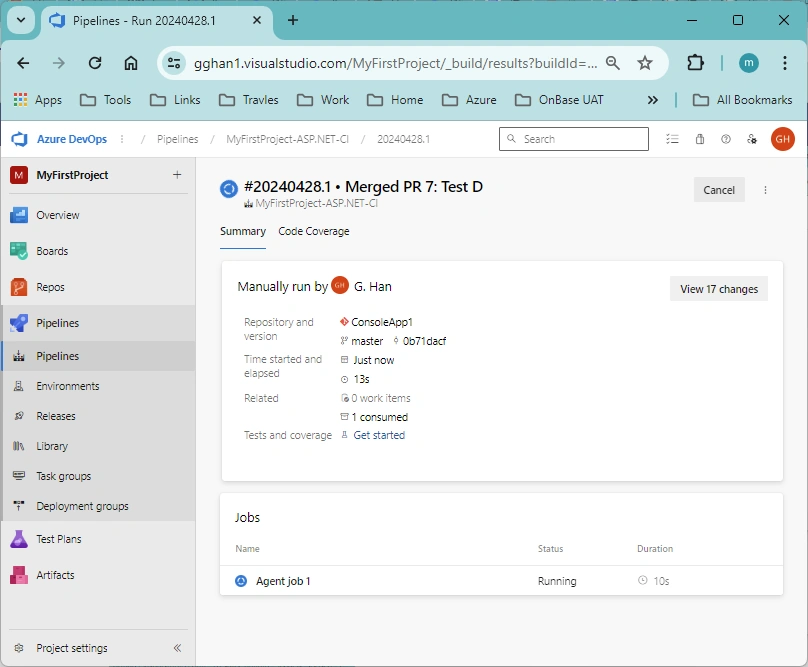
Running:
Finished:
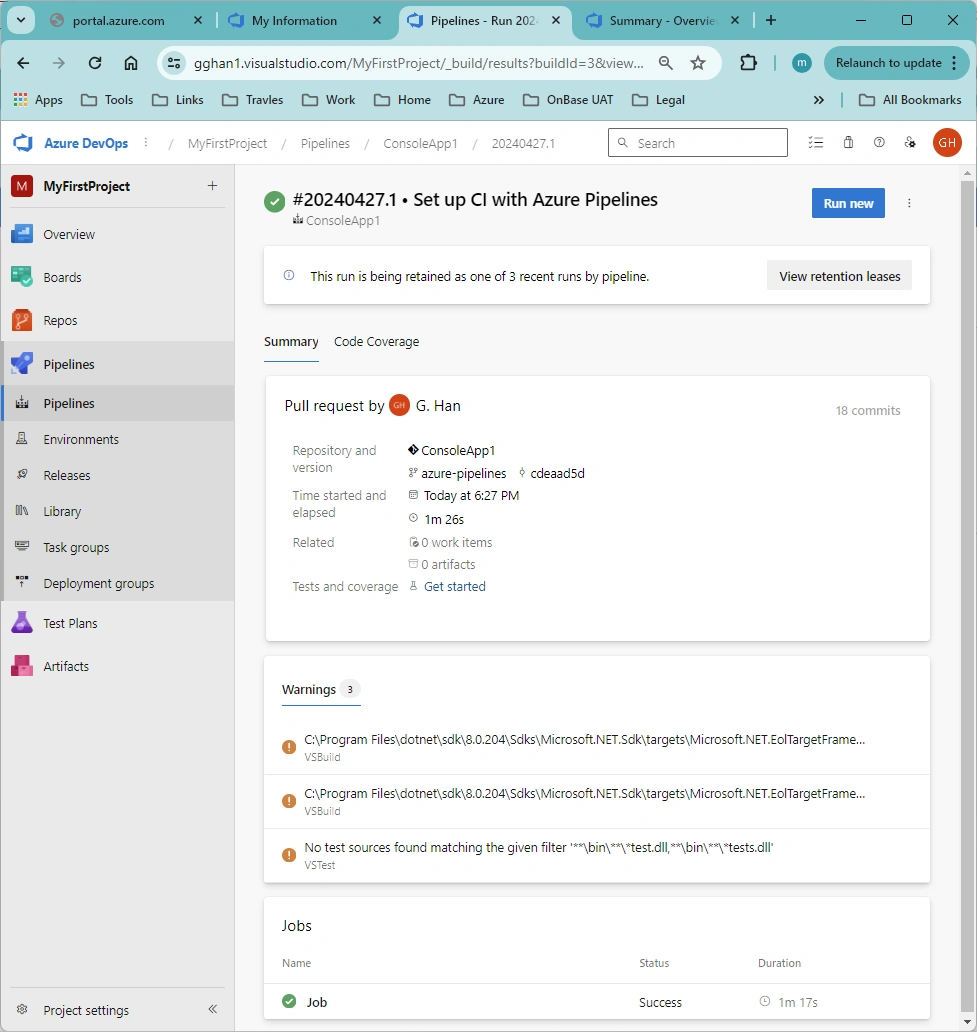
- D - 2 - 2: Configured by GUI
We start with GUI configuration. Select a source => Click Continue
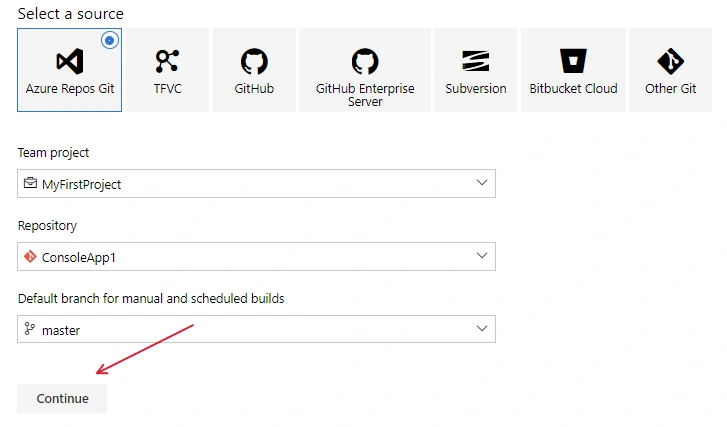
Choose a template: ASP.NET:
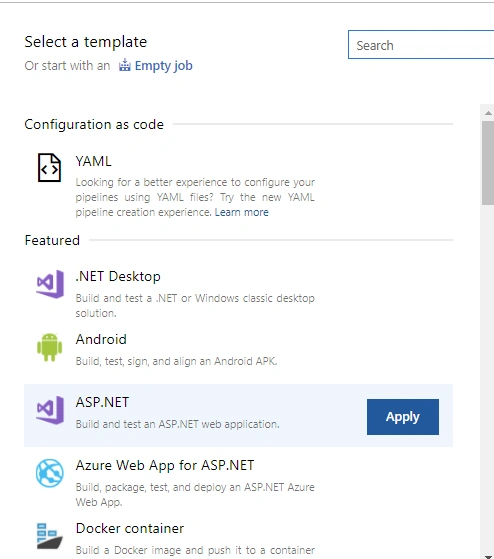
Fill in the pipeline name:
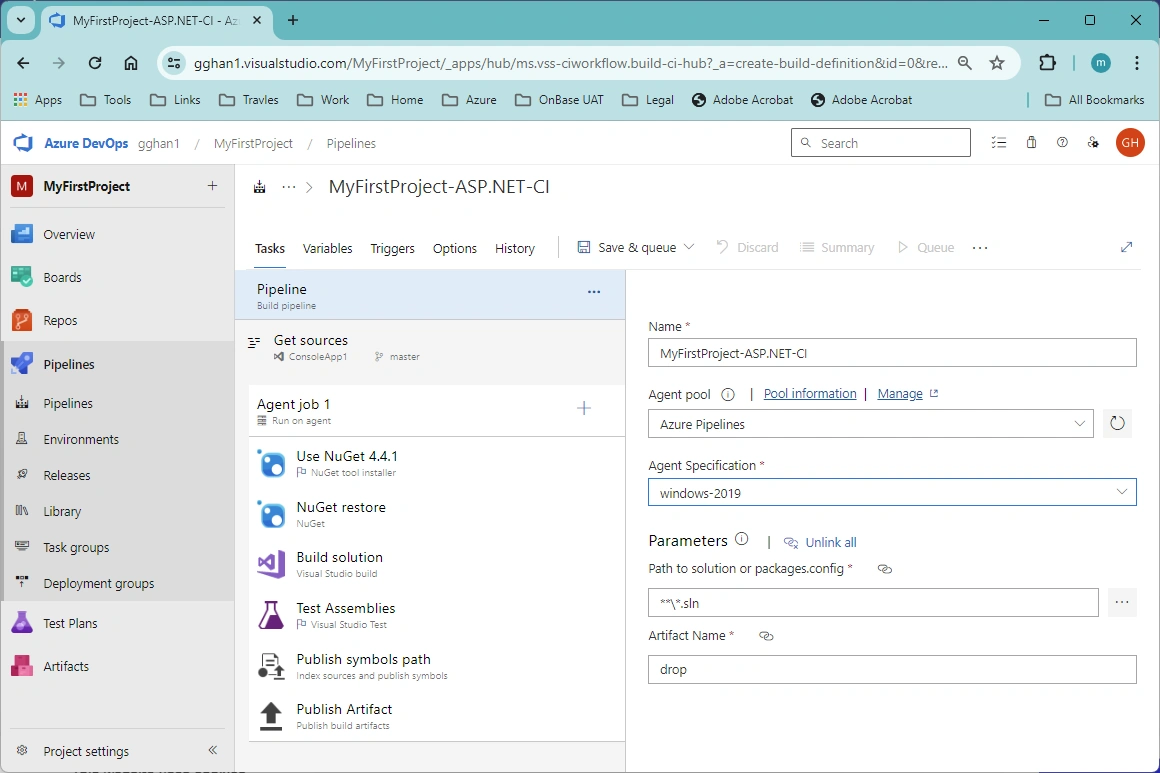
Resource:
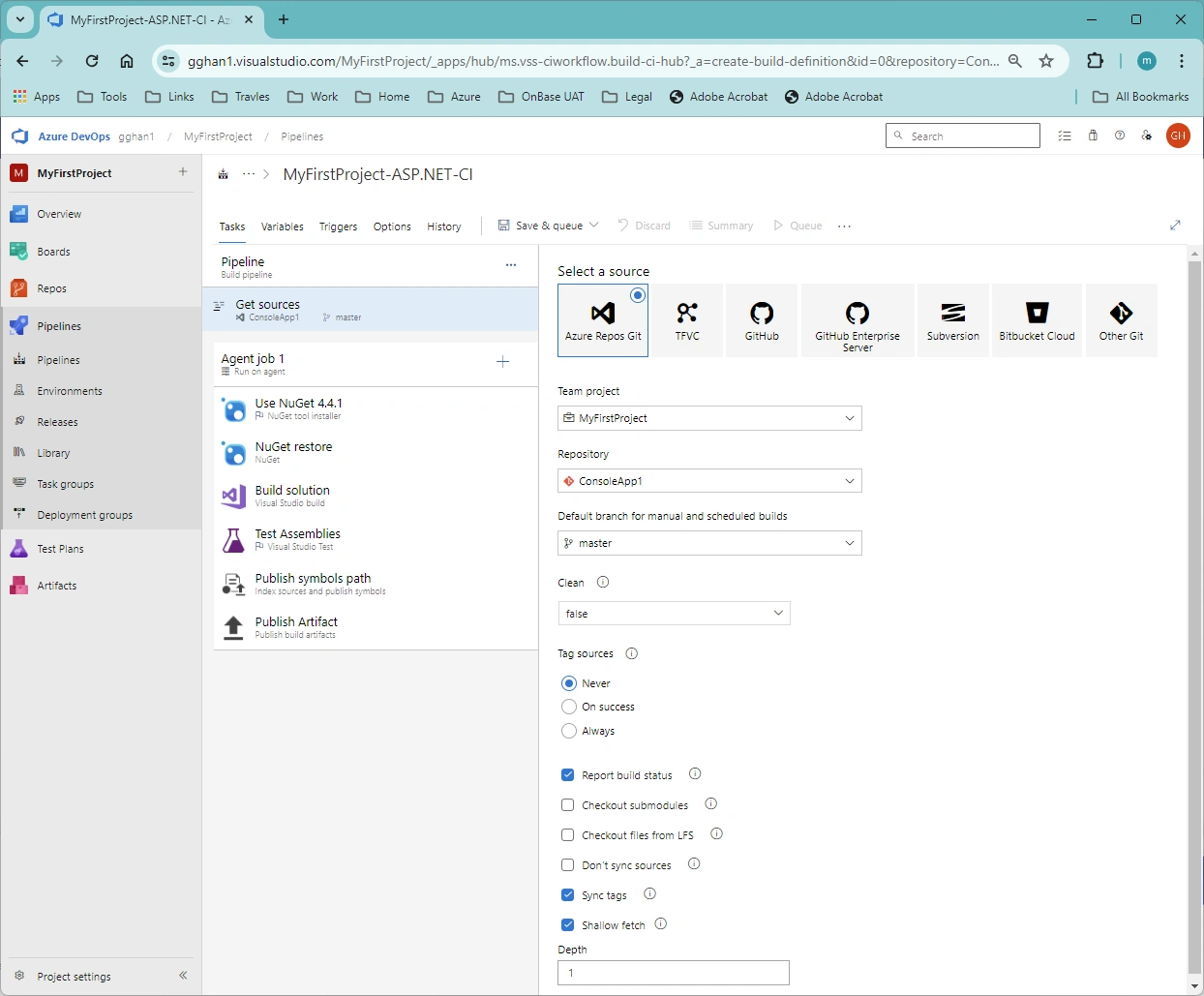
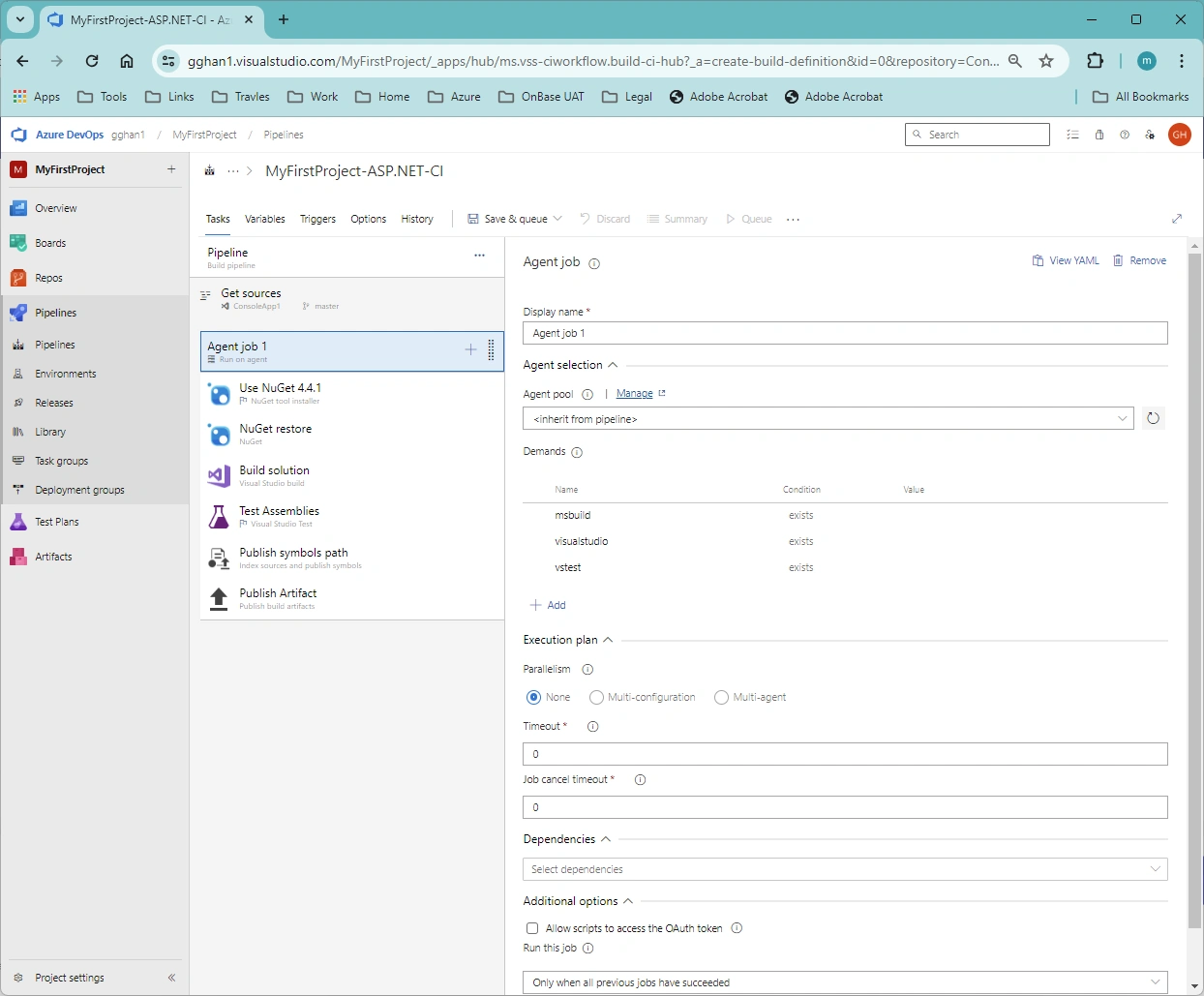
Agent Job:
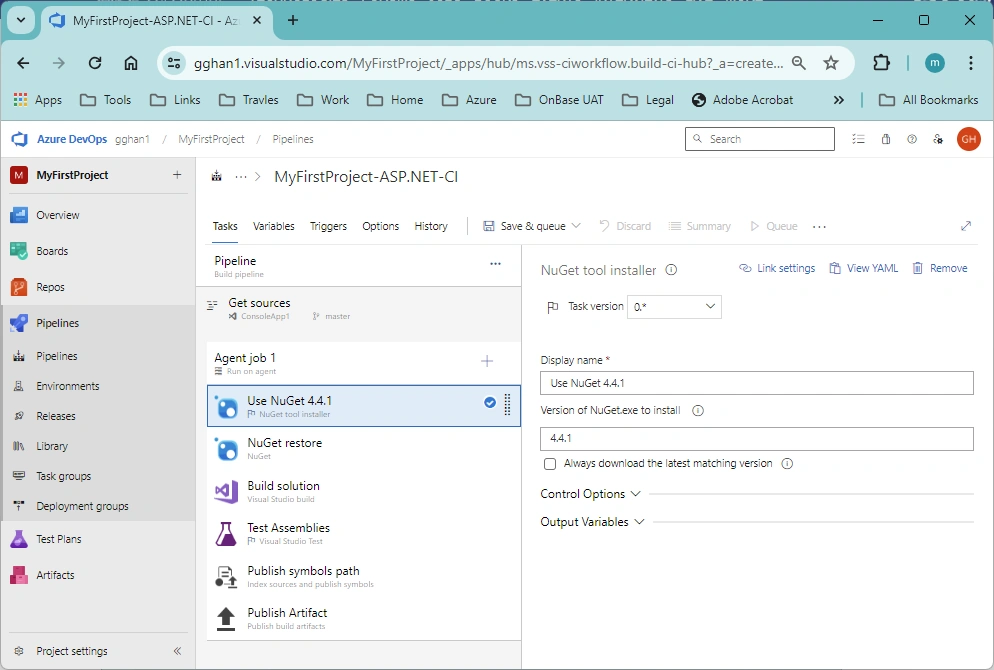
Use NuGet:
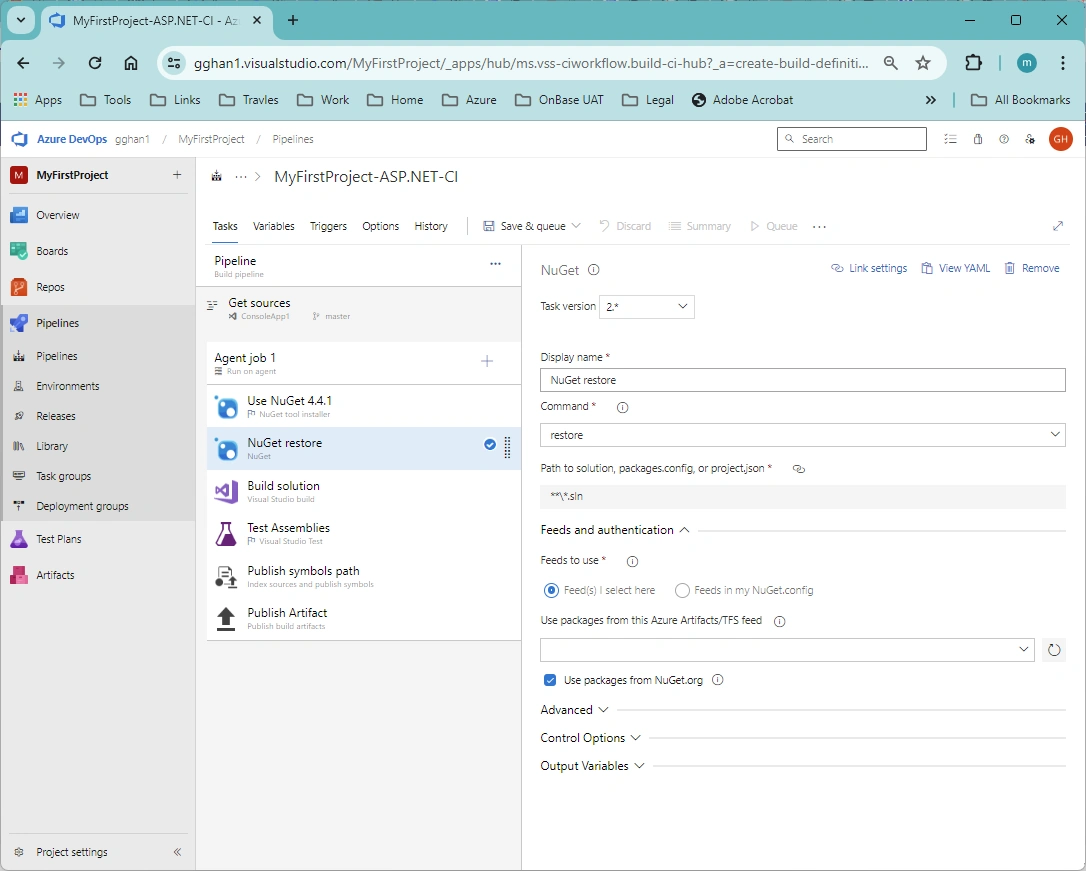
NuGet Restore:
Build Solution:
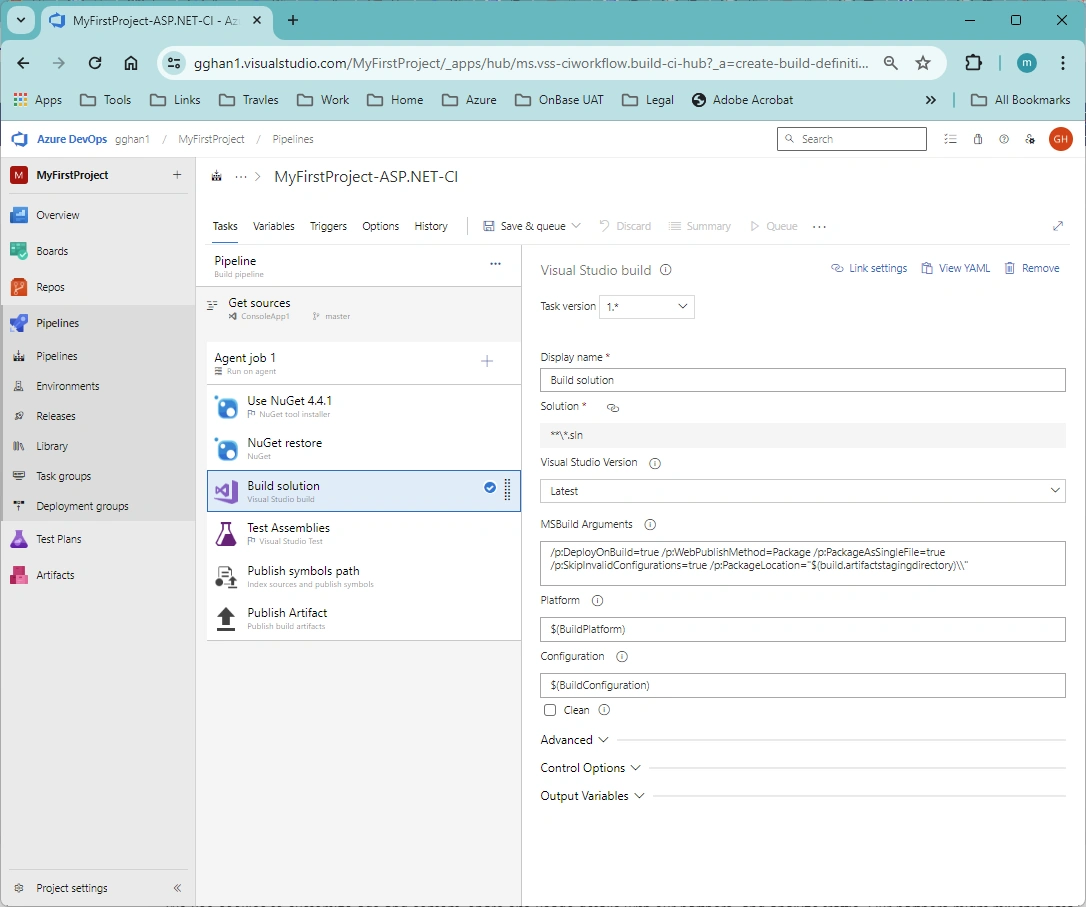
Test Assessments:
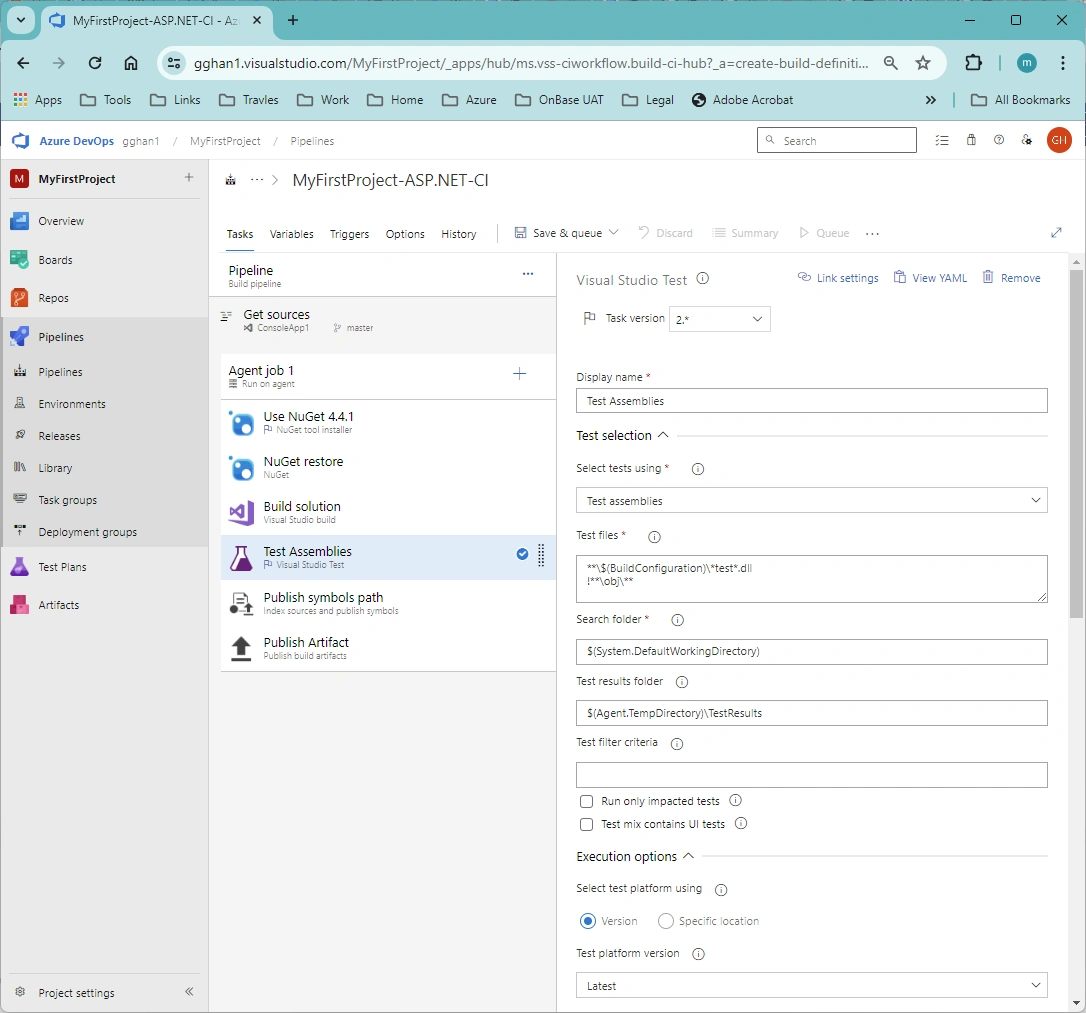
Publish Symbols Path:
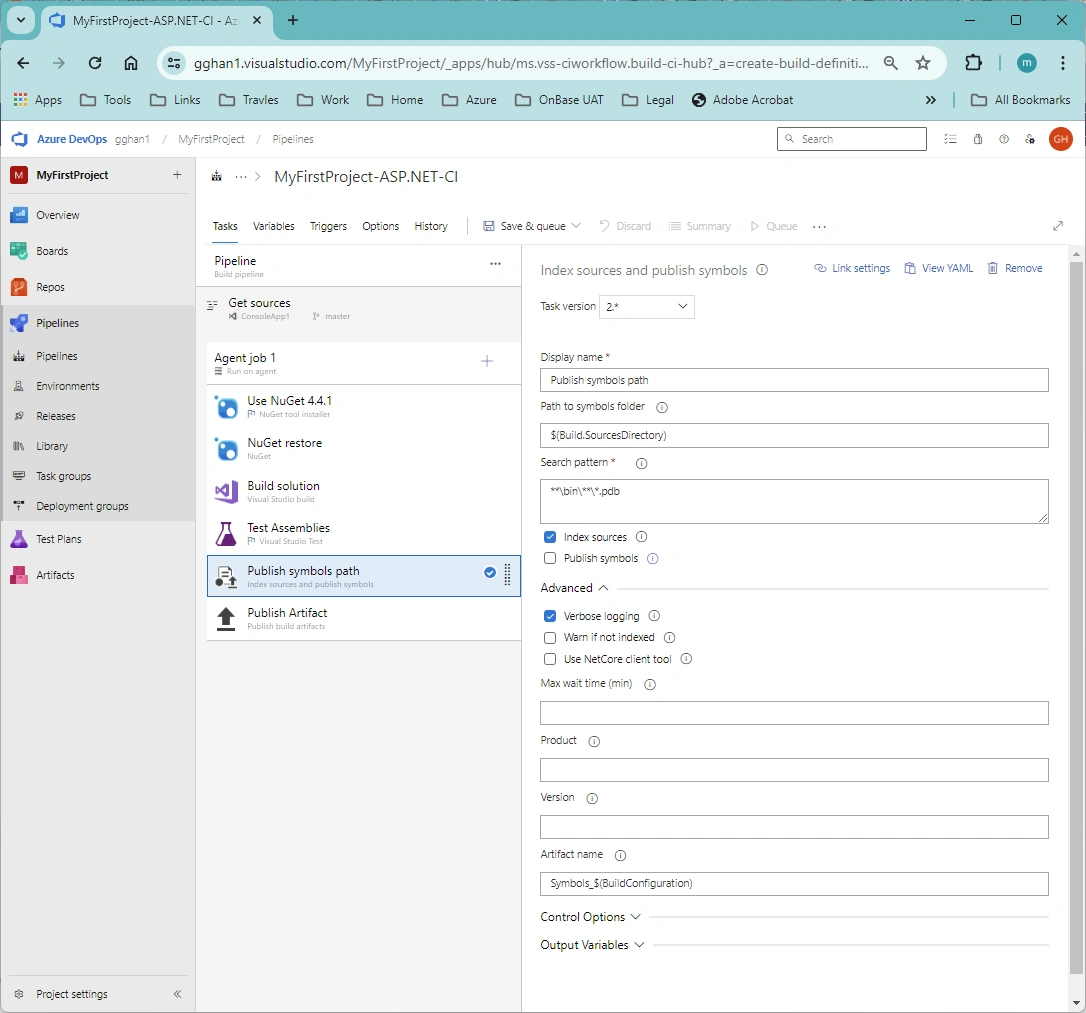
Publish Artifact:
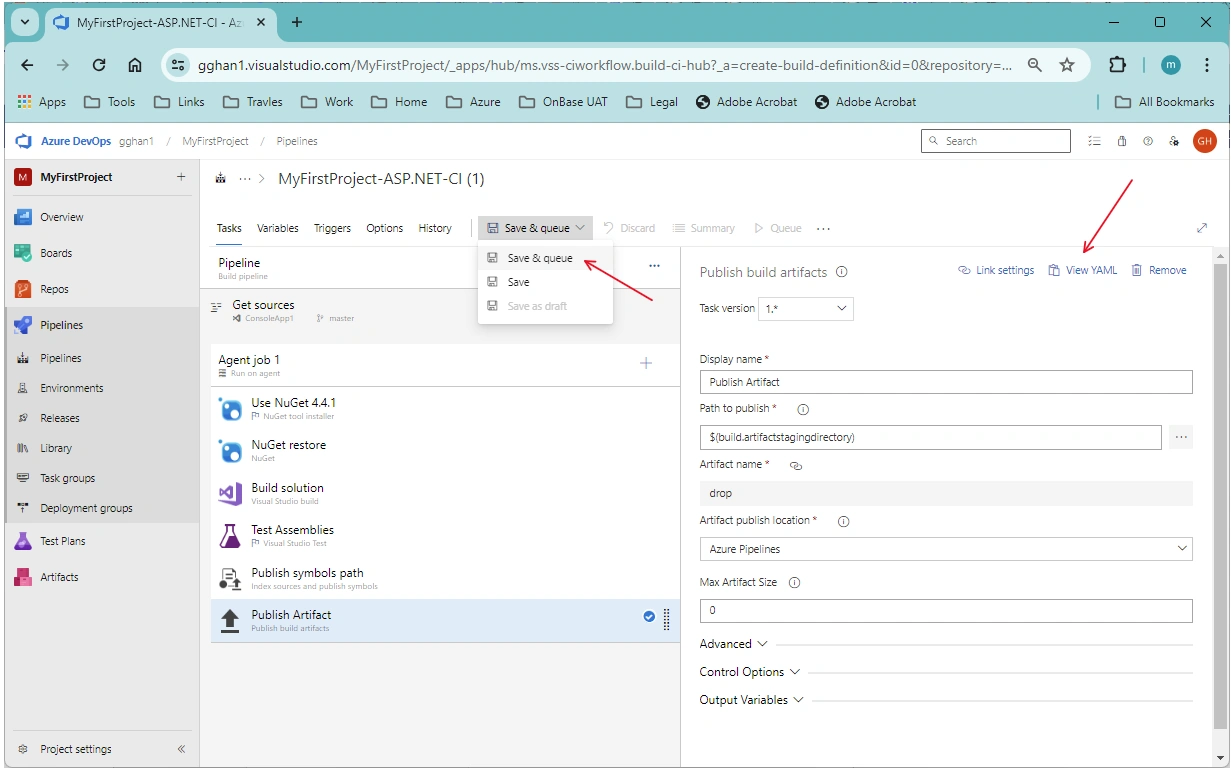
View YAML:
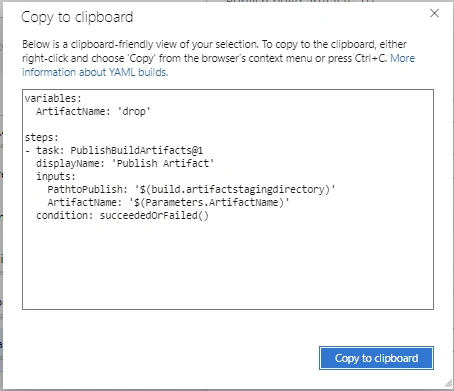
Save and Queue:
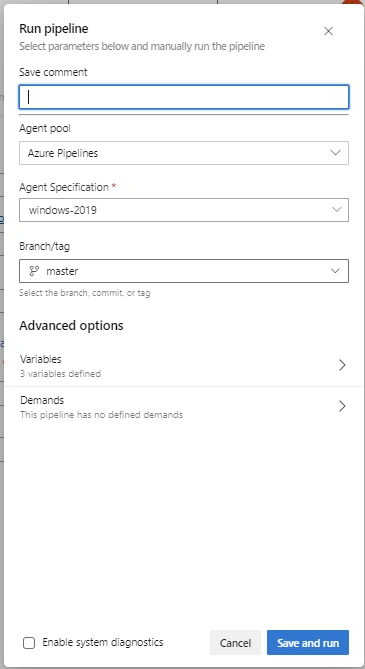
Save and Run:
References
Join the conversation! Your thoughts help the community grow.