

Introduction
Windows 8 provides a great feature for switching among applications. The user can switch among applications by moving the mouse to the left corner of the screen. It allows you to quickly switch among your open Metro apps by moving your mouse to the corner.
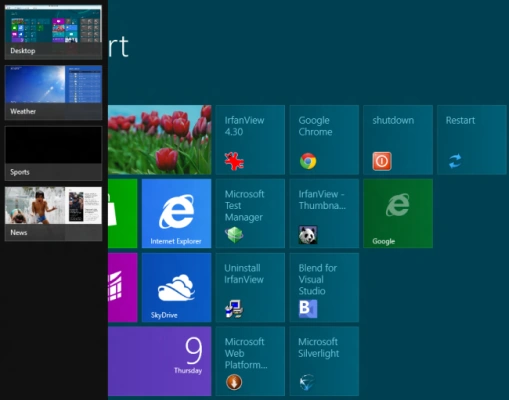
Steps to be followed to Disable Application Switching.
Step 1
Press the Windows + I key combination; a sidebar appears; then proceed.
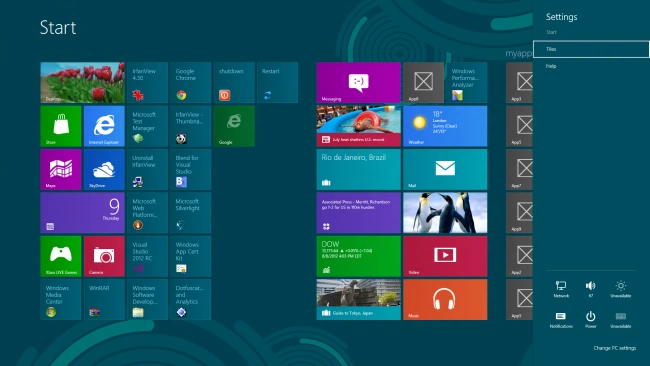
Step 2
Click on the "Change PC Settings" section.
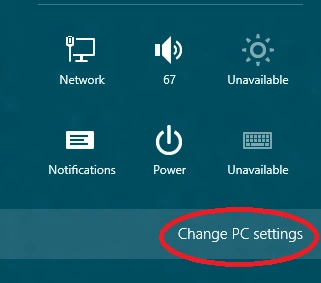
Step 3
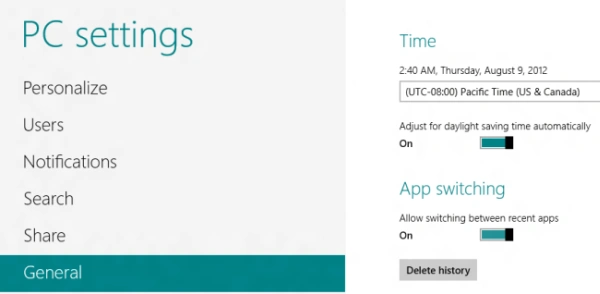
A new "Metro Control Panel" is opened. Select the General Section from the left pane.
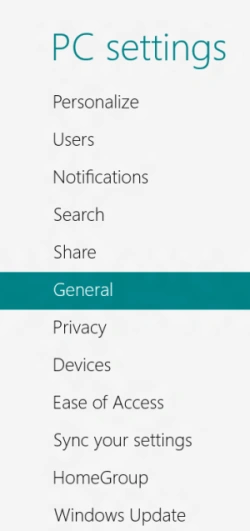
Step 4
On the right-hand side, the App switching is enabled by default.
Step 5
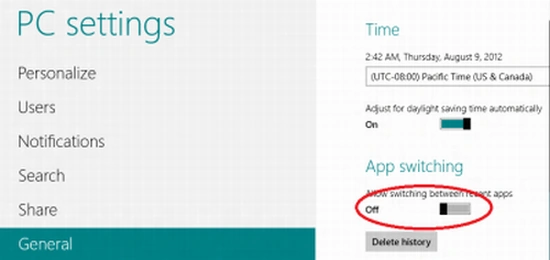
A quick click on the slider is all it takes to disable the feature.
Step 6
If you go to the top-left corner of your screen you will no longer be able to quickly switch among recent apps.
Summary
In this article, we learned about Disable Application Switching in Windows 8.
Join the conversation! Your thoughts help the community grow.