

Introduction
One of my Lenovo PCs has some issues every time I update Windows 8. Or I should say, it automatically updates Windows 8.
To disable Windows 8 automatic updates
Hit WIN+W to open the Settings search and search for Windows update. You will see the Windows Update Settings item in the list.
Select Windows Update settings. See Figure 1.

Figure 1
You will see the Update and recovery screen. See Figure 2.
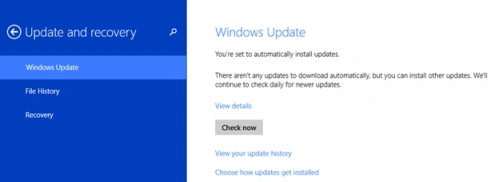
Figure 2
In Figure 2, select the Choose how updates get installed hyperlink (the last blue hyperlink in the list).
On the next screen, in the Important updates drop-down, select Never check for updates (not recommended). See Figure 3.
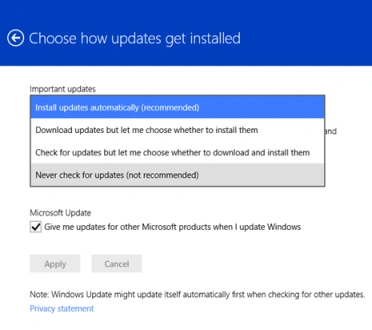
Figure 3
And Save the changes.
Note
As you can see from Figure 3, Microsoft does not recommend this disabling of automatic updates. Disabling automatic Windows Updates will not install the latest updates or patches pushed by the Windows team. If you disable automatic updates then you will have to manually install Windows updates.
Summary
In this article, we learned about Disable Automatic Updates In Windows 8.
Sam HobbsPosted Jul 28, 2014, 1:25 PM
I definitely would choose either "Download updates but let me choose whether to install them" or "Check for updates but let me choose whether to download and install them". For Windows 7 I am using "Check for updates but let me choose whether to download and install them".