

Introduction
Gadgets are part of the Desktop, like the Start button, Notification Area, Taskbar, clock, CPU meter, etc. In other words Gadgets are a mini application that provides the user quick access to personal information and simple tasks. If you want to add Gadgets onto the Desktop then we can simply add Gadgets by right-clicking on the Desktop screen.
But in Windows 8 if you want to insert Gadgets on the Desktop then you can't insert Gadgets by right-clicking because the Gadgets option does not exist in the Desktop context menu. If you want to insert Gadgets in Windows 8 then you have to use the Windows 8 Desktop Gadgets application. Windows 8 Desktop Gadgets is an application uses for inserting Gadgets on the Desktop.
You can download "Windows 8 Desktop Gadgets" from this link:

How to insert Gadgets on the Windows 8 Desktop screen
Step 1
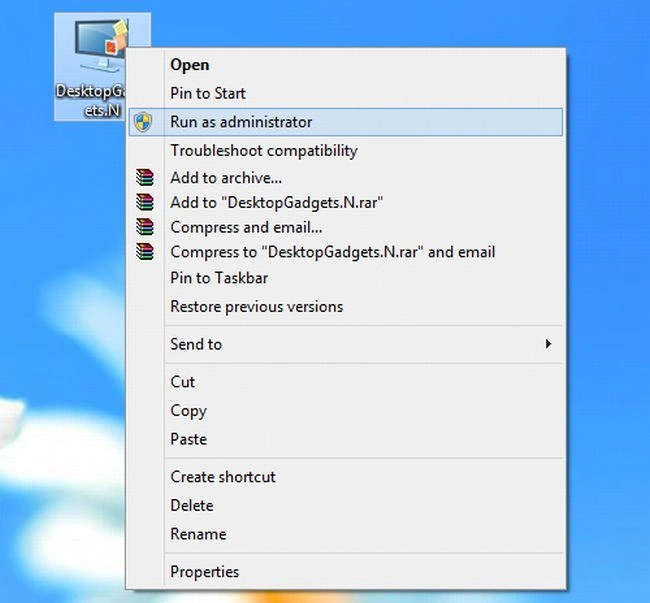
Download "Windows 8 Desktop Gadgets" and run the program as an Administrator; see.
Step 2
Follow the installation instructions and select a language, then click OK.

Step 3
In this step select component and click on Next.

Step 4
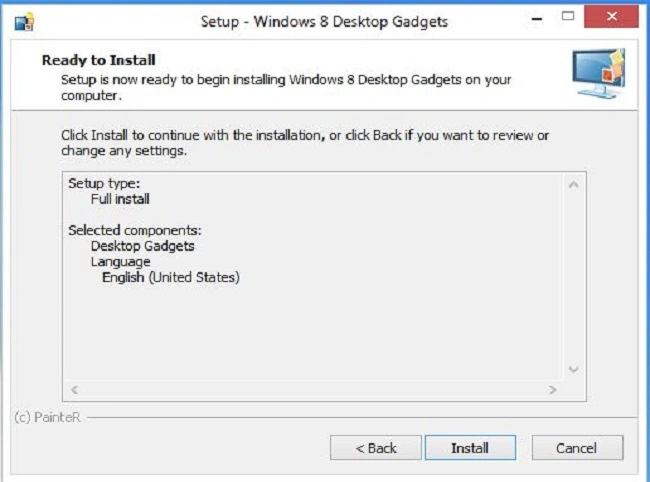
In this step click on the Install button and wait a few seconds and click on Finish.
Step 5
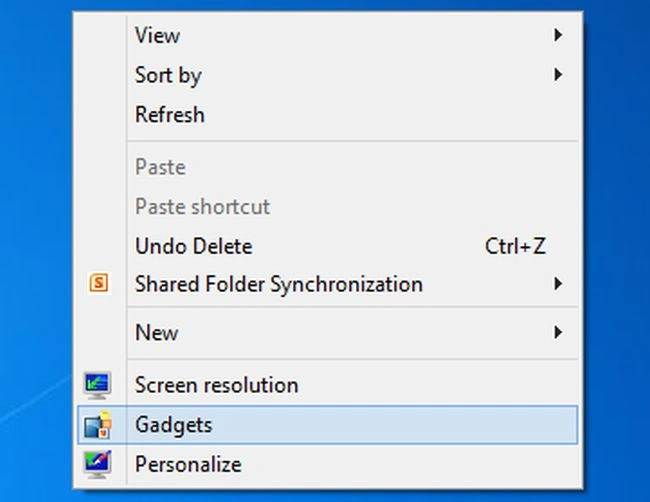
After installation right-clicks on the Desktop; the Gadgets option will be shown.
Step 6
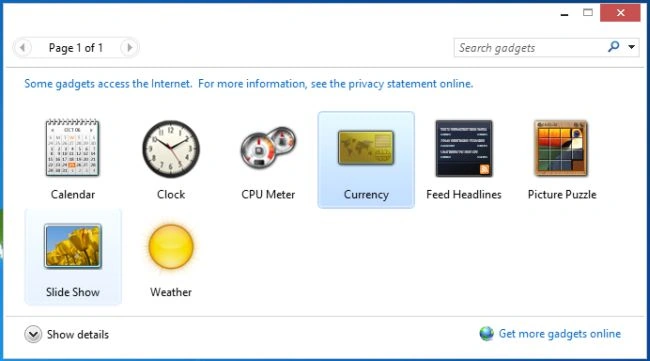
Now you can insert Gadgets on the Desktop.
Summary
In this article, we learned about Display Gadgets in Windows 8.
Mahesh ChandPosted Sep 19, 2012, 10:38 PM
Nice introduction. I didn't know about gadgets
Sam HobbsPosted Sep 19, 2012, 3:15 PM
Thank you, Prabhakar. Is it true that Gadgets are a security problem? I think that I read that Windows 8 does not use Gadgets as much as previous versions of Windows due to security. If so then people need to warned of that.