Let’s go through how to create a SharePoint Document Library and how to add, edit, and delete a document in a SharePoint Document Library.
What a SharePoint Document Library is?
- A Document Library is a collection of files that you can share as documents with your team members
- A Document Library stores the files and you can maintain the data in various folders
- A SharePoint Document Library is a place on a site where you can create, collect, and update files with others
- You can set the permission to each Document Library for the users
- You can show a Document Library in web part pages as List View Web Parts
How to create a Document Library?
Use the following procedure to create a Document Library.
Step 1. When you open your site, you can find the left navigation as shown below.
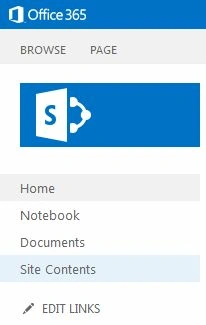
Step 2. Click on the site contents that will redirect you to the View all site content page as shown below.
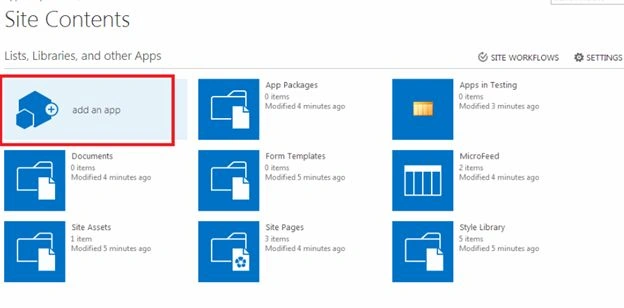
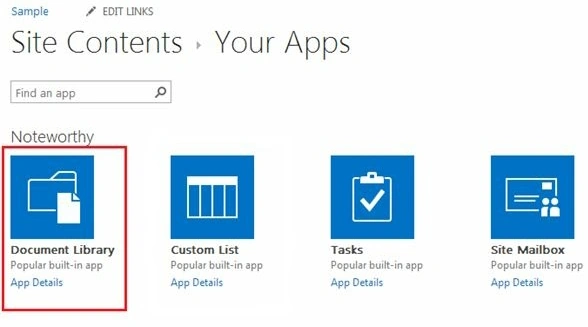
Step 3. When you click on “Add an app” in the view all site contents page, you will get a list of templates/apps based on which you can create a list. Let’s go with the Document Library template.
Step 4. Now you need to provide a name for your Document Library and then click on the create button.
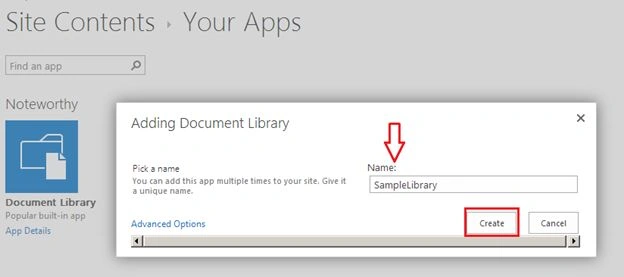
Well, Yay! You’ve created a new list with the custom template.
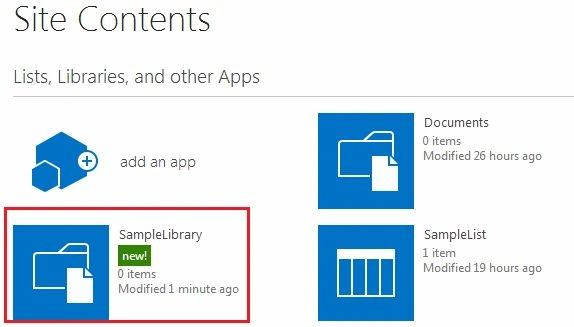
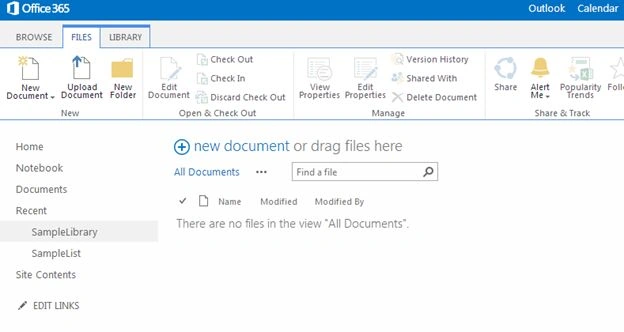
Step 5. Then click on the library that you have created on the site contents page, you can see the library as shown below.
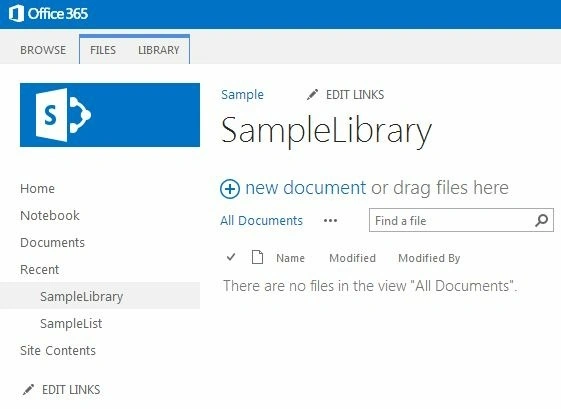
How to add a document to a library?
Use the following procedure to add a document to a Document Library that you created.
Step 1. Click on the “New document “in your library as shown below.
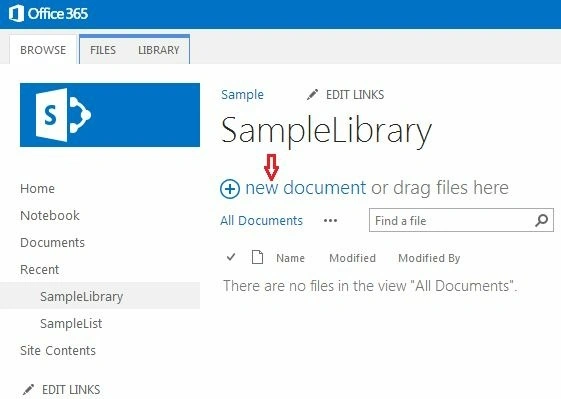
Step 2. When you click on the “New document”, you can see the create new file options such as.
- Word document
- Excel workbook
- PowerPoint presentation
- OneNote Notebook
- New folder
There you can select the “UPLOAD EXISTING FILE” option to upload the document as shown below, that way you can upload the existing file from your machine.
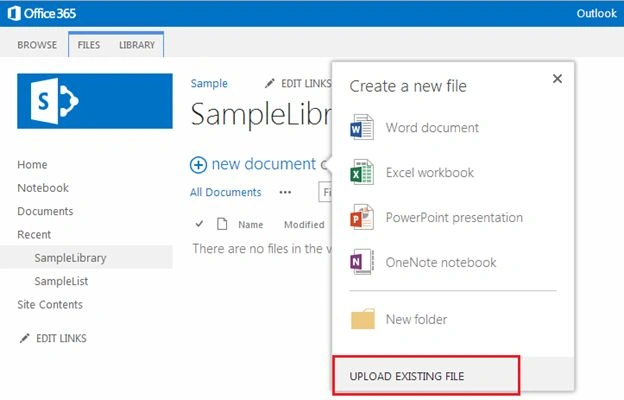
Step 3. Then click on the “UPLOAD EXISTING FILE”; you can see the pop-up to choose the document as shown below.

Step 4. On the pop-up, when you click the “Choose File” option, you can select the document from your windows as shown below.
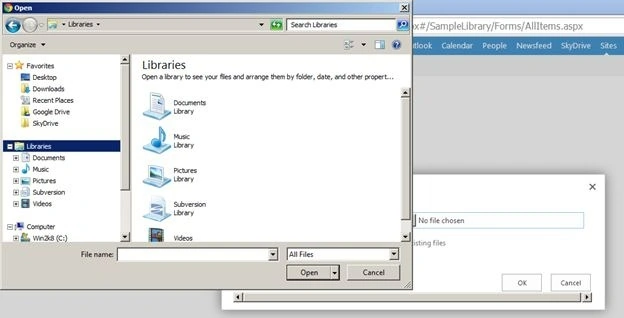
Step 5. On your machine's Windows Explorer, you can choose the document that you want to add to the Document Library, and then click on the open button in your Windows Explorer. You can see the selected document in the pop-up as shown below.
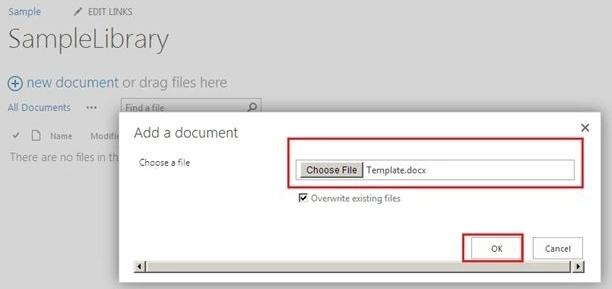
Step 6. Then click the "OK" button on the pop-up. The document will be added to your library as shown below.
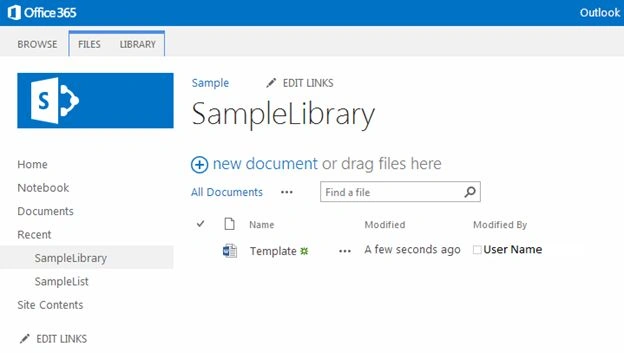
The document will be added to your Document Library successfully.
How to edit a document in the library?
You can use the following steps to edit a document to a Document Library that you created.
Step 1. Check on the document that you want to edit and then click on the “Open Menu (…)” as shown below.
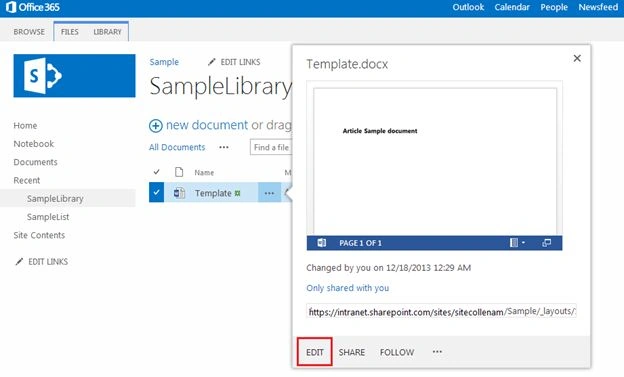
Step 2. When you click on the open menu you can see the preview of the document and options to edit the document as shown below.
Step 3. Then click on the edit in your open menu page, and you can get the alert message to launch the document in your windows as shown below.
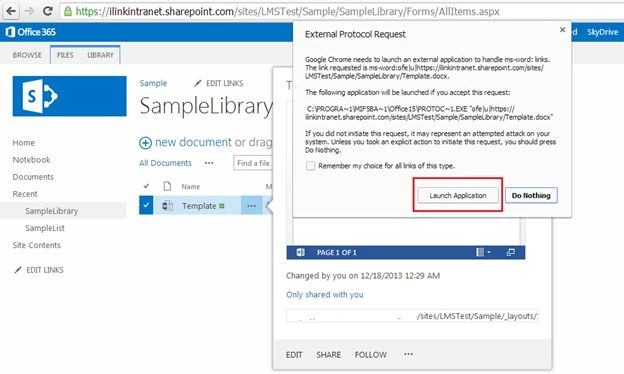
Step 4. Then click on the launch application in your browser, and you will get again one confirmation alert message as shown below.
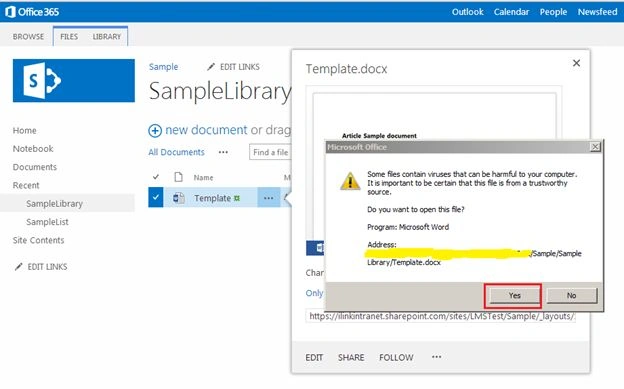
Step 5. When you click on "Yes", the document will be opened in your machine as shown below.
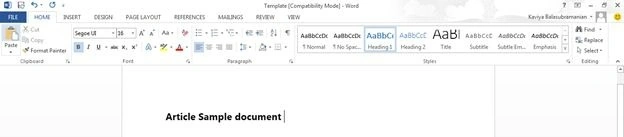
Step 6. Then you can edit the document and click on "Save" for changes. The document will be saved in your library.
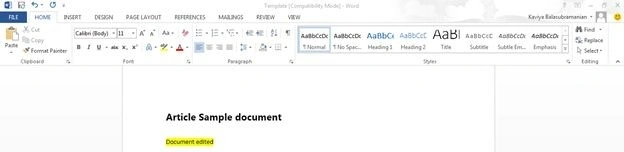
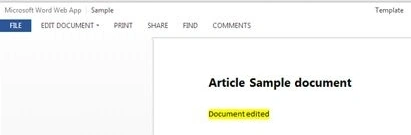
Step 7. When you click on the document in your library you can see the updated document in your browser as shown below.
How to delete a document in the library?
Use the following procedure to delete a document in a Document Library that you created.
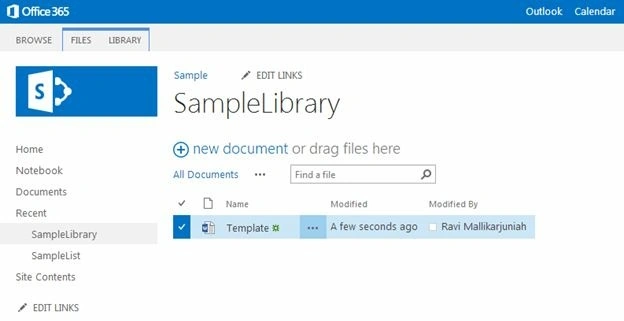
Step 1. Check on the document that you want to delete a document in your library as shown below.
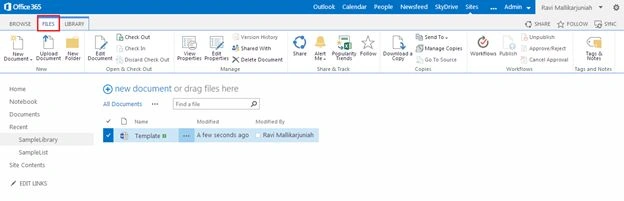
Step 2. Click on "Files" in the top ribbon bar as shown below.
Step 3. On the ribbon, there will be an option to delete the checked document. Then click on “Delete document” from the ribbon, which will show an alert message, then click "OK" to confirm your action.
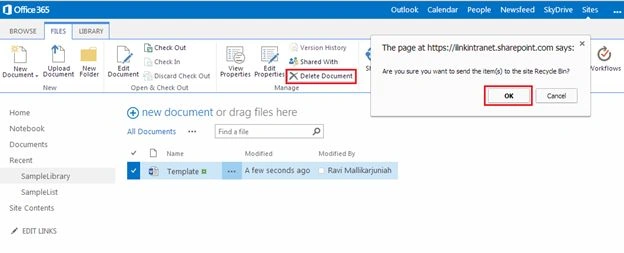
Step 4.When you click "OK" the document will be deleted from your library.
Summary
In this article, we explored how to create a Document Library and how to add, edit, and delete a document. Stay tuned for more articles.


Mahesh VermaPosted May 4, 2018, 11:00 AM
Nice article......
Kaviya BalasubramanianPosted Sep 21, 2015, 10:45 AM
Thank you Sriram :)
SriramPosted Jul 1, 2015, 6:23 AM
Excellent Article