

Introduction
In this article, you will learn about the DotVVM CRUD application with Entity Framework and Cosmos DB.
What is DotVVM?
DotVVM is an open-source MVVM framework for ASP.Net Core and OWIN and it is a member of the .NetFoundation. DotVVM is free to use under Apache License but also has commercial extensions.
DotVVM lets you build interactive web UIs with just C# and HTML using the MVVM pattern. DotVVM framework is shipped with many build-in controls like GridView, FileUpload, Validators, and more.
Why DotVVM?
There are many reasons and business scenarios that DotVVM is suitable and very helpful for, such as:
-
Migrating legacy ASP.NET web forms application to .NET Core.
-
New ASP.NET applications that contain many forms with a lot of controls/components.
To learn more about DotVVM framework, visit DotVVM.com.
What is Azure Cosmos DB?
Azure Cosmos DB is a NoSQL distributed and fully managed database service. Azure Cosmos DB provides different API for different NoSQL models like Document databases, Column databases, Graph databases, and Key-Value database.
You can easily migrate your existing database on your prim to Azure Cosmos DB using the Cosmos migration tool.
In this article, we will go through a sample project to demonstrate how it is easy to use the DotVVM framework in building your web application with Azure Cosmos DB as your data store.
Install DotVVM extension
-
Open Visual Studio 2019 (you can use Visual Studio 2017 as well).
-
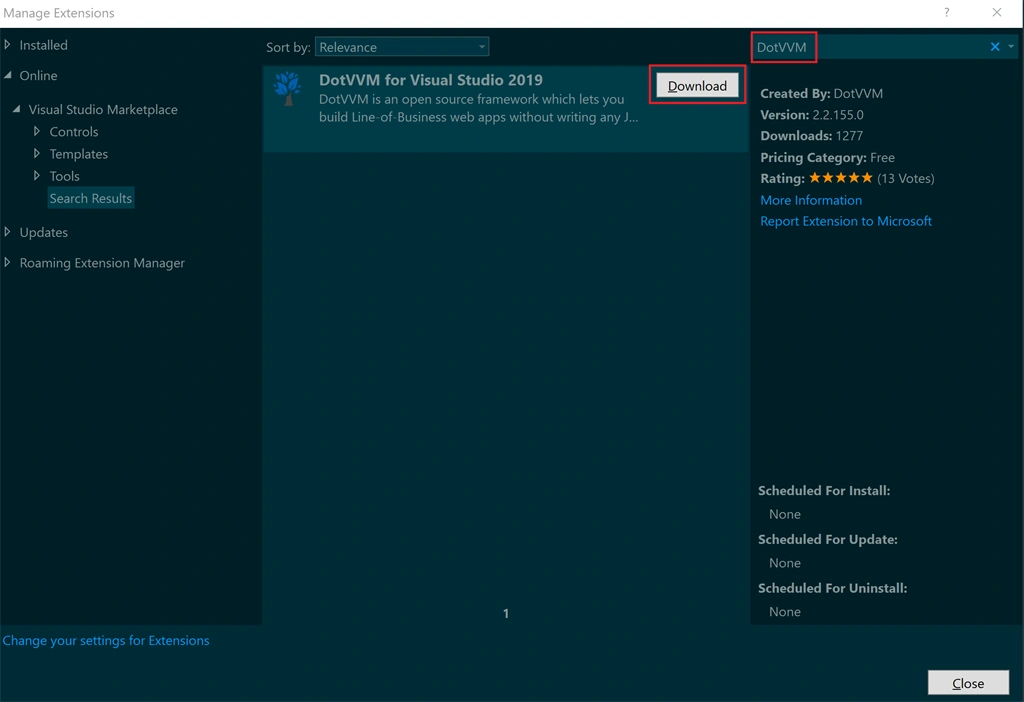
Open the manage Extension window.Extensions > Manage Extensions > Online menu
-
In the search box, type DotVVM and click Download.
-
Restart Visual Studio to complete the DotVVM installation.
-
You should find DotVVM in the Extension menu.
To know more about the DotVVM extension visit its page on the Visual Studio marketplace.
Now you are ready to start coding with the DotVVM framework. DotVVM extension installs a DotVVM sample project which we will use to demonstrate how it is easy to connect to Azure Cosmos DB from a DotVVM application.
DotVVM Web Application
-
Create a new project
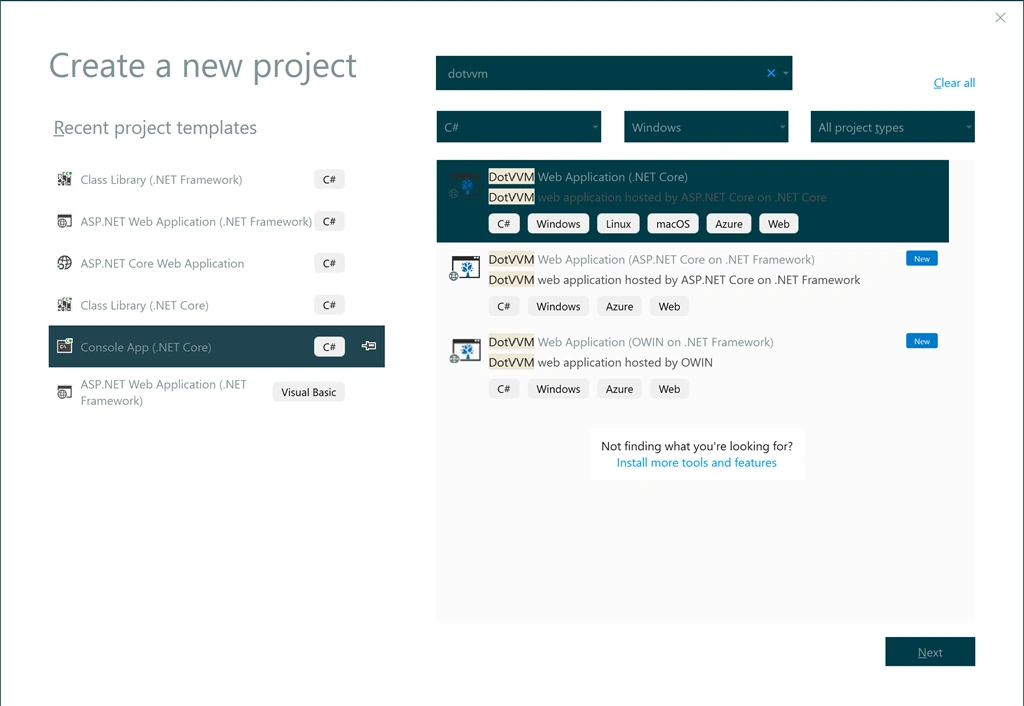
In create the new project window, filter project list by DotVVM and select DotVVM Web Application (.NET Core) and click next.
-
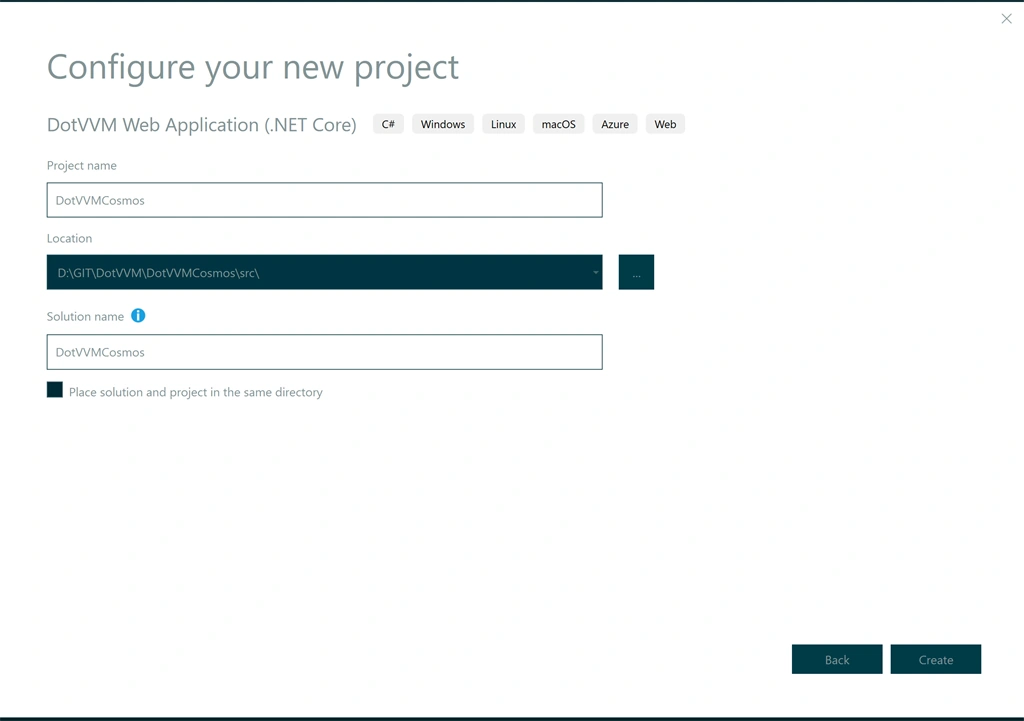
Enter “DotVVMCosmos” as your project name, project path, and “DotVVMCosmos” as the solution name. Then click on create.
Project name and solution name can be any value you want.
-
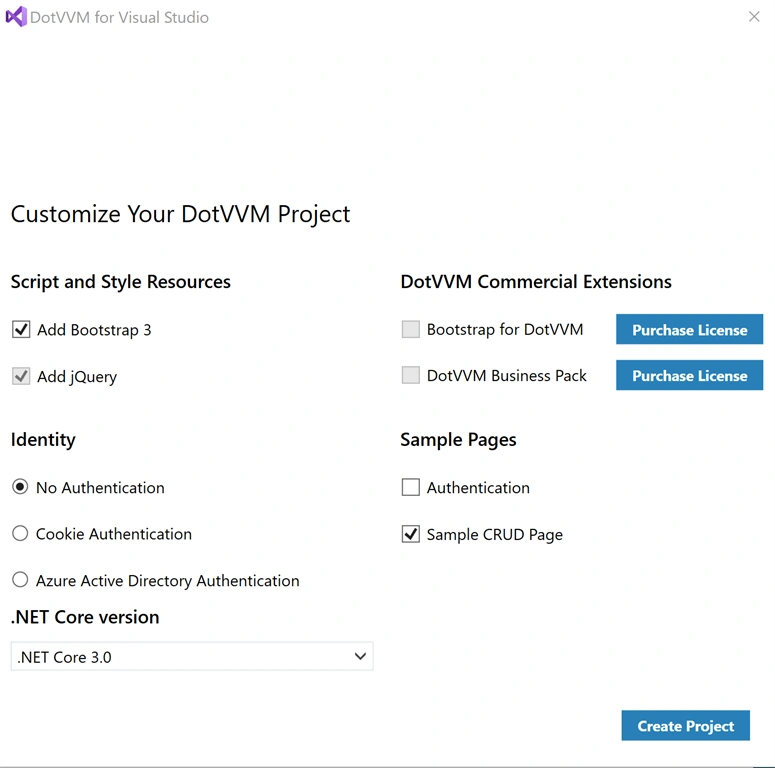
In the “Customize Your DotVVM Project” window, select:
- Bootstrap 3
- No Authentication
- Sample CRUD Page
- .NET Core 3.0 (you can target another .NET core version)
Then click Create Project.
Your project structure will look like the below screenshot:
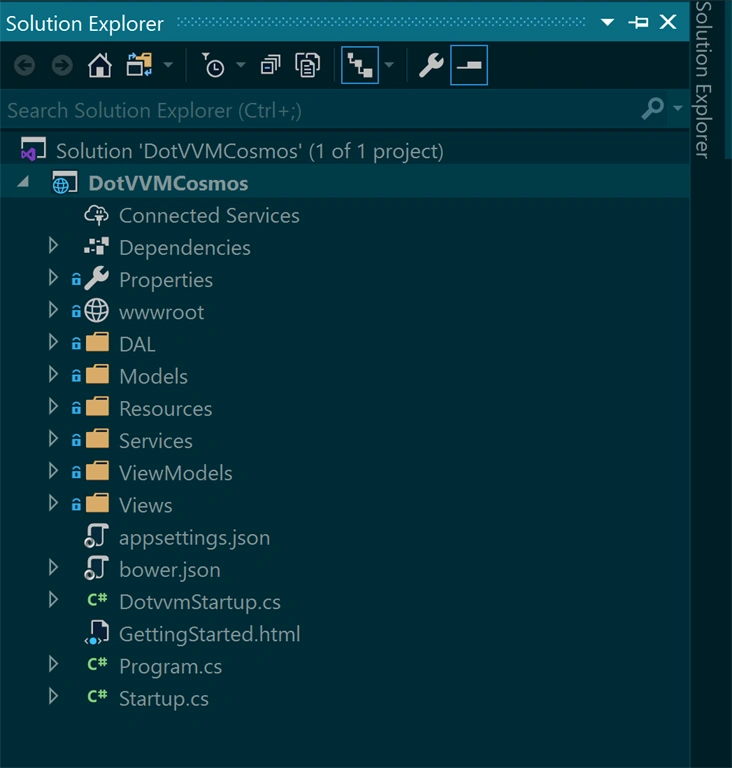
DotVVM sample project uses the Entity Framework Code First approach and provides:
- Sample entity (Student)
- DbContext class (StudentDbContext)
- Two model classes (StudentDetailModel, StudentListModel)
- CRUD Service class (StudentService): contains all the methods required to do your CRUD operations
Create an Azure Cosmos DB Account
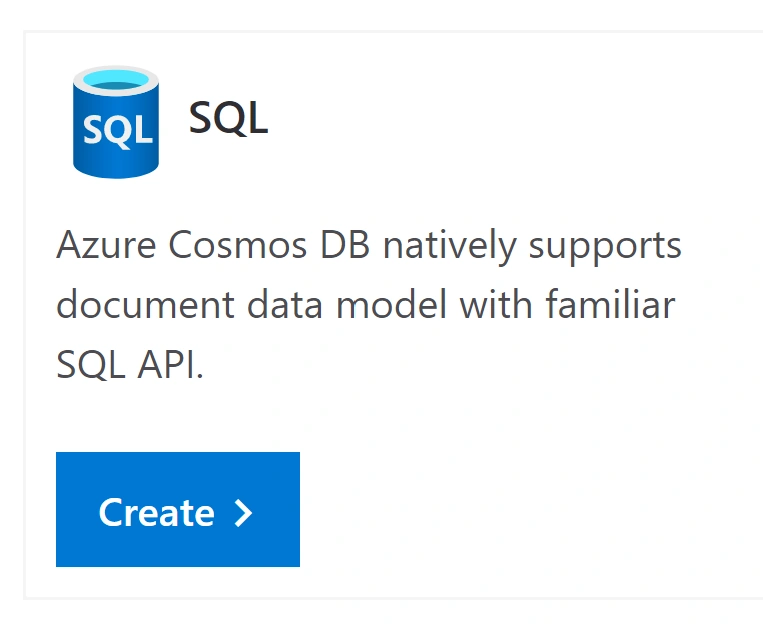
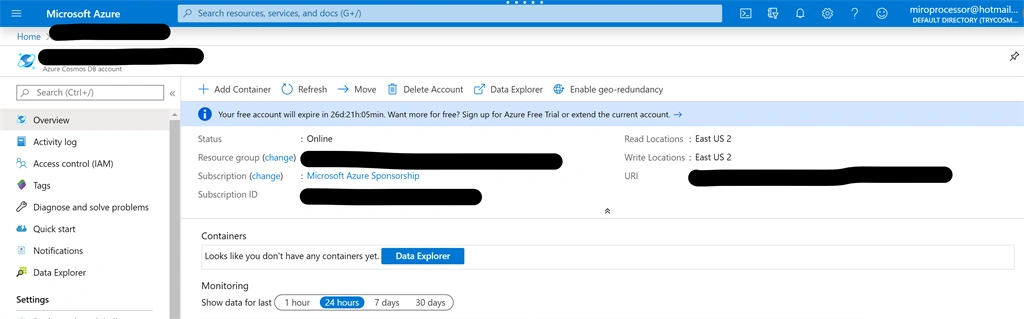
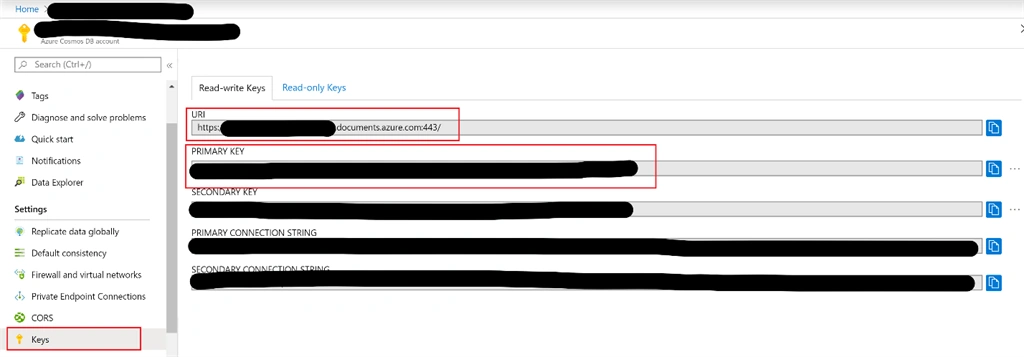
You can use an existing Azure subscription to create the Azure Cosmos DB account. If you don’t have an active Azure subscription, still you can try Azure Cosmos DB for free for 30 days.
Join the conversation! Your thoughts help the community grow.