

Introduction
This article outlines how to enable file downloads in Power Apps for documents generated by Power Automate. Many business apps require users to access reports or templates created through automated flows. By integrating Power Automate with Power Apps, files can be produced and instantly downloaded with a single action, giving users quick access without navigating external storage locations. This approach simplifies the process and ensures users always get the latest version of the document.
Prerequisites
Before implementing this , ensure the following:
A Data source such as SharePoint.
A Canvas Power App with a Gallery control connected to your data source.
A Power Automate that is generating csv, excel or any other file.
Flow Objective
The main goal of this Power Automate flow is to:
Take an gallery items as input.
Generate csv file out of it.
Return the generate csv link for further use in PowerApps.
Below are the steps to enable file downloads in Power Apps for documents created by Power Automate:
Flow Design Steps
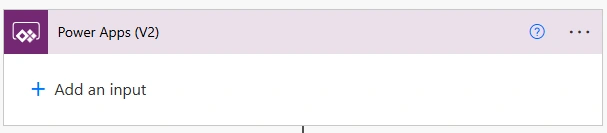
Step 1. Trigger: When power apps calls a flow
You can also pass the input parameter used in the Get Items filter query.
(Note: Make sure to pass the same parameter when calling the flow from Power Apps.)
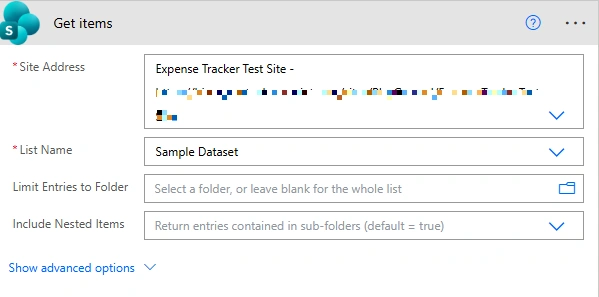
Step 2. Get Items: Getting all the gallery items.
Site Address: Add site address you are using in power app gallery.
List Name: Add List name you are using in power app gallery.
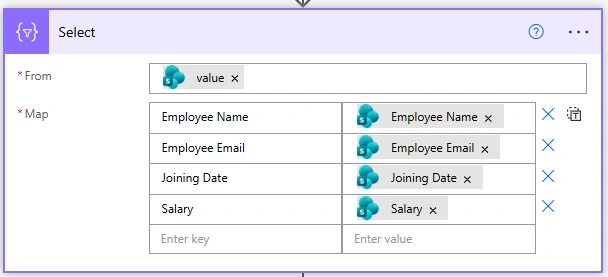
Step 3. Select: For Indexing/Mapping each items of get items
From: Select the output of the get items .
outputs('Get_items')?['body/value']
Map: Map all the fields with their labels.
Employee Name: item()?['EmployeeName']
Employee Email: item()?['EmployeeEmail']
Joining Date: item()?['JoiningDate']
Salary: item()?['Salary']
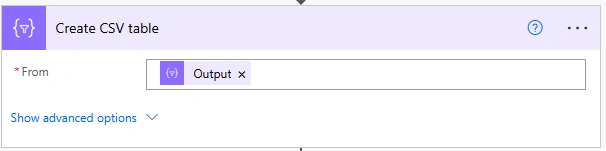
Step 4. Create CSV Table: For creating csv table
From: Select the output of Select action.
body('Select')
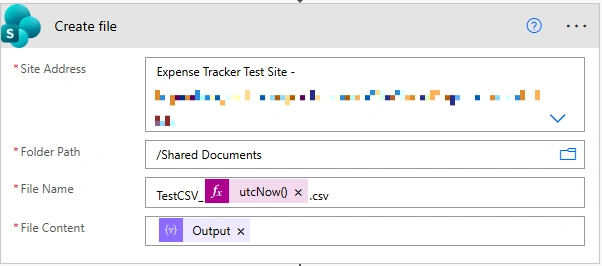
Step 5. Create File: Creates the CSV file using CSV table.
Site Address: Add site address you are using in power app gallery.
Folder Path: Add your folder path where you want to save this created file.
File Name: You can give whatever file name as per your requirement.
File content: Output of create CSV table.
body('Create_CSV_table')
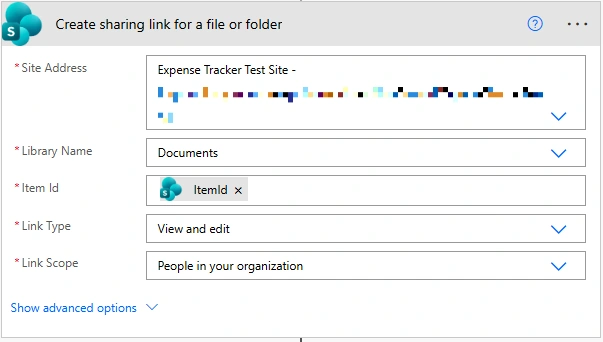
Step 6. Create sharing link for a file or folder: For generation of sharable link
Site Address: Add site address you are using in power app gallery.
Library Name: Add library name where you are storing the file.
Item Id:
outputs('Create_file')?['body/ItemId']
Link Type: Select View and edit
Link Scope: Select People in your organization
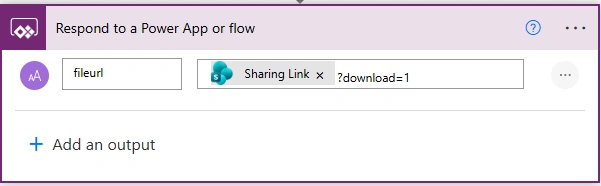
Step 7. Respond to power apps or flows: For returning shared link to power apps.
fileurl:
@{outputs('Create_sharing_link_for_a_file_or_folder')?['body/link/webUrl']}?download=1
Power App Logic
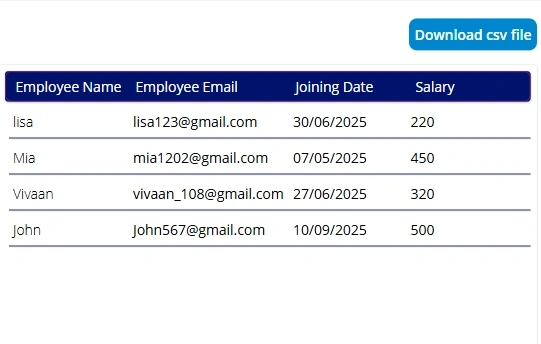
Add below logic on the Download csv file button OnSelect property.
    UpdateContext({varGeneratedfileurl: 'Generatecsv-Respondtopower-app'.Run().fileurl});
Launch(varGeneratedfileurl)
Use your own flow name instead of Generatecsv-Respondtopower-app .
If your flow trigger has an input parameter, include it when calling the flow using flowName.run(parameterName) .
Conclusion
By following the steps above, you can download files in Power Apps with a single button click using Power Automate.
Join the conversation! Your thoughts help the community grow.