

Introduction
- Introduction to Azure Function
- Connecting Azure function to Dynamics 365
- Setup Server to Server authentication between Azure and Dynamics 365
- Deleting blob storage after function execution.
- Trigger Azure function from Microsoft Flow.
In this article, we will be discussing basic details about Azure function.
What is Azure Function?
In a simple definition Azure function is a piece of code which can be executed on demand or can be bound to some event just like traditional SQL triggers, where we have some code that executes because of some event. The beauty of Azure function is its serverless capability which means you don’t need special infrastructure to host and manage it and you need to only pay when your function is executing.An Azure function can be the lifesaver sometimes when we want to keep our Dynamics 365 CE integration logic out of Dynamics 365 CE and we don’t have any infrastructure to host that logic. We can use an Azure function for the different type of integration based on the business requirements. In our series, we are going to discuss importing data into Dynamics 365 with the help of an Azure function. An Azurefunction can be written in Visual Studio and deployed to Azure or we can directly create an Azure function in the Azure portal. In our example, we are going to write Azure Function in Azure Portal. So let’s get started.
If you don’t have a Dynamics 365 CE environment, you can follow our earlier article to setup 30 days trial and can also set up a free Microsoft Azure trial.
While building any Azure component it is recommended to create them under a particular resource group so that it can be managed efficiently as a group. So let’s first create our resource group.
Connect to your Azure environment and create Resource Group using the following steps.

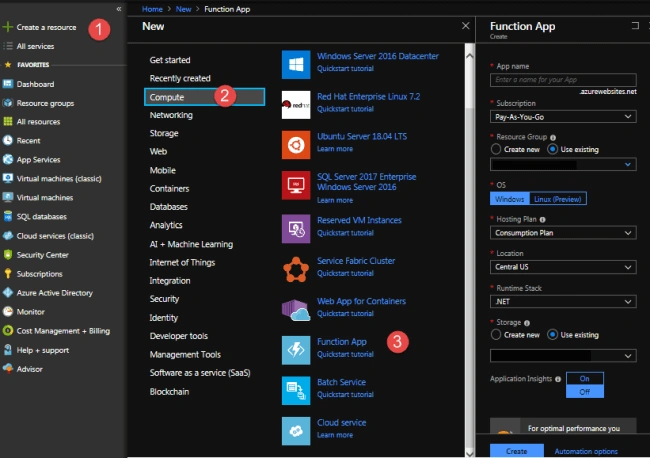
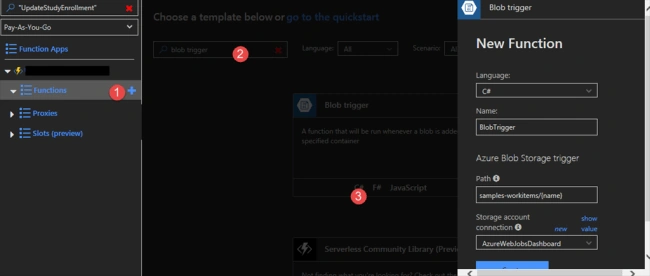

Our Azure function trigger execution will start from the Run method which takes the following three parameters.
- Stream– This will hold our blob storage (CSV file in our case)
- name – This will be the name of the CSV file
- TraceWrite – We can use this class to generate logging.
Now we got an overview of the Azure function, In the next article, we are going to discuss code to read CSV file and upload it to Dynamics 365 so stay tuned !!
Mohammed FakhriPosted Mar 25, 2021, 7:59 AM
Hi Mahendar, Do you know what is the Version of the Function App you are using here. Is it possible to connect to CDS the same way as described in your blog, with Functions V3.