

Introduction
I have seen many developers still use developer tools and Chrome console to debug their web applications. Visual Studio Code have a very powerful inbuilt debug option available for debugging. In this post, I will explain all the simple steps for debugging an Angular application.
Install Debugger for Chrome extension in Visual Studio Code
Open Extension menu in Visual Studio Code.
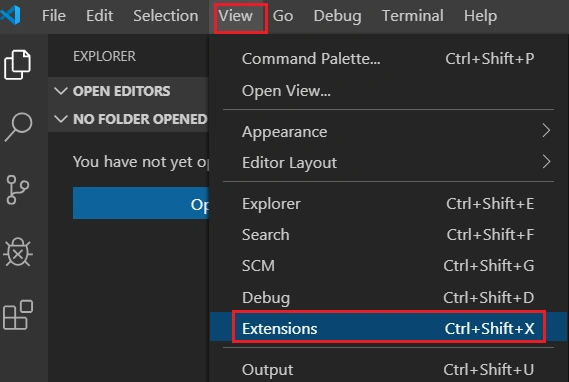
Search for “Debugger for Chrome” and install the extension.
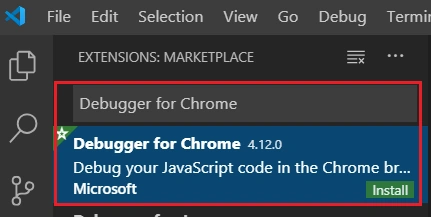
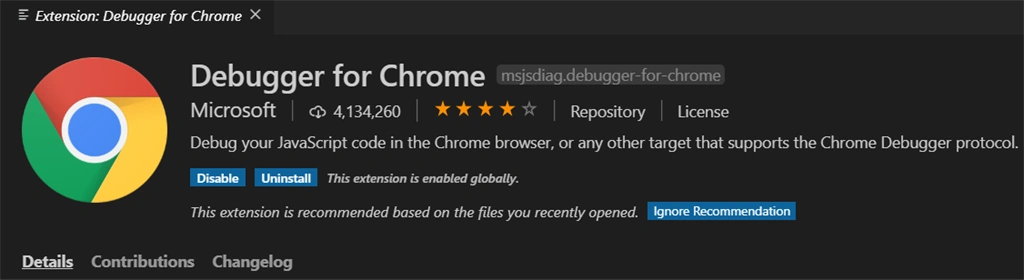
This extension is provided by Microsoft
Create a new Angular 8 application using CLI
We can create a new Angular application using CLI
ng new AngularDebugger
After some time, all the node packages will be created successfully. Open the application in Visual Studio Code.
We can modify the default template of App component by below code.
app.component.html
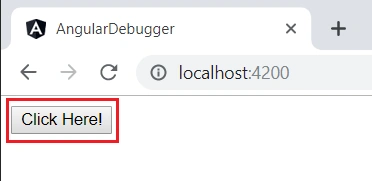
- <button (click)="clickButton()" type="button">Click Here!</button>
We can modify the class file also with below code.
app.component.ts
- import { Component } from '@angular/core';
- @Component({
- selector: 'app-root',
- templateUrl: './app.component.html',
- styleUrls: ['./app.component.css']
- })
- export class AppComponent {
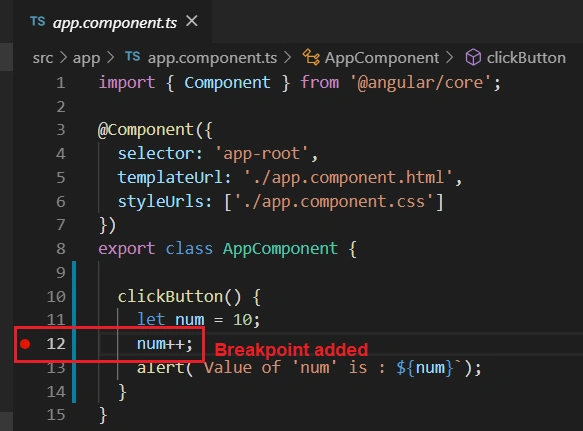
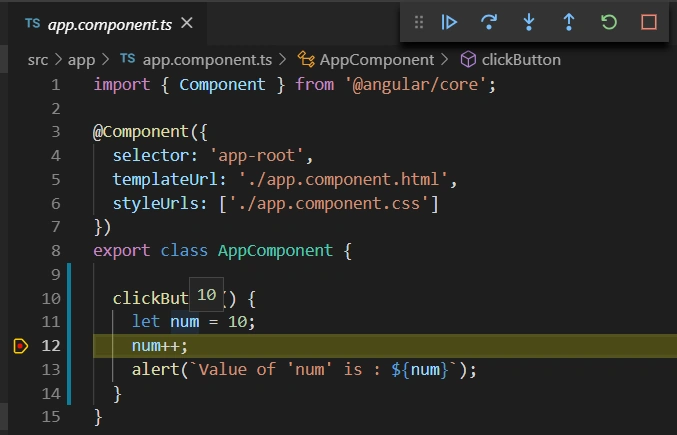
- clickButton() {
- let num = 10;
- num++;
- alert(`Value of 'num' is : ${num}`);
- }
- }
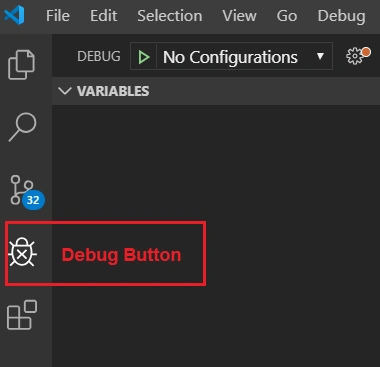
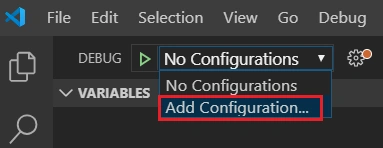
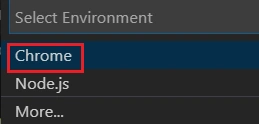
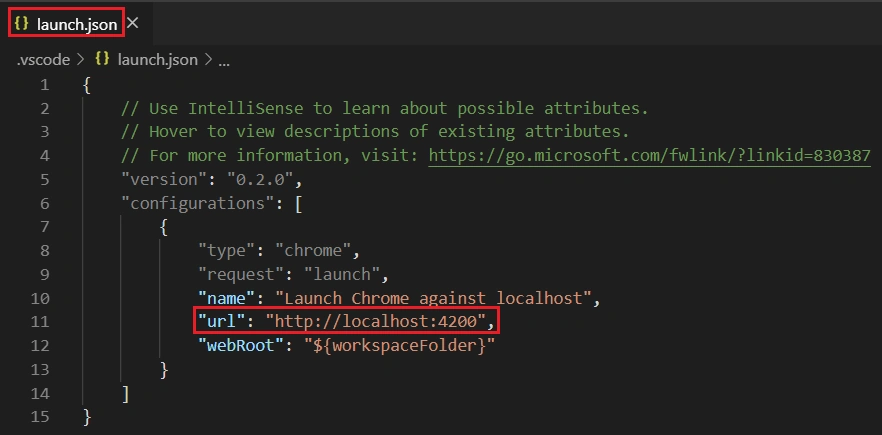
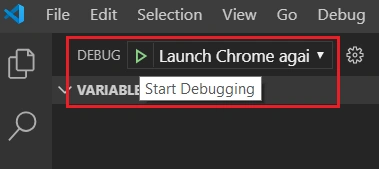
You can see a “Debug” button in the left side bar of visual studio code. Please click that button.
Arvind SinghPosted Oct 15, 2019, 12:13 AM
Nice article.....
Pankajkumar PatelPosted Oct 14, 2019, 12:04 AM
Nice article
Sourav Kumar DasPosted Oct 13, 2019, 11:29 PM
Nice Article Sir.
Abhishek MishraPosted Oct 12, 2019, 6:39 AM
Loved it. Helpful
Faisal PathanPosted Oct 12, 2019, 6:34 AM
Excellent idea!