

This article shows how to embed a Calendar (DataTimePicker) Control into a cell of a DataGridView Winform control.
In a DataGridView if a cell contains data in a DateTime Format and you want to edit the date directly on the grid, by default the Winform DataGridView control doesn't provide a Calender (DateTimePicker) control on that cell. However this feature is easily available with various third-party Winform Controls (like Infragistics controls). To show a Calendar on the DataGridView Cell, here we include a DataGridView on the form and populate the data by Binding a list of objects. After creating the data source, we create a DateTimePicker control programmatically whenever a cell with a date is clicked.
A sample project is also attached for better understanding.
A Sample class to hold the TestData and to bind into DataGridView Control
To show sample data on the DataGridView, here I created a sample class MyData with the three properties: ID, Date and Name.
- /// <summary>
- /// Cretaed a sample class to store TestData
- /// </summary>
- class MyData
- {
- public int ID { get; set; }
- public DateTime Date { get; set; }
- public string Name { get; set; }
- public MyData(int id, DateTime dt, string name)
- {
- ID = id;
- Date = dt;
- Name = name;
- }
- }
- private void MainForm_Load(object sender, EventArgs e)
- {
- // Creating an List of Mydata objects (An IEnumerable object) to bind
- // as a Data Source into DataGridView Control
- List<MyData> oMyDataList = new List<MyData>();
- MyData obj1 = new MyData(1, DateTime.Now, "John");
- MyData obj2 = new MyData(2, DateTime.Now, "Sam");
- MyData obj3 = new MyData(3, DateTime.Now, "Ray");
- oMyDataList.Add(obj1);
- oMyDataList.Add(obj2);
- oMyDataList.Add(obj3);
- // Binding as a Data Source into DataGridView
- dataGridView1.DataSource = oMyDataList;
- }
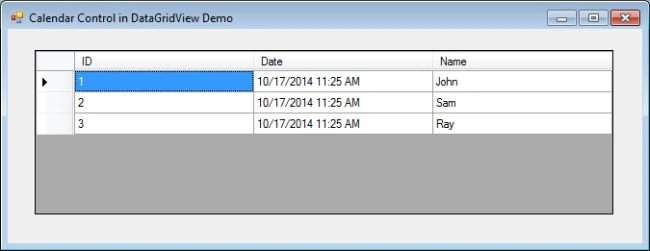
Displaying a Calendar (DateTimePicker) Control on Cell
When the cell containing Date field is clicked, I create a new DateTimePicker Control programmatically and set the Size, Location, Format properties and so on. Two events "CloseUp" and "TextChanged" are also attached with this control.
- private void dataGridView1_CellClick(object sender, DataGridViewCellEventArgs e)
- {
- // If any cell is clicked on the Second column which is our date Column
- if (e.ColumnIndex == 1)
- {
- //Initialized a new DateTimePicker Control
- oDateTimePicker = new DateTimePicker();
- //Adding DateTimePicker control into DataGridView
- dataGridView1.Controls.Add(oDateTimePicker);
- // Setting the format (i.e. 2014-10-10)
- oDateTimePicker.Format = DateTimePickerFormat.Short;
- // It returns the retangular area that represents the Display area for a cell
- Rectangle oRectangle = dataGridView1.GetCellDisplayRectangle(e.ColumnIndex, e.RowIndex, true);
- //Setting area for DateTimePicker Control
- oDateTimePicker.Size = new Size(oRectangle.Width, oRectangle.Height);
- // Setting Location
- oDateTimePicker.Location = new Point(oRectangle.X, oRectangle.Y);
- // An event attached to dateTimePicker Control which is fired when DateTimeControl is closed
- oDateTimePicker.CloseUp += new EventHandler(oDateTimePicker_CloseUp);
- // An event attached to dateTimePicker Control which is fired when any date is selected
- oDateTimePicker.TextChanged += new EventHandler(dateTimePicker_OnTextChange);
- // Now make it visible
- oDateTimePicker.Visible = true;
- }
- }

Retrieving the selected date from Calendar and saving into DataGrid Cell
On the TextChanged event handler I get the selected date on the calendar and save it into the corresponding DataGridView cell.
- private void dateTimePicker_OnTextChange(object sender, EventArgs e)
- {
- // Saving the 'Selected Date on Calendar' into DataGridView current cell
- dataGridView1.CurrentCell.Value = oDateTimePicker.Text.ToString();
- }
This is also an important step because we don't to see the calendar control on the cell once the date has been selected on the calendar. To do this, we hide it on the "CloseUp" event handler as follows:
- void oDateTimePicker_CloseUp(object sender, EventArgs e)
- {
- // Hiding the control after use
- oDateTimePicker.Visible = false;
- }
อุ่นไอรัก ในดวงตาPosted Sep 22, 2020, 1:49 AM
You save my life. thk
Gumni MadaraPosted Jun 11, 2020, 5:23 AM
Thank you..it's working..
cheskyPosted Sep 28, 2018, 8:57 AM
Corrected code:private void dataGridView1_CellClick(object sender, DataGridViewCellEventArgs e){ if (oDateTimePicker != null) { oDateTimePicker.Visible = false; } if (e.ColumnIndex == 1) { oDateTimePicker = new DateTimePicker(); dataGridView1.Controls.Add(oDateTimePicker); oDateTimePicker.Format = DateTimePickerFormat.Short; Rectangle oRectangle = dataGridView1.GetCellDisplayRectangle(e.ColumnIndex, e.RowIndex, true); oDateTimePicker.Size = new Size(oRectangle.Width, oRectangle.Height); oDateTimePicker.Location = new Point(oRectangle.X, oRectangle.Y); oDateTimePicker.Validated += new EventHandler(dateTimePicker_OnValidated); oDateTimePicker.Visible = true; } } private void dateTimePicker_OnValidated(object sender, EventArgs e) { dataGridView1.CurrentCell.Value = oDateTimePicker.Text.ToString(); oDateTimePicker.Visible = false; }
Subham PolpagedarPosted Apr 19, 2018, 4:35 AM
Sir, If i select multiple cell at one time then it still shown Datepicker control of the one cell. How to remove it?
Edmer MorientePosted Feb 15, 2018, 9:16 PM
Finally i found the solution!. Thanks for this it saves my day.
Eoin O DohertyPosted Feb 7, 2018, 1:59 AM
Thank you for the excellent insight, i was completely stumped on how to do this
Arvind GomePosted Jan 18, 2018, 6:19 AM
My closeup event is not firing when i click dtp columns in multiple rows
Arvind GomePosted Jan 18, 2018, 6:09 AM
Sir plz help me out how to deal with 2 date time pickee in single grid in desktop application [email protected]
Arvind GomePosted Jan 18, 2018, 6:07 AM
Sir please send me code when we use two date time picker in single grid view
Bailey GriffinPosted Jun 2, 2017, 3:22 PM
Hi, thanks for the code. I have a couple of questions. Is it possible to enable both picking from the calendar and typing in a text value for the date as possible entry methods on the same data? I am also having some glitch issues. When you first click on a date cell, today's date pops into the field as well as the calendar button. If you click the button and pick a date it works fine, but if you start trying to type, you are allowed to (even in read only mode), and if you do this or click off of the cell onto a different cell before clicking the calendar button, the button never goes away (even after you go back and pick a date). If you have resolutions for any of these it would be appreciated. Thanks!
Umakanth MadicharlaPosted Jan 27, 2017, 9:19 AM
Hi Srivastava, thanks for your code. But I've below scenario, and I'm not able to assign NULL to it. Dim updatedStartDate As Date = Date.Parse(dgvOwners.Rows(dgvOwners.CurrentCell.RowIndex).Cells("Start Date").Value) Dim updatedEndDate As Date = Date.Parse(dgvOwners.Rows(dgvOwners.CurrentCell.RowIndex).Cells("End Date").Value) If updatedEndDate < updatedStartDate Then MessageBox.Show("End Date should be after Start Date.", "Error", MessageBoxButtons.OK, MessageBoxIcon.Error) dgvOwners.Rows(dgvOwners.CurrentCell.RowIndex).Cells("End Date").Value = "" --> Gives error Exit Sub End If Is there anyway we can achieve this?
scott pawlowskiPosted Jul 19, 2016, 4:46 PM
This example is great, but we are having a problem with it. When I click on the cell to give it focus the datepicker does not launch, but the cell now has focus like it's a text box. If you click on a different row the cell remains in edit mode and you can click inside and type a different date. Is there a way to capture this event and prevent it or a way to prevent manually typing in the cell and force the datepicker to always launch when they click in the cell?
Jasna ShyamPosted May 17, 2016, 3:55 AM
Hi Hemant, Thanks for the article. Its working fine, but i'm facing few issues. The textbox in my case is empty and when we click on to it will show the dtp with few dates only (restricted by min date and max date based on the logic). When i click on to the last date the TextChanged event is not getting fired, but if i click on any other date first(it gets fired) and then click the last date is working fine. Kindly help me to solve this issue . Thanks Jasna
Mohamed Gani MnPosted Oct 9, 2015, 3:02 AM
As like we will use DateTimePicker oDateTimePicker = new DateTimePicker(); for this article
Mohamed Gani MnPosted Oct 9, 2015, 3:01 AM
Sir, No need datetimepicker control from tool box. We can use datetimepicker in C#
Mohamed Gani MnPosted Oct 7, 2015, 1:16 AM
Nice Article and Good Smart creativity.I have used my mini project sir. Thanks sir.
Omar AlfaroPosted Sep 15, 2015, 7:44 AM
Add this method>>> private void dataGridView1_Scroll(object sender, ScrollEventArgs e) { oDateTimePicker.Visible = false; }
amit kumarPosted Aug 11, 2015, 5:52 AM
Thanks for this solution it helped, but i got one problem with typing zero in the box focus out and set the default value in cell.
sachin jagtapPosted Jul 17, 2015, 7:10 AM
Hemant Srivastava, This is very helpful article for me. i use this in my Court Project, really very thank for this help. thank again
sachin jagtapPosted Jul 17, 2015, 7:10 AM
Hello Hemant Srivastava,