

Introduction:
In this article we will be seeing how to enable developer dashboard in
SharePoint 2010. Developer Dashboard is a new feature in SharePoint 2010 which
is used to provide additional performance and tracing information. By default,
developer dashboard is disabled. We can enable using powershell or using
SharePoint object model.
Enable Developer Dashboard:
- Using SharePoint object model
- Using powershell
Using SharePoint object model:
- Open Visual Studio 2010.
- Go to File => New => Project.
- Select Console Application template from the installed templates.
- Enter the Name and click Ok.
- Add the following assembly.
- Microsoft.SharePoint.dll
- Add the following namespaces.
- Using Microsoft.SharePoint;
- Using Microsoft.Sharepoint.Administration;
- Replace Program.cs with the following
code.
using System;
using System.Collections.Generic;
using System.Linq;
using System.Text;
using Microsoft.SharePoint;
using Microsoft.SharePoint.Administration;namespace EnableDeveloperDashboard
{
class Program
{
static void Main(string[] args)
{
SPWebService contentService = SPWebService.ContentService;
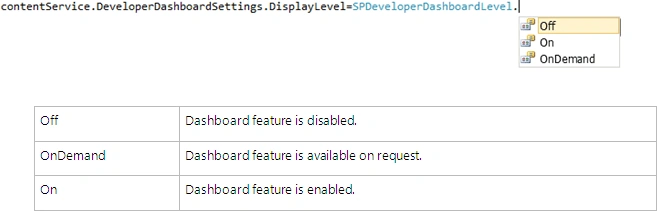
contentService.DeveloperDashboardSettings.DisplayLevel = SPDeveloperDashboardLevel.OnDemand;
contentService.DeveloperDashboardSettings.RequiredPermissions = SPBasePermissions.EmptyMask;
contentService.DeveloperDashboardSettings.Update();
}
}
}
- Build the solution.
- Hit F5.
- Because the mode is "OnDemand", you could
see small icon next to the login credentials.
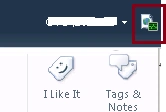
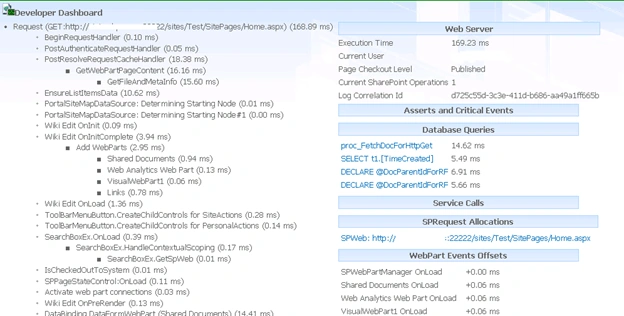
- On clicking the icon you could see the developer dashboard in the bottom of the page.
- If the mode is "On" the developer
dashboard will be available in the bottom of the page and icon won't be
available.
Join the conversation! Your thoughts help the community grow.