

Introduction
Whenever your computer is connected to more
than one network adapter, you can disable any that are not in use. You can
disconnect your computer from a network by disabling your network adapter
and you can sometimes solve connection problems by disabling and then
re-enabling the adapter. You can disable your network adapter in Windows 8
operating system by configuring the Device Manager and for this, you need to
follow a few steps that are described below.
Step 1
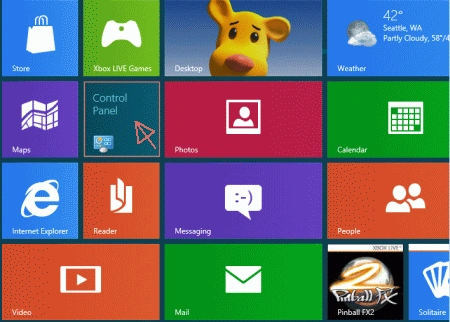
Click on Start to open Windows
8 Metro UI screen then select CONTROL
PANEL.
Step 2
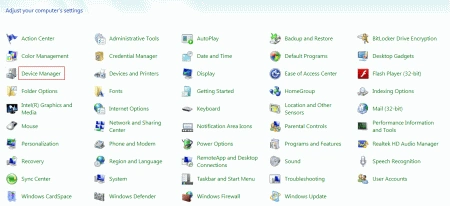
In the Control Panel Select Device The manager than a Pop-up window
is opened.
Step 3
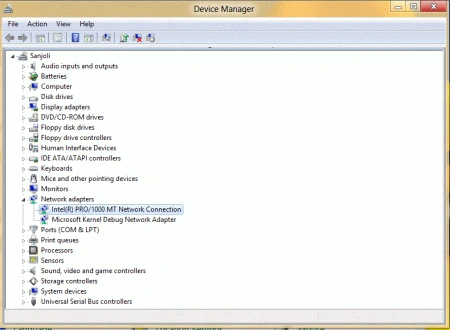
Search for
the "Network Adapters" in
the list. On clicking a tiny arrow, it will let you show network adapters
that are currently installed in your computer.
Step 4
Select the device that you
want to disable.

Step 5
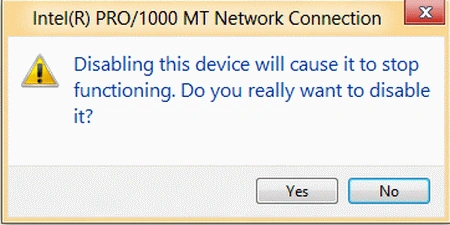
Click the Disable
icon and a confirmation box is opened and from there Click yes and
in this way, you can disable all other types of network adapters using the
same way.
Resources
- Network Programming in C# - Part 1
- How to Turn on System Protection in Windows 8
- Working With Networks in Windows Phone 7 Using PhoneGap
- Introducing ViewState in ASP.NET
- How to Get Device Information Using PhoneGap
Summary
In this article, we learned about Enable or Disable a Network Device in Your System Using Windows 8.
Manish SinghPosted Apr 13, 2012, 2:33 PM
Hi sanjoli,This is a valuable for beginners. Thanks for sharing..