Introduction

In this article, we explain how to encrypt a USB flash drive in Windows 8.

Procedure to encrypt a USB flash drive in Windows 8

Step 1
First, plug in your USB flash drive. After Windows recognizes it, go into the Computer and find the drive and highlight it. From the new Windows 8 Explorer Ribbon, you'll see Drive Tools highlighted. Click "Turn on BitLocker".
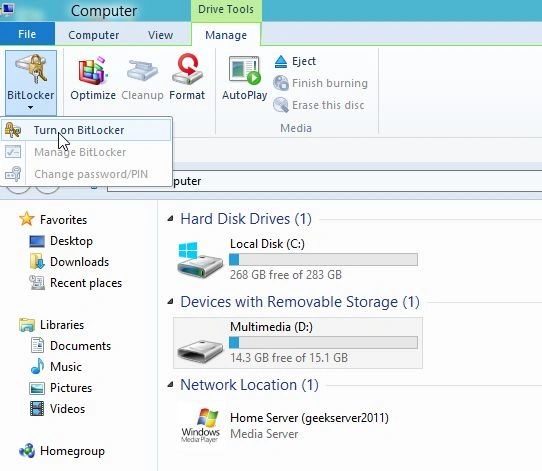
Turn-on-BitLocker-Win8.png.jpg
Step 2
Alternately, you can right-click the external drive and select "Turn on BitLocker" from the context menu. This method works best in Windows 7.
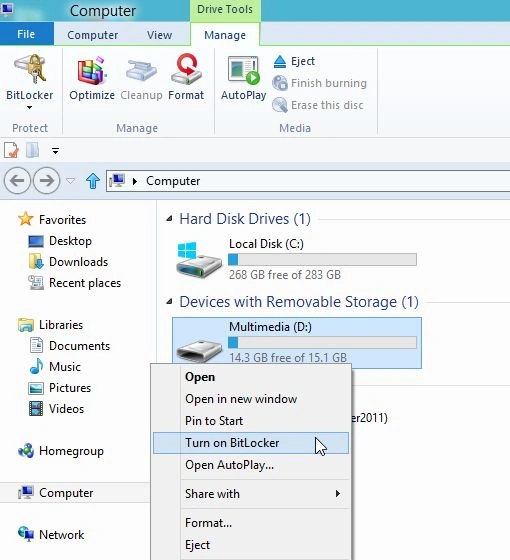
Turn-on-Bitlocker-Context-Menu.png.jpg
Step 3
Next, check "Use a password to unlock the drive" and type in your password twice. Click Next.
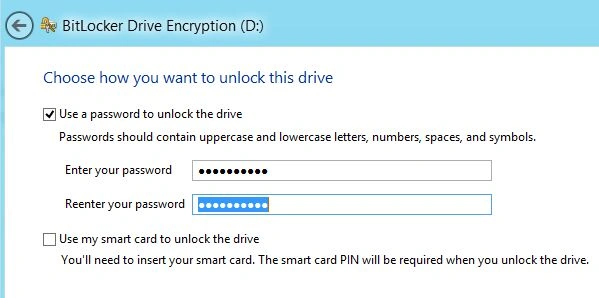
enter-bit-locker-PW.jpg
Step 4
Windows asks how to backup your Recovery Key. The Recovery key is a string of characters that lets you access the drive even if you've lost the password.
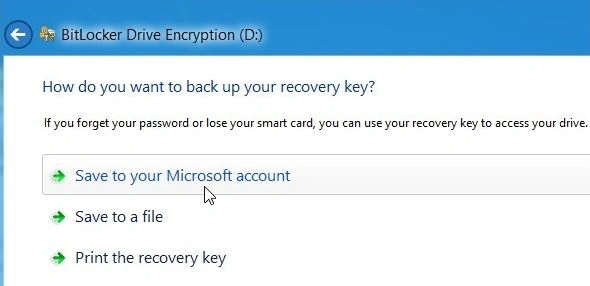
Recovery-Key.jpg
Step 5
Next, choose how much of the drive to encrypt. If you select Used Disk Space Only then it's faster and any data you add will also be encrypted. I recommend selecting "Encrypt Entire Drive", even though it takes longer. That way even deleted data, that's possibly recoverable is encrypted too.
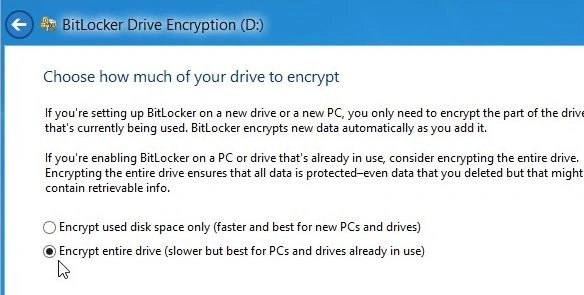
Encrypt-Disk.jpg
Step 6
Then click "Start Encrypting" to kick off the process.
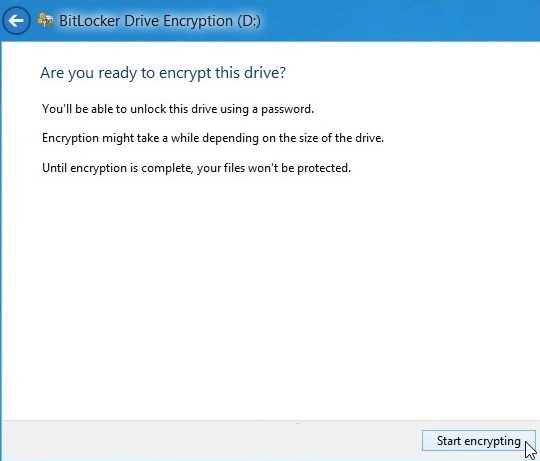
Ready-to-Start.jpg
Step 7
You'll be able to monitor the progress while your drive is encrypted. The amount of time it takes will vary depending on the amount of data on your drive and its size.
Encrypting-Progress.jpg
Step 8
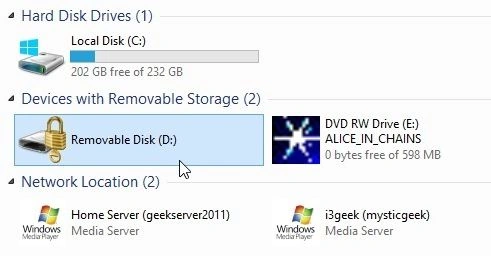
After the drive is encrypted, you'll see a lock icon on the drive listed in Computer.
Encryption-iCon.jpg
Step 9
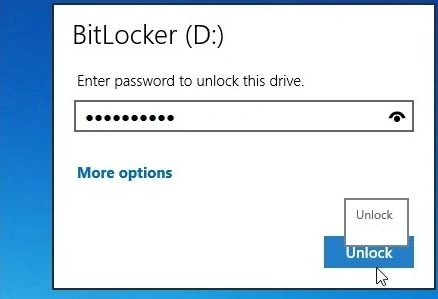
Now when you want to use the drive, plug it in and you're prompted for the Password before you can access it.
password-to-unlock.jpg
Step 10
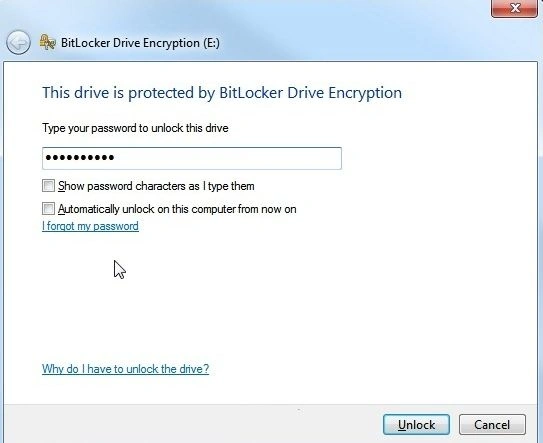
This is the screen you'll see on Windows 7 to enter the password to unlock the encrypted drive.
Enter-Password-Windows-7.jpg
Step 11
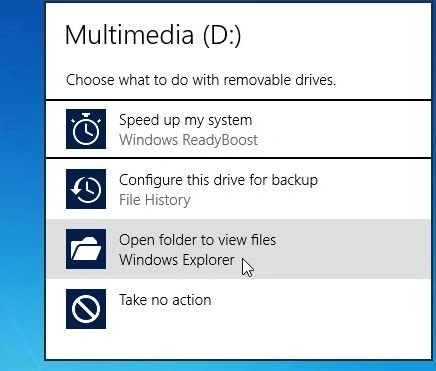
After that, AutoPlay comes up (if enabled) and you can start using the drive as you want.
Start-Using-Drive-Windows-8.jpg
Step 12
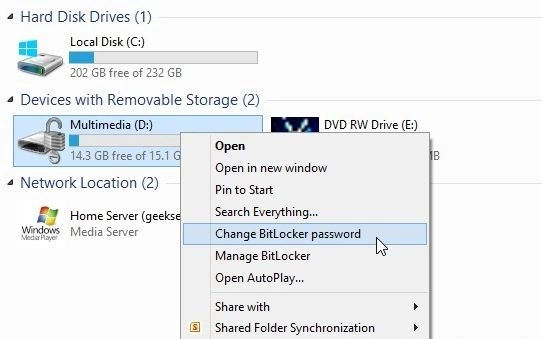
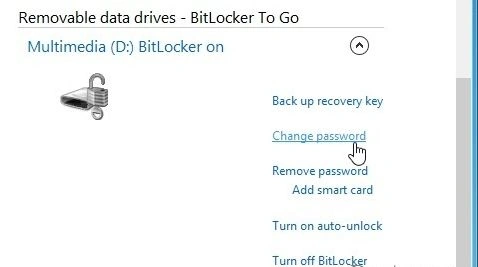
If you need to change the Password or manage other options on your BitLocker encrypted drive, in Windows 8, right-click on it and select "Change BitLocker Password" or "Manage BitLocker".
Windows-8-manage-or-change-pw.jpg
manage-bitlocker-win8.jpg
Step 13
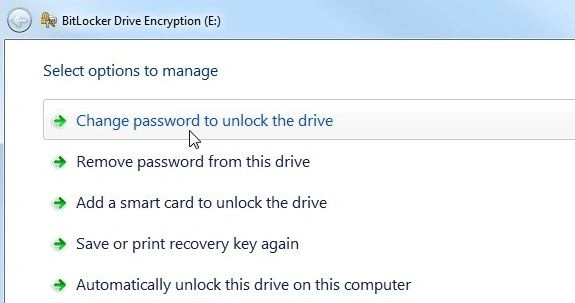
In Windows 7, right-click the drive and select "Manage BitLocker". Then you'll get a menu listing various options to manage, including "Change Password".
Options-Windows-7.jpg

Summary

In this article, we learned about Encrypt a USB Flash Drive In Windows 8.