

This article is purely for beginners who want to start learning basic Azure DevOps CI/CD, as a part of this we will cover the following,
- What is Azure DevOps?
- Azure Portal
- Azure Subscription
- Create App Service
- Visual Studio
- Create .Net Core Web Application
- Push to Azure DevOps
- Azure DevOps Portal
- Create Organization
- Defining service connections
- Create Build Pipeline - Continuous Integration (CI)
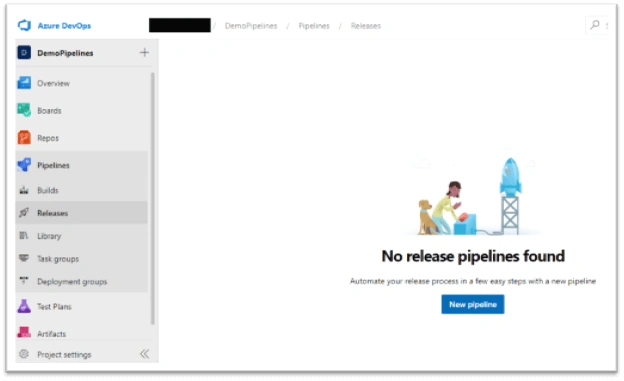
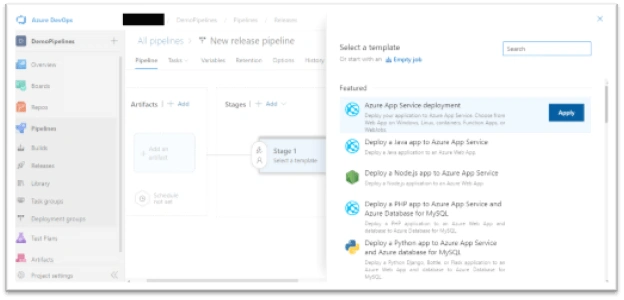
- Create Release Pipeline - Continuous Deployment (CD)
What is Azure DevOps?
A set of practices intended to reduce the time between committing a change to a system and the change being placed into normal production, while ensuring high quality.
DevOps is a combination of Development and Operations. It means Dev + Ops = DevOps.
It is a culture which automates systems and improves and accelerates delivery to the client in a repeated manner. It’s basically a collaboration between the Development team and the Operations team for serving up a better-quality application. It is a culture for continuous integration and continuous delivery where we make the automated build system as well as an automated deployment system.
In other words, DevOps is practice collaboration between Development and Operations from the planning of a project to deployment on production. It involves the complete SDLC life cycle as well as monitoring.
Plan => Code => Build => Test (CI)
Release => Deploy => Operate =>Monitor(CD)
In order to understand the DevOps, we should consider the following points as well,
- DevOps means only combining the two teams of Development and Operations.
- It is not a separate team.
- It is not a product or tool.
Components of Azure DevOps
- Azure Boards - contains Work Items, Boards, Backlogs, Sprints to support planning and tracking work, code defects, and issues
- Azure Repos - provides Git repositories or Team Foundation Version Control (TFVC) for source control of code
- Azure Artifacts - allows teams to share Maven, npm, and NuGet packages from public and private sources and integrate package sharing into your CI/CD pipelines
- Azure Test plans - provides several tools to test apps, including manual/exploratory testing and continuous testing
- Azure Pipelines - provides build and release services to support continuous integration and delivery for applications
Azure Portal
The Azure portal is a web-based, unified console that provides an alternative to command-line tools. With the Azure portal, you can manage your Azure subscription using a graphical user interface. You can build, manage, and monitor everything from simple web apps to complex cloud deployments, create custom dashboards for an organized view of resources, and configure accessibility options for the best experience.
Navigate and Login to Azure Portal here.
Azure Subscription
If you don’t have Azure subscription, get the 30 day free trial services from here.
Create App Service
Now create Azure App Service to publish web application.
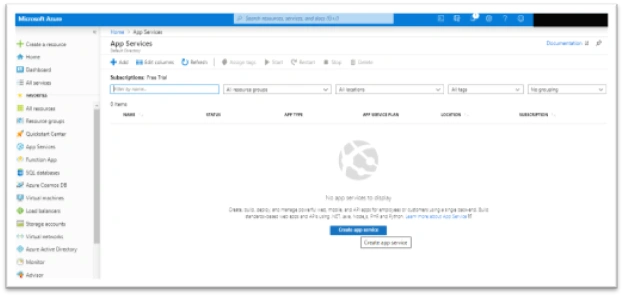
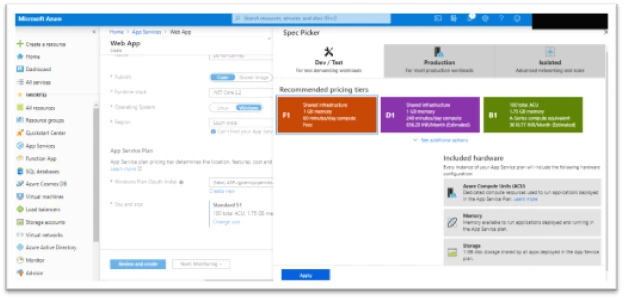
Go to App Services and click on Add, fill in the required details and select the App Service Plan as F1 from Dev/Test section. For testing purposes, in real time scenarios this app service plan configurations will be changed based on Application size and usage.
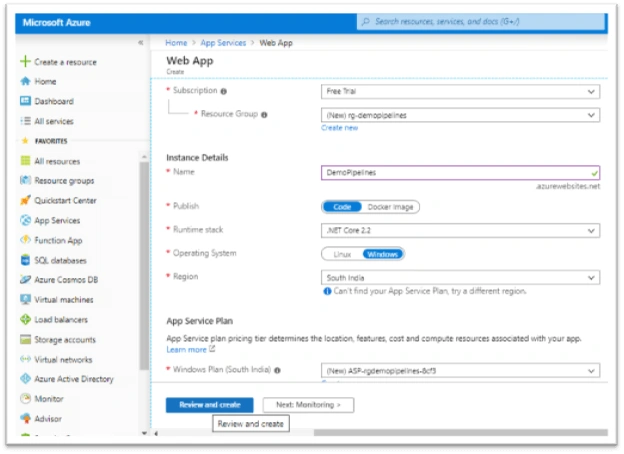
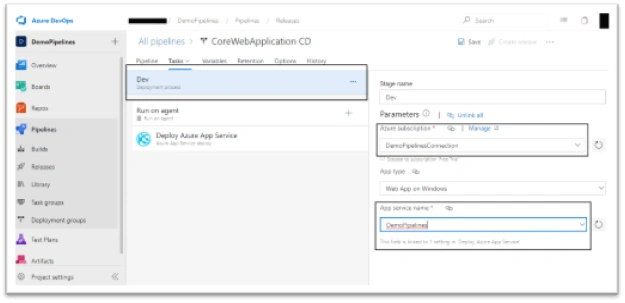
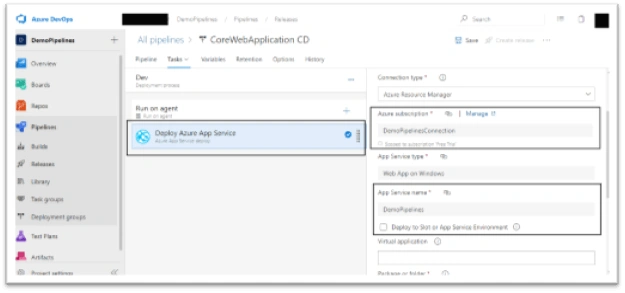
Give App Service Name as DemoPipelines, we will use this name later while configuring Release Pipeline(CD).
Create new Resource Group if doesn’t have one.
For publishing, just select the Code option -- we are not creating Docker Image.
Select Operating System as Windows.
Select App Service Plan
Finally, review the details and click on Review and Create
Azure DevOps Portal
Navigate and Login to here
In order to start work on Azure DevOps portal first we should create Organization and within that, Projects.
Create Organization
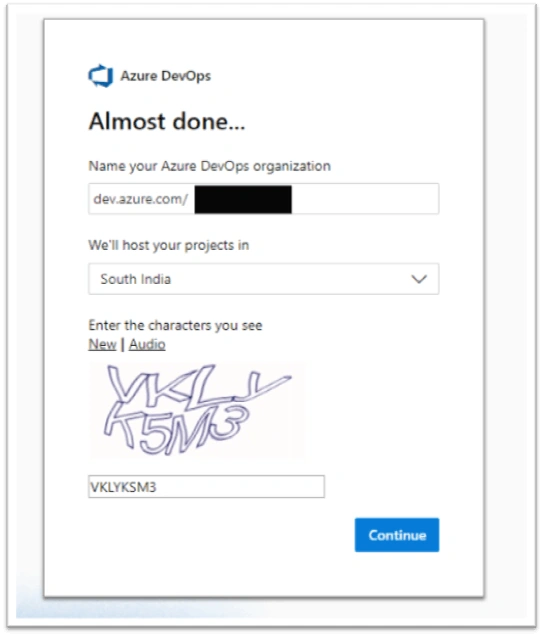
Click Azure DevOps logo which is in the top left corner and click on “New Organization”. Give an organization name and create it.
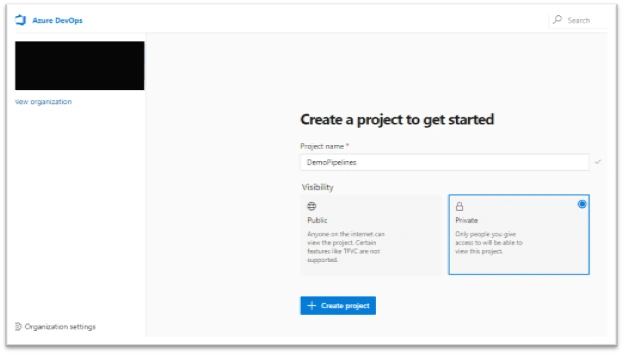
Create a Project within the created Organization to place our solutions.
Defining service connections
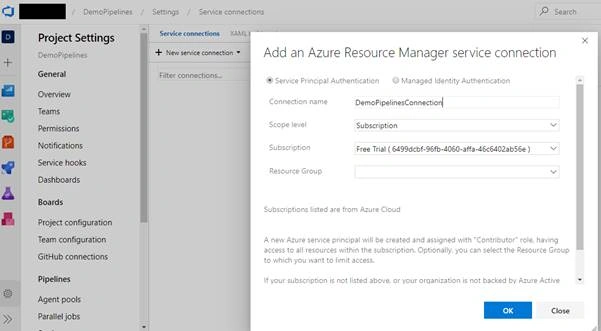
This feature of DevOps is you can deploy and automate the whole process as long as you have the right permission, it gives access to all resources within the subscription. In our example, you only need to replace the service connections, then you can get this solution up and running in your subscription. You only need to go to Project settings and add a new service connection as shown below
Select Type: Azure Resource Manager -> Give service connection name as DemoPipelinesConnection, we will use this service connection later in Release Pipeline configuration.
Create .Net Application in Visual Studio
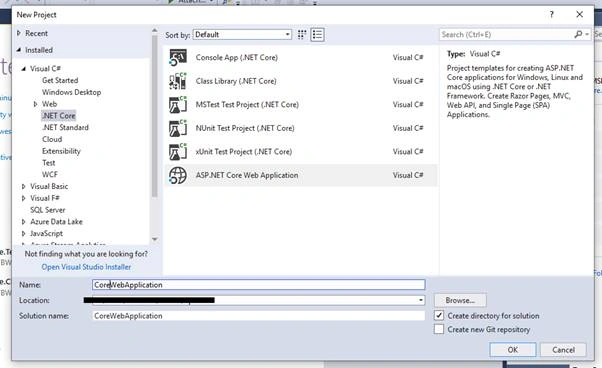
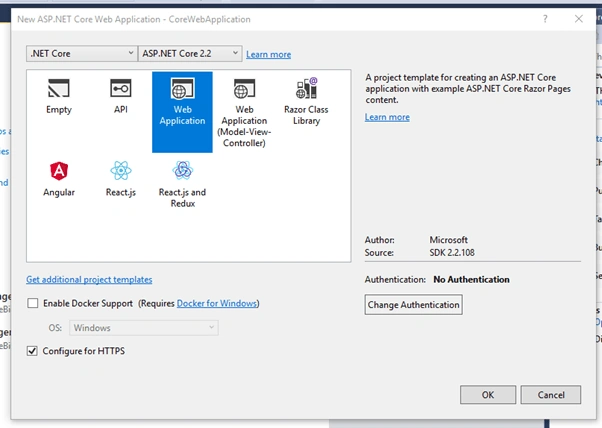
Create sample core web application project and build the solution as shown below,
Push code to Repository - We will select this Source code repository later in Build Pipeline(CI), give Repository Name as CoreWebApplication
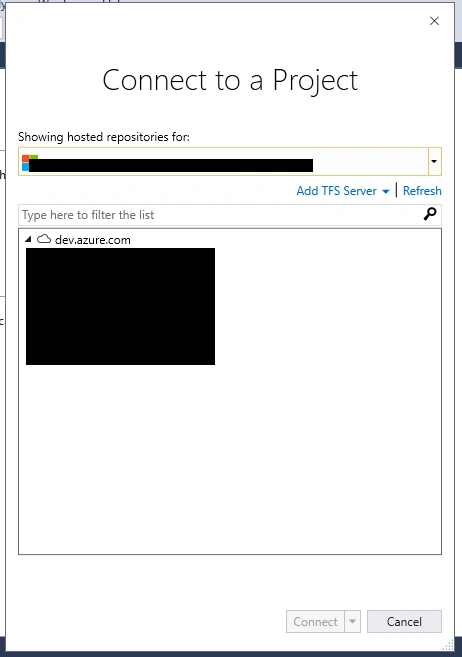
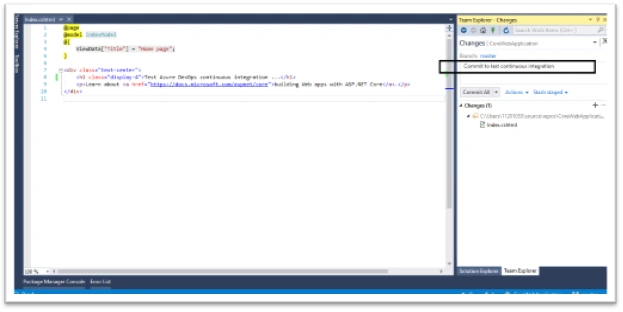
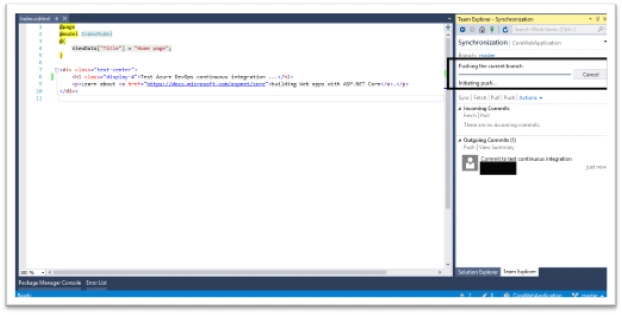
Click on Add to Source control - > Git -> Cick on Publish Git Repo button as shown below and commit to Master branch.
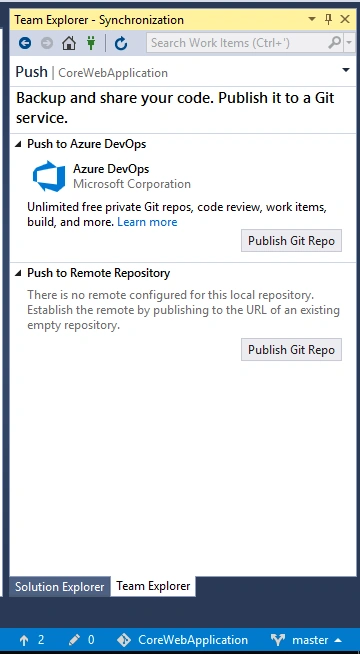
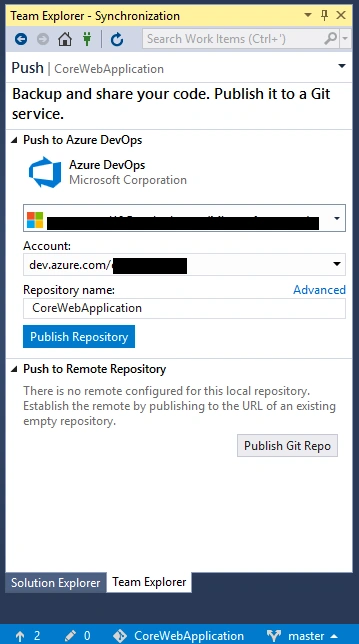
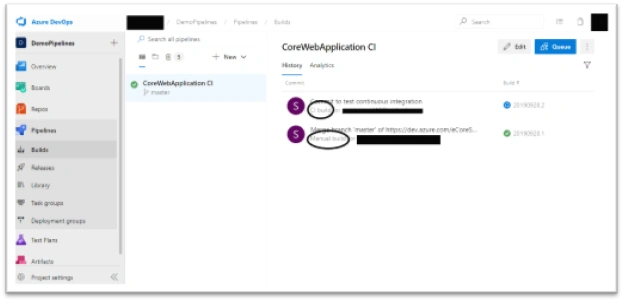
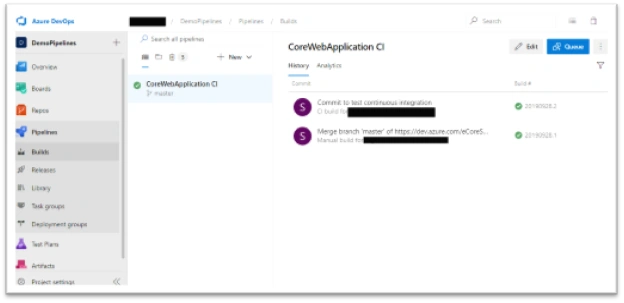
Create Build Pipeline(CI)
Now we are done with the Project creation and pushed to Azure Repos, now configure build pipeline.
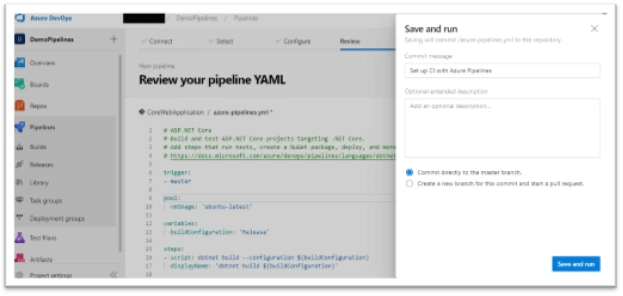
Go to Pipelines - Click on Builds and click on New Pipeline
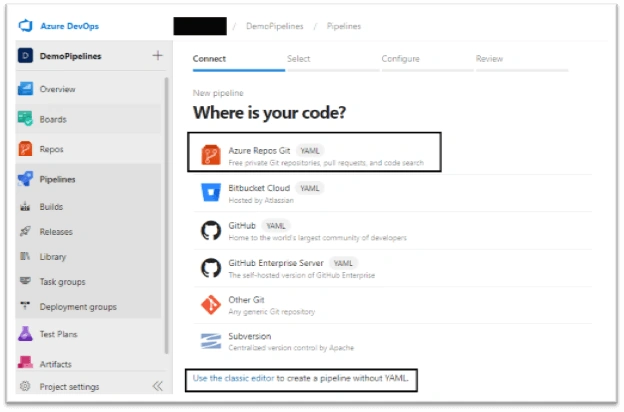
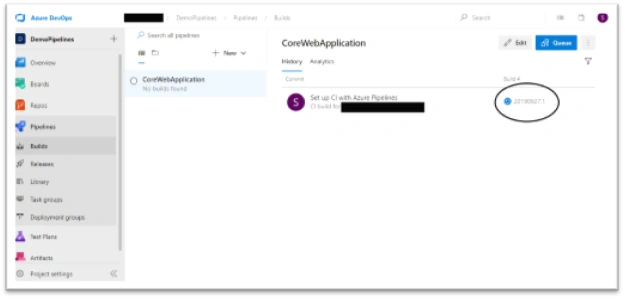
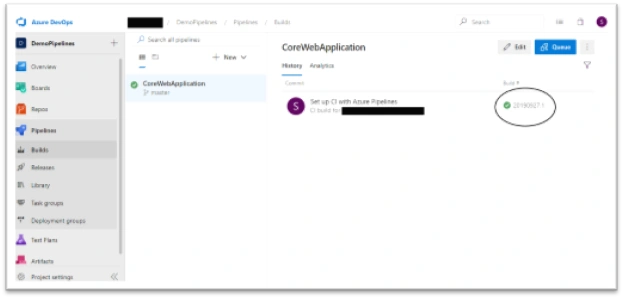
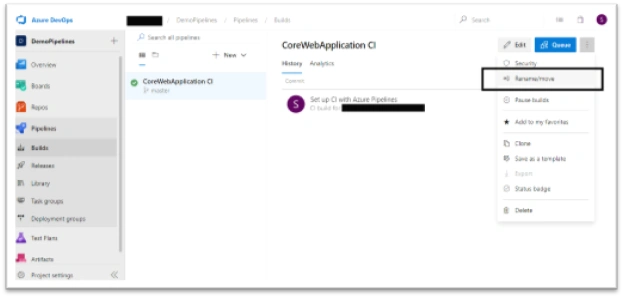
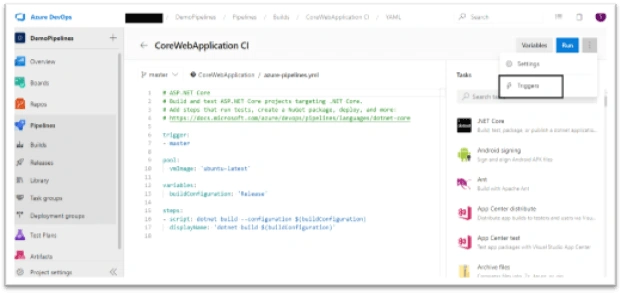
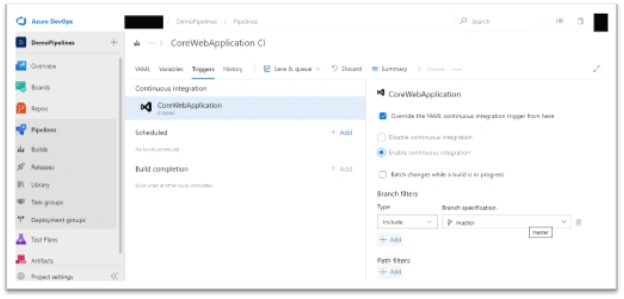
We can create the build pipeline using YAML file or We can use the Classic editor, in this article we will use YAML file as shown below
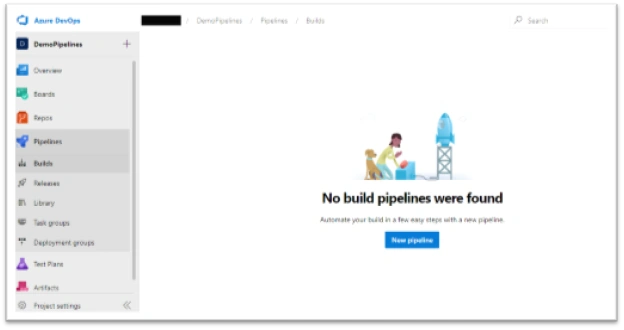
Where is your code? - Select Azure Repos Git
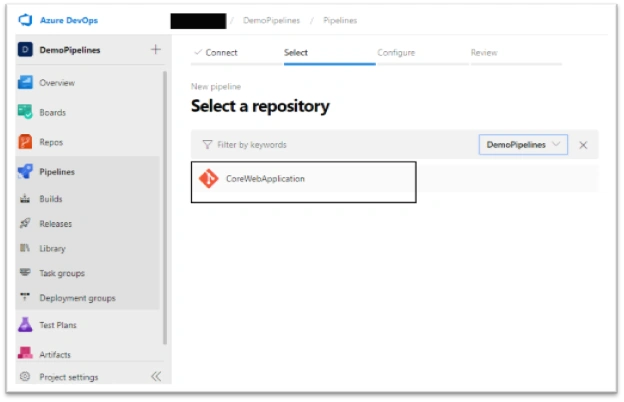
Select a repository - Select our targeted Project CoreWebApplication
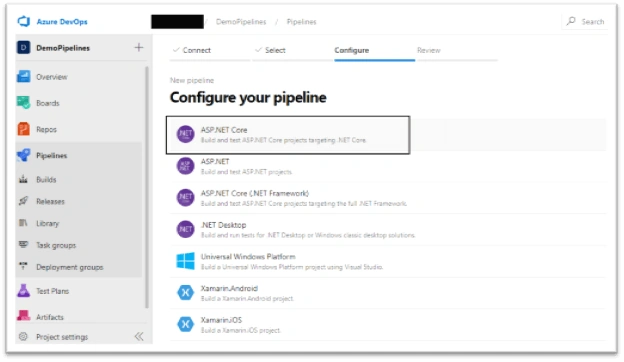
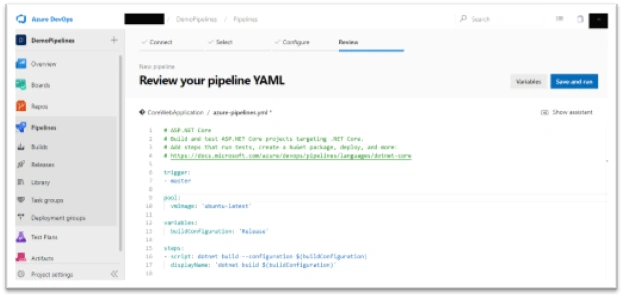
Dinesh GabhanePosted Jun 30, 2021, 11:49 AM
There are many steps are missing. it is not for very Beginner users. many options which mentioned are not actually available