Most of us on Windows are using built-in Windows explorer to browse through their file system. Even though, it's a very useful one in exploring our system but it won't be helpful for easy navigation. It won't allow us to browse files easily, do search with a key stroke, smart navigation etc. So, I thought of doing an application that makes our file system exploration easy and fast. First, I will explain the features of this application followed by its design and coding.
Features provided by this Explorer:
- Easy to navigate among the folders.
- Easy to jump to required folder.
- Easy to do Search.
- Click away to access it.
- Bookmark Capability.
- History tracking Capability.
- Instant Search results.
- Better User Experience and lot more.
I designed this application in VS 2008 SP1. Create a new Windows application in C# and name it as FileSystemExplorer. Add the controls to Explorer form as shown below:
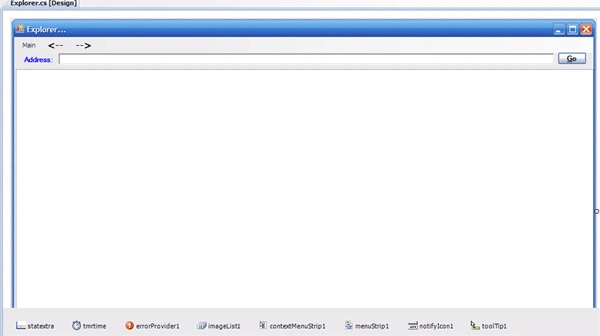
Purpose of above controls:
- Status Bar (statextra)
 To Display date, time and Error messages.
- Timer (tmrtime) To Show updated time in status bar.
- Image List (imageList1) To display icons for folders and files.
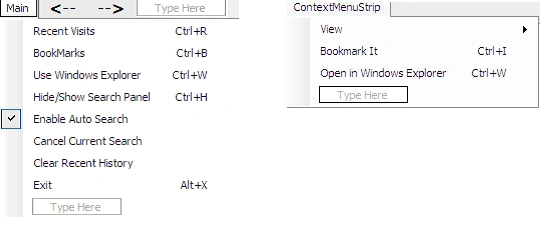
- Context Menu (contextMenuStrip1) To add bookmark and change view type.
- Main Menu (menuStrip1) To view recently visited paths, bookmarks, hide/show search panel, cancel current search and exit application.
- Notify Icon (notifyIcon1) To show/hide the Explorer.
- Rich Textbox (txtpath) To show file system path using linkLabel control.
Design the Main menu and Context Menu with below menu items:
Now, add a new form called as Search with below Design:
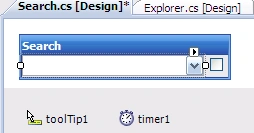
Purpose of above controls:
- Combo Box (cboSearchText) To enter search criteria text.
- Check Box (chkRecursive) To do recursive Search.
- Timer (timer1) To update the progress bar while making a search.
Add a new class and name it as FileSysItems. This class is used to display path in the form of link labels. Link labels will be added using control array concept.
We are done with the design. Now, let's dig into the functionality part of this application. I will outline the steps performed by it.
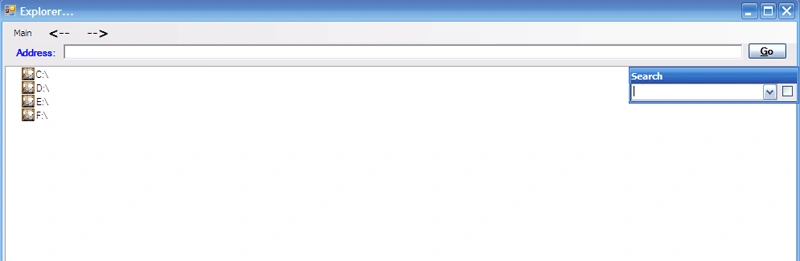
- When we run the application, it loads all drives.
- Based on selected drive and folder, it will create the path using links for easy navigation and displays the contents of selected folder.
- We can do the search by using Search form. It will filter out the folders and files based on search text and display it on the fly in Explorer.
- We can bookmark a path using Bookmark It menu item.
Let's go into the coding part. I will outline the important methods.
- LoadAllDrives To load all drives of our hard disc using DriveInfo class.
- LoadUpdatedItems To show folders and files of selected path using DirectoryInfo and FileInfo classes. It uses SHGetFileInfo function of shell32.dll to get display icon of a file.
- SearchFItems To search items using a separate thread.
- AddNewFItem To add a link for each folder to path control.
I will explain the core method (SearchFItems) for search functionality. In order to make application respond to user interactions while doing a search, I had implemented search on a separate thread using ThreadStart and Thread classes.
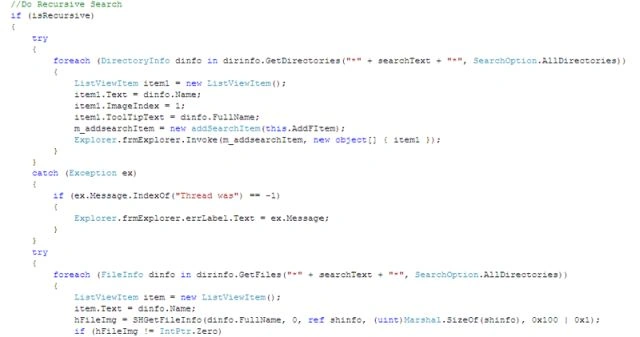
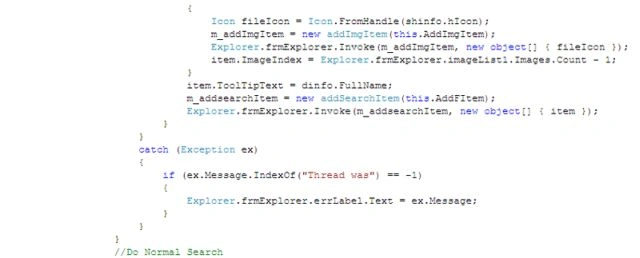
Here, we are looping through all directories, files and filtering those using search text entered. We are using SHGetFileInfo function to get file icon by passing full file name to it. Finally, we are adding it to image list. This icon will be displayed along with file name in Explorer. We can even enter a folder or file path for exploring using Search form, it will provide auto suggestion using file system as a source. This search form will helps us a lot in filtering, opening files, browsing folders easily and quickly.
I added some more code to improve the UI and functionality. Finally, the application looks like below:
We can still enhance this application by adding UI and extra functionality like copy/paste of items, better performance etc. I am attaching source code for reference. I hope this article will be helpful for all.


Udham SinghPosted Jan 27, 2014, 6:04 AM
good one but can we can did proceed with the current project directory
Anurag SarkarPosted Jan 14, 2013, 9:33 AM
Good One.