

Entity Framework Approach To Connect To Microsoft SQL Server 2008 using Visual C#
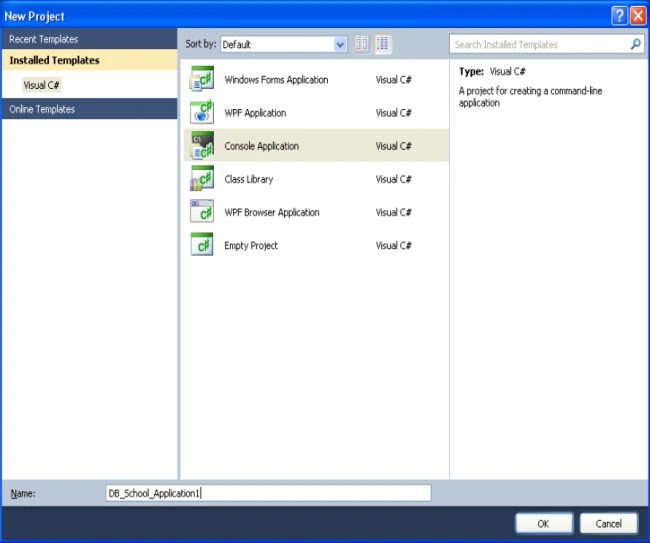
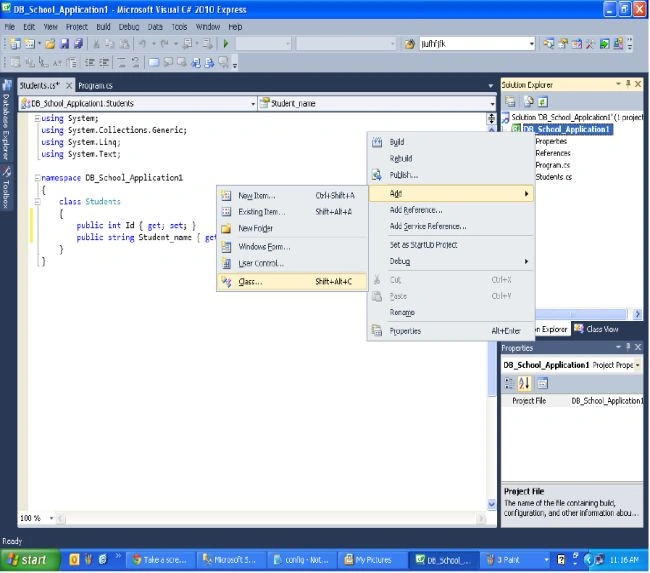
Step 2: Right-click on DB_School_Application1 and a class called Student.
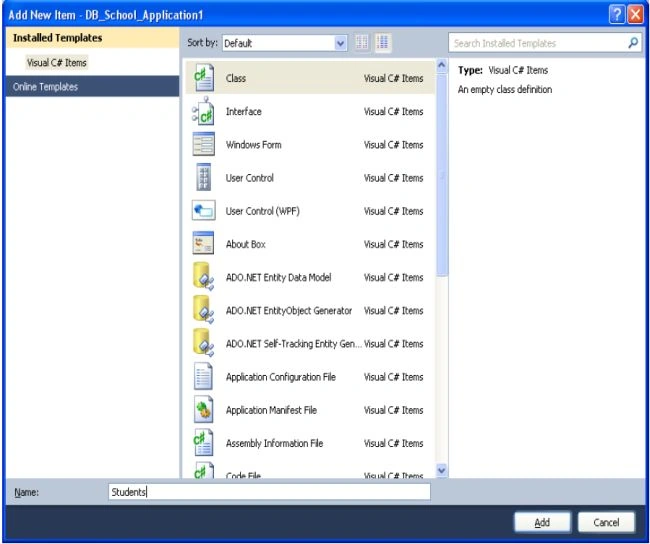
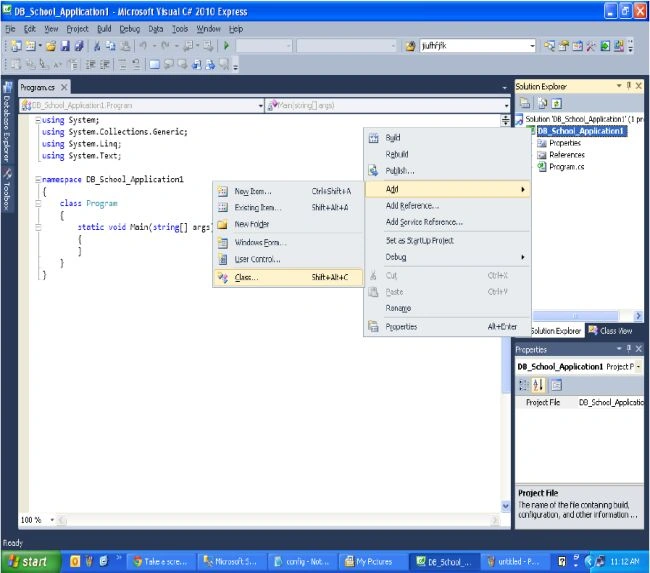 Step 3: Add a class called Students to DB_School_Appliaction1 and it's been added here.
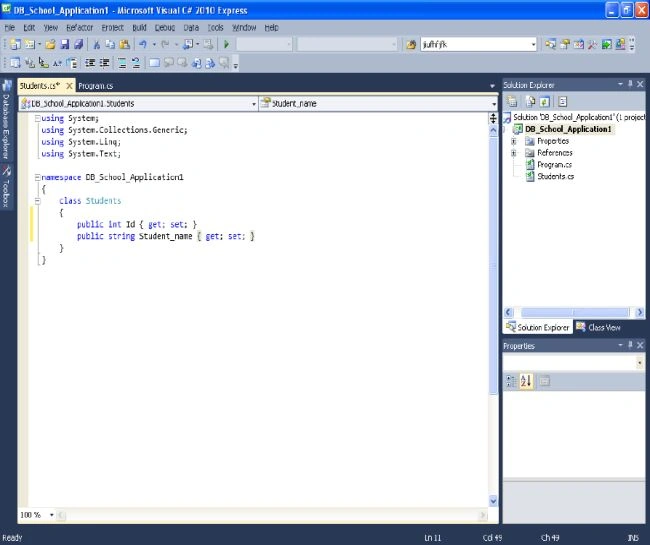
 Step 4: Declare the variables of Student Class and Set Properties and save.
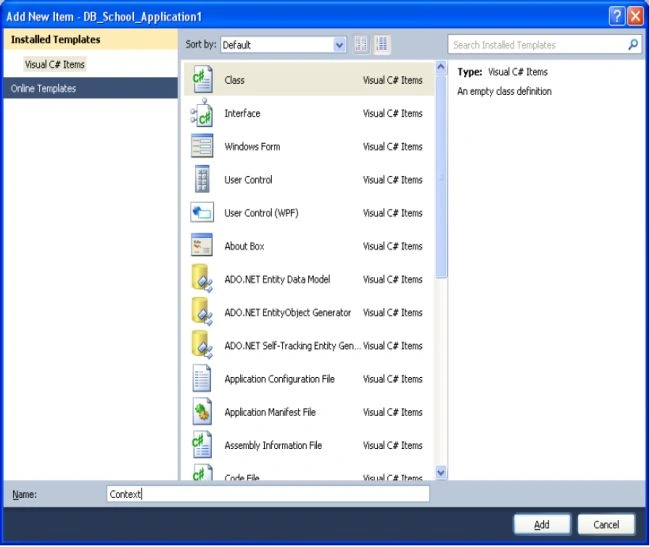
 Step 5: Add one more class called Context.
 Step 6: The class Context has been successfully added to DB_School_Application1.
 Step 7: Right-click and add a new folder for adding the Framework DLL (Dynamic Link Library).
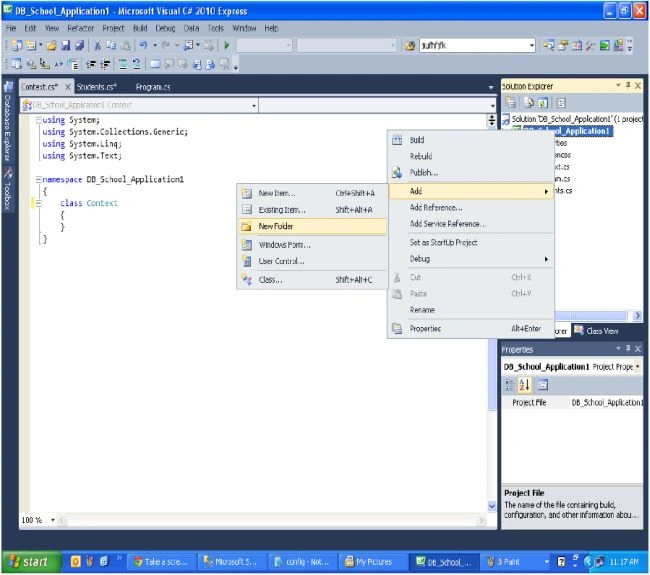 Step 8: Rename the folder Added as you want.
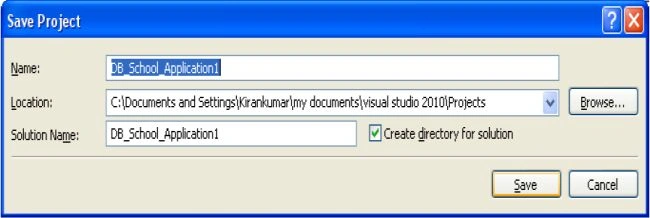
 Step 9: Before adding the Framework save the application as shown.
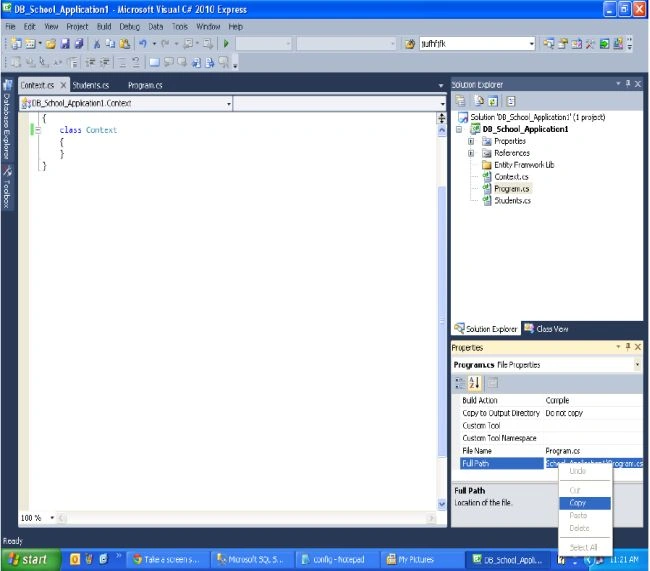
 Step 10: Right-click on the Program.cs file and select properties for copying the address of the Program's something.
 Step 11: In the Properties window right-click and copy the address of the programs for adding the DLL framework.
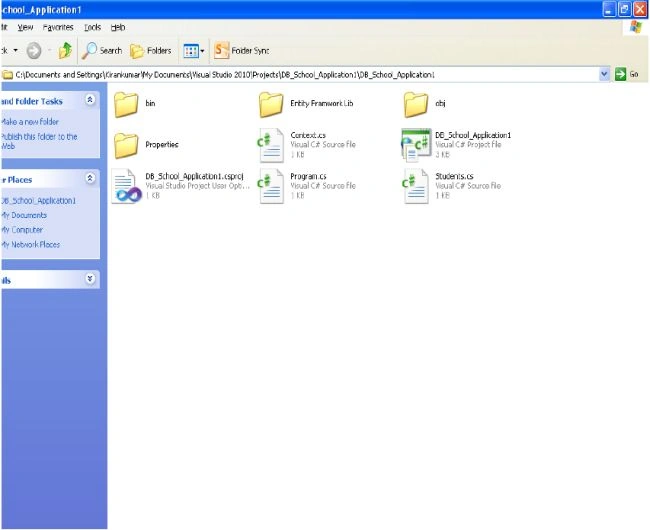
 Step 12: After copying, paste into the C: Drive bar and locate the folder you added previously.
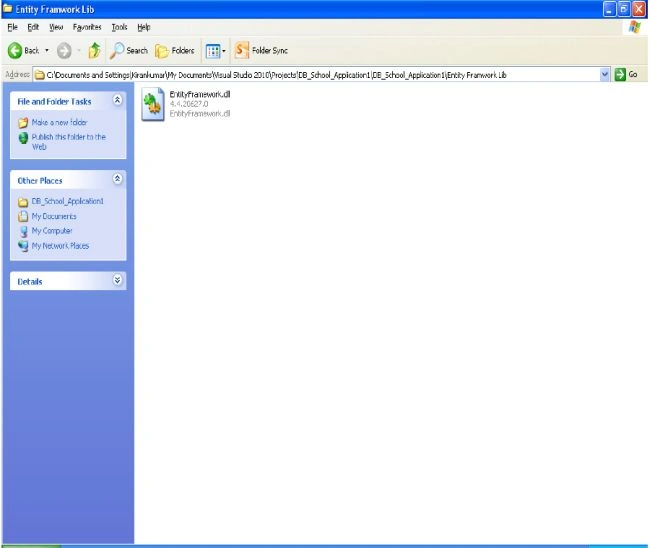
 Step 13: Add the DLL Entity Framework to the folder you created, here it is: Entity Framework lib
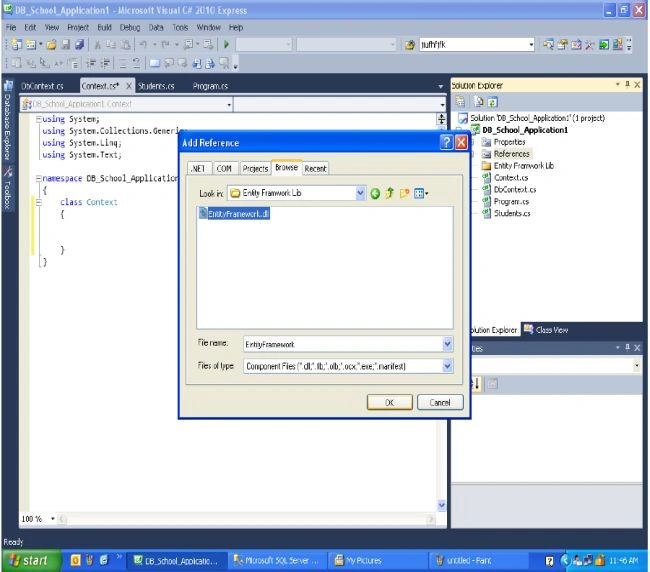
 Step 14: Now right-click on References and select Add References to browse to the DLL Entity Framework
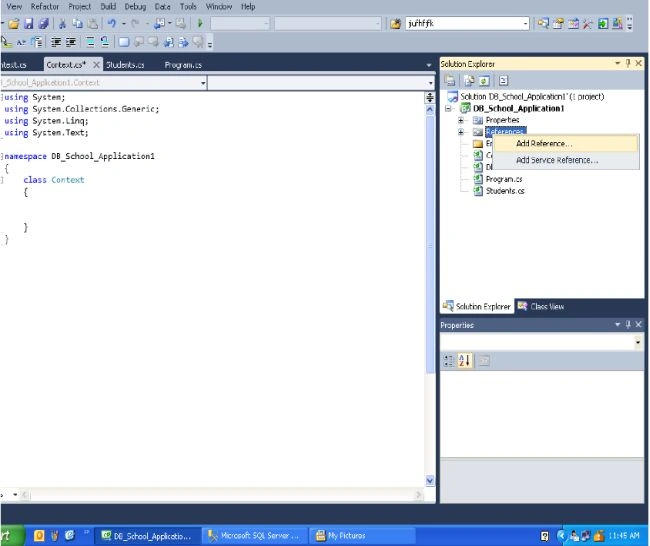 Step 15: Browse and Select then click Know DLL File has been added successfully.
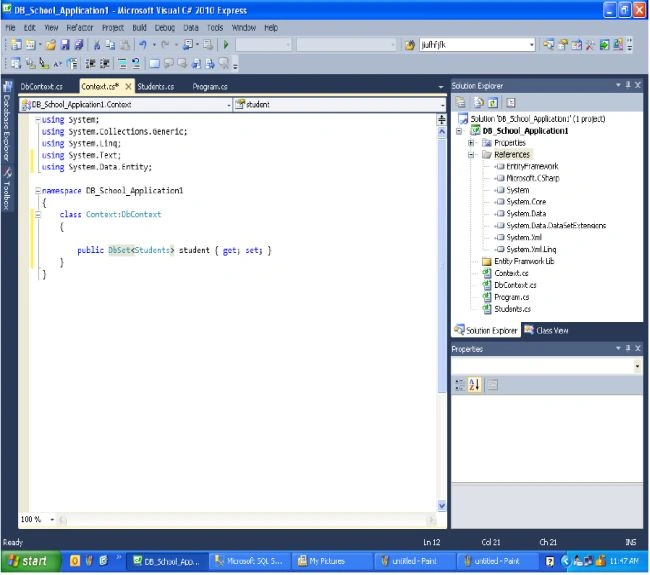
 Step 16: Now the Entity Framework DLL is showing in the References menu. In the Context Class declare the Student Class and set the properties as shown.
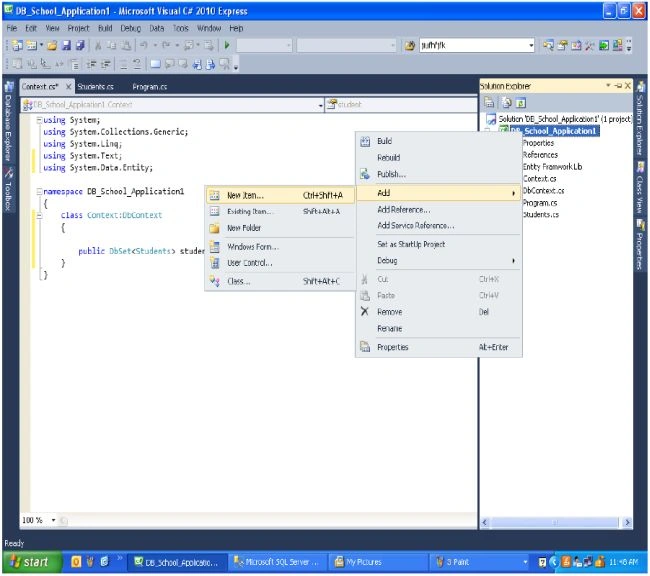
 Step 17: Right-click on DB_School_Application1 and select "New Item..." | "Add" as shown for adding the Application Configuration File.
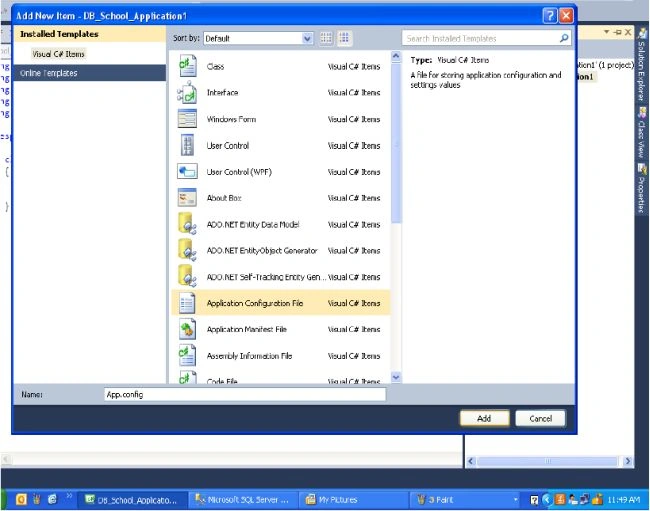
 Step 18: The Application Configuration file has been added successfully as shown.
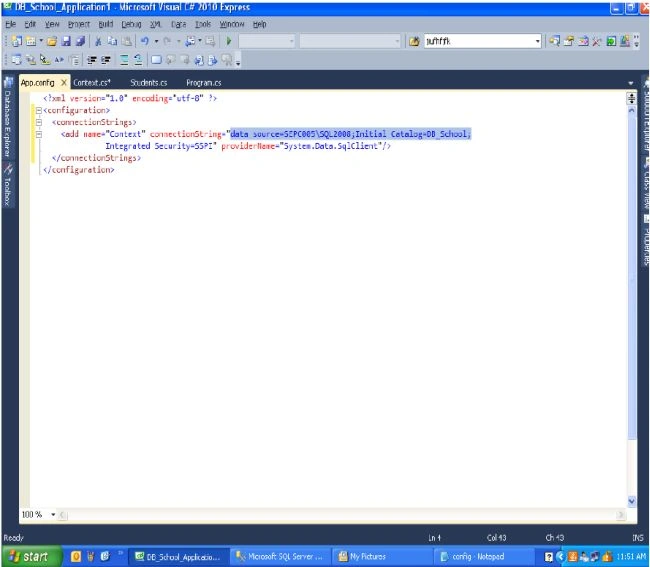
 Step 19: In the App.Config File, declare the DB path and Database name as shown.
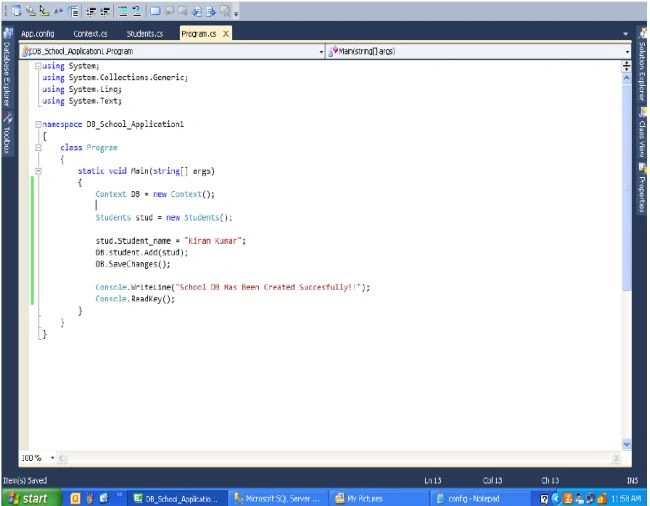
 Step 20: In the main programs file, declare Context and Student objects. Add the data to the Student object as shown in the figure.
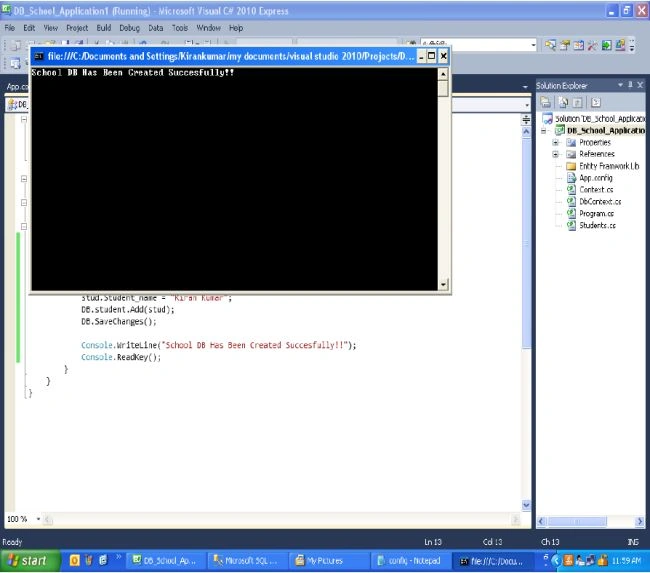
 Step 21: Now it is almost finished. Just press F5 to execute. It will show that the DB has been successfully created in SQL Server.
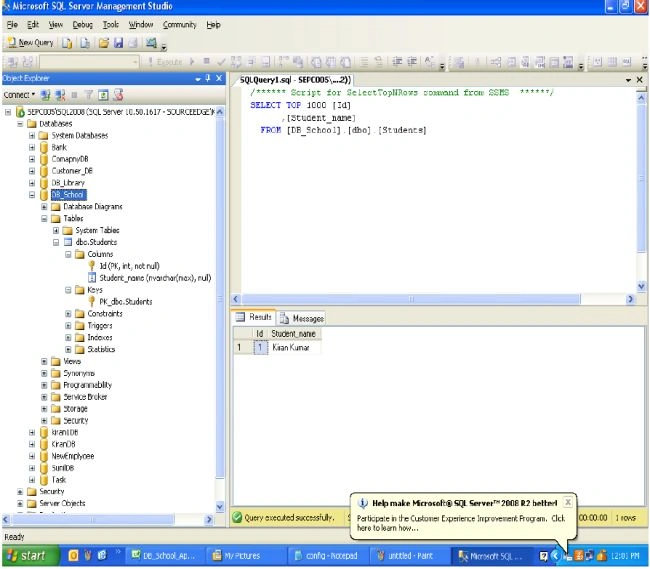
 Step 22: Now login to SQL Server to view DB_School_Application.
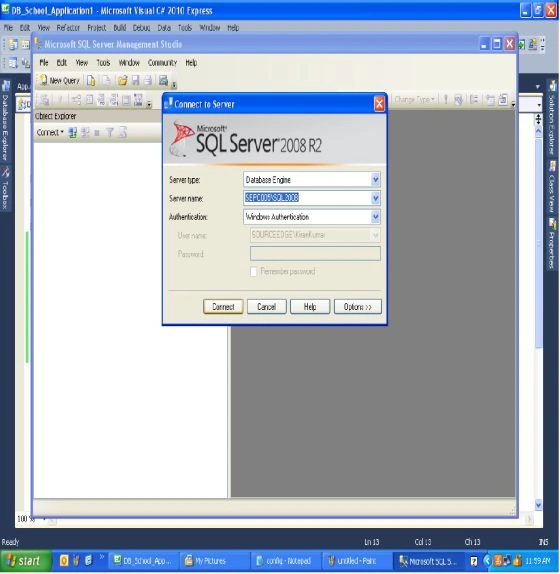 Step 23: Yes, now in SQL Server, DB School has been created successfully.
Gowtham RajamanickamPosted Apr 13, 2016, 7:18 AM
good work
Vithal WadjePosted Oct 10, 2014, 2:31 PM
good one keep it up
Jim AlexPosted Oct 24, 2013, 9:36 PM
Can you hellp testing using another server de DB, in another place..
Jim AlexPosted Oct 24, 2013, 8:44 PM
The model backing the 'Context' context has changed since the database was created. Consider using Code First Migrations to update the database (http://go.microsoft.com/fwlink/?LinkId=238269).
Pavan RamamurthyPosted Sep 17, 2013, 1:07 AM
Good collection Kiran...
Kiran Kumar TalikotiPosted Jun 20, 2013, 12:06 AM
Thank You Sir :)
Mahesh ChandPosted Jun 19, 2013, 9:11 AM
Welcome to C# Corner Kiran.